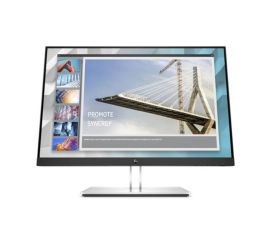
How can I connect a monitor to a laptop?
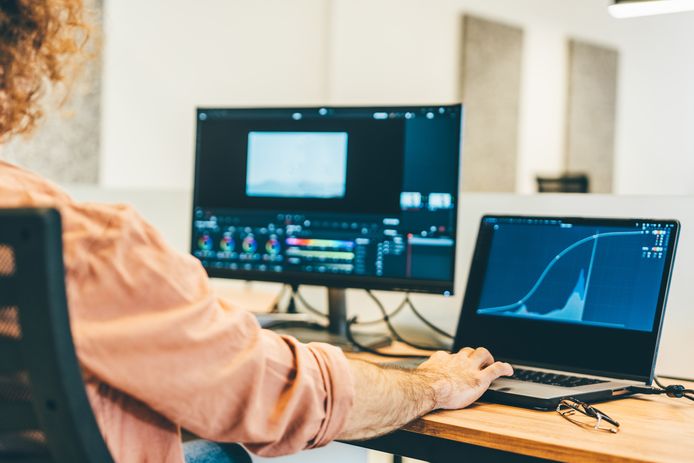
How to connect a second monitor to your laptop?
Connecting a second monitor to your laptop starts with identifying the available ports, such as HDMI, USB-C, DisplayPort, or VGA. Connect the correct cable between your laptop and the monitor. Then turn on the monitor and select the correct input on the monitor. On Windows, you can use the keyboard shortcut Windows + P to choose between duplicating, extending, or using only the second screen. On macOS, go to 'System Preferences' → 'Displays' to adjust the settings.
Refurbished laptops

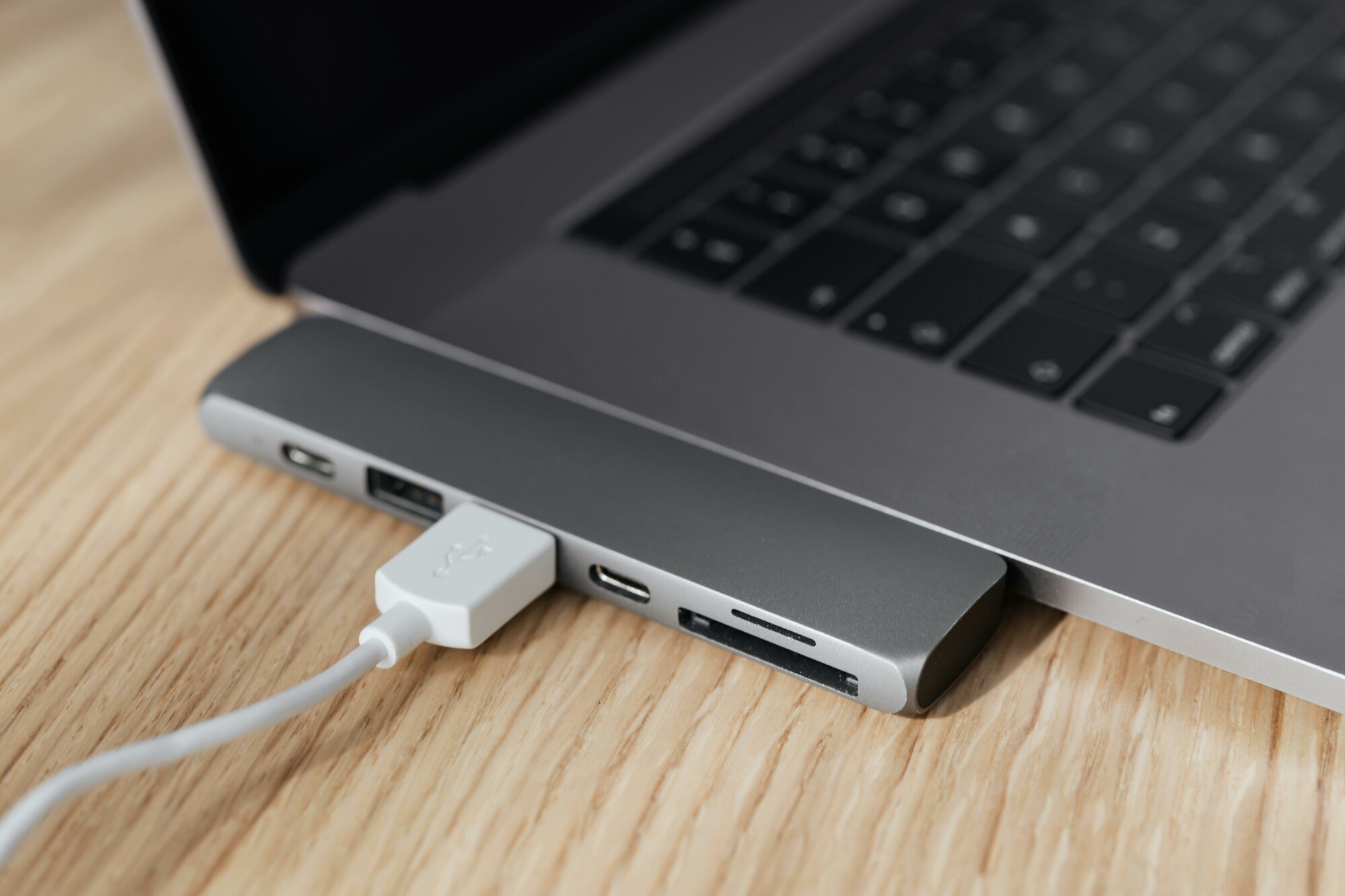
Which cables do you need to connect a monitor?
The required cable depends on the available ports on your laptop and monitor:
- HDMI cable – Common connection for modern laptops and monitors.
- USB-C cable – Supports video, power, and data through a single cable.
- DisplayPort cable – Ideal for higher resolutions and refresh rates.
- VGA cable – Older connection for older monitors.
Make sure you choose the right cable when buying a monitor or connecting a refurbished monitor.
Refurbished monitors
How do you configure a second monitor on Windows and Mac?
Windows:
- Press Windows + P to open the projection menu.
- Choose between 'Extend', 'Duplicate', or 'Second screen only'.
- Adjust the resolution and orientation via 'Display settings'.
macOS:
- Go to 'System Preferences' → 'Displays'.
- Select 'Arrangement' and drag the displays into the desired arrangement.
- Adjust resolution and scaling options as needed.
Whether you use a new or refurbished monitor, connecting and configuring a second monitor is easy with the right steps and cables.


Refurbished Monitors