How can I extend my display?
What are the advantages of multiple monitors?
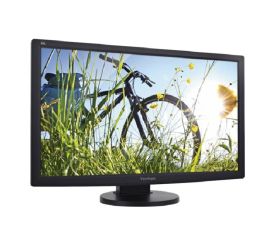
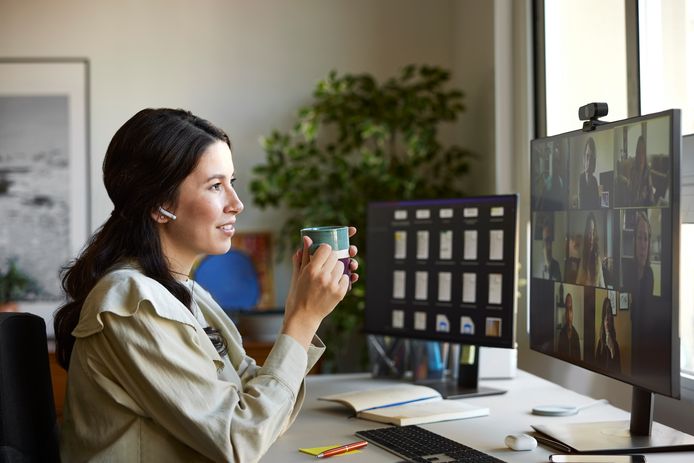
Using multiple monitors offers many advantages, especially in terms of productivity and multitasking. By expanding your screen to 2 or 3 monitors, you can have multiple windows and applications open simultaneously without constantly having to switch between tabs. This makes it easier, for example, to work on one screen and view reference material on the other, or to organize your work more clearly. For gamers, an expanded setup can offer more immersion, especially in racing games or simulators, where multiple screens allow for a wider field of view.
Buy refurbished monitor

How do you expand your screen to 2 or 3 monitors?
To expand your screen to 2 or 3 monitors, you need multiple connections on your PC, such as HDMI, DisplayPort or USB-C. Connect the extra monitors to your PC and go to the display settings of your operating system. In Windows, you can do this by right-clicking on your desktop and choosing 'Display settings'. Here you can set how your monitors are displayed, such as 'Extend' to spread your desktop across multiple screens. On a Mac, go to 'System Preferences' and then to 'Displays' to set up the monitors.

Which keyboard shortcuts do you use to expand a screen?
There are some handy keyboard shortcuts to quickly expand your screen or switch displays. In Windows, you can use the keyboard shortcut **Windows key + P** to quickly switch between different display options, such as 'Duplicate' or 'Extend'. This allows you to easily extend your desktop to multiple screens. On a Mac, you can use **Command + F1** to quickly switch between screen modes. These keyboard shortcuts save time and make it easy to adjust your screen configuration without having to go to the settings.
Monitor advice


Monitors