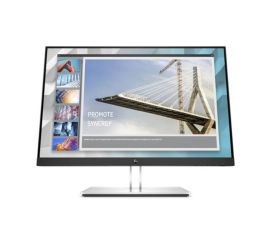
How can I rotate my screen?
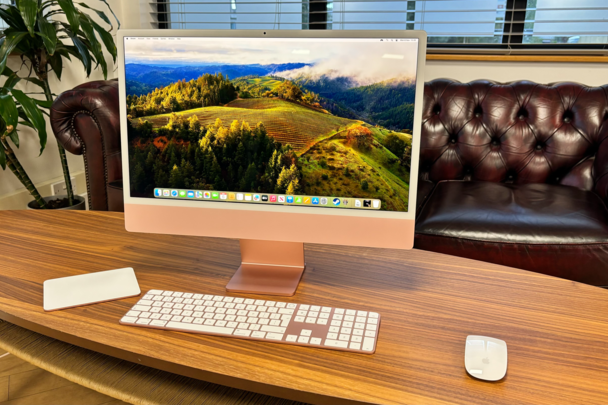
How do you rotate a screen on Windows or Mac?
On Windows, you can rotate your screen by right-clicking on the desktop and selecting 'Display settings'. Then, under 'Screen orientation', choose Landscape, Portrait, Landscape (flipped) or Portrait (flipped). On a Mac, go to 'System Preferences', select 'Displays' and choose the desired rotation option. Make sure your monitor can also physically rotate for optimal use.
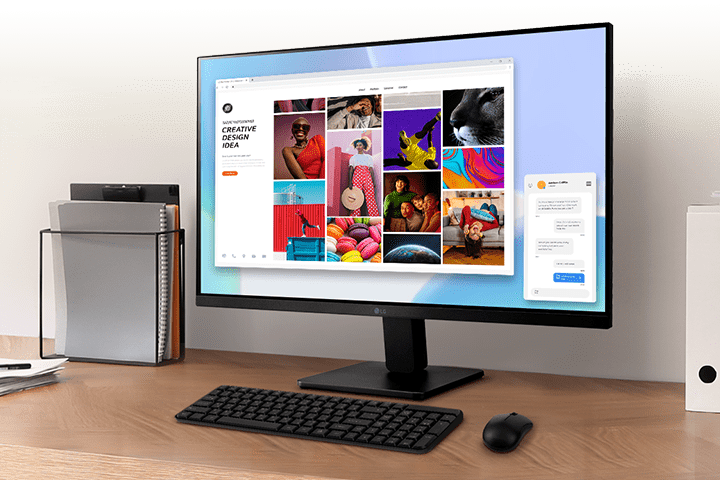
Why would you want to rotate your screen?
Rotating your screen can be useful for specific tasks such as coding, text editing, viewing long documents or reading web pages. A vertical screen offers more space for content that is mainly displayed vertically. This can increase your productivity and make your workspace more organized.
Buy a monitor
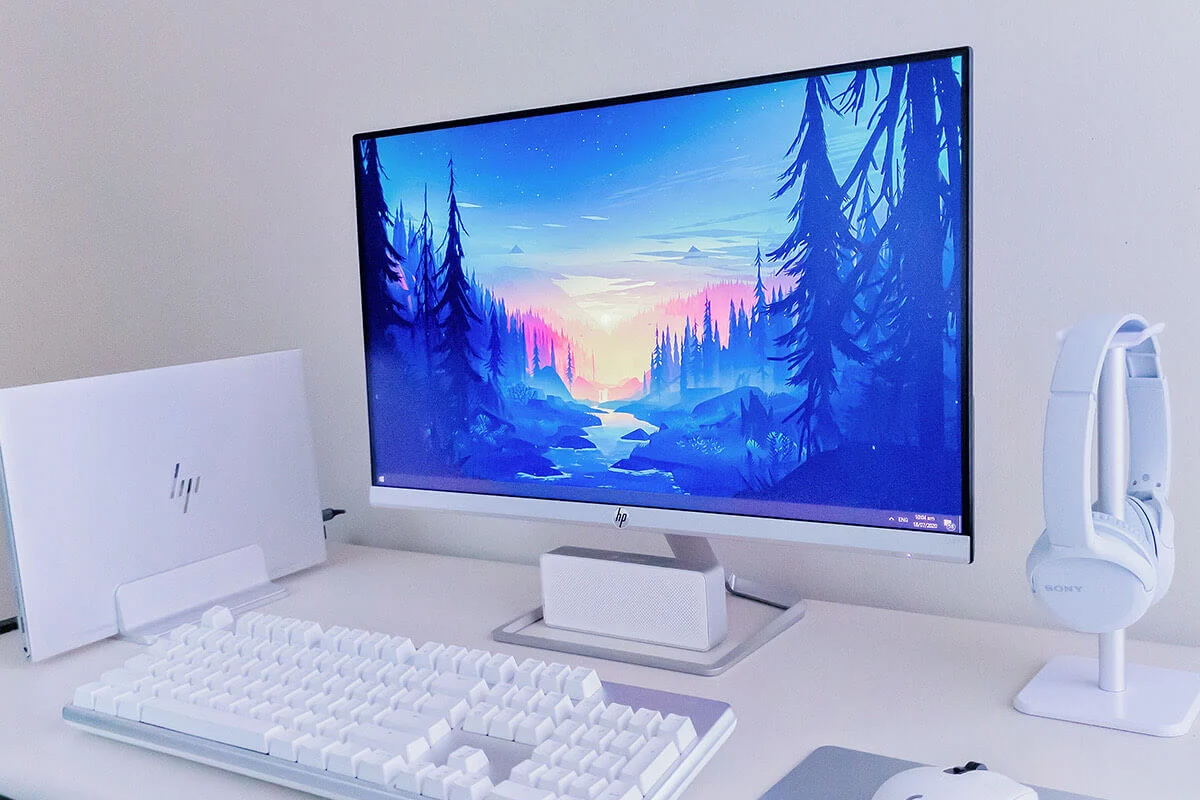
What keyboard shortcuts do you use to rotate your screen?
On Windows you can use keyboard shortcuts to quickly rotate your screen:
- Ctrl + Alt + Up arrow – Normal landscape mode
- Ctrl + Alt + Down arrow – Landscape (flipped)
- Ctrl + Alt + Left arrow – Portrait left
- Ctrl + Alt + Right arrow – Portrait right
If these shortcuts don't work, check if your graphics driver supports this functionality. When buying a monitor or using a refurbished monitor, it is important to check if the standard is physically rotatable.


Buy a Monitor