Free shipping from 300,-
Guaranteed 15 days not satisfied, money-back guarantee
Ordered before 12 AM, Shipped today
25951 reviews

Wout Wagemans

What is the best refurbished iPhone?

The Ultimate Guide to Choosing the Best Refurbished iPhone in 2023

What is the best refurbished iPhone?

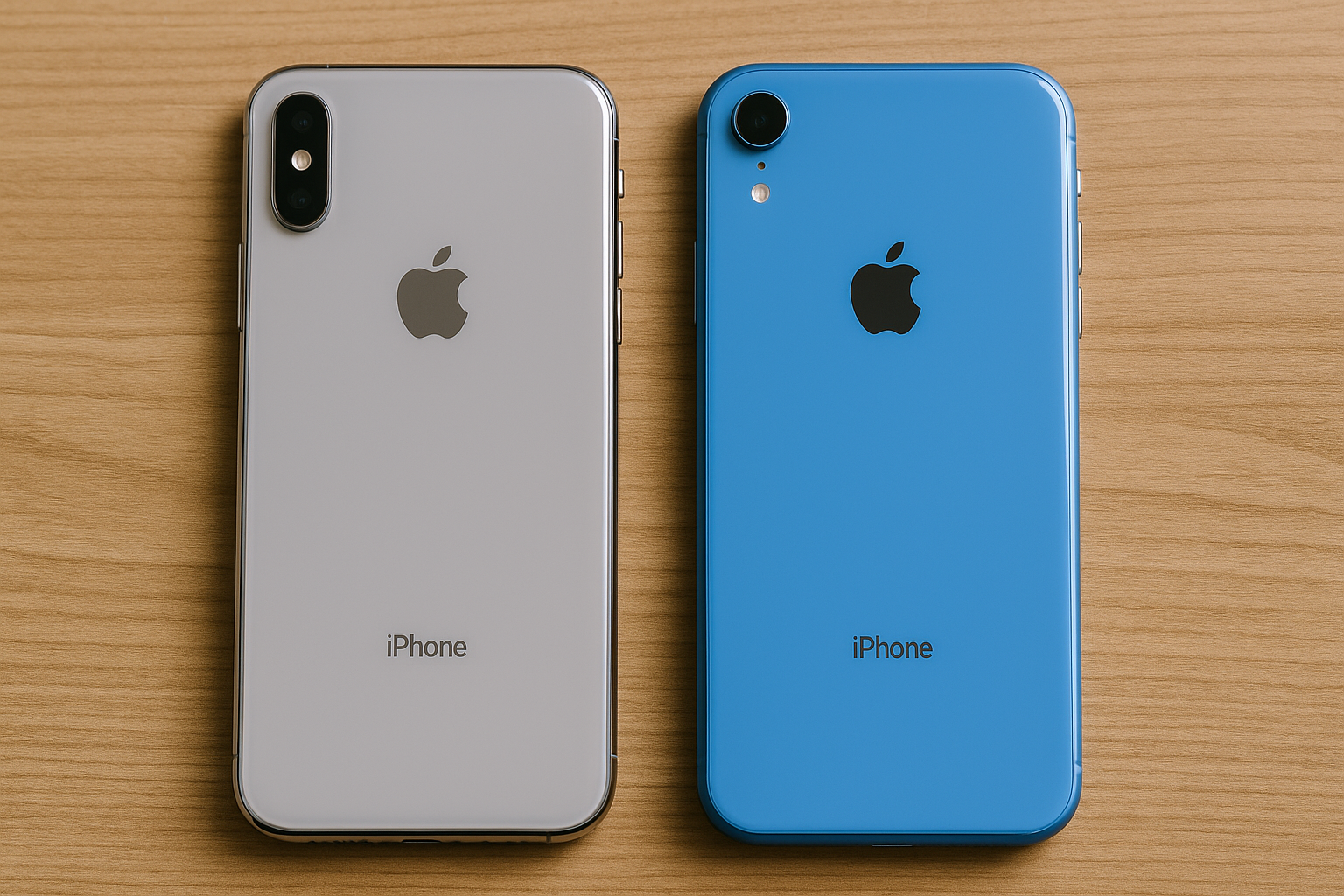
The best refurbished iPhone depends on your individual needs and preferences. In our store, we offer a wide range of refurbished models, each with its own features and specifications. Some popular models include the iPhone 11, iPhone XR, and iPhone XS. Explore our selection of refurbished iPhones to find the device that best suits your needs and budget.

Here’s an overview:

Introduction to Refurbished iPhones: What You Need to Know

Purchasing a refurbished iPhone can be an excellent way to acquire a high-quality smartphone at a lower price compared to a brand-new model. Here’s what potential buyers need to understand before making a decision:

  • Definition: Refurbished iPhones are pre-owned devices that have been restored to full functionality. Their conditions can vary from like-new to showing visible signs of wear. These devices are inspected, repaired if necessary, and certified for resale.
  • Advantages: The primary benefit is cost savings. Additionally, choosing refurbished can be more environmentally friendly since it prolongs the lifecycle of the device.
  • Grading System: Refurbished phones are typically graded based on their cosmetic condition and functionality. Grades range from Grade A, which indicates the device is like new, to lower grades that show some level of use.
  • Warranty and Return Policy: Reliable sellers offer a warranty, which can range from a few months to a year. Understanding the warranty terms, as well as the return policy, is crucial in case the device does not meet expectations.
  • Battery Health: Since battery performance degrades over time, it’s important to check the battery health of a refurbished iPhone. Any reputable refurbished should provide this information.
  • Software Updates: Ensuring that the iPhone supports the latest iOS version is integral for security and functionality. Older models might not be compatible with the newest updates.

A refurbished iPhone should not be confused with a ‘used’ phone, as refurbished denotes a device that has gone through testing and certification to meet specific quality standards. It’s crucial to buy from reputable sources to ensure you receive a device that is both trustworthy and reliable.

Advantages of Buying a Refurbished iPhone

When contemplating the purchase of a refurbished iPhone in 2023, there are numerous benefits to consider that can make this option highly appealing to consumers. Refurbished iPhones, often restored to like-new condition by certified professionals, present opportunities for both savings and sustainability that are worth examining.

  • Cost-Effective: One of the most tangible benefits of buying a refurbished iPhone is the substantial savings. Refurbished models can be significantly cheaper than their brand-new counterparts, often because they are pre-owned devices that have been returned due to minor defects or simply because the previous owner upgraded to a newer model.

  • Quality Assurance: Reputable refurbishers provide a thorough inspection, repair, and certification process. This ensures that the device meets high-quality standards and functions just as a new iPhone would. The rigorous refurbishment process includes diagnostics, replacement of any faulty components, a fresh installation of the operating system, and often, a good cleaning.

  • Warranty and Support: Most refurbished iPhones come with a warranty. This warranty, often similar to the coverage provided with new devices, gives buyers peace of mind, knowing that they are protected from potential technical issues.

  • Eco-Friendly: Purchasing a refurbished iPhone is environmentally responsible. By extending the life of an existing device, e-waste is reduced, and the demand for new resource-intensive production decreases.

  • Access to Legacy Models: For those who prefer an iPhone model that is no longer in production, refurbished options provide access to legacy devices that Apple or other retailers may no longer stock as new.

  • Immediate Availability: Unlike some new iPhone releases that may have waiting lists, refurbished models are readily available for immediate purchase and use.

  • Testing with Real-World Use: Since refurbished iPhones have been previously owned, they have already been tested in real-world conditions, which means any standard manufacturing error would likely have been identified and corrected during the refurbishing process.

Choosing a refurbished iPhone could therefore offer consumers the attractive combination of lower cost, reassured quality, warranty protection, sustainable purchasing, and immediate access to their preferred model.

Understanding the Different Grades of Refurbished iPhones

When shopping for a refurbished iPhone, it’s critical to comprehend the grading system that sellers use to classify the condition of these devices. These grades reflect not only the cosmetic condition but also the functional integrity of the phones.

Grade A Refurbished

Grade A refurbished iPhones are the cream of the crop. They are in near-mint condition, sometimes without a single blemish. Their functionality is tested rigorously, ensuring they perform just as well as new devices. Customers should expect minimal signs of use, often being hard-pressed to find any cosmetic imperfections at all.

Grade B Refurbished

Moving down the ladder, Grade B refurbished iPhones show light signs of wear, which might include minor scratches or dents. The aesthetic imperfections, however, do not affect the phone’s performance. These devices are thoroughly tested to guarantee that every feature works as intended.

Grade C Refurbished

Grade C refurbished iPhones bear noticeable signs of previous use, such as noticeable scratches, dents, or even screen discoloration. Although their appearance is less than ideal, they are functional and offer a more budget-friendly option for consumers.

Grade D Refurbished

Finally, Grade D refurbished iPhones feature significant signs of wear, such as heavy scratches and possible case damage. Their affordability makes them appealing to some consumers who are less concerned with aesthetics and more focused on function.

These grades are assigned post a series of inspections and tests by qualified technicians. It’s also worth mentioning availability of Certified Pre-Owned (CPO) iPhones that meet manufacturer’s standards and come with a warranty, often considered the gold standard in refurbs.

Understanding these grades helps consumers find a balance between cost and preferences. It’s imperative that one reviews the grade definitions carefully, as they can differ slightly between sellers or refurbishing companies.

Key Factors to Consider When Choosing a Refurbished iPhone

When selecting a refurbished iPhone, it’s critical to assess a range of factors to ensure that the device meets both your requirements and quality expectations. Here are some key considerations:

  • Grade of Refurbishment: Refurbished iPhones are typically classified by grades, such as Grade A, B, or C, which indicate the condition of the device. Grade A represents the highest quality, with the least signs of wear, while lower grades may show more usage. Understanding these grades is essential for setting your expectations about the cosmetic condition and functionality of the phone.

  • Warranty and Return Policy: A warranty provides security against potential defects. Look for a refurbished iPhone that comes with a comprehensive warranty, and understand the details of the return policy. This ensures that you have a safety net should there be any issues with the device.

  • Battery Health: Battery life is a major concern with pre-owned electronics. Inquire about the battery health of the refurbished iPhone. A battery with at least 80% of its original capacity is generally acceptable, but higher is better.

  • Storage Capacity: Consider how much storage you will require for apps, photos, videos, and other data. Refurbished iPhones come in various storage options, so select a capacity that won’t leave you constantly managing your storage space.

  • Compatibility with Carrier: Ensure that the refurbished iPhone is unlocked or compatible with your mobile carrier. An unlocked phone can be more versatile, allowing you to switch carriers without having to change devices.

  • Authenticity and Original Parts: Confirm that the iPhone is authentic and that any replacement parts used during the refurbishment process are genuine or of high quality. Counterfeit or low-quality parts can affect the phone’s performance and longevity.

  • After-Sales Support: Reliable after-sales support is vital. Check if the seller provides customer service in case you need assistance with your refurbished iPhone after the purchase.

By taking these factors into account, you can make a more informed decision when purchasing a refurbished iPhone and increase the likelihood of satisfaction with your device.

Where to Buy: Trusted Retailers and Platforms for Refurbished iPhones

Purchasing a refurbished iPhone can be a cost-effective way to obtain a quality device. However, finding trusted retailers or platforms is essential to ensure a worthwhile investment. Here are some reputable options:

  • Apple Certified Refurbished: Buying directly from Apple’s Certified Refurbished program guarantees that the device has been thoroughly tested, comes with a warranty, and often includes a new battery and outer shell.
  • Amazon Renewed: Amazon’s Renewed program offers professionally inspected and tested refurbished iPhones with a guarantee of no visible cosmetic imperfections when held 30 centimetres away.
  • Best Buy Certified Refurbished: Best Buy provides a selection of refurbished iPhones which are certified by Geek Squad and come with a warranty for added peace of mind.
  • Gazelle: Gazelle is known for its rigorous inspection process, ensuring the devices they sell meet high standards. Customers can benefit from their 30-day return policy.
  • Back Market: Specializing in refurbished tech, Back Market works with certified refurbishers and provides a minimum 12-month warranty on their iPhones.
  • Swappa: Swappa is a user-to-user marketplace that requires sellers to provide photos of the actual device, ensuring that buyers know precisely what they are purchasing.

When shopping for a refurbished iPhone, it’s critical to consider not just the price but also the return policy, warranty, and customer reviews. Always check the device’s history to verify that it is not stolen and has a clean ESN (Electronic Serial Number), which shows the phone is ready for activation. Additionally, investigate the battery health to ensure longevity and performance of the iPhone. With careful research and purchasing from reputable sources, customers can confidently acquire a refurbished iPhone that meets their needs.

Checking for Authenticity: How to Verify a Refurbished iPhone

Verifying the authenticity of a refurbished iPhone is paramount to ensure that consumers receive a genuine product in good working condition, backed by a reliable warranty. To accomplish this, a methodical approach should be taken:

  1. Serial Number and IMEI Checking: Begin with the basic step of validating the iPhone’s serial number and International Mobile Equipment Identity (IMEI) number. These can be found in the device’s settings or on the original packaging. Consumers can input these numbers into Apple’s official check coverage page, which confirms the product’s authenticity and shows warranty status.

  2. Physical Inspection: Examine the iPhone meticulously. Authentic iPhones possess a high build quality. Look for mismatched screws, substandard lighting in the display, or deviations from Apple’s design standards, which might indicate counterfeit parts.

  3. Software Verification: It is also recommended to ensure that the iOS version running on the device is genuine and hasn’t been tampered with. This can typically be done by checking for updates; an authentic device should be able to connect to Apple’s servers and download updates.

  4. Purchase from Credible Sources: One of the most dependable methods of ensuring authenticity is to purchase from reputable, certified resellers who offer a warranty. These suppliers are often part of a network recognised by Apple.

  5. Functionality Tests: Test the basic functions of the iPhone, including the camera, microphone, speakers, and touch-screen responsiveness. Any malfunctioning component could be a sign of improper refurbishment or counterfeit parts.

  6. Apple Support Verification: Contact Apple’s customer support with the device’s serial number to confirm its legitimacy. Apple’s team can provide information regarding the model’s authenticity and refurbishment status.

By taking these measures, consumers can significantly reduce the risk of acquiring a counterfeit or poorly refurbished iPhone.

Warranty and Return Policies: What to Look For

Purchasing a refurbished iPhone can be a savvy investment if one pays close attention to the warranty and return policies offered. These policies serve as your safety net, ensuring that you have recourse if the device does not meet your expectations or encounters issues. Here are key factors to consider:

  • Length of Warranty: A comprehensive warranty that extends for a considerable period is indicative of the seller’s confidence in the product. Aim for at least a 12-month warranty, which aligns with what is typically offered for new devices.
  • Coverage Details: Scrutinize what the warranty actually covers. Check whether it includes battery life, software glitches, and any repair services. Avoid warranties that are limited only to hardware malfunctions as they may not be sufficient.
  • Manufacturer vs Seller Warranty: A manufacturer’s warranty is often more reliable than a seller’s warranty. If the refurbished iPhone comes with the original manufacturer’s warranty, it’s a sign of a quality refurbishment process.
  • Return Policy Duration: A fair return policy should give you enough time to evaluate your iPhone thoroughly. Look for sellers offering a 30-day return period, which is an industry standard.
  • Restocking Fees: Be aware of any restocking fees that the policy might include. These fees can be a significant percentage of the item’s price and may make returns less feasible.
  • Return Condition: Understand the condition in which an item must be returned. Policies that require the product to be in ‘like new’ condition with original packaging intact can be restrictive.
  • Refund vs Exchange: Determine if the seller offers a refund or if they only allow exchanges. A refund policy provides more flexibility if the phone doesn’t meet your standards.

By examining these aspects of a seller’s warranty and return policies, one can make a more informed and secure purchase when choosing a refurbished iPhone.

Insider Tips on Getting the Best Deals for Refurbished iPhones

Securing the best deals on refurbished iPhones demands a blend of timely strategy and insider knowledge. Here are some tips to navigate this pre-owned landscape:

  • Monitor Certified Refurbishment Sites: Many electronics retailers, like Apple’s own Certified Refurbished store, offer refurbished iPhones with warranties. Prioritise these official channels where the devices usually undergo rigorous testing before sale.
  • Time Your Purchase: Prices for refurbished iPhones can fluctuate based on the release of new models. Purchasing a refurbished unit just after a new iPhone release can lead to substantial discounts on older models.
  • Check Warranty and Return Policies: Always read the warranty and return policy. A standard 12-month warranty is a good sign of a reliable refurbished product. A reasonable return policy can serve as a safety net in case of issues.
  • Review Seller Ratings: Before committing, review the seller’s ratings and feedback on platforms like eBay or Amazon. High ratings indicate a trustworthy seller who consistently provides quality products.
  • Compare Prices: Use price comparison websites and tools to ensure you’re getting a competitive deal. Remember to factor in any included accessories that may add value.
  • Look for Bulk Deals: Sometimes, retailers offer discounts on bulk purchases. If you need to buy multiple devices, this can result in cost savings.
  • Inspect Product Grades: Refurbished iPhones may be categorized by their cosmetic condition. Grade A phones typically look new, while lower-grade models may have visible signs of wear but are generally cheaper.

By employing these strategies, one can navigate the refurbished iPhone market with a savvy eye, avoiding common pitfalls and securing the best value for their investment.

Common Pitfalls to Avoid While Purchasing a Refurbished iPhone

When seeking a refurbished iPhone, consumers must navigate a market filled with potential pitfalls. To ensure a worthwhile investment, the following precautions should be taken:

  • Untrusted Sellers: Purchasing from an unverified source can lead to issues such as counterfeit phones or devices with undisclosed damages. It is vital to buy from reputable, accredited suppliers who offer warranties and transparent device histories.

  • Missing Accessories: Often, refurbished iPhones may come without essential accessories like chargers or headphones. Always check what is included and consider the cost of purchasing any missing items separately.

  • Battery Health: A degraded battery can significantly affect performance. Buyers should confirm the battery health of the refurbished iPhone, ideally seeking a device with a battery capacity above 80%.

  • Warranty Concerns: A warranty provides a safety net for the buyer. One should ensure the refurbished iPhone comes with a warranty, taking note of what it covers and its duration.

  • Software Updates: Older models may not support the latest iOS updates, leading to a compromised user experience. It is recommended to opt for models that are still eligible for software support from Apple.

  • Network Compatibility: It is crucial for the refurbished iPhone to be compatible with the buyer’s preferred network. iPhones that are locked to a specific carrier can limit usability and may incur additional costs for unlocking.

  • Return Policy: Without a clear return policy, dealing with defects or dissatisfaction can become troublesome. One should understand the terms of return to facilitate a smooth resolution should issues arise after purchase.

Adhering to these guidelines will help buyers evade the common traps of the refurbished market, leading to a more secure and satisfactory acquisition of a refurbished iPhone.

Accessories and Extras: Are They Included?

When purchasing a refurbished iPhone, it’s essential to check what accessories and extras come with the phone. Unlike buying a new iPhone, where you can expect all the original accessories to be included, refurbished models might not always come with the same assortment. The inclusion of accessories can significantly impact the overall value of your purchase.

Typically, a refurbished iPhone should at least come with:

  • A compatible charger: To ensure you can charge your phone right out of the box.
  • A USB cable: Vital for charging and data transfer.
  • SIM-eject tool: Needed to access the SIM card tray.

However, other items such as the original Apple EarPods, user manual, or the official Apple packaging might not be included. Some sellers may offer third-party or non-branded accessories instead. Always verify these details before completing your purchase, as the lack of Apple-branded accessories could affect resell value and the overall experience.

Moreover, sellers might offer additional extras such as:

  • A protective case: To safeguard your device from day one.
  • Screen protector: To help prevent scratches or screen damage.
  • Warranty: Covers repairs or replacement within a specified period.

A key consideration should be whether the iPhone is listed as “Certified Pre-Owned” (CPO). CPO devices are more likely to include all original accessories and have a warranty similar to a new iPhone.

Before finalising the purchase of a refurbished iPhone, inquire specifically about the inclusions. The cost savings from a refurbished model can be less enticing if you need to purchase missing essentials separately.

Setting Up Your Refurbished iPhone: Step-by-step Guide

Once you’ve purchased a refurbished iPhone, it’s essential to ensure that it’s set up correctly for optimal performance. Follow this step-by-step guide to get started with your refurbished iPhone:

  1. Initial Power Up and Language Selection

    • Press and hold the power button to turn on the iPhone.
    • Select your preferred language and country or region.
  2. Set Up Wi-Fi Connection

    • Choose a Wi-Fi network and enter the password to connect.
    • Alternatively, you can choose to use cellular connection if Wi-Fi is not available.
  3. Activate Your iPhone

    • Insert your SIM card if not pre-installed.
    • Follow the on-screen instructions to activate your iPhone.
  4. Data and Apps Transfer

    • Decide if you’d like to set up as a new iPhone, restore from iCloud Backup, restore from a Mac or PC, or transfer directly from an iPhone.
    • Follow the on-screen steps to transfer your data and apps.
  5. Sign In with Your Apple ID

    • Sign in with your existing Apple ID or create a new one.
    • This will give you access to Apple services like the App Store and iCloud.
  6. Set Up Touch ID or Face ID

    • Add your fingerprint for Touch ID or set up Face ID for identity authentication.
  7. Create a Passcode

    • Choose and set a six-digit passcode to protect your data and privacy.
  8. Customise Settings

    • Adjust settings like Siri, location services, app analytics, and display settings.
  9. Install Essential Apps and Updates

    • Download any required apps from the App Store.
    • Check for iOS updates in Settings and install if available.
  10. Back-Up Your iPhone

    • Ensure your data is secure by setting up iCloud or computer back-up.

Following these steps ensures that your refurbished iPhone is ready for use with your preferences and necessary configurations. Remember to check for any available software updates regularly to keep your iPhone running smoothly and securely.

Final Thoughts and Recommendations

When it comes to purchasing a refurbished iPhone in 2023, making an informed decision is crucial for both consumer satisfaction and environmental stewardship. One must carefully consider the model, storage capacity, battery health, warranty, and return policy before committing to a purchase.

Here are key recommendations to ensure a positive buying experience:

  • Always choose a reliable retailer: Opt for sellers that have a robust reputation, verified customer feedback, and a clear refurbishment process. Apple Certified Refurbished products or trusted third-party retailers with accreditation should be prioritized.
  • Verify the refurbishment process: A detailed checklist that covers hardware testing, genuine parts replacement, and cosmetic condition should be provided. The closer the device is to ‘like-new’ condition, the better the performance and longevity you can expect.
  • Consider the warranty: Aim for a minimum of a 90-day warranty. Extended warranty options reflect the seller’s confidence in their refurbishment process.
  • Inspect return policy: Ensure that there is a straightforward, hassle-free return policy in place. The ability to return a product if it fails to meet expectations is essential.
  • Confirm carrier compatibility: Check that the iPhone is unlocked or compatible with your chosen carrier to avoid connectivity issues.
  • Assess battery health: Seek iPhones with a battery capacity very close to original specifications. Batteries that retain at least 80% of their original capacity are preferable.
  • Be environmentally conscious: Choosing a refurbished iPhone supports recycling and reduces e-waste. Keep this in mind, and consider the sustainability aspect of the purchase.

By carefully weighing these considerations, one can strike the perfect balance between cost-efficiency and quality, obtaining a device that not only serves personal needs but also contributes positively to reduced electronic waste.

How do you transfer your iPhone data wirelessly?

5 Simple Steps to Wireless iPhone Data Transfer

Transfer Your iPhone Data Wirelessly

Discover how effortless it is to transfer data between your iPhone and laptop wirelessly. With our high-quality Apple devices and intelligent solutions, you can seamlessly sync your photos, videos, and files wirelessly. Don't miss the opportunity to transfer your data securely and efficiently. Learn more about wireless data transfer and explore our range of Apple products now!

Here’s an overview:

Introduction to Effortless Wireless Data Transfer for iPhone Users

Owning an iPhone comes with the expectation of a seamless experience, be it in user interface or data transfer. With advancements in technology, Apple has made it incredibly simple for users to move data wirelessly, without the cumbersome process of using cables or complex software. This convenience is essential for those who are constantly on the go and need a swift, reliable method to transfer their essential data—photos, contacts, messages, and more—from one iPhone to another or between an iPhone and other devices.

The core of Apple’s wireless data transfer technology lies in its synchronization capabilities and services like AirDrop, iCloud, and continuity features that make it possible to transfer data with minimal fuss:

  • AirDrop: Allows users to share files quickly and securely between nearby Apple devices without internet connectivity.
  • iCloud: Offers storage and automatic backup of data, making it accessible from any Apple device with the same Apple ID.
  • Continuity: Features including Handoff, Universal Clipboard, and Text Message Forwarding ensure a seamless transition between Apple devices.

Furthermore, with each iOS update, the process of wireless data transfer becomes more intuitive and integrated, ensuring that users can enjoy the benefits of a connected ecosystem without having to be tech experts. Whether one is upgrading to a new iPhone or sharing a file with a friend, Apple’s ecosystem is designed to make the process virtually effortless.

It is important to note, however, that while wireless data transfer is convenient, it requires certain prerequisites to function optimally:

  • Devices should be compatible with the latest iOS version for full feature access.
  • A stable Wi-Fi connection ensures quicker transfer speeds.
  • Both sender and receiver devices should be within Bluetooth range if using AirDrop.

Embracing these wireless data transfer methods will greatly enhance the iPhone user’s experience by providing a quick, secure, and convenient way to move their digital lives as needed.

Understanding the Basics of iPhone Wireless Data Transfer

Wireless data transfer on an iPhone involves the transmission of information without the need for physical cables or connections. This technology harnesses various communication protocols to enable seamless data exchange between devices. Some of the common methods used in wireless data transfer include:

  • Wi-Fi: A high-speed internet connection that allows for the sharing of large files over a local network.
  • Bluetooth: A short-range wireless communication technology, ideal for transferring small amounts of data.
  • AirDrop: An Apple-specific feature that utilizes a combination of Wi-Fi and Bluetooth to quickly share files between Apple devices.

When preparing to transfer data wirelessly, one must ensure that both the sending and receiving devices are compatible and have the requisite features enabled. The device should be within an appropriate range, and the receiver’s visibility settings must be configured to accept incoming data.

Security is a key consideration during wireless data transfer. One must be attentive to the network being used, avoiding public or unsecured Wi-Fi networks to mitigate the risk of unauthorized access. Most devices prompt for permission or a confirmation code before initiating the transfer, providing an additional layer of security.

Battery life is also an important factor, as wireless transfers can be power-intensive, particularly for large files or prolonged sessions. It is advisable to have the device adequately charged or plugged into a power source during the transfer.

By understanding these basics, users can confidently harness wireless data transfer technology to manage their iPhone data efficiently and securely.

The Magic of iCloud: Seamless Data Synchronization Across Devices

iCloud represents a cornerstone in Apple’s ecosystem, enabling users to maintain continuity across their various devices. When it comes to iPhone data transfer, iCloud facilitates a wireless, efficient, and straightforward process that ensures your information is accessible wherever you are, provided you have an internet connection. Here’s how it weaves its magic:

  • Automatic Backups: Once configured, iCloud automatically backs up your iPhone data whenever the device is connected to Wi-Fi and charging. This means your latest photos, videos, app data, and even device settings are consistently updated without any manual intervention.

  • iCloud Sync: With iCloud sync, data for apps like Mail, Contacts, Calendars, and more are updated in real-time across all devices. For instance, if you add a new contact on your iPhone, it instantly appears on your iPad and Mac.

  • iCloud Drive: This is akin to having a personal hard drive in the cloud. Users can store all manner of files in iCloud Drive and access them from any device. Moving files between an iPhone and a computer, or sharing them with others, becomes a hassle-free experience.

  • Find My iPhone: Not just for locating a lost device, ‘Find My’ also allows users to remotely wipe data if their device falls into the wrong hands, making sure personal information stays secure.

  • Photo Library: iCloud Photo Library uploads every image and video to the cloud and syncs them across all your devices. Edits done on one device are reflected on all others.

Users must be aware that iCloud operates on the basis of the Apple ID. Therefore, for seamless data synchronization to occur, all devices must be signed into the same Apple ID account. Additionally, while iCloud offers a basic amount of free storage, larger backups or extensive photo libraries might require a subscription to higher storage plans. Nevertheless, iCloud’s integration into iOS means that wireless data transfer is not only possible but is also incredibly user-friendly and efficient.

Unleashing the Power of AirDrop for Instant Data Sharing

AirDrop is an incredibly powerful and convenient feature that Apple offers to its users, facilitating the swift transfer of photos, videos, contacts, and files between nearby iOS devices. Its ease of use and speed make it a favourite among iPhone users for wireless data transfer. Below are the steps to utilize AirDrop effectively:

  1. Enable Wi-Fi and Bluetooth: To start using AirDrop, make sure both the sending and receiving devices have their Wi-Fi and Bluetooth toggled on. AirDrop depends on these features to create a peer-to-peer Wi-Fi network for file sharing.

  2. Open Control Centre: Swipe down from the top-right corner of the screen (or up from the bottom edge on models with a Home button) to access the Control Centre.

  3. Activate AirDrop: Press firmly or touch and hold the network settings card, then tap on the AirDrop button. Choose between ‘Contacts Only’ and ‘Everyone’ - the latter allows any nearby device to see your device.

  4. Select the File to Share: Navigate to the file, photo, contact, or content you wish to transfer, tap the share button (a square with an upward arrow), and then choose AirDrop from the share options.

  5. Choose the Recipient: The sender’s device will search for available AirDrop-enabled devices nearby. Once the intended recipient’s device appears, tap their icon to begin the transfer. The recipient will receive a prompt to accept the incoming file.

Remember that AirDrop transfers are encrypted, ensuring that data is shared securely. This feature also avoids the hassle of setting up permissions or exchanges of contact information. By integrating AirDrop into the data transfer process, file exchange becomes an effortless task executed with just a few taps.

Harnessing iTunes Wi-Fi Sync Feature

The iTunes Wi-Fi Sync feature offers a convenient method to transfer data between an iPhone and a computer wirelessly. To exploit this capability effectively, users must first configure their devices.

  1. Connect to the same Wi-Fi network: Ensure both the iPhone and the computer are connected to the same Wi-Fi network, as the sync process relies on this shared connection.

  2. Plugin the iPhone to the computer: Initially, connect the iPhone to the computer via USB to set up the wireless sync. Once configured, the USB connection will no longer be required for future data transfers.

  3. Open iTunes and select the device: Launch the latest version of iTunes on the computer and select the iPhone icon that appears in the upper-left corner of the iTunes window.

  4. Configure wireless sync settings: Navigate to the ‘Summary’ tab and scroll down to find the ‘Options’ section. Check the box next to ‘Sync with this iPhone over Wi-Fi.’ The system will prompt users to save changes, and once confirmed, the iPhone will be equipped for iTunes Wi-Fi sync.

  5. Initiate the sync process: Finally, to start syncing data wirelessly, go to the ‘Settings’ on the iPhone, tap ‘General’, followed by ‘iTunes Wi-Fi Sync’, and then tap ‘Sync Now’. Alternatively, the sync will also occur automatically when the iPhone is plugged into power, locked, and on the same Wi-Fi network as the computer.

The iTunes Wi-Fi Sync method makes data transfer seamless, negating the need for physical cables after initial setup. It ensures that users’ devices are always in sync, providing access to the latest data across platforms without the constraint of being tethered to a computer.

Step-by-Step Guide to Using iCloud for Data Transfer

Using iCloud for data transfer is a straightforward process, which ensures the safety and security of your data during the transfer. To start transferring data wirelessly using iCloud, follow these steps:

  1. Ensure iCloud Backup is Enabled:

    • On your iPhone, navigate to the Settings app.
    • Tap on your Apple ID at the top, then select “iCloud”.
    • Scroll down to “iCloud Backup” and make sure it is turned on.
    • Manually initiate a backup by tapping “Back Up Now” if you’d like to update your saved data before transferring.
  2. Set Up Your New iPhone:

    • Turn on your new iPhone and follow the on-screen setup instructions.
    • When you reach the “Apps & Data” screen, choose the option to “Restore from iCloud Backup”.
  3. Sign In to Your iCloud Account:

    • Input your Apple ID and password when prompted.
    • Ensure you’re using the same iCloud account that was used for the backup on your old iPhone.
  4. Select Your Most Recent Backup:

    • You’ll be presented with a list of available backups in iCloud.
    • Choose the most recent backup or the one that you want to use for the data transfer.
  5. Wait for the Transfer to Complete:

    • The time it takes for the data to transfer will depend on the size of the backup and the speed of your internet connection.
    • Keep your device connected to Wi-Fi and power during this time.
    • Your iPhone might restart several times during the process. This is normal.

Once the process is complete, you should have all of your data, including apps, pictures, and settings, transferred to your new iPhone. Do not interrupt the process until it’s fully completed to ensure that all data is transferred accurately.

Troubleshooting Common Issues with iPhone Wireless Data Transfer

Transferring data wirelessly can sometimes present challenges. Here are several troubleshooting techniques:

  1. Check Your Network Connection:

    • Ensure that your iPhone is connected to a reliable Wi-Fi network.
    • Move closer to your router to improve signal strength.
    • Attempt connecting to a different network to rule out issues with your primary connection.
  2. Restart Devices:

    • Turn off your iPhone and the device you’re transferring data to, then restart them.
    • A simple reboot can solve temporary glitches affecting the transfer process.
  3. Update Your iOS:

    • Your iPhone should be running the latest iOS version.
    • Go to Settings > General > Software Update to check for any updates and install if available.
  4. Disable and Re-enable Bluetooth and Wi-Fi:

    • Toggle off both Bluetooth and Wi-Fi in the Control Center, then re-enable them after a few seconds.
    • This can refresh the connections and potentially fix the issue.
  5. Reset Network Settings:

    • Go to Settings > General > Reset and select ‘Reset Network Settings’.
    • Note that this will erase all Wi-Fi networks and passwords, cellular settings, and VPN and APN settings.
  6. Check AirDrop Settings (if using AirDrop for transfer):

    • Ensure AirDrop is set to ‘Everyone’ or ‘Contacts Only’ as per your preference: Settings > General > AirDrop.
    • Confirm that the receiving device is unlocked and visible.

If issues persist despite these measures, it’s advisable to seek technical support from Apple or visit an Apple Store. Remember, data transfer is sensitive to software and hardware conditions, so ruling out common faults is key to resolving transfer issues.

Tips and Tricks for Efficient iPhone Data Management

When managing data on your iPhone, efficiency is key. Here are some useful tips that can help streamline the process:

  • Regularly Back Up Your iPhone: Ensure you back up your iPhone data regularly to iCloud or your computer using iTunes. Automate this process by setting up iCloud backups to occur when your iPhone is charging, locked, and connected to Wi-Fi.

  • Organise Your Files: Use folders to sort your apps and files. This not only makes it easier to find what you need but also speeds up the data transfer process as you can quickly identify the data you wish to transfer.

  • Manage Your Storage: Regularly check your iPhone’s storage to identify and delete unnecessary files or apps. Go to Settings > General > [iPhone] Storage to get recommendations for optimising your storage.

  • Use Efficient Data Transfer Apps: Opt for reliable and fast data transfer apps like AirDrop or iCloud Drive to move data wirelessly. These services are designed specifically for Apple products, ensuring a smooth transfer experience.

  • Delete Old Messages and Emails: Text messages, especially those with attachments, and emails take up a significant amount of space. Periodically review and delete old conversations and emails to free up space.

  • Optimise Photos Storage: Enable the ‘Optimise iPhone Storage’ option in Settings > Photos. This feature replaces high-resolution photos and videos with smaller, device-sized versions, saving space while the full-resolution versions are stored in iCloud.

  • Monitor Data Usage for Transfers: If you use cellular data for transfers, keep an eye on usage to avoid overage charges. Consider transferring large files only when connected to Wi-Fi.

By incorporating these simple yet effective strategies, you will be able to manage your iPhone data more efficiently, ensuring that data transfers are as seamless and hassle-free as possible.

Exploring Third-Party Apps for Enhanced Wireless Data Transfer

When transferring data wirelessly from an iPhone, users may sometimes find the built-in options insufficient for their needs. This is where third-party applications step in, providing enhanced features and flexibility that can improve the data transfer experience. By exploring the offerings of third-party apps, users can often find solutions tailored to their specific requirements.

  • Feature-Rich Applications: Some third-party apps offer rich features that allow for more than just simple data transfer. These might include backup functionalities, data management, or even the ability to sync data across multiple devices and platforms. Users who need more control over their data transfer process may find these added features very beneficial.

  • Speed and Efficiency: Certain apps are optimized for speed, using advanced protocols and compression algorithms to transfer data more quickly than standard methods. This is particularly advantageous for users who need to transfer large amounts of data on a regular basis.

  • Cross-Platform Compatibility: For those who work across different operating systems, finding an app that supports cross-platform data transfer is essential. Third-party apps often bridge the gap between iOS and other systems, simplifying the process of transferring data to devices that aren’t part of the Apple ecosystem.

  • Security Concerns: Security is paramount, and many third-party apps provide robust encryption to protect data during transfer. Users dealing with sensitive information will want to ensure that the app they choose takes data security seriously.

To begin with third-party app exploration, research popular options such as:

  1. SHAREit
  2. Xender
  3. Zapya
  4. FileTransfer
  5. Send Anywhere

These apps are renowned for their ease of use and comprehensive feature sets, catering to a wide range of data transfer needs. However, users should always verify the app’s credibility, read reviews, and ensure the app meets their specific security standards before proceeding with any data transfers.

Wireless Data Transfer and Your Privacy: What You Need to Know

When engaging in wireless data transfers between your iPhone and other devices, it’s crucial to consider the privacy implications. Data transmitted wirelessly can be potentially intercepted by unauthorized parties. To mitigate these risks, here are pertinent points every user should be aware of:

  • Encryption: Ensure that any wireless transfer method you use employs robust encryption protocols. Encryption acts as a secure line of defence against eavesdropping.

  • Network Security: Use secure Wi-Fi networks for data transfer. Public Wi-Fi networks are often unsecured and pose a higher risk of data interception. Opt for a Virtual Private Network (VPN) when using public networks.

  • Permissions and Access Management: Be conservative with the permissions you grant apps and services related to data transfer. Only allow access to data that is necessary for the app to function.

  • Software Updates: Keep your iPhone’s operating system and apps updated. Updates often include patches for security vulnerabilities that could compromise data privacy.

  • Data Minimization: Transfer only the data you need. The fewer data sent wirelessly, the lower the risk of sensitive information being compromised.

  • Awareness of Transfer Methods: Different transfer methods pose different risks. For example, AirDrop has security measures in place, but the visibility of your device to others can still be a concern. Familiarize yourself with the settings that control your visibility during wireless transfers.

  • Two-Factor Authentication (2FA): Employ 2FA whenever possible. This adds an additional layer of security to your accounts and the data you might be transferring.

By understanding and implementing these key considerations, users can greatly reduce the risks to their privacy while benefiting from the convenience of wireless data transfer. It is essential to stay informed about new security trends and potential vulnerabilities within this ever-evolving digital landscape.

As wireless technology evolves, so does the way in which data is transferred between devices. For iPhones, the future of wireless data transfer promises to be exciting and highly innovative. Notably, several trends are expected to shape this landscape:

  • Integration of 5G: The next generation of wireless networks, 5G, is set to revolutionise data transfer speeds and reliability for iPhones. The technology will facilitate faster file transfers and support higher-definition media, benefitting both individual users and professionals who require quick and efficient data management.

  • Wi-Fi 6 and Beyond: The adoption of Wi-Fi 6, with its increased speed and capacity over its predecessors, hints at a future where even more sophisticated Wi-Fi standards could enhance iPhone data transfer capabilities, providing nearly instantaneous sharing between devices.

  • Enhanced Bluetooth Technology: Future iterations of Bluetooth technology aim to offer improved speed and range. This could enable iPhones to transfer data seamlessly over greater distances and with more devices simultaneously.

  • Ultra-Wideband (UWB) Features: With the introduction of the U1 chip in recent iPhone models, Ultra-Wideband technology is set to play a significant role in spatial awareness and precise location tracking, which could eventually be used for advanced data transfer applications like secure keyless entry and mobile payments.

  • Li-Fi Developments: Light Fidelity (Li-Fi) uses light to transmit data. While still in developmental phases, this could be a game-changer for environments where traditional radio frequency transfers, such as Wi-Fi and Bluetooth, are restricted or not feasible.

  • Quantum Networking: Although still an emerging field, the concept of using quantum mechanics to transfer data promises groundbreaking data security and speeds, potentially opening doors for futuristic iPhone data transfer capabilities.

As these technologies mature and iPhone hardware advances to accommodate them, users can expect a more seamless, efficient, and faster wireless data transfer experience, heralding a new era of connectivity.

Conclusion: Embracing the Wireless Revolution for iPhone Data Management

The progression from wired connections to seamless wireless data transfer has transformed iPhone data management into a more accessible and user-friendly process. By fully embracing this wireless revolution, users are granted unparalleled flexibility and convenience. They no longer need to be tethered to their computers or struggle with cables that are either lost or incompatible. The efficacy of iPhone’s wireless data capabilities is evident in the way they simplify tasks such as synchronising files, updating software, or backing up precious memories.

  • Wireless data transfer is safeguarded with advanced encryption technologies, ensuring that personal data remains confidential and secure at all times.
  • The capacity for iCloud and AirDrop to seamlessly integrate with the iOS ecosystem exemplifies Apple’s commitment to an intuitive user experience.
  • The wireless revolution also facilitates a more productive lifestyle, as data management can be navigated without interrupting the user’s mobility.
  • Even those resistant to change will likely find the simplicity and reliability of wireless management on the iPhone compelling enough to adopt.

By leveraging wireless technologies and following the simple steps previously outlined, iPhone users can enjoy a hassle-free approach to data transfer. It’s clear that wireless innovation is not just a fleeting trend but a fundamental shift in the way we handle digital data. Apple’s pioneering work in this field serves as a testament that the future of iPhone data management lies in the freedom and ease of the wireless revolution.

What is the difference between an iPhone 13 pro and 13 pro max?

iPhone 13 Pro vs. 13 Pro Max: Understanding the Key Differences

Difference between iPhone 13 Pro and iPhone 13 Pro Max

Both the iPhone 13 Pro and iPhone 13 Pro Max offer top-tier performance and innovative features. However, the main difference lies in the screen size and battery life. While the iPhone 13 Pro provides impressive performance in a compact form factor, the iPhone 13 Pro Max offers a larger display and longer battery life, making it ideal for users who desire more screen real estate and extended usage time. Learn more about the distinctions between these two models and find the perfect iPhone for your needs in our selection of Apple products!

Here’s an overview:

Introduction: iPhone 13 Pro and 13 Pro Max

The iPhone 13 Pro and iPhone 13 Pro Max represent Apple’s high-end smartphone offerings from their 2021 lineup. These devices have captivated users with state-of-the-art technology and cutting-edge features, epitomising the best of Apple’s technological advancements. Both models share many similar attributes, including the powerful A15 Bionic chip, 5G capability, and advanced triple-camera systems. They are distinguished by exceptional build quality, with a surgical-grade stainless steel frame and Ceramic Shield front cover that promises increased durability.

  • Both the iPhone 13 Pro and 13 Pro Max come with impressive Super Retina XDR displays with ProMotion technology that offers adaptive refresh rates up to 120Hz.
  • The Pro camera system on these phones has been substantially upgraded, with new sensors and lenses for all three rear cameras, equipped to perform in low light and offer styles in photographic profiles.
  • These iPhones support Dolby Vision HDR recording and have a LiDAR scanner that aids in augmented reality (AR) applications and improves autofocus in low-light photography.
  • With iOS 15 and beyond, these devices boast significant software advancements that leverage extensive computational photography and real-time video and audio adjustments for a rich user experience.

While identical in many respects, the differences between the iPhone 13 Pro and 13 Pro Max primarily lie in screen size, battery life, and handling characteristics. In the ensuing sections, we will delve deeper into the nuances that set these two powerhouse devices apart, helping users discern which model best fits their preferences and lifestyle without sacrificing the luxury and performance that is synonymous with Apple’s Pro series of iPhones.

Design Comparison: Aesthetics and Build

When evaluating the iPhone 13 Pro and 13 Pro Max, it’s evident that both devices uphold the high design standards synonymous with Apple products. They share the same flat-edge design that has become a hallmark of the newer iPhone generations, with a sophisticated matte glass back and a surgical-grade stainless steel frame.

Both models boast an IP68 rating for water and dust resistance, offering robustness in everyday use scenarios. The iPhone 13 Pro and Pro Max are available in identical colour options – Graphite, Gold, Silver, and Sierra Blue – thus providing consumers with a consistent aesthetic appeal across both sizes.

The main physical distinction between the two lies in their dimensions and weight. The iPhone 13 Pro, being the smaller of the two, offers a more compact form factor with dimensions of 146.7mm by 71.5mm. It also weighs less at 204 grams – a difference that could make it more comfortable for prolonged periods of one-handed use or for those who prefer a lighter device in their pocket.

Conversely, the iPhone 13 Pro Max has dimensions of 160.8mm by 78.1mm, necessitating a bigger pocket or handbag space. It tips the scales at 238 grams—a heftier option due to its increased size and accompanying larger display. Users seeking an expansive screen for multimedia consumption or gaming might find the extra weight a fair trade-off.

The screens on both devices feature Ceramic Shield, renowned for its durability and improved drop performance. The fronts share the same notch design, housing the improved TrueDepth camera and Face ID technology.

While the aesthetics between the two iPhones are similar, the choice of size affects both the usability and portability. For consumers, the decision comes down to individual preference for a more compact phone or a larger display, with the understanding that the build quality remains high irrespective of the choice.

Display Features: Size, Resolution, and Technology

When comparing the iPhone 13 Pro to the 13 Pro Max, the display features play a significant role for consumers. These models showcase the latest advancements in Apple’s smartphone display technology, yet they do come with a few key differences.

  • Size:

    • The iPhone 13 Pro boasts a 6.1-inch display, providing ample screen space for daily use while maintaining a comfortable size for one-handed operation.
    • The iPhone 13 Pro Max, on the other hand, steps up the viewing experience with a larger 6.7-inch screen. This extra real estate benefits users who frequently engage in activities that benefit from a larger display, such as gaming, watching videos, or multitasking.
  • Resolution:

    • Despite the difference in size, both models feature Apple’s Super Retina XDR display technology, but their resolutions differ to maintain a high pixel density.
    • The iPhone 13 Pro offers a resolution of 2532 x 1170 pixels, while the larger 13 Pro Max provides a slight bump to 2778 x 1284 pixels. However, both devices share an impressive 460 pixels per inch (PPI), ensuring crisp and clear visuals across the board.
  • Technology:

    • Each model uses OLED technology, delivering deep blacks and vibrant colours across the spectrum. This results in incredible contrast ratios and true-to-life images.
    • Both the iPhone 13 Pro and 13 Pro Max include ProMotion technology, with an adaptive refresh rate up to 120Hz. This feature makes for smoother scrolling and more responsive touch inputs, which is particularly noticeable when playing games or editing high-definition video content.

In terms of display characteristics, while the iPhone 13 Pro Max offers a larger and slightly higher resolution screen, both phones provide the same level of clarity and incorporate the same advanced technologies to enhance the visual experience.

Camera Capabilities: Lenses, Sensors, and Photographic Styles

When it comes to the iPhone 13 Pro and 13 Pro Max, both devices boast identical cutting-edge camera technologies. Despite the difference in their physical sizes, each houses a sophisticated triple-camera system consisting of a telephoto, wide, and ultra-wide lens.

  • The telephoto lens offers 3x optical zoom, allowing users to capture distant subjects with clarity and detail without sacrificing image quality.
  • The wide lens is equipped with an f/1.5 aperture, which enhances low-light photography by allowing more light to hit the sensor.
  • The ultra-wide lens features a fast f/1.8 aperture and a new autofocus system, an upgrade designed to improve low-light shots and macro photography capabilities.

Both models incorporate sensor-shift optical image stabilization, a technology that stabilizes the sensor instead of the lens, yielding sharper images and smoother videos. Furthermore, the larger sensor size on these devices captures more light and detailed information for each shot, thus enhancing the overall image quality.

Photographic Styles are another common feature, enabling users to personalize their photos with preset preferences that adjust the tone and warmth to suit their tastes. These styles can be selected before taking a photo and will apply subtle, real-time edits that can still preserve skin tones naturally.

Night mode, Deep Fusion, and Smart HDR 4 are fully supported on both the iPhone 13 Pro and 13 Pro Max, ensuring that no matter the lighting conditions, the image processing is intelligent enough to produce the best possible results.

While both models share these impressive photographic capabilities, potential users should note that their individual imaging experience may vary slightly due to the difference in screen size, which could affect composing and viewing of photos on the device.

Performance: A15 Bionic Chip and Efficiency

One of the most impressive features shared by both the iPhone 13 Pro and the iPhone 13 Pro Max is the A15 Bionic chip. This powerhouse silicon is at the heart of the enhanced performance and efficiency evident in both models. It is Apple’s proprietary chip, designed to provide high-speed processing capabilities and efficient energy usage that extends battery life significantly.

With a new 6-core CPU and a 5-core GPU, the A15 Bionic chip is engineered to handle complex tasks and heavy workloads with ease. It also supports advanced machine learning with a 16-core Neural Engine capable of performing an astonishing 15.8 trillion operations per second. This processing power is not just theoretical - it translates into fast app launches, smooth gameplay, and excellent camera performance.

Here are several vital points about the A15 Bionic Chip:

  • It is built on a 5-nanometer process, which is a testament to the chip’s efficiency and the potential for battery life savings.

  • Despite both phones having the same chip, the battery life can differ due to the difference in size between the iPhone 13 Pro and Pro Max.

  • The A15 chip allows for new camera features like Photographic Styles and Cinematic mode, which utilises real-time machine learning to create depth-of-field effects.

  • Both the iPhone 13 Pro and 13 Pro Max come with iOS 15, allowing the A15 chip to be optimised for features like Live Text in photos and system-wide drag and drop.

  • Given that both models use the same chip, any performance differences arise not from processing power but from other factors such as battery size and display characteristics.

The efficiency of the A15 Bionic also means that despite their advanced capabilities, both the iPhone 13 Pro and the 13 Pro Max maintain excellent battery life, ensuring that users can enjoy sustained peak performance without constant charging.

Battery Life and Charging: Endurance on the Go

When it comes to mobile phones, battery life is a critical factor for users who rely on their devices throughout the day. The iPhone 13 Pro and iPhone 13 Pro Max both boast significant endurance owing to their efficient A15 Bionic chip and optimisations in iOS. However, there are distinctions in their battery capacities due to the difference in size.

The iPhone 13 Pro is equipped with a smaller battery compared to the 13 Pro Max. While Apple doesn’t officially disclose battery capacities, teardowns reveal that the 13 Pro Max has a battery that’s approximately 20% larger. As a result, the 13 Pro Max offers longer battery life—a critical advantage for power users and those frequently on the go.

For instance:

  • The iPhone 13 Pro Max provides up to 28 hours of talk time, whereas the iPhone 13 Pro offers up to 23 hours.
  • When it comes to internet use, the 13 Pro Max stands out with up to 25 hours, in contrast to the 13 Pro’s 20 hours.

Charging capabilities for both models are identical, supporting MagSafe and Qi wireless charging standards, in addition to fast charging with a 20W adapter or higher—achieving 50% charge in around 30 minutes.

Buyers should also note that neither model comes with a charger in the box—an initiative by Apple to reduce electronic waste. Consequently, users will need to consider purchasing a separate compatible charger if they do not already possess one.

The bottom line is, for users who prioritise longer battery life and spend extensive periods away from a charger, the iPhone 13 Pro Max is the more favorable option. Conversely, the iPhone 13 Pro balances performance and portability with a battery that still meets the needs of the average user.

Storage Options: Choosing the Right Capacity

When selecting between the iPhone 13 Pro and the iPhone 13 Pro Max, understanding the storage capacities available is crucial for potential buyers. Both models offer the same storage options: 128GB, 256GB, 512GB, and the sizable 1TB variant. Choosing the right capacity hinges on individual usage patterns and needs.

For casual users who rely on cloud services for most of their storage requirements, the 128GB version may suffice. This capacity is ample for those who stream music and videos online, take photos occasionally, and download a moderate number of apps.

In contrast, power users such as avid photographers, video creators, or those who prefer to keep an extensive library of media on their device should opt for higher storage variants. The 256GB or 512GB models are well-suited for users with significant storage demands, providing plenty of room for high-resolution photos, 4K videos, and extensive app collections.

The 1TB option is the ultimate choice for professionals or enthusiasts who push the boundaries of content creation with their smartphones. This capacious model can handle extensive video projects, large Raw photo libraries, and is ideal for those who regularly work on-the-go and can’t rely on constant cloud access.

It’s important to remember that the iPhone 13 Pro series does not support expandable storage via microSD cards. Thus, it’s advisable to select a capacity that will accommodate future needs as well, considering the lack of upgradability post-purchase. Evaluating current and anticipated storage requirements will ensure users invest in a model that aligns with their lifestyle and avoids the frustration of running out of space prematurely.

Price Points: Cost Implications of Each Model

When comparing the iPhone 13 Pro to the iPhone 13 Pro Max, potential buyers must consider the cost implications of each model. The two devices, while similar in many respects, differ in price due to variations in screen size and battery capacity.

  • iPhone 13 Pro

    • The iPhone 13 Pro typically starts at a lower price point than the Pro Max option. This is primarily because of its smaller screen size and slightly less demanding battery specifications.
    • The base model with the least amount of storage is the most affordable, while increasing the storage capacity will proportionally raise the price.
    • Consumers can expect to pay more if they opt for additional features such as increased storage or a specific colour that might be labelled as exclusive or limited edition.
  • iPhone 13 Pro Max

    • The starting price for the iPhone 13 Pro Max is higher, reflecting its larger display and bigger battery, which contribute to the device’s enhanced user experience.
    • Just like the 13 Pro, adding more storage will increase the overall cost.
    • Special editions or premium finishes will also attract a premium price tag.

Price is often a deciding factor for many users, and it’s worth noting that both models are on the higher end of the smartphone market. The exact cost difference can vary depending on the region, carrier deals, promotions, and tax considerations.

Furthermore, consumers should consider the long-term value retention of each device. Historically, iPhones hold their value well, and choosing between the 13 Pro and 13 Pro Max may also be influenced by resale value prospects.

Lastly, it’s important to weigh the cost against personal preferences and practicality. Is the larger screen and battery of the Pro Max worth the extra expense to the user? These decisions are highly individual and should be carefully thought out against the budgetary constraints and intended use of the device.

User Experience: Handling and Ergonomics

When comparing the iPhone 13 Pro and 13 Pro Max, handling and ergonomics play pivotal roles in user satisfaction and comfort. The iPhone 13 Pro, with its 6.1-inch display, offers a more compact form that’s ideal for one-handed use. Its smaller dimensions, measuring 146.7mm by 71.5mm by 7.65mm, and lighter weight of 204 grams, make it significantly easier to handle, especially over extended periods of use. Users who prefer to operate their phone single-handedly, or have smaller hands, may find the iPhone 13 Pro to suit their ergonomic needs better.

In contrast, the iPhone 13 Pro Max presents a larger 6.7-inch display, providing an expansive viewing experience for media consumption and gaming. This model’s larger size, at 160.8mm by 78.1mm by 7.65mm, and weight of 238 grams, demands more hand real estate. The added weight and dimensions can translate to a need for two-handed operation for many users. However, for those who prioritize display size over handling convenience, the 13 Pro Max offers a more immersive experience.

  • The iPhone 13 Pro’s smaller size facilitates easy pocket-ability and less strain during extended use.
  • The iPhone 13 Pro Max’s larger screen may be ideal for users engaging in productivity tasks, reading, or video streaming.

It’s important to consider the balance between screen size and comfort. While the iPhone 13 Pro Max delivers on display real estate, the 13 Pro focuses on ergonomic handling. Each model serves distinct user preferences, with the trade-offs centered around individual usage patterns and physical comfort.

Connectivity and 5G: Communication Differences

When evaluating the iPhone 13 Pro and 13 Pro Max, connectivity is a pivotal aspect, with both models showcasing compatibility with 5G networks. This advanced connectivity is a significant leap from previous generations, offering users faster download and upload speeds, lower latency, and improved network reliability. The experience of streaming, gaming, and video calls is enhanced, catering to the demands of the modern user.

However, despite the identical support for 5G, it’s crucial to note subtle differences that might impact user experience based on geographic location and carrier support. It is essential for consumers to verify with their local service providers whether the mmWave or sub-6GHz 5G bands are supported. The iPhone 13 Pro and 13 Pro Max are both equipped to handle these bands, but mmWave technology is currently limited to specific regions, primarily within the United States.

  • Dual SIM Capability: Both models continue to offer Dual SIM support, with a nano-SIM and eSIM, allowing for two different phone numbers on a single device. This is particularly beneficial for individuals who wish to separate personal and business lines or for travelers who need a local data plan.

  • Wi-Fi and Bluetooth: On the front of Wi-Fi, both devices feature Wi-Fi 6 compatibility for faster wireless networking. For Bluetooth connectivity, the iPhone 13 Pro and 13 Pro Max are equipped with the latest Bluetooth 5.0 technology, offering improved range and speed for connected devices.

When selecting between the iPhone 13 Pro and 13 Pro Max, it is essential that the differences in size and battery life are not the sole considerations. The user should contemplate their individual connectivity needs, recognise the technical specifications concerning 5G and network compatibility, and consider the potential benefits offered by Dual SIM support, Wi-Fi 6, and Bluetooth 5.0 technology.

Accessories and Compatibility: Cases and Add-Ons

When considering the iPhone 13 Pro and the iPhone 13 Pro Max, accessories and compatibility play a significant role in enhancing user experience. Cases and add-ons designed for these models are specific to their dimensions, accommodating the slight size differences between the two.

  • Cases: The iPhone 13 Pro and 13 Pro Max require different cases due to their distinctive screen sizes. The iPhone 13 Pro has a 6.1-inch display, while the 13 Pro Max boasts a larger 6.7-inch screen, necessitating cases that align with these dimensions. Consumers must ensure they purchase the correct case corresponding to their iPhone model to guarantee a proper fit.

  • Screen Protectors: Similarly, screen protectors are made to fit the precise measurements of each device. A protector for the 13 Pro will not fit the 13 Pro Max, and vice versa.

  • Camera Accessories: Both models feature advanced camera systems, but the larger size of the iPhone 13 Pro Max might influence the compatibility with certain third-party camera accessories like lenses or stabilisers. Users should verify compatibility before investing.

  • Battery Cases and Power Banks: Specific battery cases are designed for each model considering their size and battery capacity. Nonetheless, universal power banks remain compatible with both, as they connect via a cable.

  • Mounts and Stands: Car mounts, bike mounts, and stands often have adjustable grips to accommodate a range of sizes, which means they should work with both the iPhone 13 Pro and 13 Pro Max. However, it’s always advisable to check the size specifications for each mount.

Selecting the appropriate accessories ensures not only a better fit and protection but also an optimal user experience. It’s crucial for buyers to recognize the unique requirements of their device when shopping for add-ons.

Environmental Impact: Materials and Energy Efficiency

When evaluating the iPhone 13 Pro against the iPhone 13 Pro Max, it’s essential to consider their environmental impact. Both devices reflect Apple’s ongoing commitment to reducing their ecological footprint through the use of recycled materials and improved energy efficiency.

  • Recycled Materials: Apple has increasingly incorporated recycled materials into their iPhone designs. Both the iPhone 13 Pro and the 13 Pro Max feature a surgical-grade stainless steel frame, with Apple using recycled material to reduce the demand for new mining. The devices also include recycled gold, used in the plating of the main logic board and the wire in the front camera and rear cameras. Additionally, both models use 100% recycled rare earth elements in all magnets, including those used in MagSafe, contributing to a reduction in electronic waste.

  • Energy Efficiency: Energy efficiency has been a key focus in the development of the iPhone 13 Pro and Pro Max. Both models are equipped with the A15 Bionic chip, which not only provides powerful performance but also operates more efficiently than previous generations. This results in a longer battery life, despite the Pro Max’s larger battery capacity and screen size. Moreover, Apple reports that both models are free of many harmful substances, including mercury, beryllium, PVC, and phthalates, bolstering their commitment to minimizing environmental toxins.

As part of Apple’s efforts to reduce their carbon footprint, both models’ production processes are designed to be energy-efficient. Apple also emphasizes that both the iPhone 13 Pro and Pro Max meet the energy efficiency standards set by Energy Star. Furthermore, the packaging of both devices has been optimized to eliminate outer plastic wrap, reducing plastic waste and improving recyclability.

Ultimately, while the environmental impact of the iPhone 13 Pro and 13 Pro Max is not negligible, Apple’s initiatives towards using more recycled materials and enhancing energy efficiency contribute positively to reducing their overall environmental footprint.

Final Verdict: Which iPhone is Right for You?

When choosing between the iPhone 13 Pro and the 13 Pro Max, prospective buyers must carefully evaluate their personal needs and preferences.

  • Portability vs. Display Size: The iPhone 13 Pro offers greater ease of handling and portability due to its smaller form factor. Users who prioritise one-handed use or have limited pocket space may find the 13 Pro more suitable. On the other hand, the 13 Pro Max, with its larger display, is ideal for individuals who frequently consume media or engage in gaming on their device.

  • Battery Life Expectation: If battery longevity is a critical consideration, the 13 Pro Max outshines its smaller counterpart. Users who are often on the go without access to a charging point and who use their phone extensively throughout the day will benefit from the Pro Max’s extended battery performance.

  • Budget Considerations: Cost variation is also an essential factor. The iPhone 13 Pro Max comes at a premium, and buyers should ponder if the additional screen real estate and battery life validate the expenditure. Those on a stricter budget might lean towards the iPhone 13 Pro, which still delivers a high-end user experience.

  • Camera Usage and Performance: Both models offer identical camera systems and capabilities. Content creators and photography enthusiasts can expect outstanding performance from either device, thus making the camera a non-decisive factor in this comparison.

In conclusion, the choice between the iPhone 13 Pro and the 13 Pro Max is subjective and should be influenced by individual preferences concerning size, budget, and usage patterns. Consumers are encouraged to weigh these factors thoroughly to arrive at a decision that offers them the most value and satisfaction.

How long will Apple support my iPhone?

How Many Years of Updates Can Your iPhone Expect from Apple?

Apple Support for Your iPhone

Are you uncertain about how long Apple will support your iPhone? Fear not! Apple is renowned for its long-term support of its products. Typically, iPhones receive software updates for several years, providing new features and security enhancements. If you have questions about the support duration for your specific iPhone model, we're here to help. Explore our wide range of Apple products and benefit from long-term support and quality!

Here’s an overview:

Introduction to Apple’s Update Policy

Apple Inc. is renowned for its robust update policy, which ensures that iPhone users enjoy the latest features, security enhancements, and performance improvements. This commitment to software updates is part of Apple’s broader strategy to provide a seamless user experience and maintain high customer satisfaction levels.

At the core of Apple’s policy is a multi-year support cycle for iOS, the operating system that powers the iPhone. Unlike many other smartphone manufacturers, Apple directly controls both the hardware and the software of its devices, enabling it to provide optimised updates across several iPhone generations. The company’s vertical integration allows for an efficient deployment of updates, often with simultaneous availability for compatible devices.

  • Sustainability and Security: Apple’s update strategy contributes to the longevity of its products, as regular software updates can significantly extend the lifecycle of an iPhone. Additionally, security updates form a crucial part of this policy, helping protect users from emerging threats.

  • iOS Release Cycle: Typically, major iOS updates are released annually, with smaller updates and security patches distributed throughout the year. This ensures that users have access to new features as they become available.

  • Device Compatibility: The compatibility of an iPhone model with the latest iOS version usually spans several years. However, the exact number of years can vary based on the hardware capabilities and the technological advancements incorporated in newer iOS versions.

  • Update Availability: All users with a compatible device have access to updates free of charge. These updates are available wirelessly and can be easily downloaded and installed.

Understanding Apple’s update policy is essential for iPhone users who want to keep their devices up-to-date with the latest capabilities and for prospective buyers looking to gauge the long-term value of their investment in an iPhone. Apple’s consistent and user-focused approach to software updates is a significant factor in the brand’s strong customer loyalty.

Understanding the iOS Lifecycle

The life of any iOS, Apple’s operating system for iPhone, is marked by phases that dictate the span of updates it can expect. This rhythm begins with the release of a new iOS version, typically unveiled at Apple’s Worldwide Developers Conference (WWDC) and later released to the public in autumn.

Each major iOS release comes with a suite of new features, security updates, and system improvements designed to enhance the user experience and device capability. The cycle of regular updates ensures that the iPhones are kept secure and in tune with technological advancements.

The update policy for iOS devices can be complex, and Apple has a reputation for supporting its devices longer than many competitors. However, the support duration varies based on several factors, including hardware limitations and technological advancement pace. Historically, Apple has provided updates for iPhones spanning numerous models and multiple years.

The cycle includes:

  • Initial Release: When a new iPhone is released, it comes with the latest iOS version.
  • Major Updates: For the next few years, the device receives major iOS updates that include significant changes and improvements.
  • Minor Updates: Alongside major updates, devices receive regular minor updates that focus on bug fixes, security patches, and small enhancements.
  • End of Lifecycle: Eventually, hardware limitations prevent older devices from receiving the latest iOS version.

It is essential to understand that the lifecycle and the updates provided are often influenced by the iPhone model’s hardware capabilities. As software advancements continue, older processors and components may fall short in supporting new features, leading to the cessation of updates. Knowing the typical lifecycle helps manage expectations about how long an iPhone will remain at the technological forefront.

When assessing how long Apple supports its iPhone devices with software updates, it’s instructive to look back at historical trends. Since the introduction of the original iPhone in 2007, the longevity of software support has increased over time.

  • The iPhone 3GS, launched in 2009, received updates for approximately three years.
  • Apple’s iPhone 4, which debuted in 2010, was provided updates for close to four years.
  • The trend continued to improve with the iPhone 4S and iPhone 5, receiving software support for about five years.
  • The iPhone 6, introduced in 2014, broke previous records by being eligible for updates until September 2019, receiving updates for five years.

By examining the history of iOS, there’s a noticeable pattern of incremental extension in the support timeline:

  • iOS 6, released in 2012, supported five generations of iPhones.
  • iOS 10, unveiled in 2016, was the last version for the iPhone 5 and supported six generations of Apple hardware by including the iPhone 7 and iPhone 7 Plus.
  • iOS 13 (2019) dropped support for devices older than the iPhone 6S, indicating that Apple had moved towards a threshold where a minimum of four years of updates could be expected.
  • Interestingly, iOS 14 (2020) retained all the devices that had iOS 13, showing a plateau in the phase-out of older models.
  • With iOS 15 and subsequent releases, Apple has consistently provided updates for older models, with the iPhone 6S and iPhone SE (1st generation) receiving updates six years after their initial release.

These trends suggest a commitment from Apple to extend the life of its devices through software updates, supporting newer features and security patches where possible and providing a direct benefit to its consumers who hold on to their devices for longer periods.

How Apple’s Hardware Evolution Influences Software Support

Apple’s hardware progression continues to set the pace for the software support that users can expect. With each new iPhone iteration, Apple introduces advanced chipsets, improved graphics, and other technological enhancements that enable the latest iOS features, security updates, and app functionality.

  • Forward Compatibility: The company designs its software updates to be forward-compatible. This means that features and improvements are engineered to run efficiently on newer hardware, leveraging the increased processing power and capabilities. For instance, Apple’s A-series chips provide a significant boost to performance and efficiency with each generation, influencing software optimization and support longevity.

  • Component Quality: As Apple integrates high-quality components that often surpass the industry standard, the hardware remains capable of supporting software updates for a more extended period. This commitment to quality ensures that older devices receive updates for years after their release.

  • Integrated Ecosystem: Apple’s tight integration between hardware and software results in a more controlled and streamlined update process. The closely knit ecosystem allows Apple to push updates simultaneously to all eligible devices, ensuring that software support is predictable and coordinated across different models.

  • Security Considerations: Since Apple places a high emphasis on security, they continually update even older devices with the latest security patches. However, there is a point at which the older hardware may no longer support the encryption and security standards of newer iOS versions, which can dictate the end of software support.

  • Product Life Cycle Management: Apple strategically manages its product life cycle, including the software updates, to balance between innovation and support for existing users. By gradually phasing out older models from software updates, Apple encourages users to move to newer and more capable hardware.

The interplay between Apple’s hardware updates and software support showcases a deliberate strategy to keep the iPhone ecosystem secure, efficient, and on the cutting edge of technology. As hardware evolves, so do the expectations for software support, with a clear focus on high performance and user security.

Comparing Update Longevity: iPhone vs Other Brands

When discussing update longevity, Apple’s policy for iPhones often surpasses that of many other smartphone manufacturers. The approach Apple takes with iOS ensures that users receive both security updates and new features for an extended period.

  • Apple’s Support Lifecycle: Historically, Apple provides significant iOS updates for approximately five to six years post-release. For instance, the iPhone 6S, released in 2015, received iOS updates until 2021.

  • Support Consistency: Apple’s ecosystem allows it to maintain a direct and consistent update schedule for its devices. The vertical integration of hardware and software also ensures that updates are optimized for performance on older devices.

Contrastingly, other smartphone brands typically run on the Android operating system and follow a different update policy:

  • Android Update Lifecycle: While Google promises three years of Android OS updates for its Pixel phones, other manufacturers vary considerably. Samsung, for example, provides three years of Android updates and four years of security patches for its flagship devices.

  • Fragmentation: The Android ecosystem is more fragmented, with a myriad of manufacturers and custom interfaces. This often leads to delays in providing updates as each manufacturer must develop and test their own software variants.

  • Exceptions: Some manufacturers, like OnePlus and Sony, may offer extended software update commitments for particular high-end models, but general trends indicate that the industry average falls short of Apple’s offering.

In conclusion, when comparing update longevity between iPhone and other brands, Apple’s controlled ecosystem allows for a more extensive and consistent update cycle, while Android phone users may experience more variability both in terms of update availability and support duration for their devices.

Maximising the Lifespan of Your iPhone: Tips and Tricks

To ensure you get the most from your iPhone over its lifetime, there are several maintenance tips and best-use practices to follow.

  • Protect Your iPhone: Invest in a quality case and screen protector to shield your phone from physical damage. Minor drops or accidents can compromise internal components, shortening your device’s lifespan.

  • Battery Maintenance: Avoid exposing your iPhone to extreme temperatures, and don’t leave it charging overnight regularly. Use your iPhone until it reaches around 40% battery life before recharging, and try to keep the charge level between 40% and 80% to prolong the battery’s health.

  • Update Regularly: Keep your iOS updated to the latest version supported by your device. Updates contain crucial security patches and performance enhancements that can extend your iPhone’s serviceability.

  • Manage Storage Wisely: Regularly clear unused apps and data. Overloading your iPhone’s storage can slow down performance and strain the hardware.

  • Avoid Jailbreaking: Jailbreaking can lead to security vulnerabilities and may lead to instability or hardware issues that shorten your iPhone’s lifespan.

  • Regular Cleaning: Keep your iPhone free of dust and debris by regularly cleaning the exterior with a soft, slightly damp, lint-free cloth. Avoid getting moisture in any openings.

  • Mindful Use: Reduce the wear and tear by using your iPhone mindfully. Avoid multitasking with resource-heavy apps and consider turning off unnecessary features like background app refresh and location services when not needed.

  • Professional Repairs: Should your iPhone require repairs, ensure you seek professional help, preferably authorized by Apple. Unauthorized repairs can cause further issues.

By following these practices, users not only prolong the lifespan of their iPhones but also ensure better performance and security throughout, effectively reaping the benefits of Apple’s update policy for a longer period.

The Economic and Environmental Impact of Update Cycles

When considering the longevity of iPhone updates, it’s crucial to assess the broader economic and environmental repercussions of Apple’s update cycles. From an economic standpoint, frequent updates can influence consumer spending behaviours. Customers may feel compelled to purchase new devices more often if they perceive that their current models are becoming obsolete quicker due to software incompatibility or performance issues post-update.

  • Consumers may be less inclined to invest in higher-priced models if they anticipate needing to replace them sooner.
  • On the flip side, a robust update policy can drive brand loyalty, as users trust that their investment will remain relevant over a more extended period.

The environmental impact is similarly multifaceted. While regular updates can keep devices running optimally for longer, thereby potentially reducing e-waste, the push for newer models can have the opposite effect.

  • Frequent hardware releases can exacerbate electronic waste problems as consumers discard old models.
  • A consistent and transparent update policy can encourage users to hold onto their devices longer, ameliorating the e-waste issue.

Furthermore, there is the resource cost of producing new devices and the sustainability of the materials used. A fine balance needs to be struck between advancing technology, maintaining customer satisfaction, and protecting the environment.

  • The energy required to create and distribute updates has its own carbon footprint, which needs consideration in the broader environmental impact.
  • Apple’s initiatives to use recycled materials and renewable energy sources in production are pivotal in mitigating these impacts.

In summary, update cycles are a balancing act, with significant economic and environmental stakes hinging on the strategies employed by Apple and the consumer choices driven by those strategies.

Future Predictions: iOS Updates in the Coming Years

Apple has consistently shown a commitment to providing extended support for its devices through regular iOS updates. Users can anticipate that this trend will continue, with several key predictions shaping the future of iOS updates.

First, it is expected that Apple will maintain a policy of offering updates for a substantial time after a device’s initial release. iPhones typically receive up to five years of software support, ensuring devices remain up-to-date with the latest features and security patches. With hardware becoming more advanced, this period might be extended further.

Secondly, updates will likely focus more on enhancing user privacy and data security as digital threats become more sophisticated. Apple has placed a strong emphasis on user privacy in recent years, and future iOS updates are expected to advance this commitment with new protection measures and possibly more transparent tracking controls.

Third, advancements in Artificial Intelligence (AI) and machine learning will probably be at the forefront of new features and improvements. This technology is expected to make iOS devices more intuitive and personalized, further blurring the line between user interactions and automated assistance.

Moreover, cross-device functionality and ecosystem integration are anticipated to deepen, offering users a seamless experience across all Apple devices. Features such as Universal Control suggest a direction toward more integrated workflows, which could be expanded upon in future iOS updates.

Lastly, with Apple’s exploration into Augmented Reality (AR) and Virtual Reality (VR), upcoming software updates are likely to include support for these technologies, leading to transformative changes in the iOS user interface and the introduction of unique applications and services.

Taken together, these predictions outline a roadmap for the evolution of iOS, indicating that Apple will continue to provide its iPhone users with cutting-edge updates for many years to come.

The Role of Developer Support in Extending iPhone Usability

Developer support stands as a pivotal component in the evolving landscape of iPhone usability. Apple’s proficiency in providing consistent updates is partly reliant on the broad network of developers who continually adapt and refine applications to leverage new iOS capabilities. The extent to which developers embrace these updates determines how well existing and future applications will perform on older iPhone models.

When Apple releases an iOS update, developers receive a suite of tools and resources allowing them to optimise their apps. This creates a domino effect advantageous for iPhone users:

  • Seamless Integration: Developers play a critical role in ensuring their apps function seamlessly with the latest iOS features. Such alignment can significantly extend the usability of iPhones beyond their initial capabilities.

  • Resourcefulness: Savvy developers can harness new APIs and frameworks to create resource-efficient applications. By doing so, they help maintain performance standards on older devices that might otherwise struggle with newer, more demanding software updates.

  • User Experience: An application not only needs to work but to offer a compelling user experience. Developer support assures that enhancements provided by iOS updates translate into tangible benefits for the end-user.

  • Security: Developers contribute to maintaining iPhone security by swiftly implementing fixes and updates as they become available through Apple’s ecosystem. This keeps iPhones operational and secure for a longer period.

In essence, the partnership between Apple and the developer community fosters an environment where both the hardware and the software lifecycle on an iPhone are enriched. Devices remain current and can continue to perform at an optimal level for more considerable stretches of time, underpinning the overall longevity and usability of iPhones in the consumer market.

What to Do When Your iPhone Stops Receiving Updates

When your iPhone reaches the end of its update lifecycle and stops receiving software support from Apple, it’s not the end of its usability. There are several steps you can take to ensure your device remains functional and as secure as possible.

  1. Upgrade iOS to the Latest Available Version: Make sure your iPhone is running the latest update that was available for it. This will ensure you have all the last issued fixes and features.

  2. Backup regularly: Continue to back up your device regularly. This ensures that your data is safe in case you encounter any issues with your device that may require a reset or replacement.

  3. Use Secure Apps: Ensure that you’re using apps that still receive updates from their developers. Updated apps will have the latest security measures, even if your system OS cannot be updated.

  4. Be Cautious with New Apps: As your iPhone gets older, compatibility issues may arise with newer apps. Before installing, confirm that the app supports your iOS version and consider whether it is essential to your needs.

  5. Consider Browser Alternatives: If your default browser no longer receives updates, consider using a third-party browser that still supports your version of iOS.

  6. Limit Exposure to Security Risks: Be vigilant about potential security risks. Avoid clicking on suspicious links, downloading files from unverified sources, and sharing personal information over unsecured networks.

  7. Battery Replacement: If performance is an issue, replacing the battery can give your iPhone a new lease on life and improve usability for a while longer.

  8. Think About Replacement: When your iPhone’s functionality starts to hinder your daily activities, it may be time to consider upgrading to a newer model that supports the latest software updates.

It’s important to remember that an iPhone without current updates is more vulnerable to security threats. Where possible, taking action to minimize these vulnerabilities will extend the life of your device post-update expiration.

Conclusion: Navigating the Update Cycle for Optimal Performance

Keeping up with Apple’s update cycle for iPhones is crucial to ensure sustained optimal performance and the latest features. Apple typically provides iOS updates for approximately four to seven years from when a model is released. Throughout this period, users can expect annual major updates and regular security patches or minor updates.

To navigate the update cycle effectively, iPhone users should:

  • Stay Informed: Regularly check for update notifications and visit Apple’s official website or trusted tech news outlets to stay updated on the latest iOS versions and their corresponding release dates.

  • Compatible Hardware: Understand that not all updates may fully support older models. Certain features might be tailored towards newer hardware, so acknowledge the limitations and plan hardware upgrades accordingly.

  • Backup Data: Before installing updates, always backup important data either through iCloud or a computer. This ensures personal information is secure in case the update process encounters issues.

  • Manage Expectations: Recognize that while updates can enhance the user experience, they may also change the interface or functionality you’re accustomed to. Be prepared to adapt to these changes.

  • Battery Health: Keep an eye on battery health, as some updates may impact the battery life. Ensuring your iPhone is in good condition can prevent potential performance issues after an update.

  • Proactive Replacement: Anticipate when your device may no longer receive updates and plan accordingly for a replacement to continue receiving the latest security and performance features.

Navigating the update cycle is pivotal not just for maintaining device security but also for enjoying advancements in technology. By being proactive and informed, iPhone users can enjoy their devices to the fullest throughout their lifespan and beyond. Remember, timing is everything; knowing when to update and when to upgrade ensures that your experience remains seamless and secure.

What is the difference between qwerty and azerty?

The Great Keyboard Debate: QWERTY vs AZERTY Explained

Différence entre QWERTY et AZERTY

Souhaitez-vous comprendre la différence entre les disposition de clavier QWERTY et AZERTY ? Le QWERTY est la disposition standard utilisée dans la plupart des pays anglophones, tandis que l'AZERTY est couramment utilisé dans les pays francophones tels que la France, la Belgique et la Suisse. La principale différence réside dans l'agencement des lettres sur le clavier. Alors que le QWERTY dispose des six premières lettres sur la rangée supérieure "Q-W-E-R-T-Y", l'AZERTY suit l'agencement "A-Z-E-R-T-Y". Découvrez-en davantage sur ces différences de disposition de clavier et trouvez des produits qui correspondent à votre préférence. Visitez notre page pour les ordinateurs portables et trouvez l'appareil parfait pour vos besoins !

Here’s an overview:

Introduction to Keyboard Layouts

Keyboard layouts are the specific arrangements of keys on a computer keyboard designed to increase typing efficiency and comfort. From their inception, keyboards have evolved to accommodate different languages, typing habits, and ergonomic requirements. The most dominant layout historically and globally has been the QWERTY design, named after the first six letters in the top row of alphabetic characters on the keyboard. Developed in the 1870s by Christopher Latham Sholes, the QWERTY layout was engineered to reduce the frequency of mechanical jams in early typewriters by spacing commonly used letter combinations apart.

Another well-known layout is the AZERTY, primarily used in French-speaking countries. It is named similarly after its own top row of letters. AZERTY adapts QWERTY to better suit the frequency and patterns of the French language, such as by making it easier to type characters like é, è, and à, which are commonly used in French. It also rearranges some of the letters, for example, swapping Q and A, reflecting the different linguistic needs.

  • QWERTY:

    • Developed for English typing.
    • Reduces mechanical failures in old typewriters.
    • Most prevalent layout in the United States and many other regions.
  • AZERTY:

    • Optimized for French language.
    • Alters key positions to accommodate French accents and linguistics.
    • Mainly used in France, Belgium, and some parts of Africa.

These different layouts are not just about the arrangement of letters; they extend to include variations in the placement of numbers, punctuation, and special characters as well. The choice of layout can impact typing speed, accuracy, and even the user’s potential for repetitive strain injuries. Understanding the differences and rationales behind these layouts can help users select the most appropriate setup for their typing needs and preferences.

Historical Evolution of QWerty

The inception of the QWERTY layout dates back to the 1860s, with its design credited to Christopher Latham Sholes, an American inventor and newspaper editor. QWERTY’s arrangement was engineered in response to mechanical limitations rather than ergonomic considerations. Early typewriters faced frequent jamming issues when adjacent keys were pressed in rapid succession. By spacing commonly used letter pairings apart, Sholes significantly reduced the jamming, and the QWERTY layout emerged as a practical solution.

QWERTY’s early commercial adoption was spearheaded by E. Remington and Sons in 1873 when they included the layout in their Sholes and Glidden typewriter, often touted as the first commercially successful typewriter. The typewriter, initially called the Type-Writer, became synonymous with QWERTY, embedding the keyboard layout into the fabric of typewriting and, subsequently, data entry.

As typewriters gained popularity, the need for standardization became evident. By the start of the 20th century, the QWERTY layout had become so entrenched in the business world that it transitioned smoothly into the computer age. It was already familiar to the workforce, thereby reducing the need for retraining and maintaining efficiency in professional environments. This historical path of least resistance allowed QWERTY to dominate the keyboard layout landscape.

Even though alternative layouts, like Dvorak and Colemak, have been introduced claiming to offer faster typing speeds and reduced finger strain, the QWERTY layout remains prevalent due to its widespread adoption and the inertia of changing established user habits. Its historical development from mechanical necessity to ubiquitous standard underlines the complex interplay between technology, necessity, and human adaptability in the evolution of everyday tools.

Understanding the AZERTY Layout

The AZERTY keyboard layout, predominantly used in French-speaking countries, is characterized by the specific arrangement of letters and characters to cater to the frequency and ease of typing in the French language. The nuances of the AZERTY design have significant implications for user experience, typing efficiency, and adaptation to various linguistic needs.

  • The AZERTY layout is named after the first six letters in the top left row, much like its QWERTY counterpart.
  • Notable differences from QWERTY include the swapping of ‘A’ and ‘Q’, and ‘Z’ and ‘W’, which reflects the frequency of letter use in French.
  • Special characters specific to French, such as é, è, à, and ç, are more accessible, often directly available without the need to use combination keys.
  • The numbers row typically requires the use of the Shift key to access digits, as the top row defaults to various punctuation and symbols.
  • The M key is relocated to the central row, which aligns with its lower frequency of use in French.
  • Capitalization of letters with diacritics requires a specific key combination often involving the Shift and AltGr keys.

Understanding and proficiency in the AZERTY layout for non-native users or those accustomed to the QWERTY system necessitates a period of adjustment, as muscle memory and key-finding instincts must be retrained. The layout choice should ideally be informed by the ergonomic and linguistic compatibility with the user’s primary language to optimise efficiency and comfort. Moreover, the AZERTY keyboard showcases the adaptability of keyboard designs to cater to a diversity of languages and typewriting habits, reflecting cultural and linguistic specificity in the realm of digital input devices.

Ergonomics and Typing Efficiency: A Comparative Analysis

Ergonomics plays a critical role in typing efficiency, particularly when comparing different keyboard layouts such as QWERTY and AZERTY. These layouts are meant to complement the human hand’s natural movements, and efficiency stems from reducing the motion required to type common words and phrases.

  • Finger Movement: The QWERTY layout, although historically designed to prevent typewriter jams, has become the standard due to widespread adoption rather than ergonomic superiority. Its layout forces frequent usage of the left hand and often places common letter combinations further apart. In contrast, the AZERTY keyboard, predominantly used in French-speaking countries, offers a slightly different arrangement which can result in alternation between hands, potentially reducing fatigue during prolonged typing sessions.

  • Hand Positioning: Ergonomic assessment often focuses on hand positioning. The QWERTY layout may not evenly distribute typing tasks between hands, possibly leading to strain. AZERTY attempts to balance the load, but neither system is optimised for ergonomic hand positioning. Alternative layouts like Dvorak or Colemak were specifically created to increase typing efficiency and ergonomics but have not seen widespread adoption.

  • Typing Speed: When evaluating typing speed, QWERTY users may have a slight advantage due to familiarity and global prevalence, affecting the speed of adoption and proficiency for new users learning the AZERTY layout. However, individuals who have become accustomed to the AZERTY system may find that it suits the structure of the French language better, potentially offering increased speed and reduced errors in that linguistic context.

Comparative studies on ergonomics and typing efficiency between QWERTY and AZERTY present nuanced findings. They often highlight that while QWERTY is more universally recognised, neither layout significantly outperforms the other in ergonomic terms. Instead, personal comfort and the specific demands of the language being typed are critical factors influencing the efficiency of these systems.

The Geographic Divide: Regional Preferences and Adaptations

The keyboard layout preference often correlates directly with geographic location, underscoring the significance of regional adaptations and language-specific requirements. For instance, in countries where English is the predominant language, the QWERTY layout, invented in the United States, is standard. This layout is designed to reduce typewriter jamming, a necessity in its time, by spacing commonly used letter combinations.

Conversely, the AZERTY keyboard is predominantly used in French-speaking countries such as France and Belgium. This layout responds to the frequency of certain character combinations in the French language, which differs from English. For example, the ‘A’ and ‘Z’ are more commonly used in French, hence their prominent placement in the AZERTY layout.

In addition to language-specific characters, the geographic divide is also characterized by the incorporation of local diacritical marks. These keyboards need to accommodate unique characters like accents, cedillas, and ligatures which are essential in non-English European languages.

Moreover, variations such as the QWERTZ layout, predominantly used in German-speaking countries, manifest a regional adaptation to the German alphabet and phonetics. Physical keys are often reassigned or added to cater to country-specific orthographic necessities, underlining the adaptability of keyboard designs to linguistic demands.

Despite these regional preferences, the globalization of computer software and hardware has led to complex dynamics in keyboard usage. While some regions staunchly adhere to their traditional layouts, the QWERTY system, due to its widespread use in the digital and programming domains, has gained international traction, transcending the geographic divide.

The interplay of regional adaptations to local languages and the draw of a standard used by the majority of global software makes the keyboard layout debate particularly nuanced, rooted in both practical and cultural factors.

Learning Curve and User Adaptability

When individuals consider shifting from QWERTY to AZERTY or vice versa, the learning curve and user adaptability play pivotal roles in their decision-making process. QWERTY, named after the first six letters seen on the top left keyboard row, is the predominant keyboard layout in the English-speaking world and is favoured for its historical precedence and widespread adoption. This universal familiarity often translates to a steeper learning curve for those endeavouring to switch to AZERTY.

AZERTY, predominantly used in French-speaking countries, displaces certain keys to better accommodate the frequency of letters in French. Despite this ergonomic rearrangement for French typing, users adapted to QWERTY can find the transition jarring. The muscle memory rooted in QWERTY’s layout means the initial switch can lead to decreased typing speeds and increased error rates.

  • Users accustomed to QWERTY may find locating symbols and special characters counterintuitive on an AZERTY layout.
  • Conversely, French speakers or those accustomed to AZERTY keyboards may struggle to adapt to the QWERTY layout when typing in English or other languages.

Adaptability largely hinges on the user’s commitment to practice and their frequency of use. Mastery of a new keyboard layout may:

  1. Increase cognitive load as users must consciously think about key locations.
  2. Require months of consistent usage to reach proficiency comparable to their previous layout.
  3. Depend on the user’s ability to adapt to change and embrace a new typing methodology.

Ultimately, whether a user opts to endure the learning curve is determined by their personal or professional needs—be it bilingual typing requirements, ergonomic comfort, or simply preference. The debate is nuanced, and each layout presents its own set of challenges and adaptations.

The Impact on Language and Character Accessibility

When evaluating the QWERTY and AZERTY keyboard layouts, it is essential to consider their impacts on language and character accessibility. These ubiquitous input methods do not merely affect typing speed but also how effectively users can communicate in their native languages.

QWERTY’s linguistic influence

  • Global Reach: Originally designed for the English language, the QWERTY layout has achieved global dominance due to the widespread use of American-made typewriters and computers.
  • Character Limitations: For languages with accented characters or unique alphabets, users may struggle with QWERTY’s lack of dedicated keys for these symbols, potentially hindering writing fluency.
  • Adaptation and Shortcuts: Speakers of other languages often have to adapt by using alternative keystrokes or adopting third-party software to access necessary characters.

AZERTY and Francophone Adaptability

  • Language-Specific Design: The AZERTY keyboard, tailored for French typists, provides immediate access to accented characters prevalent in the French language, facilitating smoother and more accurate typing.
  • Regional Preference: While AZERTY excels in Francophone regions, its specialized layout can prove cumbersome for those typing in languages with different character requirements.

The choice between QWERTY and AZERTY extends beyond personal or regional preference. The layouts greatly influence linguistic expression and can either support or complicate users’ ability to seamlessly convey nuanced written communication. This can lead to a preferential treatment of certain languages online, influenced by the ease of character accessibility. As we continue to evaluate the merits of different keyboard configurations, the impact on language and character accessibility remains a critical factor that must not be overlooked.

Advocates and Critics: The Ongoing Debate

The debate over the efficiency and relevance of the QWERTY versus AZERTY keyboard layouts remains a topic of fierce contention. Advocates for QWERTY, which became the de facto standard largely through historical contingency, argue that widespread familiarity and training reduce the need for change. They often cite the substantial cost and disruption that transitioning to a different standard would incur, not just for users but across industries reliant on keyboard input.

Conversely, supporters of the AZERTY layout, predominantly used in French-speaking countries, contend that QWERTY’s dominance is not a result of superior design but rather a historical accident. They argue that AZERTY better accommodates the needs of French typists, offering easier access to accented characters essential in the French language. Critics of both layouts point to studies suggesting neither is optimised for typing efficiency or ergonomics.

  • Pro-QWERTY:

    • Emphasize the familiarity and ubiquitous nature of the layout.
    • Highlight the potential high costs involved in transitioning to an alternative system.
  • Pro-AZERTY:

    • Stress the layout’s suitability for French linguistic nuances.
    • Note the historical and cultural appropriateness of AZERTY for its user base.
  • Neutrals and reformists:

    • Suggest alternative layouts, like Dvorak or Colemak, that some believe are designed with more attention to typing ergonomics and efficiency.
    • Call for empirical research into typing speeds, error rates, and user satisfaction.

As the conversation continues, technological advancements bring new dynamics to the debate. For instance, the rise of voice recognition and predictive text could render the argument less critical for the average user. However, keyboard enthusiasts and professionals for whom typing remains a significant part of their daily routine maintain vested interest in advocating for what they believe to be the superior layout. This ensures that the discussion surrounding QWERTY and AZERTY will persist as both sides present compelling arguments based on historical precedence, linguistic suitability, and the potential for future innovation.

Technological Adaptations: Smartphones and Touchscreens

The landscape of text input has been dramatically altered with the advent of smartphones and touchscreens, which brought about a slew of technological adaptations. The traditional physical QWERTY keyboard on early mobile devices gave way to the virtual QWERTY keyboard, maintaining a layout familiar to users despite the transition to touch interfaces.

  • The virtual keyboard’s capacity to adapt to user input language has enhanced the user experience, catering to diverse linguistic needs.
  • Predictive text and autocorrect features have emerged, which are designed to anticipate keystrokes and correct errors in real time, streamlining the typing process significantly.

Furthermore, gestures like swiping have introduced novel text input methodologies, which diverge from the tap-centric approach of the past. Some smartphone applications even allow users to customise their keyboard layout, offering alternatives such as AZERTY for users accustomed to different typing systems.

  • AZERTY’s virtual presence on touchscreens is a nod to the keyboard’s enduring relevancy in regions where it prevails.
  • Yet, the dominance of the QWERTY layout in the smartphone realm has made the transition to virtual keyboards less cumbersome for the majority of users.

It is vital to note that touchscreen keyboards have necessitated design tweaks like larger key spacing to account for the lack of tactile feedback, which reduces typing accuracy.

Touchscreen technology’s continual evolution is likely to foster innovations that may further influence whether QWERTY or AZERTY—or perhaps an entirely new layout—will dominate the future of keyboard input.

The Future of Typing: Are QWERTY and AZERTY Becoming Obsolete?

As technology advances and our means of communication evolve, the longstanding dominance of the QWERTY and AZERTY keyboard layouts is challenged. Despite their deep entrenchment in our everyday devices, emerging technologies and changing user needs have sparked debate over whether these traditional layouts will remain the standard.

  • On one side of this debate are the proponents of newer keyboard layouts like Dvorak and Colemak. These layouts promise increased typing speed and reduced finger movement, aiming to address ergonomic flaws inherent in QWERTY and AZERTY designs. Despite these potential benefits, their adoption is slow, as the entrenched habits of users and the vast infrastructure built around the existing layouts present significant barriers to widespread change.

  • On the other hand, voice-to-text technology and predictive typing have also made inroads as alternatives to traditional typing. Speech recognition software has improved drastically, making it possible for natural language processing to accurately transcribe spoken words into text. This presents a particularly attractive option for casual communication and for those with disabilities.

Moreover, touchscreen devices have introduced new dynamics in typing, with on-screen keyboards allowing for custom arrangements and the use of swiping gestures to input text. Some foresee a future where gestures and voice may greatly reduce our reliance on any fixed keyboard layout.

The challenge for new systems lies in overcoming the inertia of the status quo. Educational institutions, workplaces, and software developers continue to favour QWERTY and AZERTY due to their ubiquity and the vast majority’s familiarity with them. It is yet unclear whether alternative typing methods will displace these giants or merely supplement them as niche tools for specific applications.

Conclusion: Choosing the Right Keyboard for You

Selecting the ideal keyboard is contingent upon individual needs and preferences. The QWERTY layout, predominant in the English-speaking world, may offer the familiarity and ease required for efficient typing. Conversely, AZERTY, primarily used by Francophone users, caters to the distinct demands of the French language.

When deciding on a keyboard, reflect on the following criteria:

  • Typographical Frequency: Consider the characters you frequently use. If your typing is largely in French, the AZERTY format might be more practical.
  • Ergonomics: Comfort is paramount. Test different keyboards to evaluate which layout reduces strain and increases typing speed for you.
  • Adaptability: Changing keyboard layouts demands an adjustment period. Gauge your willingness to retrain your muscle memory to achieve proficiency in a new format.
  • Compatibility: Ensure the keyboard layout you choose is supported by your operating system and software. Compatibility issues may limit the layout’s functionality.
  • Hardware Availability: Some regions may have limited access to particular keyboard layouts. Confirm the availability of your preferred style.

Ultimately, the decision is a personal balancing act between comfort, efficiency, and utility. For bilingual typists or those working extensively with international texts, consider a dual-layout keyboard or software that allows for easy switching between QWERTY and AZERTY. Remember, the goal is to enhance your typing experience, so select the keyboard that best aligns with your usage patterns and typing requirements.

What is the difference between an iPhone X and iPhone XR?

iPhone X vs iPhone XR: Unveiling the Key Differences

Difference between iPhone X and iPhone XR

Are you curious about the disparities between the iPhone X and the iPhone XR? While both are remarkable devices, there are notable differences to consider. The iPhone X boasts an OLED display, whereas the iPhone XR features an LCD screen. Additionally, the iPhone X includes a dual-camera system, providing enhanced photography capabilities compared to the single-camera setup of the iPhone XR. Explore further to discern which model aligns with your preferences. Discover our range of Apple products and make an informed choice!

Here’s an overview:

Introduction to the iPhone Legacy

The iPhone, since its debut in 2007, has revolutionised the smartphone industry. Over the years, it has become synonymous with innovation, quality, and performance. The legacy of the iPhone is defined by its continuous refinement of design, its commitment to user experience, and the integration of cutting-edge technology that has often set the standard for competitors.

Apple’s persistent evolution of the iPhone has led to a diverse lineup, each iteration marked by its distinctive capabilities that cater to different consumer needs and preferences. The arrival of the iPhone X in 2017 was a milestone—it marked the tenth anniversary of the iPhone and introduced features that have come to define modern smartphones, such as edge-to-edge display and facial recognition technology.

In contrast, the iPhone XR, released in 2018, was unveiled as a more affordable yet equally capable model. While retaining numerous state-of-the-art features from premium models, it was designed to deliver an alternative without compromising the core experience that users have come to expect from Apple’s signature device.

Comparing the iPhone X and iPhone XR sheds light on Apple’s strategic positioning within the market. Analysing their differences not only reveals the technological advances made in just a year but also illustrates how Apple balances innovation with accessibility. The legacy isn’t just about the technology within the devices; it’s also about the broader impact on user behaviour, industry standards, and global market trends. This analysis of the iPhone X versus iPhone XR will provide insight into how two seemingly similar models can cater to different market segments while upholding the prestige of the iPhone legacy.

Design Evolution: X vs XR

When scrutinising the iPhone X alongside the iPhone XR, the design evolution is noticeable, reflecting Apple’s focus on streamlined aesthetics and functionality.

The iPhone X, introduced in 2017, brought a radical new look to the iPhone lineup with a near bezel-less OLED display, omitting the iconic home button for the first time. This model marked the debut of the notch, housing an advanced TrueDepth camera system enabling Face ID. Its construction featured surgical-grade stainless steel edges bonded with glass on both the front and back, signifying a premium feel.

The iPhone XR, unveiled a year later, maintained the all-screen philosophy but with strategic adjustments. Its Liquid Retina display, although expansive, opts for an advanced LCD over OLED, striking a balance between high-quality visuals and cost-effectiveness. The XR’s design diverged with an aluminium frame instead of stainless steel and offered a wider array of colours, appealing to a more diverse market. The back glass, although similar at a glance, lacks the iPhone X’s dual-camera system, opting instead for a single-camera setup that still benefits from Apple’s photographic software ingenuity.

Both iPhones represented pivotal steps in Apple’s smartphone design evolution, carrying forward the language of edge-to-edge screens and facial recognition technology. Yet, each has its distinct place in the continuum:

  • iPhone X: Premium build with OLED screen and dual-camera sophistication.
  • iPhone XR: Broader appeal with an aluminium frame, LCD display, and an array of vibrant colours.

As such, both models exhibit Apple’s balancing act between innovation, market expansion, and consumer preference.

Display Technologies: OLED vs Liquid Retina

When comparing the iPhone X and iPhone XR, one of the most noticeable differences lies in their display technologies. The iPhone X features an OLED (Organic Light Emitting Diode) display, while the iPhone XR sports what Apple calls a Liquid Retina display, which is an advanced form of LCD (Liquid Crystal Display).

The OLED technology used in the iPhone X allows for deep blacks and a high contrast ratio because each pixel emits its own light, which can be completely turned off to achieve true black. This attribute also contributes to the device’s dynamic range and colour accuracy. Moreover, OLED displays generally have better response times and can be thinner than their LCD counterparts.

In contrast, the iPhone XR’s Liquid Retina display, while being an LCD, is one of the most advanced in its class. LCDs typically require a backlight to illuminate the pixels, which means black levels are not as deep compared to OLED. Consequently, the contrast ratio on the iPhone XR is lower than that of the iPhone X. However, Apple has implemented an edge-to-edge display design with a backlighting system that stretches into the corners, enabling the iPhone XR to deliver a more expansive colour range and accuracy than traditional LCDs.

  • Resolution and Pixel Density: The iPhone X’s OLED display has a higher resolution and pixel density (2436x1125 pixels and 458 ppi) compared to the iPhone XR’s Liquid Retina display (1792x828 pixels and 326 ppi).
  • Colour Accuracy and Brightness: The OLED display is capable of displaying HDR content and can reach a higher peak brightness level than the typical LCD. Liquid Retina in the iPhone XR offers industry-leading colour accuracy and a wide colour gamut, but does not support HDR in the same capacity as OLED.
  • Power Efficiency: OLED displays are usually more power-efficient than LCDs; however, the iPhone XR’s Liquid Retina display employs advanced LED technology to optimise its power consumption.

Understanding these differences can help users in making a more informed choice based on their preferences for display quality and characteristics.

Comparing the Processors: Performance Face-Off

When analysing the performance distinctions between the iPhone X and the iPhone XR, their processors play a central part. The iPhone X is equipped with Apple’s A11 Bionic chip, which was a considerable advancement in mobile processing technology at its release. It features a 64-bit six-core architecture, with two performance cores and four efficiency cores designed for sophisticated tasks and power savings, respectively.

In contrast, the iPhone XR harnesses the power of the A12 Bionic processor. This iteration also operates on a 64-bit six-core architecture but offers notable improvements in both speed and energy efficiency due to its newer design. This next-generation Neural Engine is capable of performing an outstanding five trillion operations per second, a significant jump from the 600 billion operations the A11 could handle.

Other aspects come into play when evaluating these processors:

  • Graphics performance is more robust on the A12 Bionic, which provides smoother visuals and better overall handling of graphics-intensive applications.
  • Energy efficiency is optimised in the A12, as it is built with a 7-nanometre process technology, compared to the 10-nanometre process in the A11 chip. This advancement allows the iPhone XR to provide longer battery life under similar usage conditions.
  • Machine learning tasks are executed with greater speed and efficiency on the A12, benefiting apps that use machine learning for features such as facial recognition and augmented reality.

For consumers, this translates into a snappier and more responsive experience on the iPhone XR, particularly noticeable when handling newer apps designed to leverage the A12’s capabilities. The iPhone X, while still remarkably capable, may show signs of its age as software requirements continue to advance.

Camera Capabilities: A Close-Up

When comparing smartphone cameras, the iPhone X and iPhone XR showcase distinctive features and performance. Both models inherit Apple’s reputation for high-quality imaging but cater to different user needs.

The iPhone X debuted with a dual 12-megapixel rear camera system, combining a wide-angle f/1.8 lens and a telephoto f/2.4 lens, enabling 2x optical zoom and digital zoom up to 10x. Its front camera offers a 7-megapixel TrueDepth system with f/2.2 aperture that supports advanced Portrait mode and Portrait Lighting, delivering selfies with striking depth-of-field effects.

In contrast, the iPhone XR houses a single 12-megapixel wide-angle rear camera with an f/1.8 aperture yet still supports Portrait mode using sophisticated software algorithms. The lack of a telephoto lens means the XR operates with solely digital zoom, up to 5x. It features the same TrueDepth front camera system as the iPhone X; however, it brings enhancements to Portrait Mode and Depth Control, allowing users to adjust the background blur in images.

Both devices employ Smart HDR, leveraging multiple technologies, including the A12 Bionic chip, for better highlight and shadow detail in photos. Video capabilities differ slightly—while the iPhone X can capture 4K video at 24, 30, or 60 frames per second, the iPhone XR adds 25fps to these options for added flexibility.

Key features such as optical image stabilization are available on both models, ensuring crisp images even in low-light conditions. Moreover, the True Tone flash with Slow Sync provides more uniformly lit backgrounds and foregrounds.

Overall, the iPhone X is tailored for avid photographers who value the versatility of a dual-camera system, whereas the iPhone XR offers a capable camera for general use, with certain enhancements to portrait photography.

Battery Life and Power Efficiency

When comparing the power performance between the iPhone X and the iPhone XR, users will find notable differences. The iPhone X is equipped with a 2716mAh battery, which can typically sustain a full day of moderate use. On the other hand, the iPhone XR boasts a larger 2942mAh battery, which Apple claims offers up to 1.5 hours more battery life than the iPhone 8 Plus, translating to slightly longer usage times than the iPhone X.

The difference in battery life can be attributed in part to the iPhone XR’s Liquid Retina LCD display, which is less power-intensive than the iPhone X’s Super Retina OLED screen. OLED displays have been known to consume more power, especially when displaying pure white scenes or interfaces, despite having the advantage of true blacks and higher contrast ratios.

Furthermore, the iPhone XR is powered by the more efficient A12 Bionic chip, which is Apple’s first 7-nanometer chip that is not only more powerful but also more efficient than the A11 Bionic chip found in the iPhone X. This enhancement ensures that the iPhone XR delivers better performance per watt and results in less energy consumption for day-to-day tasks.

  • iPhone X Battery Capacity: 2716mAh
  • iPhone XR Battery Capacity: 2942mAh
  • Display Technology:
    • iPhone X: Super Retina OLED
    • iPhone XR: Liquid Retina LCD
  • Processor Efficiency:
    • iPhone X: A11 Bionic chip
    • iPhone XR: A12 Bionic chip

It’s worth mentioning that both devices support wireless charging and fast charging, but they do not come with a fast charger in the box. Users looking to take advantage of quicker charge times will have to purchase an appropriate charger separately. Overall, the iPhone XR typically offers longer battery life and better energy efficiency compared to the iPhone X, which can be a decisive factor for users who prioritize battery performance in their usage.

Software and Ecosystem: iOS Updates and Support

When it comes to the iPhone X and XR, understanding how each device is supported by Apple through iOS updates and ecosystem integrations is crucial for users looking to make an informed choice.

Both the iPhone X and iPhone XR initially launched with different versions of iOS — the X with iOS 11 and the XR with iOS 12. Nonetheless, both devices have been recipients of Apple’s continual software updates, which include performance enhancements, new features, and security patches. This commitment to software updates ensures that both devices remain relevant and secure long after their release. For instance:

  • Security: Regular iOS updates provide important security fixes that protect user data from emerging threats.
  • Features: New iOS versions often introduce features that enhance the user experience or introduce entirely new capabilities.

The ecosystem integration that Apple devices enjoy is particularly notable. For both the iPhone X and XR, this includes:

  • Seamless synchronization with other Apple devices such as the iPad, Mac, and Apple Watch.
  • Access to a robust App Store with a wide range of apps optimised for various iPhone models.
  • Continuity features such as Handoff, which allows users to start an activity on one device and continue on another.

While the longevity of updates for the iPhone X and XR is impressive, it is essential to note that the iPhone XR, being the newer model, may receive iOS updates for a longer period than the iPhone X. This is an important factor to consider for prospective buyers looking for a device with the longest possible support lifecycle.

Both models benefit from Apple’s dedication to user privacy and data protection, with updates often focusing on enhancing these aspects of the iOS experience. Users can expect a high degree of synergy between their iPhone and the wider Apple ecosystem, which remains a major selling point for both the iPhone X and the iPhone XR.

Storage Options and Pricing Variations

When examining the iPhone X and the iPhone XR, a key differentiator is the available storage options and their associated costs. The iPhone X debuted with three storage capacities: 64GB, 256GB, and a now-discontinued 512GB version. The iPhone XR, on the other hand, was initially offered with 64GB and 128GB, and later a 256GB model was added.

The pricing of these models at launch reflected the range of storage options available:

  • The iPhone X started at a higher price point for the base 64GB model compared to the initial offering of the iPhone XR with the same storage.
  • The mid-tier storage, which sat at 256GB for the iPhone X and 128GB for the iPhone XR, also showed a noticeable price difference, with the iPhone X being the more expensive of the two.
  • The highest storage option available for the iPhone X at 512GB was significantly more expensive than the already premium pricing of the 256GB iPhone XR.

Post-launch, as the market matured and newer models were released, these prices have varied:

  • Resale values for the iPhone X remain relatively high due to its premium build and feature set.
  • The iPhone XR often sees promotional discounts and carrier subsidies, aiming to make this model more accessible to a wider audience.

Moreover, consumers should be aware that the storage option directly impacts the device’s resale value. Generally, iPhones with greater storage capacity maintain their value better over time. It’s also noteworthy that neither the iPhone X nor the iPhone XR offers expandable storage, compelling users to carefully consider their storage needs at the time of purchase.

Face ID and Security Features

The introduction of Face ID on the iPhone X marked a significant evolution in Apple’s approach to mobile security. By using a sophisticated TrueDepth camera system, the iPhone X can map the user’s face with 30,000 invisible dots, creating a detailed facial profile that is used for authentication. This replaced the fingerprint-based Touch ID system found in previous models, providing a more seamless and secure way to unlock the device, authenticate payments, and access sensitive apps.

The iPhone XR, released a year after the iPhone X, continued to offer the same advanced Face ID technology. Both models incorporate machine learning algorithms to adapt to changes in the user’s appearance, such as facial hair growth or makeup, ensuring the system remains accurate over time.

In addition to Face Id, both the iPhone X and XR are equipped with other security features, including:

  • Secure Enclave: It’s a coprocessor that provides additional encryption for Face ID data, ensuring it stays protected even if the rest of the system is compromised.
  • Apple Pay: Face ID is integrated with Apple Pay, allowing for secure and convenient transactions without the need to enter card details.
  • App Store Purchases: Purchases in the App Store require Face ID verification, which minimises the risk of inadvertent or fraudulent transactions.

Both devices also support the regular passcode options for users who prefer not to use Face Id or in scenarios where it may not be convenient or possible to use it. Apple’s iOS operating system continuously brings enhancements to these security features, ensuring that both iPhone X and XR users benefit from robust protection of their personal information.

Color Choices and Aesthetics

When contrasting the iPhone X with the iPhone XR, the color options and aesthetic appeal present noteworthy distinctions. The iPhone X was released with a more traditional color palette, offering sophistication in Silver and Space Grey. These shades were chosen to match the premium positioning of the device within Apple’s lineup. The materials used, such as the surgical-grade stainless steel and glass body, reflect an understated elegance that appeals to consumers desiring a classic and high-end look.

In contrast, the iPhone XR introduced a more playful and diverse color range. Available in six finishes—Black, White, Blue, Yellow, Coral, and (PRODUCT)RED—the XR caters to a wider palate of tastes and allows users to express their personalities through their device. The use of aluminium and glass in the XR’s construction still conveys quality, albeit with a more casual and approachable vibe compared to the iPhone X.

The aesthetic differences extend to the display technology as well. The iPhone X boasts an OLED display known for its rich blacks and vibrant colors, enhancing the device’s premium feel. On the other hand, the iPhone XR is equipped with an LCD, which offers a Liquid Retina experience—an industry-leading technology in the LCD space—but does not achieve the same contrast level as OLED.

  • iPhone X Colors: Silver, Space Grey
  • iPhone XR Colors: Black, White, Blue, Yellow, Coral, (PRODUCT)RED

These variations in aesthetics between the iPhone X and iPhone XR not only signal the target demographic for each device but also underscore Apple’s broader design philosophy, bridging functionality with individual expression.

Environmental Considerations and Build Quality

When comparing the iPhone X and the iPhone XR, it is crucial to account for their environmental impacts and construction robustness, as both factors invariably influence consumer choice in today’s environment-conscious market.

The iPhone X introduced the use of stainless steel in the chassis, which provided a substantial build quality that conveyed a sense of luxury and durability. It also utilised glass both front and back to enable wireless charging, while maintaining a level of water and dust resistance.

In contrast, the iPhone XR, despite releasing after the iPhone X, opted for an aerospace-grade aluminium frame paired with durable glass. This not only differentiated it aesthetically from the X but also slightly reduced the unit’s overall cost.

Environmental considerations also set these iPhones apart. Apple took different recycling initiatives with each device. They have been increasingly focusing on reducing the carbon footprint of their products, which includes the materials used for manufacturing, as well as their respective production processes.

  • Both the iPhone X and XR are built with recycled materials, which Apple has been actively incorporating to reduce their environmental impact.
  • Materials such as recycled tin for the soldering of the main logic board and recycled plastic for the speaker enclosures feature in these devices.
  • Apple’s commitment to sustainability is seen in their ultimate aim to create products using only renewable or recyclable materials.

Furthermore, both phones were devoid of certain chemical contaminants, steering clear of mercury, brominated flame retardants (BFRs), polyvinyl chloride (PVC), and beryllium, aligning with Apple’s ethos of reducing the ecological impact of their devices.

The company’s initiative to reduce its ecological footprint also saw the implementation of energy-efficient features in both models, aiming to maximise battery performance while minimising energy consumption.

In terms of packaging, both iPhones came in boxes made with fibre-based materials or recycled paper, further solidifying Apple’s environmental commitments.

The build quality of both phones, coupled with their eco-friendly considerations, reflects Apple’s solid commitment to sustainability while also providing consumers robust devices that endure the rigours of everyday use.

Connectivity and Networking

When comparing the iPhone X and iPhone XR regarding connectivity and networking capabilities, it is essential to recognize that both devices offer a solid range of options designed to keep users connected in the evolving digital landscape.

Both the iPhone X and iPhone XR support the following:

  • Dual-band Wi-Fi 802.11 ac, providing fast internet access over wireless networks.
  • Bluetooth 5.0, granting enhanced range and speed for Bluetooth connections, as well as improved power management.
  • NFC with reader mode, allowing for contactless payments and easy pairing with compatible devices.
  • Express Cards with power reserve, which facilitates transactions like transit payments even when the battery is low.

However, there are differences that set them apart:

  • The iPhone X has LTE Advanced, which can theoretically offer better data speeds over cellular networks when compared to the LTE found in the XR. However, in practical use, the difference may be negligible, depending upon your carrier and location.

  • While both models have a nano-SIM slot, the iPhone XR additionally offers Dual SIM support (nano-SIM and eSIM). This is particularly beneficial for users who frequently travel or wish to manage personal and business lines on a single device.

Despite the similarities, there are nuances in how the two iPhones handle connectivity. Users should consider their specific needs regarding data speeds and Dual SIM capabilities when choosing between the iPhone X and the iPhone XR. The decision might hinge on balancing the importance of potentially faster LTE speeds against the flexibility offered by Dual SIM functionality.

In summary, while the iPhone X and XR share many connectivity features, the XR’s addition of Dual SIM support could be a significant factor for users who value versatility in their networking options.

Audio and Sound Enhancements

When comparing the audio capabilities of the iPhone X and the iPhone XR, one must consider the advancements made by Apple to enhance the sound experience for users. Both models boast stereo speakers, which means that users get a wider, more immersive sound when playing music or watching videos. The speakers are located at the top and bottom of each device, providing a sense of spatial audio, although it is not formally branded as such in these models.

The iPhone X features Apple’s earpiece that doubles as a speaker, working in tandem with the bottom speaker to deliver stereo sound. This configuration was a significant step up from the single down-firing speaker system found on older iPhones. Users will notice a clear difference in the richness and fullness of the sound when compared to these earlier models.

Meanwhile, the iPhone XR maintains the stereo speaker setup but includes a notable upgrade in terms of how the device handles loudness and clarity. With improved dynamic range, the iPhone XR can deliver audio that’s more vibrant and less prone to distortion at higher volumes. It’s particularly evident when listening to genres of music with a wide range of frequencies or when consuming media with many layers of sound.

Moreover, both iPhone X and iPhone XR support Bluetooth 5.0, which allows for better audio streaming quality with compatible Bluetooth headphones or speakers. This includes support for Apple’s proprietary W1 and H1 chips, found in AirPods and some Beats headphones, ensuring a more reliable and swift pairing process.

In terms of sound enhancements for calls, the iPhone XR features improved beamforming algorithms for its microphones, which helps in capturing clearer voice sound by more effectively reducing background noise during calls or while interacting with Siri.

It’s worth noting that neither the iPhone X nor the iPhone XR includes a traditional 3.5mm headphone jack, a trend that Apple set in motion with the iPhone 7. As such, users who prefer wired listening experiences via headphones will need to use an adapter for the Lightning port or switch to wireless solutions.

In summary, both the iPhone X and iPhone XR deliver notable sound experiences, but the XR takes the lead with a slight edge in dynamic range and call clarity, indicating Apple’s continued effort to enhance audio quality with each new generation.

Analyzing User Experience and Interface

When comparing the iPhone X to the iPhone XR, the user experience (UX) and user interface (UI) are critical aspects that shape the interaction between the user and the device. Both models boast the intuitive interface that iOS is known for, yet they present subtle variances that may influence a user’s overall satisfaction.

The iPhone X, with its Super Retour OLED display, offers vibrant colors and deeper blacks, bringing an immersive visual experience that is particularly noticeable when consuming media or gaming. The aspect ratio of 19.5:9, combined with the 2436x1125 pixel resolution, makes for crisp and detailed images.

In contrast, the iPhone XR features a Liquid Retina LCD display, which doesn’t quite match the OLED’s impressive contrast ratio and color accuracy. However, it compensates with a larger screen size of 6.1 inches compared to the iPhone X’s 5.8 inches, providing a more expansive canvas for interactions.

Concerning the interface, both iPhones employ Face ID technology, replacing the traditional home button with gesture-based navigation. It’s a design choice that can take some getting used to but generally results in a sleek and uncluttered user experience once familiar. The iPhone X was the first to introduce this shift, while the XR follows suit maintaining the modern UX design.

The haptic feedback on both models is refined, giving users a tactile response to touch inputs which enhances the interface interaction. However, the iPhone X has a slight edge with its pressure-sensitive 3D Touch feature that responds to different levels of pressure for added functionality, which was subsequently removed in the iPhone XR.

Ultimately, the UX and UI of the iPhone X and iPhone XR cater to different user preferences. The X nudges ahead with superior display technology while the XR offers more screen real estate, arguably making it more accessible for power users.

The Verdict: Which iPhone Suits Your Needs?

When deciding between the iPhone X and the iPhone XR, it’s essential to consider what aspects of a smartphone are most important to you.

For those who appreciate sophisticated display technology, the iPhone X with its Super Retina HD display offers more vibrant colours and darker blacks, perfect for users who consume a lot of media or appreciate the finer details in graphics. Additionally, its dual-camera system may be preferable for photography enthusiasts looking for greater flexibility in shot composition and depth-sensing for Portrait mode.

On the other hand, the iPhone XR might be the ideal match for users who prioritise longer battery life and a variety of colour options. Its single-camera system still captures stunning photos, and the Liquid Retina HD display, while not as advanced as the iPhone X’s, is still a significant upgrade for someone coming from an older iPhone. Furthermore, the A12 Bionic chip in the XR provides a faster and more efficient performance for everyday tasks and gaming.

Cost is another significant factor. The iPhone XR is typically more affordable, providing considerable value for those who want a modern iPhone experience without the premium price tag of the latest models.

Lastly, consider which design is more appealing to you. The iPhone X has a more luxurious feel with its stainless steel frame and glass back, suitable for those who want a sleek and professional-looking device. In contrast, the iPhone XR’s aluminium frame and wider range of colours may appeal to users who enjoy personalising their gadgets.

In summary, choose the iPhone X for its superior display and camera capabilities, and choose the iPhone XR for its better battery life, processing power, and value for money. Your personal preferences in performance, aesthetics, and budget will guide you to the right choice.

The best business laptops

5 Best Business Laptops That Can Boost Your Productivity in 2023

The Best Business Laptops

Choosing the right business laptop is essential for maximizing your productivity and meeting your specific needs. Business laptops often offer superior performance, increased durability, and advanced security features. To discover our selection of the best business laptops on the market, visit our page dedicated to laptops.

Here’s an overview:

Introduction: The Role of Laptops in Today’s Business World

In an era where agility and mobility are more than mere buzzwords, laptops have emerged as the linchpins of the modern business environment. These portable devices facilitate the seamless flow of information and communication necessary for businesses to thrive in a competitive landscape. They have become a symbol of the flexibility that enables professionals to work from anywhere – be it a bustling airport lounge, a quiet café, or the comfort of one’s home office.

Their utility extends beyond mere portability. Laptops serve as powerful tools for data analysis, presentation creation, and an array of other tasks that are vital for day-to-day operations across sectors.

In today’s interconnected business world, the laptop stands as a gateway to the cloud, allowing users to access data and applications from virtually anywhere, ensuring they remain at the forefront of productivity. The speed and efficiency in decision-making this facilitates are unparalleled.

Moreover, in the landscape of ever-evolving security threats, laptops have adapted to provide robust solutions that safeguard sensitive business data. From biometric access to sophisticated encryption, these devices are equipped to protect intellectual property and comply with data protection regulations – a non-negotiable aspect of any business tool in the 21st century.

Selecting a laptop that aligns with one’s professional needs has thus become a decision of strategic importance. With myriad options available, pinpointing the right mix of performance, durability, and usability that can empower one’s productivity is crucial. The following list of laptops have been curated to offer an insight into some of the most proficient machines available in 2023, which stand to elevate the business experience for those at the helm of various industries.

Understanding Key Laptop Features for Optimal Productivity

In selecting the best business laptops for enhancing productivity, particular attention must be given to several crucial features. These attributes are pivotal in ensuring that the chosen device meets the demands of a fast-paced business environment.

  • Performance: The central processing unit (CPU) acts as the brain of the laptop. For business applications, a multi-core processor such as an Intel Core i5 or i7, or AMD Ryzen 5 or 7, offers ample power for multitasking. Similarly, Random Access Memory (RAM) is vital for running multiple applications. A minimum of 8GB RAM is recommended, though 16GB or more is preferable for heavier workloads.

  • Storage: Solid State Drives (SSD) provide faster access to data and improved overall speed compared to traditional Hard Disk Drives (HDD). A 256GB SSD should be the baseline, with larger capacities available for those requiring more space.

  • Battery Life: For professionals on the move, long battery life is non-negotiable. Laptops that offer more than 8 hours of usage on a single charge enable greater productivity without the constant need for recharging.

  • Display: Eye strain can be mitigated with a display that offers clear and sharp images. A screen size of 13 to 15 inches with a resolution of at least 1920x1080 (Full HD) is beneficial for most tasks.

  • Connectivity: Adequate ports such as USB Type-C, HDMI, and Thunderbolt 3⁄4 ensure that the laptop can easily connect to other devices, which is crucial in a business setting for presentations and data transfer.

  • Build Quality and Portability: Durability and the ease of carrying the device are important. A solid build that can withstand travel and lighter models are preferred for frequent travellers.

  • Security Features: Business laptops should come with enhanced security features such as fingerprint readers, facial recognition, and Trusted Platform Module (TPM) for secure booting and encryption capabilities.

Considering these key features will help determine the most productive business laptop for individual and enterprise needs. Each feature contributes to the machine’s ability to handle the rigors of business tasks efficiently and effectively.

Laptop #1: The Industry Leader for High-Performance Business Operations

In the realm of high-performance business laptops, one machine consistently outshines the rest – the Dell XPS 15. This power-packed device has established itself as the quintessential tool for modern professionals who require unyielding performance on the go.

The XPS 15 boasts a robust 10th generation Intel Core i7 processor, ensuring lightning-fast responsiveness and the ability to handle multiple intensive applications without a hitch. Coupled with up to 64GB DDR4 RAM, this machine is an absolute powerhouse, carving through data-heavy tasks with ease.

Storage solutions are equally impressive, with options for up to 2TB M.2 PCIe NVMe SSD, providing ample space and swift data transfer rates. Professionals dealing with large files and demanding applications will find the XPS 15 a reliable partner.

  • High-resolution displays are vital for many business applications, and the XPS 15 doesn’t disappoint. It features a 15.6-inch 4K UHD (3840 x 2160) InfinityEdge touch display, which not only offers exquisite detail but also maximises screen real estate with its ultra-thin bezels.
  • For connectivity, it includes Thunderbolt 3 ports, USB Type-C, and a full-size SD card reader, ensuring compatibility with a wide range of peripherals and devices.
  • The robust construction with carbon fibre and Gorilla Glass screen is complemented by a sleek design that is both aesthetically appealing and durable.
  • Not forgetting security, it comes equipped with a fingerprint reader and Windows Hello integration, making for a secure and quick login process.

With its exceptional blend of performance, display quality, and design, the Dell XPS 15 remains the industry leader, particularly well-suited for high-level executives, creative professionals, and anyone in need of a desktop-calibre experience in a portable form factor.

Laptop #2: The Best Value for Money in Business-Class Computing

Finding a laptop that strikes the perfect balance between cost and performance is crucial for businesses looking to maximise value. The Dell Inspiron 15 5000 stands out in 2023 as the epitome of business-class efficiency blended with affordability.

Featuring a robust 11th Gen Intel Core i5 processor paired with 8GB of RAM, it delivers the power required for multitasking without hiccups. Storage needs are amply met with a 256GB SSD that ensures quick boot-up times and responsive software operation — a must for business applications.

The 15.6-inch FHD display offers ample screen real estate, ideal for working on spreadsheets or presenting to clients, while the anti-glare coating minimises eye strain during prolonged use. Integrated Intel Iris Xe Graphics provide sufficient graphical capabilities for light design tasks and video conferencing.

Connectivity is a strong point for the Inspiron 15 5000, with Wi-Fi 6, Bluetooth, and an array of ports including USB 3.2, HDMI, and an SD card reader. This ensures that peripherals and networks are accessible with minimal fuss.

Battery life is another critical factor for business laptops. The Inspiron 15 5000 offers up to 7 hours of productivity, enough to get through most workdays without reaching for the charger.

In addition, Dell’s reputation for reliable after-sales support and warranty services adds peace of mind — a valuable asset for businesses that can’t afford downtime.

  • 11th Gen Intel Core i5 Processor
  • 8GB RAM, 256GB SSD
  • 15.6-inch FHD Anti-Glare Display
  • Intel Iris Xe Graphics
  • Wi-Fi 6 and Multiple Ports for Connectivity
  • Up to 7 Hours Battery Life
  • Reliable Dell Support

Overall, the Dell Inspiron 15 5000 presents an impressive combination of performance and value, positioning it as a top contender for businesses in search of the best bang for their buck.

Laptop #3: The Compact Powerhouse for On-The-Go Professionals

For mobile professionals who require significant computing power packed into a small form factor, Laptop #3 stands out as the Compact Powerhouse of choice. This laptop strikes a perfect balance between portability and performance, making it an ideal option for users who are always on the move but cannot compromise on the capabilities of their device.

  • Ultra-Portable Design: Weighing just under 1.5 kilograms with a slim profile, this device is designed for effortless mobility. The robust build quality ensures it can withstand the rigours of daily travel without adding unnecessary weight to your briefcase.

  • High-Performance Processors: Equipped with the latest-generation processors, the Compact Powerhouse delivers exceptional speed and efficiency. Whether it’s for data analysis, multimedia editing, or complex calculations, this laptop handles it all without breaking a sweat.

  • All-Day Battery Life: With a battery life that extends beyond the typical 8-hour workday, professionals can confidently leave their chargers behind, knowing they won’t be hunting for power sockets during important meetings or while working remotely.

  • Bright and Vivid Display: This model does not skimp on display quality despite its small footprint. Offering a high-resolution screen with excellent colour accuracy, it’s perfect for preparing presentations or analysing detailed spreadsheets.

  • Connectivity Options: A variety of ports including Thunderbolt™, USB-C, and HDMI, allows for easy connection to peripherals and external displays. The seamless wireless connectivity options ensure that professionals stay connected wherever they are.

  • Security Features: Advanced security features such as biometric authentication and hardware-based encryption protect sensitive corporate data, which is essential for any business professional.

This Compact Powerhouse is tailored for those who demand high performance without sacrificing mobility. It appeals to on-the-go professionals who require a reliable companion that will not let them down during critical moments.

Laptop #4: The Ultimate Collaboration Tool for Remote Workforces

In today’s fast-paced, digital world, remote workforces need laptops that can keep up with their collaborative demands. Laptop #4 stands out as the ideal companion for professionals who require seamless team interactions regardless of their physical location. Its integrated high-definition camera and superior microphone array ensure crystal-clear video conferencing, making remote meetings as effective as face-to-face discussions.

Moreover, Laptop #4 is enhanced with dedicated collaboration keys, including one-touch calendar access and a call answer/end button, streamlining the process of joining virtual meetings. These features are coupled with industry-leading noise-cancelling technology, minimising background distractions during important calls.

  • High-speed connectivity is essential for collaboration, and this model excels with Wi-Fi 6E capabilities, ensuring stable and swift internet connections.
  • Additionally, it supports Bluetooth 5.2, allowing the smooth integration of wireless peripherals to further enhance the collaborative experience.
  • Its robust security features, including biometric authentication and hardware-based encryption, protect sensitive information during data sharing and communications.

The extended battery life is particularly beneficial for remote workers who may not always have immediate access to a power source. Laptop #4 boasts a power-efficient design that promotes productivity throughout the workday. Furthermore, its lightweight and durable chassis makes it easy to transport, ensuring your mobile office is ready whenever inspiration strikes.

Laptop #4 isn’t just a tool; it’s a partner in maximising efficiency for remote teams, fostering an environment where collaboration knows no bounds.

Laptop #5: The Secure Fortress for Sensitive Business Data

In an era where data breaches are commonplace, protecting sensitive business information becomes paramount. The fifth offering in our lineup serves as a virtual stronghold, shielding confidential data against digital threats.

The laptop integrates cutting-edge security features such as biometric authentication, including fingerprint readers and IR facial recognition, ensuring only authorised personnel gain access. It boasts hardware-based credential storage, such as TPM (Trusted Platform Module) chips, which safely encrypt data on the device.

Key security software comes preinstalled, with endpoint protection platforms that continuously monitor for anomalies, responding to threats even before they become noticeable. Comprehensive encryption capabilities are critical, and this laptop delivers with robust full-disk encryption solutions like BitLocker.

Noteworthy Security Aspects:

  • Hardware Security: Built with a durable chassis that is tamper-resistant, the laptop resists physical attempts at intrusion. The use of lower level firmware protection further guards the system against sophisticated cyber attacks.
  • Secure Boot Process: Starting up securely is essential. This laptop implements a secure boot process, verifying that only trusted software can load during system initiation. Any tampering with the boot files is immediately recognised, and the system halts.
  • Vigilant Software Protection: Bundled with advanced antivirus programs and security suites, the laptop maintains stringent surveillance over operations, immediately isolating and addressing potential incursions.
  • Remote Management: Should the laptop fall into the wrong hands, remote management allows IT admins to lock access or wipe data remotely, significantly mitigating potential loss or theft scenarios.
  • Privacy Shielding: Physical camera shutters and microphone kill-switches ensure that privacy is maintained, preventing any unwarranted surveillance.

For businesses handling sensitive data—be it customer information, intellectual property, or financial records—this laptop represents more than just a tool; it is a dedicated guardian of information integrity. With its array of defensive measures, it stands out as a nonpareil choice for any organisation where data security is not just a priority, but an imperative.

How to Choose the Right Business Laptop for Your Needs

Selecting the ideal business laptop requires careful consideration of various factors to ensure it meets specific work requirements accurately. Here’s how professionals can pinpoint the perfect machine:

  • Performance: Consider what the laptop will be used for. For heavy tasks like video editing or 3D modelling, a laptop with a high-performance CPU, ample RAM (16GB or more), and a dedicated graphics card is essential. If the workload is more about document handling or web browsing, a mid-range CPU and about 8GB of RAM might suffice.

  • Durability and Reliability: Business professionals need a laptop that can withstand the rigors of travel and heavy use. Look for models with solid build quality or those that meet the MIL-STD-810G standards for durability.

  • Battery Life: A long-lasting battery is crucial for those who work on the go. Aim for a laptop that offers at least 8 hours of battery life, with some models boasting up to 20 hours for all-day productivity without the need for a charger.

  • Portability: The ideal weight and size depend on individual needs. Frequent travellers might prioritize a lightweight (under 3 pounds) and slim profile, while those mostly desk-bound could opt for larger screens and full-size keyboards.

  • Security Features: Business laptops often come with additional security features such as fingerprint readers, facial recognition, and TPM chips. Ensure that the chosen model has robust security to protect sensitive business data.

  • Connectivity: Adequate ports are key. USB-C/Thunderbolt 3, HDMI, and SD card slots can greatly enhance versatility in connecting peripherals and handling data transfers. Wireless connectivity options like Wi-Fi 6 and Bluetooth 5.x are also critical for seamless collaboration.

By carefully evaluating these components, professionals can ensure their chosen business laptop will bolster productivity and withstand the demands of their work life.

Investing in Durability and Reliability: Business Laptops That Last

For professionals whose work demands constant mobility, a robust business laptop is a cornerstone of operational efficiency. Ensuring durability and reliability in a business-oriented device can mean the difference between seamless productivity and frustrating downtime due to repairs or replacements. Manufacturers have responded to this need with features such as:

  • Rugged Build: Some laptops boast military-grade protection (MIL-STD 810G, for instance), implying that they can withstand drops, vibration, and extreme temperatures. These are ideal for fieldwork where conditions are unpredictable.

  • Premium Materials: High-quality materials like magnesium alloy or carbon fibre not only add to the sturdiness but also help keep the device lightweight and portable.

  • Long-Term Support: Leading brands offer extended warranties and service options. This includes on-site repairs and accidental damage cover, ensuring that businesses don’t face prolonged downtime.

  • Spill Resistance: Keyboards with spill-resistant designs can save a laptop from accidents involving liquids, which are not uncommon during business travels or rushed coffee breaks at work.

  • Advanced Cooling Systems: Efficient thermal management can prolong the hardware’s life by keeping it operating within safe temperature ranges, even under heavy usage.

  • Easily Serviceable: Businesses often prefer laptops that offer easy access to internals for quick upgrades or battery replacements to ensure longevity and up-to-date performance.

By investing in a durable and reliable business laptop, companies can substantially reduce the total cost of ownership and ensure that employees are always equipped with tools that are as resilient as their work ethic.

Accessories that Enhance Business Laptop Functionality

When considering how to maximize your productivity with a business laptop, selecting the right accessories is just as crucial as choosing the laptop itself. A well-chosen set of peripherals can greatly complement and extend the capabilities of your laptop, turning it into a comprehensive workstation that caters to various business needs. Here are essential accessories to consider:

  • Docking Stations: These hubs enable you to connect multiple peripherals to your laptop. A docking station can quickly transform your laptop into a desktop-like setup, with support for additional monitors, an external keyboard, a mouse, and more.

  • Portable SSDs or HDDs: A portable Solid State Drive (SSD) or Hard Disk Drive (HDD) is paramount for professionals who need extra storage space, fast data transfer rates, and the security of off-site backups.

  • Quality Headsets or Earbuds: In an era where video conferencing is the norm, a headset or a pair of noise-cancelling earbuds is a must-have for clear communication.

  • Laptop Stands: Ergonomics plays a key role in productivity. A laptop stand elevates your laptop to an eye-level angle, reducing neck strain and improving posture.

  • Wireless Keyboard and Mouse: They offer flexibility and comfort, allowing you to create an ergonomic workspace that can reduce wrist and hand fatigue.

  • Privacy Screens: For those working in public spaces or while travelling, a privacy screen helps keep your sensitive work confidential.

  • Laptop Bags or Sleeves: High-quality bags or sleeves protect your laptop from physical damage and make it easier to transport your equipment securely.

Incorporating these accessories into your work setup can significantly enhance the functionality of your business laptop, ensuring that you maintain productivity irrespective of your location.

Software Considerations for the Modern Business Laptop

When selecting the best business laptops for boosting productivity, businesses must carefully consider the software ecosystem. Software compatibility, built-in security features, and productivity suites are paramount. Here’s what to look for:

  • Operating System (OS): The choice of OS will largely influence your software options and user experience. Windows 10 Pro is widely preferred in enterprise environments due to its compatibility with legacy business applications and advanced management features. MacOS is favoured for its stability and seamless integration with other Apple products, while Linux variants are often sought after for their security and open-source nature.

  • Pre-installed Software: Laptops that come with essential business software pre-installed save time and resources. Look for systems with Microsoft Office, collaboration and communication tools like Microsoft Teams or Slack, and management software capable of handling business operations.

  • Software Scalability: Ensure the laptop can handle software scalability – the future addition of more complex or numerous applications as the business expands. Consider the software licencing terms and whether the device can cope with potential upgrades without performance hitches.

  • Security Software: Cybersecurity threats are an ever-present risk, necessitating robust security software. Trusted Platform Module (TPM) for hardware-based security, antivirus programs, and data encryption tools are must-haves to protect sensitive business data.

  • Cloud Integration: Consider laptops with solid cloud integration capabilities. This allows for the easy storage, retrieval, and backup of data, as well as collaborative workflows across geographically distributed teams.

Software considerations are critical in selecting business laptops. Without the right software mix, even the most powerful hardware may fall short of the performance needed to drive up productivity in today’s demanding business landscapes.

The Importance of After-Sales Support and Warranties for Business Laptops

In the realm of business computing, the purchase of a laptop is just the beginning of what should be a long-term investment. After-sales support and warranties are the cornerstones of a robust business laptop offering, providing a safety net and continuity for professionals who rely on their devices for critical operations.

  • Reliability and Peace of Mind: Every second of downtime can translate into lost revenue. After-sales support ensures that any technical issues are swiftly addressed, minimising interruptions to workflow. Similarly, a comprehensive warranty gives the assurance that if a hardware failure occurs, the problem will be rectified without excessive cost or hassle to the business.

  • Cost Savings Over Time: Investing in a laptop with solid after-sales support and an extensive warranty might seem like an upfront expense, but it can save money in the long run. Businesses can avoid the financial burden of unexpected repairs which, without a warranty, can be significant.

  • On-Going Updates and Maintenance: After-sales services often include regular updates and maintenance, which are crucial for the longevity and optimal performance of any business laptop. These services ensure that the laptop remains compatible with new software and protected against evolving security threats.

  • Expert Assistance: When time is of the essence, access to knowledgeable technical support can help quickly troubleshoot issues. This level of expertise is invaluable, especially for businesses without a dedicated in-house IT team.

In short, robust after-sales support and warranties are essential components for any business laptop. They provide reassurance, protect financial investments, and ensure that businesses have continuous, reliable access to the technology that powers their daily operations.

Conclusion: Balancing Performance with Portability for Business Success

In the world of business, efficiency and agility are paramount. The laptops that best serve professionals are those that manage to strike a delicate balance between robust performance and convenient portability. Throughout this article, five exceptional business laptops have been highlighted, each serving as a testament to the technological strides that manufacturers have made towards crafting the perfect mobile workstation.

While each model presents its own unique set of features tailored to different professional needs, a common theme is clear: the ability to perform complex tasks without being anchored to a desk. Business success in 2023 demands technology that can keep pace with the rapid flow of information and the dynamic nature of global markets.

Professionals today are expected to be versatile—ready to present a pitch, compile a report, or analyse data on the move. Understandably, the laptop that can support these tasks while being light enough to carry around without strain is a valued asset.

Selecting the right tool involves a careful consideration of specifications such as processing power, memory, battery life, and connectivity options. A high-resolution, non-reflective screen to work on for hours, a comfortable keyboard for typing, and robust security features to protect sensitive information also weigh in.

The laptops introduced provide a guide for discerning professionals eager to invest wisely in their productivity. With these devices, users can be confident in their ability to stay productive regardless of their location, ensuring that business success is always within reach, as long as they choose wisely.

How can I build an SSD in my laptop?

How to Install an SSD in Your Laptop: A Step-by-Step Guide

How to Install an SSD in Your Laptop

Adding an SSD to your laptop can significantly improve its performance and responsiveness. SSDs are faster and more reliable than traditional hard drives, resulting in faster boot times and an overall smoother computing experience. To learn how you can do this, follow these simple steps. One of the best options for purchasing an SSD compatible with your laptop is to visit our laptops page.

Here’s an overview:

Introduction to SSDs and Their Benefits for Laptop Performance

Solid State Drives (SSDs) have revolutionised storage technology by utilising flash memory, significantly enhancing the performance and reliability of laptops and other devices. Unlike their predecessor, the Hard Disk Drive (HDD), SSDs contain no moving parts, which reduces the risk of mechanical failure and offers a silent operation.

Here are some key benefits SSDs provide for laptop performance:

  • Speed: SSDs are vastly faster than HDDs, notably in tasks that involve accessing or writing large amounts of data. This speed translates into quicker boot times, faster file transfers, and better overall system responsiveness.

  • Durability: With no mechanical parts to wear out or fail, SSDs are more durable and can better withstand shock and vibrations, making them ideal for laptops that are on-the-move.

  • Energy Efficiency: SSDs are more energy-efficient than traditional HDDs, leading to longer battery life for your laptop.

  • Less Heat Production: Operating without friction, SSDs produce less heat, helping to maintain the laptop’s performance and extend its lifespan.

  • Lightweight: SSDs weigh less than HDDs, contributing to the portability of the laptop.

  • Silent Operation: The lack of moving parts means SSDs operate silently, adding to the comfort of using your device.

By upgrading to an SSD, users experience a significant improvement in their laptop’s performance, making the device more efficient for handling daily tasks or more demanding applications such as video editing or gaming. With these benefits, an SSD can breathe new life into an older laptop or enhance a new one, rendering it an essential component for any user looking to optimise their system’s potential.

Understanding the Types of SSDs: SATA and NVMe Explained

When upgrading a laptop with a Solid State Drive (SSD), it’s essential to understand the different types available – primarily SATA and NVMe – as they significantly impact performance and compatibility.

  • SATA SSDs:

    • SATA (Serial ATA) SSDs are the successors to the HDD (Hard Disk Drive). They connect via the same SATA interface used by traditional hard drives, which makes them widely compatible with older laptops. SATA SSDs are excellent for general use, offering a substantial performance improvement over HDDs with read/write speeds up to 600MB/s. However, their speed is limited by the SATA III interface’s maximum bandwidth.
  • NVMe SSDs:

    • NVMe (Non-Volatile Memory Express) SSDs represent a newer technology designed to exploit the high-speed PCIe (Peripheral Component Interconnect Express) bus rather than the SATA interface. They offer significantly higher performance with potential read/write speeds that are multiple times faster than SATA SSDs. NVMe drives are typically available in the M.2 form factor, which connects directly to the motherboard via a dedicated M.2 slot. They are best suited for tasks that require rapid data transfer, such as video editing or gaming.

For laptop users, the choice between SATA and NVMe comes down to the device’s compatibility and their specific needs for speed and performance. Upgrading to an NVMe SSD is ideal if the laptop has an M.2 slot and requires fast data processing. Conversely, for laptops without an M.2 slot or for users needing a straightforward performance boost without breaking the bank, a SATA SSD is a practical and cost-effective option.

Essential Tools and Precautions Before Starting the Installation

When preparing to install a Solid State Drive (SSD) into a laptop, having the right tools and taking appropriate precautions ensures a smooth and safe upgrade process. Here is a detailed list of the essentials:

  • Static Control:

    • Anti-static wrist strap or an anti-static mat to prevent static electricity from damaging the laptop or the SSD.
  • Screwdrivers:

    • A set of precision screwdrivers, typically a Phillips #0 or #00 screwdriver, depending on the laptop screws.
  • Backup:

    • External storage or cloud service to back up important data from the current hard drive.
  • SSD Compatibility:

    • Ensure the SSD is compatible with the laptop (2.5-inch SATA for most, though some require M.2 or PCIe SSDs).
  • Laptop Manual:

    • Refer to the laptop’s service manual or user guide for specific instructions on accessing the hard drive bay.
  • Software for Data Migration (if required):

    • Tools for cloning the existing drive to the new SSD for a seamless transition without OS reinstallation.
  • Secure Work Environment:

    • A clean, static-free work surface away from any potential sources of liquid or dust.
  • Battery Precautions:

    • The laptop should be powered off, all cables disconnected, and the battery removed if possible.
  • OS Installation Media (if doing a fresh install):

    • A bootable USB drive with the laptop’s operating system’s installation files.

Before beginning the installation process, it’s advisable to spend time acquainting oneself with the laptop’s internal layout and the SSD’s specifications. One should be mindful to handle all components with care and precision, avoiding force that could damage delicate connectors and circuitry. Taking these precautions can lead to a successful upgrade, enhancing the laptop’s performance significantly.

Backing Up Your Data: Preparing for SSD Installation

Before attempting to install a Solid-State Drive (SSD) in your laptop, it’s crucial to back up all existing data to prevent any loss during the transition. Successful data backup involves several steps:

  1. Identify Important Files: Start by determining which files are critical to save. These generally include documents, photos, music, videos, and application data. Do not overlook hidden folders or those within the system directories if they contain valuable information.

  2. Choose Your Backup Method: You have a few options for backing up your data:

    • External hard drive: An easy and reliable method where you can copy your files directly.
    • Cloud storage service: Services like Google Drive or OneDrive offer a safe place to store data offsite.
    • USB flash drive: Suitable for smaller amounts of data.
  3. Execute the Backup:

    • For Windows users, the built-in ‘Backup and Restore’ feature (or ‘File History’ in Windows 10 and 11) can be used.
    • MacOS users can rely on the ‘Time Machine’ function to create a full backup.
    • Alternatively, third-party software can provide additional features such as incremental backups or disk cloning.
  4. Verify the Backup: After the backup process is complete, ensure that your data has been successfully copied and is accessible. Try opening a few files from the backup location to confirm they are intact.

  5. Create a System Image: It’s wise to create an image of your current operating system, which includes all your installed programs and system settings. This image can be restored to the new SSD, allowing for a smooth transition.

  6. Ensure Data Security: Secure your backup. If you’re using physical media like an external drive, store it in a safe place. For cloud storage, ensure your account has a strong password and two-factor authentication enabled.

By meticulously backing up your data, you’ll pave the way for a seamless SSD installation experience, safeguarding your valuable information throughout the process.

Laptop Disassembly: Accessing the Hard Drive Bay

Before attempting to install a new SSD in a laptop, gaining access to the hard drive bay is essential. The first step is to ensure that the laptop is turned off completely and disconnected from any power sources. Flip the laptop over onto a clean, flat surface, preferably on an anti-static mat or any non-conductive material to prevent static damage to the components.

  1. Prepare Tools: You will need a suitable screwdriver, often a small Phillips head or a speciality screw depending on your laptop’s make and model. Keeping tweezers or plastic spudgers handy can also be beneficial for delicate connectors.

  2. Remove the Battery: If the battery is externally attached, unclip or slide it out according to the mechanism provided. For internal batteries, remove the screws from the bottom case to access it.

  3. Locate the Hard Drive Bay: Most laptops have a dedicated panel for the hard drive. Look for a rectangle panel secured with screws. If there’s no specific panel, you may need to remove the entire bottom shell of the laptop.

  4. Remove the Panel Screws: Using the appropriate screwdriver, remove the screws holding the hard drive bay cover or bottom shell in place. Keep these screws in a safe location as they are vital for reassembly.

  5. Access the Bay: Gently lift the cover or shell to reveal the internal components. The hard drive is usually in a metal frame or caddy. Identify the hard drive and note any additional screws or brackets.

  6. Disconnect the Drive: Before pulling out the drive, carefully disconnect any cables or connectors that it might be attached to. Some may have a pull tab while others might require a gentle wiggle to come loose.

  7. Remove the Drive: Unscrew any screws holding the drive within its caddy. If in a caddy or connected via a SATA connector, carefully slide it out, keeping in mind not to touch the connector pins on the drive or the motherboard.

Always consult the laptop’s manual for specific instructions as the disassembly process can vary widely between laptop models. If unsure at any stage, consider seeking professional help to prevent damage.

Removing the Old Hard Drive: Steps to Follow

Before installing a new SSD, you must remove the existing hard drive from your laptop. Thoroughly follow these essential steps to ensure a safe and effective removal process:

  1. Turn off the Laptop
    Ensure the laptop is completely powered down and disconnected from any power sources.

  2. Remove the Battery
    If the battery is removable, take it out to prevent any potential electric shock or damage.

  3. Ground Yourself
    To avoid electrostatic discharge, touch a metal part of the laptop’s exterior to ground yourself, or use an anti-static wrist strap if available.

  4. Access the Hard Drive Compartment
    Usually located on the bottom of the laptop, the hard drive bay may be covered by a dedicated panel or may be accessed by removing the entire bottom cover. Remove necessary screws and gently pry open the panel or cover.

  5. Disconnect the Hard Drive
    You may find the hard drive secured in a caddy or connected with a SATA connector. If it’s in a caddy, unscrew it (often four screws) and slide out the hard drive. If connected with a SATA connector, gently detach the connector.

  6. Remove the Hard Drive from the System
    Once unscrewed or disconnected, carefully lift the old hard drive out, holding it from the sides to avoid touching any sensitive parts.

  7. Prepare for SSD Installation
    If the hard drive was in a caddy, remove the caddy and brackets from the hard drive as you will likely need them for the new SSD.

By adhering to this meticulous removal process, you create a safe environment for both the laptop and the new SSD, paving the way for a smooth upgrade.

Physical Installation of the SSD: Mounting and Connecting

Once an appropriate Solid State Drive (SSD) for the laptop is obtained, the physical installation process can begin. It is imperative to ensure the laptop is powered down, unplugged, and the battery removed if possible before starting. Ground oneself to prevent static electricity damage to the laptop’s components.

Mounting the SSD

  1. Locate the laptop’s storage bay, which might vary depending on the laptop model.
  2. If required, attach the SSD to the mounting bracket or hard drive caddy. Some laptops may have a built-in slot that doesn’t require an additional caddy.
  3. Carefully insert the SSD into the bay. It should fit snugly without excessive force.
  4. Secure the SSD in place with the screws that were either retained from the old drive or provided with the mounting hardware. Do not overtighten; a firm fit is enough to prevent movement.

Connecting the SSD

Connecting the SSD should be straightforward:

  1. Align the SSD’s connectors with the corresponding interface in the storage bay.
  2. Gently slide the SSD into the connection port, making sure there is no misalignment that could bend the pins.
  3. Some laptops may have a locking mechanism that needs to be engaged once the SSD is connected.

After the SSD is mounted and connected, double-check for any loose connections or screws to ensure a secure installation. Once everything is confirmed to be in place, proceed to replace the bay cover and secure it with its screws. The laptop is now ready for the next phase, which involves configuring the BIOS or UEFI settings, and installing the operating system on the new drive.

Reassembling Your Laptop After SSD Installation

After successfully installing the new SSD, it’s time to put your laptop back together. The process should be carried out with care to ensure every component is returned to its rightful place and no damage occurs. Here’s a detailed guide on how to proceed:

  1. Replace the back cover:

    • Carefully align the laptop’s back cover with the chassis. Ensure any cables or components are not getting pinched.
    • Gently press down around the edges and corners to secure the cover in place.
  2. Secure with screws:

    • Replace and tighten all screws you previously removed. Be cautious not to over-tighten as this may strip the screw threads or damage the laptop’s body.
  3. Reinstall the battery (if it was removed):

    • Slide the battery back into its compartment.
    • Lock the battery, if your laptop model has locking mechanisms.
  4. Reconnect peripheral devices:

    • Attach any previously connected devices such as mouse, keyboard, or monitor.
  5. Power up your laptop:

    • Press the power button to turn on the laptop. This will verify that your laptop can recognize the new SSD.
    • If the laptop does not power on, or the SSD is not recognized, power off and open the back cover to check all connections.
  6. Configure BIOS/UEFI:

    • Enter the system’s BIOS/UEFI settings during the boot process.
    • Make sure that the SSD is detected and, if needed, select it as the primary boot device.
  7. Install operating system:

    • If you have not cloned your old drive, you will need to install an operating system on the new SSD.
    • Insert your OS installation media (e.g., USB drive, DVD), and follow the on-screen instructions to initiate the installation process.

By closely following these steps and handling components with care, your laptop will be ready for use with improved performance, thanks to the newly installed SSD. Remember to responsibly dispose of or recycle your old drive if you no longer need it.

Setting up the New SSD: Partitioning and Formatting Explained

Once the new SSD is securely connected to your laptop, the next critical steps are partitioning and formatting the drive. These processes are essential for preparing the SSD to store data and host an operating system if desired.

Firstly, partitioning is the act of dividing the SSD into sections that the operating system can manage separately. These sections, or partitions, can be thought of as distinct ‘containers’ for data. Partitioning can be particularly useful if you plan to use multiple operating systems or need to organise your data in a specific way. Here’s how to partition your new SSD:

  1. Boot up your laptop and enter the Disk Management tool. This can be done by searching for “Disk Management” in the Start Menu on a Windows laptop.
  2. Locate the new SSD, which should appear as an unallocated space.
  3. Right-click on the unallocated space and select ‘New Simple Volume’.
  4. Follow the on-screen wizard to specify the volume size and assign a drive letter.

After partitioning, formatting comes into play. Formatting refers to setting up a file system on the SSD so that files can be stored and retrieved. The file system provides the structure necessary for the operating system to locate and manage files. Common file systems include NTFS for Windows and APFS for macOS. To format a partition:

  1. In Disk Management, right-click on the new partition and choose ‘Format’.
  2. Select the desired file system from the options provided.
  3. Choose a ‘Quick Format’ if available, which is faster. However, if the SSD is used or has had issues, consider a full format to check for and fix any bad sectors.

By correctly partitioning and formatting the SSD, you ensure that your laptop recognises the new drive and can use it efficiently for storage and operations.

Installing an Operating System on Your New SSD

After successfully mounting your new SSD in your laptop, the next pivotal step entails installing an operating system (OS). Here’s a concise guide to lead you through the installation process.

  1. Create an Installation Media:

    • Using another computer, download the installation software for the OS you wish to install.
    • Follow the instructions provided by the software to create installation media on a USB drive or DVD.
  2. Change the Boot Order:

    • With the installation media inserted, restart your laptop and enter the BIOS/UEFI settings. This is usually done by pressing a specific function key (like F2, F12, Del) immediately after powering on.
    • Navigate to the ‘Boot’ section and change the boot order so the computer starts from the USB or DVD.
  3. Start the Installation:

    • Save the changes to the BIOS/UEFI and restart your laptop.
    • The computer should boot from the installation media. Follow the on-screen instructions to start the OS installation process.
  4. Partition Your SSD (if needed):

    • During the OS installation, you’ll be asked where you want to install the OS. Select your new SSD.
    • You might need to format the SSD or create new partitions, depending on your needs and the existing format state of the drive.
  5. Complete the Installation:

    • The installer will guide you through the steps necessary to install the OS. This will include setting preferences, creating a user account, and configuring network settings.
    • Once the installer has finished, the computer should restart, and you can remove the installation media.
  6. Finalize OS Settings:

    • Upon reboot, you may be prompted to perform additional setup, such as installing updates and drivers.
    • Make sure all the laptop’s components are functioning correctly by checking the device manager and running updates.

Keep the laptop plugged in during the installation to avoid power interruptions, and ensure that you have a stable internet connection if the installation requires downloading updates. Once you’ve installed your operating system, your laptop is ready to be set up with your applications and personal settings.

Optimizing Performance: Tweaking Settings for Your SSD

Once an SSD is installed in a laptop, enhancing its performance involves adjusting several settings to ensure optimal operation of the new drive.

  • Update Firmware: Manufacturers often release firmware updates for their SSDs, which can improve performance, stability, and compatibility. Check the manufacturer’s website for updates.

  • Adjust Power Settings: To maximize SSD efficiency, especially in laptops where power management is crucial, adjust the power settings. In Windows, set the power plan to ‘High performance’ to prevent the SSD from going into a low-power state, which can increase its latency.

  • Enable TRIM: TRIM is a command that helps the operating system know which blocks of data are no longer considered in use and can be wiped internally. This keeps the SSD at peak performance. It should be enabled by default, but it’s worth checking.

  • Turn Off Disk Defragmentation: Unlike HDDs, SSDs don’t benefit from defragmentation and it can actually reduce their life expectancy. Ensure that disk defragmentation is disabled.

  • Disable Indexing Services: Indexing can cause unnecessary write operations on the SSD. Disabling it can enhance the drive’s durability and performance.

  • Configure Over-Provisioning: Over-provisioning is the practice of leaving part of the drive’s storage capacity unused to reduce wear and thereby extend its service life. Users can set aside around 10% of the SSD’s capacity for over-provisioning through the device’s management software.

  • Update Drivers and OS: Ensure that the latest drivers are installed for your SSD and that the laptop’s operating system is updated. This can eliminate potential performance bottlenecks due to outdated software.

By carefully managing these settings, users can help maintain the speed and longevity of their SSD, leading to a more responsive and efficient laptop experience.

Troubleshooting Common SSD Installation Issues

When encountering problems during or after an SSD installation in a laptop, there are a few common issues to consider:

1. SSD Not Recognised

a. Check Connections:
Ensure the SSD is properly seated in the connection port. If improperly connected, the laptop won’t detect it.

b. Compatibility Check:
Verify that the SSD is compatible with the laptop’s motherboard.

c. BIOS Update:
Sometimes, a BIOS update is necessary for the system to recognise a new SSD.

2. Slow Performance or Errors

a. Driver Update:
Make certain that the latest SSD drivers are installed for optimal performance.

b. Firmware Update:
Updating the SSD firmware can resolve various reliability and compatibility issues.

c. Correct Port:
For the best performance, connect the SSD to the primary SATA port which usually provides the fastest speeds.

3. Operating System Not Booting

a. Boot Order:
Ensure the boot order prioritises the new SSD in the BIOS settings.

b. Secure Boot:
If enabled, Secure Boot might need to be disabled temporarily to allow the system to boot from the new SSD.

c. OS Installation Media:
Verify the integrity of the operating system installation media, if applicable.

4. Data Migration Problems

a. Cloning Software:
When cloning the OS to the new SSD, reliable cloning software is essential.

b. Source Disk Health:
Check the health of the source disk. Bad sectors or corrupted data can lead to cloning errors.

c. Size Differences:
Ensure the new SSD has equal or larger capacity than the source drive if planning a direct clone.

5. BIOS Not Detecting SSD

a. SATA Mode:
Change the SATA mode to AHCI in the BIOS if the SSD is not being detected.

b. CSM or Legacy Mode:
Disable Compatibility Support Module (CSM) or Legacy mode in the BIOS.

6. Physical Installation Difficulties

a. Form Factor:
Ensure the SSD’s form factor matches the laptop’s mounting hardware.

b. Secure Mounting:
Verify that the SSD is firmly and securely screwed into place, if applicable.

Should these troubleshooting steps not resolve the issue, refer to the SSD’s manufacturer for further support or consider consulting a professional technician.

Maintaining Your SSD: Tips for Long-Term Performance

Proper maintenance of a Solid-State Drive (SSD) is crucial to ensure optimal performance over its lifespan. Users should consider the following tips:

  • Regular Firmware Updates: SSD manufacturers often release firmware updates to enhance the drive’s performance and compatibility. It’s essential to check for updates regularly and apply them when available.

  • Optimise Operating System Settings: Modern operating systems usually detect SSDs and optimise settings automatically; however, users should verify that features such as TRIM are enabled. TRIM helps the SSD handle garbage collection, which is vital for maintaining its speed.

  • Avoid Unnecessary Writes: An SSD’s lifespan is partly determined by the number of write cycles. Minimise disk write operations by disabling or limiting services like hibernation, indexing, and defragmentation, as these are not needed for SSDs and can contribute to unnecessary writes.

  • Monitor SSD Health: Use tools provided by the SSD’s manufacturer or third-party applications to monitor the SSD’s health and keep an eye on its remaining lifespan.

  • Maintain Adequate Free Space: To prevent performance degradation, it’s recommended to keep at least 10-15% of an SSD’s capacity free.

  • Control Ambient Temperature: Excessive heat can impair an SSD’s longevity. Ensure that your laptop offers good ventilation and is kept in a cool environment.

  • Be Cautious with Encryption: While encrypting an SSD is a security measure, it may also reduce performance and lifespan due to the increased number of write operations. Weigh the benefits of encryption against the potential impact on your SSD.

  • Back-Up Data Regularly: While SSDs are less prone to mechanical failure than HDDs, they are still vulnerable to corruption and other electronic failures. Regular backups help ensure data is not lost if the SSD fails.

Following these guidelines helps in preserving the SSD’s health and ensuring that it remains a reliable storage component in your laptop for years to come.

Conclusion: The Impact of SSD Upgrade on Your Laptop’s Capabilities

Upgrading to a Solid-State Drive (SSD) promises significant enhancements in the performance and efficiency of a laptop. Users will observe noticeable acceleration in boot times and data access speeds, which can lead to a more responsive and enjoyable computing experience. Specifically, the following improvements are commonplace with an SSD upgrade:

  • Faster System Boot-Up: An SSD can reduce the time it takes for a laptop to start up from minutes to mere seconds.
  • Quicker File Access: SSDs can access data at speeds several times faster than traditional hard drives, enabling faster opening and saving of files.
  • Improved Application Performance: Applications and programs typically launch and run more quickly with an SSD because of the reduced data access time.
  • Enhanced Durability: SSDs have no moving parts, making them more resistant to physical shock and damage, therefore potentially extending the laptop’s lifespan.
  • Quieter Operation: The lack of mechanical parts in an SSD makes for silent operation, eliminating the noise associated with traditional hard drives.
  • Lower Power Consumption: SSDs are more energy-efficient than mechanical hard drives, leading to battery life improvements.

An SSD upgrade may also influence the heat generation and cooling requirements of a laptop. With no moving parts and lower power consumption, SSDs typically produce less heat than their HDD counterparts, potentially improving thermal performance and the comfort of using the laptop.

Ultimately, the decision to upgrade to an SSD is likely to result in a more efficient and pleasurable user experience, effectively revitalising an older laptop or greatly enhancing the performance of a newer one. The impact of an SSD on a laptop’s capabilities is profound, often transforming the user’s interaction with their device.

What should I do if water has fallen over my laptop?

5 Urgent Steps to Save Your Laptop After Water Damage

What to Do If Water Spills on Your Laptop

If your laptop gets wet, it's crucial to act quickly to minimize damage. First, shut down your laptop immediately and unplug it from any power source. Next, remove the battery if possible. Then, gently blot the exterior surface of the laptop with an absorbent towel. Do not attempt to power it on immediately, as this could cause a short circuit. Instead, let it air dry for at least 24-48 hours in a warm, dry place. If you're concerned about internal damage, consider having your laptop inspected by a qualified technician. For more tips on caring for your laptop, visit our laptops page.

Here’s an overview:

Immediate Actions: What to Do the Second Water Hits Your Laptop

When a laptop gets splashed, dunked, or otherwise soaked, knowing what to do in the first few seconds can mean the difference between a minor inconvenience and a major disaster. Here are the critical steps to take the moment water hits your laptop:

  1. Power Down and Unplug:
    • Immediately shut down the laptop. Do not waste time going through the normal shutdown process; instead, hold the power button down until the machine turns off.
    • Unplug the laptop from the power source and remove any attached devices.
  2. Remove the Battery:
    • If possible, quickly and carefully remove the laptop’s battery to prevent electrical damage.
  3. Drain and Dry:
    • Turn the laptop upside down to allow any water to drain out from the keyboard and ports.
    • Gently blot (do not rub) excess moisture with a soft, lint-free cloth.
  4. Remove Components:
    • Carefully remove any user-serviceable parts such as memory cards, USB devices, and hard drives if you feel competent to do so.
  5. Avoid Heat Sources:
    • Do not attempt to use a hairdryer or put the laptop near a radiator; this can worsen the situation by spreading the liquid further or damaging the components with excessive heat.
  6. Refrain from Using:
    • It can be tempting to see if the laptop still works but resist turning it on or charging it for at least 48 hours or until a professional has checked it.
  7. Consult a Professional:
    • Contact a computer repair service as soon as possible. They can diagnose the extent of the damage and begin the recovery process.

Acting swiftly and cautiously is crucial, as laptops are sensitive electronic devices. Subsequent repair success heavily relies on these initial moments after water exposure. Following these seven immediate steps could save your laptop from irreversible water damage.

Power Down and Unplug: The Crucial First Step for Laptop Water Damage

When a laptop comes into contact with water, the immediate response is critical for preventing further damage and potential data loss. The most essential and first action to take involves completely powering down the device. This step is imperative to disrupt the flow of electricity throughout the system, which can cause short circuits and severe damage when mixed with liquids.

  • Turn off the laptop immediately.
  • Hold down the power button until the device shuts down if it does not turn off instantly.
  • Unplug all cables and USB devices from the laptop to eliminate any additional electrical input or output.

Unplugging the laptop is just as crucial as the power down. Electricity poses a constant threat of causing short circuits when there’s moisture present, and ensuring that there is no power in the device minimises the risk of permanent harm to the internal components. Moreover, detaching any cables helps to limit the extent of the water damage to the laptop itself and avoids the risk of damaging peripheral devices.

  • Remove the battery from the laptop if it’s easily detachable. For those that aren’t, consult the manual or a professional as the next opportunity.
  • Ensure the power adapter is disconnected from the wall socket.

These steps form the critical foundation for subsequent water damage control procedures, setting a safer stage for the drying and cleaning processes that ought to follow. Remember, the difference between a fully recoverable system and one beyond repair can hinge on these first, immediate actions. Therefore, act swiftly but with caution.

Remove Excess Water: Tips for Minimising Liquid Penetration

Dealing with a laptop that has been afflicted by a liquid spillage requires immediate action to reduce the amount of fluid that seeps into its intricate components. Here are several key steps to follow:

  • Power Down Immediately: As soon as a spill occurs, turn off the laptop and disconnect any power sources, including the battery if possible. This helps to prevent electrical short circuits.

  • Unplug Peripherals: Remove any external devices or peripherals to prevent further electrical pathways for the liquid to travel.

  • Blot, Don’t Wipe: Use a lint-free cloth to gently dab at the liquid. Wiping can spread the liquid further, so it’s crucial to blot the affected areas.

  • Invert the Laptop: Carefully flip the laptop upside down, allowing gravity to pull the liquid away from the internal components. This can prevent deeper penetration into the circuitry.

  • Use Absorbent Materials: If the spill is significant, placing absorbent materials such as towels or paper towels beneath the laptop can help to draw out moisture. Ensure that these materials are replaced as they become damp.

  • Avoid Heat Sources: Do not use a hairdryer or place the laptop near a radiator to speed up the drying process. High temperatures can damage sensitive parts.

  • Remove Excess Air Moisture: Placing the laptop in a dry, warm environment can aid evaporation. Silica gel packets or a container with uncooked rice can also help to absorb moisture if placed around the laptop.

Taking quick and careful action to minimise liquid penetration can make a significant difference in salvaging a water-damaged laptop. Proper attention to these details can aid in the prevention of irreversible damage and costly repairs.

Disassembly and Drying: A Step-by-Step Guide to Carefully Drying Your Laptop

When a laptop suffers water damage, time is of the essence. Carefully disassembling and drying the device can be critical in preventing irreversible damage. Here’s how to proceed:

  1. Power Down and Unplug

    • Immediately shut down the laptop and disconnect the power cord. Remove the battery if possible.
  2. Remove External Devices

    • Eject any USB drives, memory cards, and peripherals to prevent electrical shorts.
  3. Begin Disassembly

    • With the right tools, such as a screwdriver set meant for electronics, begin removing the outer casing of the laptop to access the internal components. Always refer to the laptop’s service manual for guidance.
  4. Detach Components

    • Carefully remove components such as the RAM, hard drive, and any other user-removable parts. Store these in a dry, safe place.
  5. Blot Excess Liquid

    • Lightly blot visible moisture using a soft, lint-free cloth. Avoid spreading the liquid or pushing it deeper into the components.
  6. Air Drying

    • Allow the open laptop and detached parts to air dry completely in a warm, well-ventilated area. The drying process may take 24 to 48 hours. Do not use a hair dryer as this could cause static problems or drive moisture further into the machine.
  7. Reassemble and Test

    • Once the laptop is completely dry, reassemble it carefully. Only attempt to power on the device when you are sure all components are dry.

Handle each component with care during this process, ensuring you ground yourself to prevent static electricity from damaging the electronics further. If any part of this process seems daunting, consulting a professional repair service is advised to avoid the risk of further damage.

Battery Safety: The Importance of Handling Laptop Batteries Post-Water Damage

When dealing with laptop water damage, attention to battery safety is crucial. If the battery becomes wet, it can malfunction or even cause a fire or chemical burn hazard. Here’s why proper handling of laptop batteries post-water damage is vital:

  • Prevent Short Circuits: Water can create a conductive path for electricity, potentially causing a short circuit, leading to overheating or a fire.

  • Avoid Chemical Leaks: Laptop batteries contain hazardous chemicals that can leak if the battery is damaged. This might pose a health risk if it comes into contact with skin or is inhaled.

  • Protect against Thermal Runaway: Water damage can initiate a thermal runaway, where the battery overheats and can potentially catch fire or explode.

When addressing a water-damaged laptop, follow these safety measures to handle the battery:

  1. Power off the laptop immediately.
  2. Disconnect the laptop from any power source.
  3. Carefully remove the battery wearing protective gloves, if possible.
  4. Place the battery in a non-conductive, dry area away from any flammable materials.
  5. Inspect the battery for signs of damage. If there are any bulges, discolouration, or leaks, the battery should not be reused.
  6. Refrain from applying heat to dry the battery, as it could escalate the risks.
  7. Seek professional advice for proper disposal or recycling of the damaged battery.

Handling laptop batteries with care after water damage helps prevent accidents and ensures the safe operation of your equipment upon recovery. Remember, when in doubt, professional assistance is key to managing electronic components safely.

The Rice Myth: Understanding Effective Drying Techniques

One pervasive myth when it comes to rescuing electronics, including laptops, from water damage is the use of rice. The idea is that placing your device in a container of uncooked rice can effectively extract the moisture, thus saving your equipment. However, this age-old advice may do more harm than good.

Firstly, rice dust can get inside the laptop through various openings, potentially causing further damage to the motherboard and other sensitive components. The starch from the rice can also mix with leftover moisture inside the device, creating a sticky residue that’s difficult to remove and may lead to corrosion.

Moreover, rice is not as absorbent as many believe. While it may draw out some moisture, it’s an inefficient method that often takes longer than other techniques and is less likely to save the laptop.

Professionals recommend the following effective drying techniques:

  • Immediate Power Down: Turn off the laptop immediately and unplug any cables or devices.
  • Disassembly (if possible): Carefully take apart the laptop to expose internal components.
  • Use of Absorbents: Silica gel packets or a commercial desiccant are more effective alternatives to rice.
  • Airflow: Position the laptop in a way that allows air to circulate through it, such as upside down in a ‘V’ shape.
  • Professional Assessment: Consult a professional to assess the damage and handle drying and cleaning for the best results.

In summary, while rice is a commonly cited solution, it’s not the optimal approach for water-damaged laptops. More proactive and appropriate measures are available and should be utilised to maximise the chances of recovery.

Assessing and Addressing Component Damage: What Parts Are Most at Risk?

When dealing with water damage on a laptop, it’s crucial to understand which components are most vulnerable. Here are the parts typically at the highest risk:

  • Keyboard: Often the first point of contact with spilled liquids, the keyboard can suffer immediate damage. Liquid can seep through to the components below, so prompt attention is required.
  • Motherboard: The motherboard is the nerve centre of the laptop. Even a small amount of liquid can cause short circuits, leading to significant damage that may be irreparable.
  • Hard Drive: Traditional hard drives have moving parts and are particularly sensitive to liquid. Solid-state drives (SSDs) are more resilient but can still suffer from water damage.
  • Battery: Batteries are susceptible to shorts when exposed to water, and such damage can pose safety risks. It is advisable to remove and inspect the battery immediately.
  • LCD Display: The display panel contains electrical connections that can be damaged by water. Ingress of liquid into the layers of the screen may lead to malfunctions.
  • Internal Cables and Connectors: Cables and connectors can corrode when exposed to water, which can disrupt the flow of data and power within the laptop.

Upon identifying water damage, take the following steps:

  1. Immediate Shutdown: Turn off the laptop and disconnect it from power sources to prevent electric shock and further damage.
  2. Battery Disconnection: If possible, remove the battery immediately.
  3. Drain Excess Water: Gently tilt the laptop to allow water to drain from ports and keyboard. Don’t shake it, as this may spread the liquid.
  4. Dry Externally: Pat the laptop with a towel to absorb moisture. Avoid using heat sources such as hairdryers, as they can worsen the damage.
  5. Professional Assistance: For a thorough assessment and repair, seek services from a professional technician. Delay may aggravate component damage and lead to data loss or increased repair costs.

Addressing these risks swiftly can mean the difference between a successful recovery and the loss of a laptop.

Seeking Professional Help: When to Call in The Experts

Despite one’s best efforts to address water damage to a laptop, there are circumstances when professional expertise is necessary to salvage the equipment or at least retrieve valuable data. Recognising when to seek outside assistance is vital to prevent causing further damage to your device.

  • The system won’t turn on: After allowing the laptop ample time to dry and attempting to power it on, if it remains unresponsive, internal components may be damaged beyond at-home repair capabilities.
  • Visible corrosion or residue: If, upon inspection, there is visible corrosion or residue on the laptop’s components, this is indicative of a problem that requires technical skills to properly clean and repair.
  • Unusual behaviour upon startup: Should the laptop power on but exhibits abnormal behaviour such as crashing, freezing, or displaying error messages, this suggests potential damage to the hardware or corruption of the software.
  • Smoke or burning smell: If at any point there is the presence of smoke or a burning smell, discontinue use immediately. These are signs of a short circuit or other serious electrical issues and require immediate professional attention.
  • Important data retrieval: When critical data is at stake and not backed up elsewhere, a professional can help mitigate the risk of data loss while addressing the water damage.

In situations involving warranties or insurance claims, it is also prudent to contact the laptop manufacturer or insurance provider to discover what repair options are covered. For advanced issues and concerns about potential data loss, certified repair centres or data recovery specialists are adept at handling water-damaged electronics with the necessary tools and cleanroom environments to ensure the best outcomes.

Prevention Better Than Cure: Protecting Your Laptop from Future Accidents

Ensuring your laptop’s safety from liquid damage requires you to take proactive measures. Here are several effective strategies:

  • Use Protective Gear: Invest in waterproof or water-resistant cases and keyboard covers. These accessories are invaluable in providing a first line of defence against accidental spills.

  • Establish Safe Zones: Assign specific ‘safe zones’ for liquids—preferably away from where you place your laptop. This minimises the chances of a spill reaching your device.

  • Be Mindful of Environment: Be wary of your surroundings. Avoid using laptops near pools, bathtubs, or in areas where there is a higher risk of water exposure.

  • Regular Maintenance: Conduct regular cleanings of your laptop’s exterior to prevent dust and debris build-up which can exacerbate damage in case of a spill.

  • Cable Management: Keep cables organised and away from the edge of desks. Tripping over a cable can result in accidents more severe than just spills.

  • Education: If you share your space with others, educate them on the importance of keeping liquids away from electronic devices.

  • Emergency Readiness: Have a plan in place. Know the steps to take immediately following a spill. Time is of the essence in preventing extensive damage.

  • Backup Data: Regularly back up important data. This ensures that even if your laptop suffers damage, your data remains accessible.

By integrating these precautionary steps into your routine, the likelihood of water-related mishaps can be significantly reduced, and the longevity of your laptop can be preserved.

Turning Back On: The Safe Way to Power Up After a Spill

Once you have attended to your laptop after a water spill, one of the vital steps remaining is powering it back on. However, this step demands caution to prevent any potential short-circuiting or further damage to the laptop’s internal components. Here’s the safest approach to turn your laptop back on after a spill:

  • Wait It Out: Before attempting to power on the laptop, ensure that it has had ample time to dry. The recommended period is at least 48 hours, but waiting longer is advisable if possible.

  • Inspect Before Powering Up: Visually inspect your laptop for any signs of moisture or damage. If you notice any, do not proceed with turning it on.

  • Use Battery Power: If the laptop was connected to the mains when the spill occurred, consider using the battery for the initial power-up. This minimises the risk of electrical hazards.

  • Check for Unusual Noises: As you turn the laptop on, listen for any out-of-the-ordinary sounds such as buzzing or clicking which could indicate electrical shorts or failing components.

  • Assess the Functionality: Keep an eye on how the laptop boots up and operates. If you notice any abnormalities such as unexpected shutdowns, glitches, or error messages, turn off the laptop immediately and seek professional assistance.

  • Backup Data: If the laptop powers on successfully and is functioning normally, take this opportunity to backup your data. In the event that the laptop fails again, you will have safeguarded your important files.

Remember, moisture might have affected the laptop’s components in ways that are not immediately apparent. If there is any uncertainty about the integrity of the laptop, consult a professional technician to conduct a thorough inspection and cleaning before regular use is resumed. Turning on a laptop prematurely after a spill can lead to irreversible damage, making patience and a methodical approach essential in this situation.

Key Takeaways and Best Practices in Laptop Water Damage Scenarios

When confronted with laptop water damage, several crucial takeaways and best practices can significantly enhance the likelihood of salvaging the device:

  • Immediate Action: Quick response is crucial. Turn off the laptop, disconnect it from the power source, and remove the battery if possible. This prevents short circuits.

  • Avoid Heat Sources: Resist the temptation to dry the laptop with a hairdryer or place it near a heater. Excessive heat can damage sensitive components.

  • Absorb the Moisture: Use a lint-free cloth to absorb as much water as possible. Avoid spreading the liquid to other areas.

  • Position Appropriately: Open the laptop and place it upside down, preferably in a ‘V’ shape, to allow water to drain and air to circulate.

  • No Powering On: Do not turn on the laptop to check if it’s working until it’s completely dry. This can take 48-72 hours or more, depending on the extent of the damage.

  • Professional Assessment: If the laptop was powered when the spill occurred or was submerged, seek professional help. Specialists can better assess and mitigate damage.

  • Back-Up Data: Always maintain regular data backups to minimize data loss scenarios. This is vital for both water damage and general device health.

  • Use Silica Gel: Packets of silica gel around the laptop can help absorb residual moisture. Avoid shaking or moving the laptop excessively while it’s drying.

By adhering to these guidelines, individuals can increase the chances of their laptop’s recovery following water damage. Remember, patience and a methodological approach are your best allies in these situations.

Microsoft makes Windows 11 update 24H2 available as a Release Preview version

laptops.-11-update-24h2-what-s-new-in-the-release-preview">Windows 11 Update 24H2: What’s New in the Release Preview?

Here’s an overview:

Introduction to Windows 11 and Its Evolution

With its debut in 2021, Windows 11 heralded a fresh era for Microsoft’s operating system lineage. Touted for its sleek user interface and improved performance features, Windows 11 was designed to offer a more modern and seamless user experience compared to its predecessors. The operating system has seen continuous updates aimed at refining security, productivity, and ease of use, while simultaneously introducing new services and applications. These updates have been an integral part of Windows 11’s evolution, as Microsoft responds to feedback and shifts in the tech landscape, ensuring users gain enhanced functionality and a more stable environment.

Unveiling 24H2: What’s New in the Latest Windows 11 Update Preview

  • Enhanced Taskbar functionality, including drag-and-drop features

  • Improved Start menu with additional customization options

  • Snap Layouts advancements, enriching multitasking experiences

  • Redesigned File Explorer with a more intuitive interface

  • New themes and accessibility features for a personalized touch

  • Optimized touch gestures and voice commands for tablet mode

  • Advanced security updates, bolstering system protection

  • Energy efficiency improvements for longer battery life on laptops

  • Increased compatibility with Android apps via updated subsystem

  • Refined gaming features for better performance and visual quality

    Aesthetics and User Interface Enhancements

Windows 11 Update 24H2 brings a fresh look to the user experience, with sleeker visuals and refined user interface (UI) elements. Users can expect:

  • Rounded Corners: Consistent with the Soft UI trend, windows and menus now sport rounded edges for a modern feel.
  • New Icons & Animations: Enhanced iconography and smoother animations contribute to a more responsive and engaging environment.
  • Updated Start Menu: The Start menu is more customizable, allowing for a personalized layout of apps and streamlined access to recently used files.
  • Taskbar Improvements: The Taskbar has been tweaked for better efficiency, with new features like easy-to-reach settings and notification updates.
  • Dark Mode Enhancements: Dark mode receives an upgrade, offering better contrast and wider application, reducing eye strain for users.
  • Touchscreen Optimizations: For devices with touch input, interactions have been made more intuitive and fluid.

These aesthetic updates are part of Microsoft’s continuous effort to enhance the usability and attractiveness of their flagship operating system.

Performance Tweaks and System Efficiency Improvements

Windows 11 Update 24H2 focuses on optimizing user experience through enhanced system performance. Notable improvements include:

  • Streamlined memory management, reducing overall system footprint.
  • Improved CPU scheduling algorithms to prioritize foreground applications, enhancing their responsiveness.
  • Introduction of an eco-friendly mode for battery optimization on supported hardware.
  • Enhanced disk I/O management to accelerate load times for frequently used apps.
  • Network stack updates for faster and more reliable internet connectivity.
  • Updates to system compression techniques, which free up storage space and improve system speed.

These refinements target a smoother and more efficient user experience across a variety of hardware configurations.

Accessibility Features and Inclusivity Advances

The Windows 11 Update 24H2 underscores Microsoft’s commitment to accessibility and inclusivity. Key advances include:

  • Enhanced screen reader support, ensuring seamless navigation for visually impaired users.
  • Improved voice recognition for dictation, benefiting users with mobility challenges.
  • Customizable text sizes and colour schemes that address various visual impairments.
  • Incorporation of sign language interpreter functionalities in Microsoft Teams.
  • Real-time subtitles and captioning features across system applications aiding the hearing impaired.
  • Expanded language support for the built-in Narrator to aid non-English speakers.
  • Easy-to-reach accessibility settings via a dedicated shortcut, streamlining the user experience for all.
  • Refined high-contrast themes to reduce eye strain and accommodate light sensitivity.

These improvements reflect Microsoft’s ongoing commitment to diversity and catering to a broader user base.

Enhanced Security Measures in Windows 11 24H2

Windows 11’s 24H2 update elevates system protection through several integrated security enhancements designed to counteract evolving cyber threats. New features include:

  • Hardware-based isolation: Strengthening the barrier between operating system and applications, mitigating the risk of malware compromising critical system components.
  • Advanced Encryption Standards: Enhanced data protection using stronger algorithms to prevent unauthorized access and ensure data integrity.
  • System Guard Secure Launch: A mechanism to ensure a trusted boot process, thwarting advanced firmware attacks.
  • Smart App Control: Utilizing AI to predict and block untrusted or suspicious applications from executing, thereby proactively preventing malware infections.
  • Ransomware prevention: Improved capabilities integrated with Windows Defender that detect and halt ransomware attacks earlier in the threat lifecycle.

These additions demonstrate Microsoft’s commitment to fortifying users’ digital security postures.

Integration with Cloud Services and Microsoft 365

Windows 11 Update 24H2 enhances the operating system’s interoperability with cloud services and Microsoft 365. Users can expect:

  • Smoother synchronisation with OneDrive, allowing for more streamlined access to cloud-stored documents.
  • A more integrated Microsoft 365 experience with improved in-built support in the OS, enriching productivity.
  • Direct Sharepoint and Microsoft Teams integrations, facilitating better collaboration and communication.
  • Updates to Windows 11 Mail and Calendar apps for better handling of Microsoft 365 accounts and features.

These updates aim to bolster productivity by providing seamless connectivity and utility for Microsoft’s suite of cloud services.

Gaming on Windows 11: The 24H2 Update Impact

The latest update to Windows 11 is set to bring noticeable improvements to the gaming experience. The 24H2 update introduces features and enhancements designed to capitalize on the powerful hardware within modern gaming rigs. Among the updates, gamers can anticipate the following:

  • Enhanced auto-HDR support for a wider range of games, delivering superior visual quality.
  • DirectStorage API improvements to accelerate load times on compatible NVMe drives.
  • Refined input latency for more responsive gaming, ensuring that players’ actions are more accurately reflected on-screen.
  • Game Mode optimizations that prioritize gaming resources to boost performance during play.

Together, these upgrades ensure that Windows 11 continues to be a robust platform for both casual and hardcore gamers.

Productivity Features: Boosting Workplace Efficiency

Windows 11 Update 24H2 introduces a suite of productivity tools designed to enhance workplace efficiency:

  • Snap Layouts: Enhanced for better multitasking, allowing users to organise windows with ease.
  • Focus Assist: Upgraded to minimize distractions, prioritise notifications, and streamline workflow.
  • Taskbar Updates: Provides quicker access to applications and files, boosting day-to-day operations.
  • Virtual Desktops: Improved for customisable workspaces catering to different projects or tasks.
  • Voice Typing: Advanced voice recognition facilitates effortless dictation and hands-free typing.
  • Microsoft Teams Integration: Streamlined for seamless communication within the Windows interface.
  • Clipboard History: Now supports cloud sync, ensuring important data is accessible across multiple devices.

These upgrades target the acceleration of daily tasks, promoting an effective and organised work environment.

Connectivity and Networking: What’s Changed?

With the Windows 11 24H2 update, Microsoft introduces numerous enhancements to its connectivity and networking features:

  • Wi-Fi 6E Support: Users can now leverage the latest Wi-Fi 6E technology, which enables faster and more secure wireless connections, provided they have compatible hardware.

  • Advanced Airplane Mode: Airplane mode has been revamped to allow users to select which wireless services are disabled, offering a more customised experience.

  • Enhanced Bluetooth Audio: The update brings support for the latest standards in Bluetooth audio for higher quality and more reliable wireless audio experiences.

  • Direct Mobile Data Connectivity: For devices equipped with cellular modems, the Direct Mobile Data feature streamlines the connection process to access mobile data more efficiently.

  • Network Diagnosis: The updated Network Troubleshooter is more intuitive and delivers comprehensive diagnostics for detecting and resolving networking issues.

    Exploring the Ecosystem: Compatibility with Apps and Hardware

Windows 11 Update 24H2 significantly enhances compatibility, ensuring a smoother experience with popular applications and hardware:

  • App Integration: The update expands app compatibility, reducing potential conflicts and improving performance.
  • Driver Support: It introduces updated drivers to provide broader hardware support, particularly for newer devices.
  • Peripheral Optimization: Enhanced optimization for peripherals offers improved plug-and-play experiences.
  • Scaling for High-Res Displays: Better scaling for high-resolution displays enhances visual clarity and usability.
  • Gaming Enhancements: Compatibility layers for gaming have been refined, optimising interaction with gaming hardware.
  • Security Compliance: Applications and hardware that meet Windows security standards are prioritised, fortifying system protection.
  • Troubleshooters: Integrated troubleshooters address compatibility issues more effectively, preventing disruptions.

These developments aim to bolster the reliability and satisfaction of Windows 11 users across a diverse range of software and hardware configurations.

User Feedback and Community Responses to 24H2

Reactions to Windows 11 Update 24H2 among users and online communities have been varied. Early adopters often share their experiences on forums and social media platforms, outlining several key points:

  • Performance Improvements: Many users have noted enhanced system performance and responsiveness after installing the update.

  • Feature Reception: Users are generally positive about the new features, particularly the enhancements to the taskbar and window management features.

  • Bugs and Stability Issues: Some users report encountering bugs, leading to discussions on troubleshooting these issues in online communities.

  • Feedback Channels: The community acknowledges Microsoft’s efforts in providing channels for feedback submission, which have been active post-release.

  • Support Experience: Several tech-savvy community members provide assistance to others, building a collaborative environment to address common questions and concerns.

    Troubleshooting Common Issues in the 24H2 Update Preview

When encountering problems with the 24H2 Update Preview, consider the following steps:

  • Update Drivers and Software: Ensure that all device drivers and software are up-to-date.

  • Check Compatibility: Verify that hardware and applications are compatible with the new update.

  • SFC Scan: Run System File Checker (SFC) to fix potential file corruption.

  • DISM Tool: Utilise Deployment Image Service and Management Tool to repair the Windows system image.

  • Clean Boot: Start the system with a minimal set of drivers and startup programs to rule out software conflicts.

  • Windows Update Troubleshooter: Run the built-in troubleshooter to fix update-related issues.

  • Feedback Hub: Report persistent issues through the Feedback Hub for support.

    Comparing 24H2 with Previous Updates: A Step Forward?

When measuring 24H2 against earlier Windows 11 iterations, several enhancements stand out:

  • Refined User Interface (UI): 24H2 introduces subtle UI changes that result in a cleaner and more unified experience. Prior updates laid the groundwork, but this release polishes these features.
  • Enhanced Performance: This update delivers performance upgrades that build upon the efficiency boosts seen in its predecessors, attempting to further optimise system resource usage.
  • Accessibility Improvements: Microsoft continues to expand accessibility features, and 24H2 has made significant strides in this area, surpassing previous updates in its commitment to inclusivity.
  • Security Features: New security layers in 24H2 enhance protection against contemporary threats, reinforcing previous updates’ security measures.
  • Productivity Tools: The introduction of new productivity features and the improvement of existing ones in 24H2 suggest a continued focus on enhancing user efficiency.

The 24H2 update appears to be an evolutionary step that refines the Windows 11 experience, addressing feedback from earlier versions and setting a new benchmark for the operating system’s development.

Future Prospects: What to Expect Beyond 24H2 for Windows 11

As Microsoft continues to evolve the Windows 11 operating system, users can anticipate a series of progressive updates post-24H2. Innovations likely to shape future releases include:

  • Enhanced AI integration, boosting productivity and personalisation options.
  • Continued refinement of the user interface for greater intuitiveness and accessibility.
  • Progressive security updates to address emerging cyber threats efficiently.
  • Deeper cloud integration to facilitate seamless cross-device experiences.
  • Expansion of the Windows Subsystem for Android, potentially accommodating a broader range of apps.
  • Further advances in gaming performance and features, leveraging new technologies.
  • Integration of feedback from the 24H2 release to inform user-driven improvements.

Microsoft’s commitment to biannual update cycles ensures that Windows 11 will consistently offer fresh and modern experiences.

Conclusion: The Potential Impact of 24H2 on Windows Users

The release of Windows 11 update 24H2 is poised to significantly influence user experience. With refined productivity features, enhanced security protocols, and optimised performance, the update could elevate efficiencies for personal and professional use alike. Accessibility improvements signal Microsoft’s commitment to inclusive design, while UI enhancements reflect a keen eye on aesthetic fluidity. The 24H2 update may not only boost user satisfaction but could also consolidate Windows 11’s position in the competitive operating system landscape. Overall, this release has the potential to be a noteworthy step forward for Windows users around the globe.