Free shipping from 300,-
Guaranteed 15 days not satisfied, money-back guarantee
Ordered before 12 AM, Shipped today
25951 reviews

Wout Wagemans

GTA 6 release date and rumors

Top Rumours About the GTA 6 Release Date

GTA 6 release date and rumors

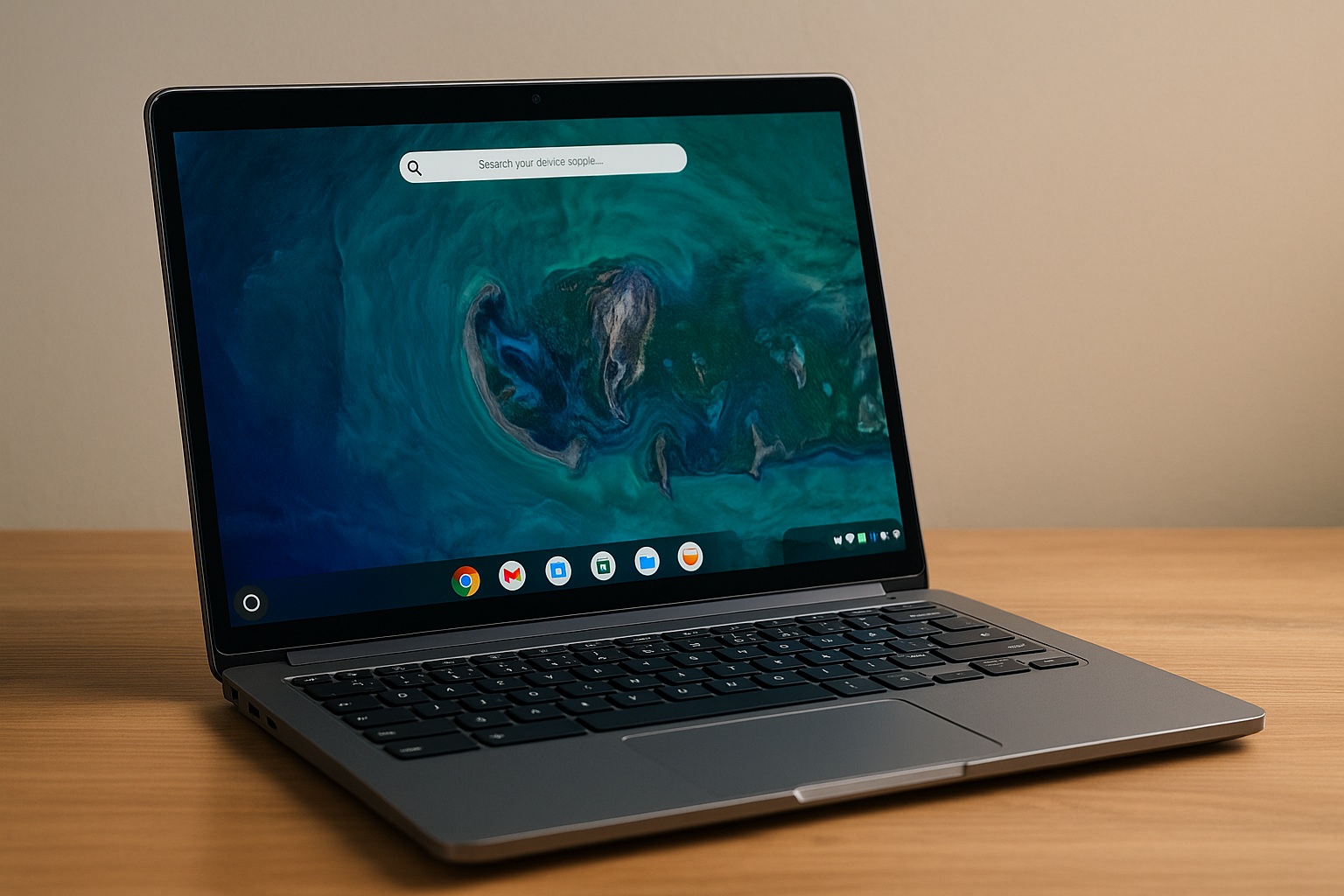
The release date of GTA 6 is one of the most discussed topics among fans of the game, but Rockstar Games has yet to make an official announcement about it. However, there are rumors that the game has been in development for some time and information could be announced in the near future. Stay tuned for the latest news and rumors about the release of GTA 6. In the meantime, explore our selection of laptops to stay connected and play your favorite games.

Here’s an overview:

Introduction to GTA 6 Anticipation

Since the mammoth success of GTA V, the anticipation for GTA 6 has reached a fever pitch among gaming communities worldwide. Rockstar Games, known for keeping details under tight wraps, has fuelled speculation and excitement surrounding their next instalment. This section will delve into the key factors contributing to the heightened anticipation and explore the expectations set by both the gaming community and industry analysts.

Rockstar Games’ Legacy

  1. Exceptional Track Record: Rockstar has consistently delivered high-calibre titles with immersive storylines, expansive worlds, and innovative gameplay mechanics.
  2. Long Development Cycles: Historically, Rockstar invests significant time in developing their titles, ensuring they meet the high-quality standards their fanbase expects.

Evolving Gaming Landscape

  1. Technological Advancements: With the progression in gaming technology, fans are eager to see how Rockstar will leverage advancements in graphics, AI, and physics to create a more realistic and engaging world.
  2. Next-Gen Consoles: The release of next-gen consoles such as the PlayStation 5 and Xbox Series X/S has heightened expectations for GTA 6 to utilise their capabilities fully.

Competitive Pressure

  1. Market Dynamics: The gaming industry has seen a surge in quality open-world games. Titles like Cyberpunk 2077, despite its rocky launch, have set new benchmarks for expansive, detailed worlds.
  2. Fan Expectations: Given the massive success of GTA V and the various successful launches of their other franchises, Rockstar faces immense pressure to deliver a groundbreaking experience with GTA 6.

Persistent Rumours and Leaks

  1. Speculative Information: Numerous leaks and rumours have surfaced, ranging from potential release dates to gameplay features. While their authenticity remains questionable, they have kept the community engaged and speculative threads alive.
  2. Marketing Strategy: Rockstar’s strategic silence and occasional teases have been instrumental in maintaining high levels of anticipation, ensuring that every minor detail or potential leak gains significant traction.

The anticipation for GTA 6 is a testament to Rockstar’s impact on the gaming industry and the enduring appeal of the Grand Theft Auto series. The blend of legacy, technological progression, competitive landscape, and strategic marketing has set the stage for one of the most highly anticipated game releases in recent history.

Rumours From Rockstar Games Insiders

Insider information from Rockstar Games often provides a tantalising glimpse into the future, and the upcoming Grand Theft Auto VI (GTA 6) is no exception. According to several sources within the company, the much-anticipated title aims to revolutionise the open-world genre. Key rumours circulating within the community include:

Project Americas

One of the most persistent rumours is the alleged codename for the game, “Project Americas.” Insiders suggest that GTA 6 will feature multiple cities, including Vice City and a fictional city based on Rio de Janeiro. This could provide players with an unprecedented level of diversity and immersion. The extended map could also encompass surrounding rural areas and smaller towns.

Enhanced AI and NPC Behaviour

Reportedly, Rockstar’s development team is focusing heavily on improving AI and NPC behaviour. According to an insider, “NPCs will not just be background characters; they will have routines, emotions, and interactions that make the world feel alive.” This enhancement aims to create a more dynamic and engaging environment than any previous instalment.

Time Period and Dynamic Weather

Speculation exists about the game spanning multiple time periods. This would allow players to experience different eras in the same storyline. Rockstar is also alleged to be integrating a dynamic weather system, affecting both gameplay and the environment. Imagine dealing with tropical storms in Vice City or torrential rains in the Brazilian-inspired locale.

Advanced Vehicle Mechanics

Another key rumour concerns vehicular mechanics, an essential aspect of any GTA game. Insiders claim that GTA 6 will offer the most advanced driving system in the series’ history. Vehicles will supposedly handle differently based on weather conditions, road surfaces, and even the wear and tear of individual parts.

Potential Release Timeline

While Rockstar has maintained a tight lid on official dates, insiders hint at a potential release window. The game is speculated to be in the final stages of development, targeting a late 2024 or early 2025 launch. This aligns with the company’s history of lengthy development cycles, ensuring a polished final product.

The information, while unofficial, consistently sets high expectations for the next instalment of the beloved series. As with all rumours, it’s crucial to approach these insights with cautious optimism, recognising the evolving nature of game development.

Alleged Leaks and Speculations

One of the main sources of information about the release date for GTA 6 comes from alleged leaks and industry insiders. These purported insights have fuelled a significant amount of speculation within the gaming community. Some common themes and claims from these sources include:

  1. Document Leaks:

    • Several online forums have posted what are claimed to be internal documents from Rockstar Games. These documents suggest release dates ranging from late 2023 to early 2024.
    • While these documents are often presented with credible formatting, their authenticity remains unverified and disputed.
  2. Industry Insiders and Analysts:

    • Well-known industry analysts, such as Jason Schreier, have provided timelines that align with expectations but remain conservative, generally forecasting a release between 2024 and 2025.
    • Certain insiders have suggested that the game has been in development since 2014, indicating a nearing completion as of 2023.
  3. Employee Tweets and Social Media Clues:

    • Former and current employees of Rockstar Games have occasionally dropped hints on social media.
    • Tweets indicating ‘big projects’ and ‘proud moments’ have been interpreted as indirect references to GTA 6.
  4. Retailer Listings:

    • Several international retailers have listed pre-order dates for GTA 6, with some aiming for 2023 release dates. Such listings have historically proven unreliable but carry some weight among enthusiasts.
  5. Developmental Stage Reports:

    • Reports suggest GTA 6 is in the final stages of development, with major components like the storyline and map reportedly finalised.
    • Numerous sources claim the game is currently undergoing rigorous internal testing phases.
  6. Past Rockstar Release Trends:

    • Observations based on past release patterns indicate Rockstar may follow a 7-8 year cycle. With GTA V released in 2013, a 2023-2024 timeline for GTA 6 appears plausible.
  7. YouTube Content and Vloggers:

    • Content creators and vloggers have added to the speculation by analysing minor details from Rockstar’s communications and financial reports.
    • Some have made detailed videos scrutinising interviews with Rockstar personnel for hidden clues.
  8. Insider Livestreams:

    • Some purported insiders have taken to livestreaming platforms to discuss leaked content and timelines, though often without concrete evidence.

These alleged leaks and speculations, while tantalising, should be approached with caution. Many factors, including potential delays and internal restructures, can influence the actual release date beyond current predictions.

Social Media Buzz and Fan Theories

Social media has become a hotbed of speculation surrounding the release date of GTA 6. Platforms like Twitter, Reddit, and YouTube are rife with theories and rumours, with users dissecting every morsel of information.

Several factors contribute to the fervent discussions:

  • Leaked Information: Alleged leaks are often shared. This includes screenshots, snippets of code, and insider information. Such leaks are discussed extensively, despite varied credibility.

  • Teaser Trailers: Rockstar Games’ historical approach to releasing teaser trailers is another focal point. Fans often scrutinise past GTA trailer release dates to pinpoint potential timelines for GTA 6.

  • Rockstar’s Hiring Patterns: Observant fans have noticed job listings and hiring sprees at Rockstar Games, speculating that these might coincide with ramped-up development phases. Positions in QA testing, for example, are seen as indicators of a nearing release.

  • Data Dives: Users explore the hidden files within existing Rockstar titles. They look for clues embedded in updates or DLC content, hoping to unearth hidden messages or codes.

Notable fan theories include:

  1. Miami and South America Setting: Many theorise GTA 6 will return to Vice City and incorporate parts of South America based on presumed leaked maps and domain name registrations by Rockstar.

  2. December 2023 Release: A popular date among fans is December 2023. This theory is based on SEO data, financial analysis reports, and strategic marketing intervals observed in the gaming industry.

  3. Parallel Storylines: Speculations suggest two protagonists with intersecting stories. This theory, supported by a suspected outline discovered in 2022, outlines a narrative split between a familiar urban locale and an exotic setting.

  4. Cryptic Social Media Posts: Timed tweets and posts from Rockstar Games serve as fertile ground for speculation. Emojis, cryptic images, and nostalgic references to past titles ignite debates and predictions.

“Trust no one but verify everything” is a prevailing mantra in these online communities. The sheer volume of speculative content underscores the intense anticipation and scrutiny from the gaming community.

These trends illustrate the substantial community-driven momentum behind the discussions, making it clear that any new clues or statements from Rockstar Games will be subject to meticulous analysis.

Historical Release Patterns of GTA Series

The Grand Theft Auto (GTA) series has a storied history that traces back to the late 1990s. Rockstar Games, the developer behind the series, has implemented a somewhat predictable yet varied release pattern over the years. Below is an overview of the historical release patterns:

  1. Initial Entries and Early 2000s:

    • Grand Theft Auto (1997): The original game was released in 1997 for MS-DOS and Microsoft Windows.
    • Grand Theft Auto II (1999): Released two years after the first game, GTA II continued to expand on the core mechanics.
  2. Transition to 3D:

    • Grand Theft Auto III (2001): GTA III marked a significant shift to 3D graphics and an open-world design, launching in October 2001.
    • Grand Theft Auto: Vice City (2002): Following the success of GTA III, Vice City was released just a year later, offering new features and a ‘80s inspired environment.
  3. Continued Success:

    • Grand Theft Auto: San Andreas (2004): Two years after Vice City, San Andreas expanded the series’ scope further with a larger map and more complex gameplay systems.
  4. High-Definition Era:

    • Grand Theft Auto IV (2008): There was a significant four-year gap before GTA IV was released, setting a new standard in graphics and storytelling.
    • Grand Theft Auto V (2013): The longest gap so far, the five years between GTA IV and V, with GTA V launching in September 2013.

The pattern observed shows that Rockstar tends to release their significant titles approximately every 3-5 years. However, the gap between GTA V and the highly anticipated GTA VI has extended far beyond this historical trend.

Given such varied release intervals, it becomes complex when trying to predict exactly when the next installment will reach the market. Despite this, looking back at historical data provides a foundation for speculation, keeping fans actively engaged in discussions and rumours regarding the potential release date of GTA VI.

Impact of Next-Gen Consoles on Release Date

The launch of next-generation consoles, such as the PlayStation 5 and Xbox Series X, plays a critical role in the release date of “Grand Theft Auto VI” (GTA 6). As Rockstar Games aims to leverage the advanced capabilities of these platforms, various factors influence their scheduling decisions:

  1. Technical Advancements:

    • Enhanced Graphics: The improved graphical capabilities of next-gen consoles enable Rockstar to create more immersive environments.
    • Faster Load Times: Utilizing SSD technology allows for quicker transitions and increased in-game interaction.
    • Ray Tracing and AI: Integrating ray tracing and sophisticated AI algorithms elevates the game’s realism and complexity.
  2. Market Penetration:

    • Console Availability: The production constraints faced by Sony and Microsoft may delay widespread console adoption, affecting market strategy.
    • Consumer Readiness: The game’s success hinges on the potential player base, which depends on the prevalence of next-gen consoles among consumers.
  3. Development Optimisation:

    • Platform-Specific Features: Capitalising on unique features like haptic feedback and custom audio systems demands extended development time.
    • Cross-Platform Functionality: Ensuring compatibility and performance across both current-gen and next-gen platforms necessitates comprehensive testing.
  4. Business Strategy:

    • Maximising Revenue: Timing the release to coincide with peak console ownership can enhance sales.
    • Strategic Delays: Delays might be employed strategically to achieve optimal market conditions and address any unforeseen technical hurdles.

Additionally, the collaboration with console manufacturers potentially influences timelines. Exclusive content or features designed in partnership with Sony or Microsoft require careful planning and coordination.

The shift towards digital distribution also factors in, as next-gen consoles facilitate instant access to games, thereby reducing reliance on physical sales and logistics.

In summary, multiple interrelated aspects of next-gen consoles impact Rockstar Games’ decision-making concerning the release date of GTA 6.

Technical Advancements and Development Hurdles

In the realm of technical advancements, GTA 6 is expected to push the boundaries of modern gaming technology. Leveraging advancements in AI, machine learning, and complex physics simulations, the next iteration promises to deliver unparalleled realism.

  • AI and Machine Learning: Rockstar Games is presumed to be incorporating advanced AI algorithms for NPC behaviour. This would result in more dynamic interactions and a world that feels genuinely alive. NPCs are expected to demonstrate improved decision-making abilities, making the game environment not only more immersive but also unpredictable.

  • Enhanced Graphics: The capability of modern gaming consoles like the PlayStation 5 and Xbox Series X allows for significantly better graphics. Enhanced ray tracing, more detailed textures, and realistic lighting effects are all anticipated. Additionally, the adoption of 4K resolution will further augment visual fidelity.

  • Physics Simulations: Advanced physics simulations are also a rumoured feature. This would encompass more realistic vehicle dynamics, destructible environments, and more intricate object interactions. It aims to provide a more engaging, authentic gameplay experience.

However, the path to these technical advancements has not been without hurdles.

  1. Hardware Limitations: Despite significant improvements in console technology, limitations still exist. Overcoming these to deliver a seamless experience is a substantial challenge. Ensuring a balance between graphical fidelity and performance is a critical task.

  2. Development Delays: Development delays are another prevalent issue. COVID-19 has further exacerbated these delays, affecting both productivity and timelines. Remote working conditions have posed additional obstacles in project coordination and execution.

  3. Resource Management: Proper resource allocation is imperative in a project of this scale. Balancing manpower between different facets like graphics, AI, and gameplay mechanics can be challenging. Efficient resource management is crucial to ensure timely delivery without compromising on quality.

Amid these hurdles, Rockstar Games remains committed to advancing technical aspects while navigating the obstacles, aiming to deliver a game that meets, if not exceeds, player expectations.

Influence of GTA Online Success on GTA 6 Launch

The monumental success of Grand Theft Auto (GTA) Online has drastically shaped the strategic trajectory of Rockstar Games concerning the release of GTA 6. GTA Online, a multi-faceted online multiplayer mode in GTA V, has redefined financial milestones and engagement metrics for the series. Rockstar Games has reaped substantial revenue through microtransactions, content updates, and an active player base, prompting a significant re-evaluation of their release schedules.

Financial Impact

  • Revenue Generation: GTA Online has generated over a billion dollars in revenue since launch, primarily through in-game purchases. This astronomical sum has established a dependable financial foundation, enabling Rockstar to approach the development of GTA 6 without immediate fiscal pressure.

  • Profitability: Unlike traditional game sales, the profitability derived from recurring microtransactions and subscription services in GTA Online has presented a lucrative business model. This financial cushion affords the company the latitude to refine, test, and perfect GTA 6, ensuring an unblemished launch.

Engagement Metrics

  • Player Retention: The active player base of GTA Online continues to thrive years after release. This sustained engagement indicates a diminished urgency to rush GTA 6 to market as the current offering remains highly popular and lucrative.

  • Content Updates: Regular updates and expansions within GTA Online have maintained player interest and involvement. This model has fostered an ecosystem where players remain invested without requiring new game releases at frequent intervals.

Development Implications

  • Extended Development Timeline: The financial and engagement success of GTA Online has granted Rockstar Games the luxury of an extended development timeline for GTA 6. The company can meticulously develop the game, ensuring a product that meets and exceeds industry standards without succumbing to premature release pressures.

  • Focus on Quality: With substantial revenue streams from GTA Online, resources can be allocated more generously towards the innovation, design, and development phases of GTA 6. This focus aims to deliver a revolutionary gaming experience that builds on the legacy of its predecessors.

In summary, the success of GTA Online has had a profound influence on the approach toward GTA 6’s launch, guiding Rockstar Games with financial stability and allowing a focus on producing a superior next instalment.

Official Statements vs. Rumour Mill

In the realm of game development, separating official statements from the rumour mill is crucial. Rockstar Games, the developer behind the Grand Theft Auto (GTA) series, has been notably tight-lipped regarding the release date of GTA 6. Despite this, the internet is rife with speculative dates and purported leaks from a variety of sources.

Official Statements

Rockstar Games has only made limited official comments regarding GTA 6. Key points include:

  • Acknowledgement of Development: Rockstar confirmed they are working on the next entry in the series. This came via a brief statement in early 2022.
  • Commitment to Quality: The developers have emphasised their commitment to delivering a game that meets the high standards set by previous GTA titles.
  • No Fixed Release Date: As of the latest updates, Rockstar has not provided a specific release date or even a release window.

These official statements are characterised by their cautious optimism and focus on quality, reflecting Rockstar’s reputation for taking a meticulous approach to game development.

The Rumour Mill

Meanwhile, the rumour mill operates on a different level, often filling the void left by the scarcity of official information. Some prevalent rumours include:

  • Leaked Dates: Various unofficial sources claim insider information suggesting release dates ranging from 2023 to 2025.
  • Beta Testing: Speculations persist about a possible beta testing phase that some believe could start in late 2023.
  • Geographical Setting: Rumours indicate a return to Vice City, though this has not been confirmed by official sources.

Whilst these rumours can generate excitement and discussion among fans, they often lack the robust verification and reliability of official statements. Below are some examples of how these rumours proliferate:

“An insider source has leaked that Rockstar will launch GTA 6 in late 2024,” reads a popular Reddit thread.

“A former employee hinted at a Vice City setting in a now-deleted tweet,” claims an article on a fan website.

Such rumours can sometimes lead to unrealistic expectations and disappointment when they are eventually debunked.

Given the conflicting nature of official statements and the rumour mill, it is wise for fans and industry observers to tread carefully:

  • Trustworthy Sources: Prioritise information from Rockstar Games or credible gaming news outlets.
  • Level-headed Excitement: While it’s natural to be excited, it’s important to manage expectations appropriately.
  • Stay Updated: Follow official channels for the most accurate and up-to-date information.

Navigating these waters requires discernment to distinguish between hype and reality.

Analysing past release patterns of Rockstar Games can provide a valuable framework for estimating potential release windows for GTA 6. Several experts and industry insiders have weighed in, offering a consensus based on historical data and current trends in the gaming industry.

Historical Release Patterns

Rockstar Games, the developer behind the Grand Theft Auto series, typically prefers substantial gaps between their major title releases. Their historical release cycle shows:

  • GTA IV: Released in 2008
  • GTA V: Released in 2013

This period suggests a 5-year gap between major releases. However, with no release in sight by 2018, it is crucial to consider additional factors that could influence the timeline.

Development Time and Complexity

The increased complexity of modern game development means that longer periods between announcements and releases are becoming more common. Noteworthy elements that extend development time include:

  • Enhanced Graphics and Realism: Advanced graphics engines requiring more development time.
  • Increased Game Scale: Larger open-world environments that are more detailed and interactive.
  • Multiplayer Complexities: Integration of complex online multiplayer modes.

Gaming industry analysts have noted several trends pertinent to estimating GTA 6’s release window:

  1. Next-Generation Consoles: With the launch of the PlayStation 5 and Xbox Series X in late 2020, it would be strategic for Rockstar Games to release GTA 6 to fully exploit the capabilities of these consoles.
  2. COVID-19 Impact: The pandemic has caused delays throughout the gaming industry, stretching development timelines.
  3. Annual Events: Developers frequently align their release schedules with significant gaming events like E3 or Gamescom for maximum exposure.

Expert Predictions

Industry experts and insiders have made the following predictions:

  • 2024-2025: A reasonable window considering the elapsed time since the last major release and current development timelines.
  • Late 2023: A more optimistic estimate if development has progressed faster than expected.

By aligning these factors and trends, one can reasonably deduce potential release windows for GTA 6, though these remain educated speculations.

Conclusion and Expectations

As speculation surrounding the GTA 6 release date continues to grow, several factors shape both anticipation and projected timelines. Analysts and fans alike have drawn on historical release patterns, industry trends, and hints from Rockstar Games to form theories regarding when the next instalment of the iconic franchise may hit the shelves.

One expectation revolves around Rockstar Games’ traditional pattern of development cycles spanning approximately six to eight years. Given that GTA V was launched in 2013 and Red Dead Redemption 2 in 2018, many predict an announcement or release around 2024-2025.

Key Factors Influencing Expectations

  • Development Timelines

    • Historically, Rockstar Games takes significant time between releases to ensure quality and innovation.
    • The transition from the current console generation to the next may have also played a role in extending the development period.
  • Internal Leaks and Job Listings

    • Leaked information from insiders and job postings hint at advanced stages of development for a new instalment.
    • Certain job descriptions have pointed towards open-world design and advanced AI technology in progress.
  • Industry Trends

    • The rise of next-gen consoles like the PlayStation 5 and Xbox Series X enhances the expectation that GTA 6 will harness these platforms for enhanced gameplay and graphics.
    • Other companies rolling out large open-world games influence the urgency and excitement among GTA’s fandom.
  • Economic and Market Conditions

    • The financial landscape and market demand play critical roles in scheduling releases to maximise profitability.
    • Global events, such as the COVID-19 pandemic, have affected numerous game development timelines, possibly affecting GTA 6 as well.

Fan Expectations and Speculations

  • Setting and Plot

    • Rumours suggest varied settings, from a return to Vice City to an entirely new, sprawling landscape covering multiple cities.
    • Speculative plots span from traditional crime narratives to more intricate, character-driven stories that reflect current societal issues.
  • Gameplay Enhancements

    • Enhancements in AI, improved real-world simulation, and expansive multiplayer modes, akin to GTA Online, are highly anticipated.
    • Fans expect Rockstar to push the boundaries of what’s possible within an open-world environment.

Anticipated Announcement Strategy

  • Evolving Promotional Tactics
    • Rockstar’s promotional strategies may evolve, leveraging digital showcases and teasers more heavily due to changing dynamics in global media consumption.
    • Players expect an initial teaser, followed by more substantial gameplay reveals closer to launch.

GTA 6’s release remains one of the most anticipated events in gaming, driven by years of speculation and dedicated fan following. The community remains eager, dissecting every potential hint and awaiting official confirmation from Rockstar Games.

All information about the Playstation 5

Everything You Need to Know About the Playstation 5

All information about the Playstation 5

The Playstation 5 is Sony's latest console, offering cutting-edge graphics, an immersive gaming experience, and a wide range of exclusive titles. To complement your gaming experience, consider exploring our selection of laptops to find the perfect device for your gaming needs.

Here’s an overview:

Introduction to the PlayStation 5

The PlayStation 5 (PS5), developed by Sony Interactive Entertainment, represents a significant leap in gaming technology, promising to redefine the user’s experience with its powerful hardware, innovative features, and extensive game library. Launched in November 2020, the console has set new benchmarks in the gaming industry.

Key Hardware Specifications

The PS5 hardware has been meticulously designed to achieve high performance and speed. Key specifications include:

  • CPU: Custom AMD Ryzen “Zen 2” with 8 cores and 16 threads at 3.5GHz.
  • GPU: Custom RDNA 2 architecture, offering 10.28 TFLOPs with 36 compute units at 2.23GHz.
  • Memory: 16GB GDDR6 RAM, ensuring swift data handling and seamless gameplay.
  • Storage: 825GB SSD, providing ultra-fast load times and a significant reduction in in-game wait times.
  • Optical Drive: 4K UHD Blu-ray Drive, enhancing the multimedia experience.

Notable Features

The PS5 introduces several groundbreaking features designed to improve gameplay and user interaction:

  1. DualSense Controller:

    • Haptic Feedback: Provides nuanced vibrations, enhancing immersion.
    • Adaptive Triggers: Offers varying resistance levels, adding physical feedback to in-game actions.
    • Built-in Microphone: Allows players to communicate without additional peripherals.
  2. 3D Audio Technology:

    • Supports spatial audio, delivering a more immersive sound experience with compatible headsets.
  3. Backward Compatibility:

    • Supports a vast library of PS4 games, allowing gamers to continue enjoying their previous titles with improved performance.
  4. User Interface:

    • Redesigned to be faster and more intuitive, offering quick access to games, media, and social features.

Games and Exclusives

The PS5 boasts an impressive line-up of exclusive titles and highly anticipated games:

  • Demon’s Souls: A complete remake showcasing the console’s graphical capabilities.
  • Marvel’s Spider-Man: Miles Morales: Expands on the successful Spider-Man franchise with stunning visuals.
  • Ratchet & Clank: Rift Apart: Demonstrates the PS5’s ability to handle real-time dimensional shifts.
  • Horizon Forbidden West: Continues the popular Horizon series with expansive open-world exploration.

This combination of powerful hardware, innovative features, and an impressive game library positions the PS5 as a premier choice for gamers seeking a cutting-edge experience.

PlayStation 5 Versions: Standard vs Digital Edition

The PlayStation 5 is available in two main versions: Standard Edition and Digital Edition. Understanding the differences can help users make a well-informed decision when selecting the best model for their gaming needs.

Standard Edition

The Standard Edition PS5 includes a physical disc drive, allowing users to:

  • Play Ultra HD Blu-ray discs
  • Access physical copies of PS4 and PS5 games
  • Watch Blu-ray movies
  • Use pre-owned games

Noteworthy features:

  1. Physical media support provides flexibility.
  2. Larger storage for physical games reduces dependency on digital downloads.
  3. Collectors may prefer boxed editions with exclusive content not available digitally.

Digital Edition

The Digital Edition lacks a physical disc drive, which offers:

  • Lower initial cost due to the absence of the drive
  • Sleeker, symmetrical design

Considerations for this version:

  1. Requires stable, high-speed internet for downloading games.
  2. Limits access to digital-only or downloadable games.
  3. Digital purchases are non-transferable and tied to the user’s PlayStation Network account.

Key Differences

  • Price: The Digital Edition is typically cheaper than the Standard Edition.
  • Media Compatibility: The Standard Edition can play physical discs, which is not possible with the Digital Edition.
  • Aesthetic and Weight: The absence of the disc drive in the Digital Edition results in a lighter, more streamlined design.
  • Storage Utilisation: Digital Edition users fully utilise their console’s SSD storage since all purchased games are downloads.

Performance and Features

Despite their differences, both versions share identical internal components:

  • Custom AMD Ryzen™ Zen 2 CPU and RDNA 2 GPU
  • Ultra-fast SSD for quick load times
  • Backward compatibility with a wide range of PS4 titles
  • Support for 3D audio and ray tracing

In summary, selecting between the Standard Edition and Digital Edition depends on the user’s preference for physical media versus digital downloads, as well as their budget. The performance and gameplay experience on both remain consistent.

Technical Specifications and Hardware Features

The PlayStation 5 boasts cutting-edge specifications designed to deliver an immersive gaming experience. Below are its key technical specifications and hardware features:

Processor and Performance

  • CPU: Custom AMD Ryzen™ Zen 2, 8 cores/16 threads, up to 3.5 GHz
  • GPU: Custom RDNA 2, 10.28 TFLOPs, 36 CUs at 2.23 GHz
  • Memory Interface: 16 GB GDDR6, 256-bit
  • Memory Bandwidth: 448 GB/s

Storage and Speed

  • Internal Storage: Custom 825 GB SSD
  • Expandable Storage: NVMe SSD Slot
  • External Storage: USB HDD Compatibility
  • IO Throughput: 5.5 GB/s (Raw), Typical 8-9 GB/s (Compressed)

Multimedia and Output

  • Resolution: 4K UHD (3840 x 2160 pixels), 8K support
  • Refresh Rate: 120 Hz support
  • HDR Support: Yes, HDR10
  • Ray Tracing: Hardware-accelerated ray tracing

Audio and Sound

  • Tempest 3D AudioTech: > The custom-built system allows for advanced 3D audio in supported games.
  • Audio Output: Supports 5.1, 7.1 surround sound, and virtual surround sound via compatible HDMI devices

Disc Drive and Compatibility

  • Optical Drive: Ultra HD Blu-ray (4K) drive
  • Backward Compatibility: Compatible with most PlayStation 4 games
  • Game Media: Ultra HD Blu-ray, Digital download

Connectivity

  • Wi-Fi: IEEE 802.11ax (Wi-Fi 6)
  • Bluetooth: Bluetooth® 5.1
  • USB Ports: 2 x USB 3.1, 1 x USB-C on front
  • HDMI: HDMI 2.1 support

Design and Dimensions

  • Dimensions: Approximately 390mm x 104mm x 260mm (width x height x depth)
  • Weight: Approximately 4.5 kg

Controller Features

  • DualSense™ Wireless Controller:
    • Haptic Feedback: Advanced vibration motors for tactile feedback
    • Adaptive Triggers: L2 and R2 trigger buttons featuring varying levels of resistance
    • Built-in Microphone: Enables voice chatting without the need for a headset
    • Battery Life: Approx. 10-12 hours per charge

Additional Features

  • User Interface: New PS5 UI with fast load times and seamless integration with the PlayStation Network
  • Power Consumption: Supports energy-saving modes, lower than previous models

The PlayStation 5’s feature set signifies a generation leap, offering robust performance, quicker loading times, and a more immersive gaming experience. Game developers can harness these specifications to create richer and more detailed game worlds.

User Interface and Experience

The PlayStation 5 (PS5) features a redesigned user interface (UI) that enhances the gaming experience. The new UI is designed to provide quick access to essential functions, minimise downtime, and ensure gamers can dive into their games seamlessly.

Key Elements of the PS5 UI:

  1. Control Centre:

    • Quickly accessible by pressing the PS button on the DualSense controller.
    • Provides access to fundamental features like notifications, game-related information, settings, and music controls without leaving the game.
    • Allows players to check on friends, manage downloads, and access other essential features instantly.
  2. Activity Cards:

    • Offer a revolutionary way to engage with games.
    • Provide specific information about in-game objectives, progress, and achievements.
    • Players can resume paused activities directly from these cards, streamlining gameplay and reducing transition times.
    • Certain activity cards feature built-in walkthroughs and hints to assist players in challenging sections.
  3. Game Hub:

    • Serves as the central point for all game-related information.
    • Displays recent news, updates, and downloadable content for installed games.
    • Offers quick access to game-specific community features and social interactions.
  4. User Profiles:

    • Enhanced to be more informative and personalised.
    • Show the user’s recent activity, trophies, and preferred titles.
    • Allow players to compare progress and achievements with friends seamlessly.
  5. Enhanced Store Integration:

    • The PlayStation Store is integrated directly into the UI, removing the need for a separate app.
    • Provides a unified browsing and purchasing experience.
    • Streamlined navigation helps users find new games, add-ons, and special offers efficiently.

Visual Design and Performance:

  • The PS5 UI features a clean and responsive design with high-definition visuals.
  • Animations are smooth, providing a sense of fluidity when navigating through menus.
  • The layout prioritises user convenience, reducing the number of steps required to perform common actions.
  • The system leverages the PS5’s hardware capabilities, ensuring near-instant loading times for most UI functions.

Overall, the user interface and experience of the PS5 are designed to be intuitive, responsive, and visually appealing, significantly enhancing the overall gaming experience.

Backward Compatibility and Game Library

The PlayStation 5 (PS5) provides extensive backward compatibility features with a majority of PlayStation 4 (PS4) titles, enabling users to enjoy their existing game libraries without necessitating the preservation of older hardware. This capability significantly enhances user experience and broadens the PS5’s game offerings from the outset.

Backward Compatibility

  • PS4 Games: The PS5 supports over 99% of PS4 games, both physical discs and digital titles purchased through the PlayStation Store. This allows players to continue enjoying their favourite titles from the previous generation.
  • Enhanced Performance: Many PS4 games benefit from the advanced hardware of the PS5, experiencing enhancements such as higher frame rates, improved resolution, and faster load times.
  • Save Data Transfer: Players can transfer save data from their PS4 to PS5, ensuring seamless progression. This can be achieved through multiple methods:
    • Cloud storage via PlayStation Plus.
    • External USB devices.
    • Network transfer directly from the PS4 to the PS5.

Game Library

  • Launch Titles: The PS5 launched with a variety of exclusive games, showcasing the capabilities of the new hardware. Titles such as “Demon’s Souls” and “Marvel’s Spider-Man: Miles Morales” highlight graphical advancements and innovative gameplay.
  • Exclusive Titles: Sony continues to invest in exclusive franchises, ensuring a steady stream of high-quality games that are unavailable on other platforms. Upcoming releases promise to push the boundaries of what the console can achieve.
  • Third-Party Titles: The PS5 benefits from strong support from third-party developers. Popular franchises, including “Call of Duty,” “Assassin’s Creed,” and “FIFA,” consistently release new editions, optimised for the PS5’s capabilities.
  • PlayStation Plus Collection: PlayStation Plus members gain access to a curated library of classic PS4 games, playable on the PS5. This collection includes critically acclaimed titles such as “God of War,” “The Last of Us Remastered,” and “Uncharted 4: A Thief’s End.”

Overall, backward compatibility combined with a growing library of games ensures that the PS5 offers a robust and engaging gaming experience right from its release, catering to both new and returning players alike.

PlayStation 5 Accessories and Peripherals

The PlayStation 5 offers an array of accessories and peripherals that enhance the gaming experience. These add-ons are designed to deliver superior performance, immersive experiences, and comfort during gameplay.

DualSense Wireless Controller

The DualSense Wireless Controller is a significant upgrade from its predecessor. It features haptic feedback, adaptive triggers, and a built-in microphone. Key improvements:

  • Haptic Feedback: Provides realistic vibrations matching the in-game actions.
  • Adaptive Triggers: Offer varying levels of resistance to replicate the physical sensation of in-game activities.
  • Built-In Microphone: Enables voice chat without the need for a headset.

Pulse 3D Wireless Headset

The Pulse 3D Wireless Headset is designed for the PS5’s Tempest 3D AudioTech, which provides a spatial audio experience. Features include:

  • 3D Audio Support: Delivers immersive and realistic sound.
  • Noise-Canceling Microphones: Ensure clear communication.
  • Wireless Connectivity: Offers freedom of movement without compromising sound quality.

Media Remote

The Media Remote provides easy navigation and control over the PS5’s media content. It allows users to:

  • Streamlined Media Playback: Control streaming services and media playback.
  • Dedicated Buttons: Pre-programmed for popular streaming services.
  • Intuitive Layout: Simplifies the navigation of media content.

HD Camera

The HD Camera is an accessory tailored for gamers interested in streaming or video conferencing. It includes:

  • 1080p Capture: Ensures high-definition video quality.
  • Integrated Stand: Adjustable for optimal positioning.
  • Background Removal Tools: Tailored for picture-in-picture presentations during live gameplay streaming.

DualSense Charging Station

The DualSense Charging Station enhances convenience by allowing users to charge up to two controllers simultaneously. Features include:

  • Charge Two Controllers: Simultaneously replenish the battery life of two DualSense controllers.
  • Effortless Docking: Easy-to-use drop-and-go functionality.
  • Tidy Setup: Minimises cable clutter.

PlayStation 5 Console Covers

Available in various colours, PlayStation 5 Console Covers offer a way to personalise and protect the console. Specifications include:

  • Customisability: Available in multiple colours, including red, purple, black, blue, and pink.
  • Durable Material: Designed to fit securely and protect the console.

Each of these accessories is designed to maximise the PS5’s capabilities, offering a more immersive and enjoyable user experience.

Exclusive Games and Titles

The PlayStation 5 (PS5) boasts a remarkable range of exclusive games and titles that enhance its appeal. These exclusives are tailored to utilise the advanced capabilities of the PS5, ensuring immersive experiences for gamers.

Notable Exclusive Titles

  1. Demon’s Souls

    • A remake of the 2009 classic. This action RPG is known for its challenging gameplay and stunning visual overhaul.
  2. Ratchet & Clank: Rift Apart

    • An excellent showcase of the PS5’s graphical prowess and fast load times. It features dynamic worlds and innovative gameplay mechanics.
  3. Returnal

    • A third-person shooter with roguelike elements. It offers a unique narrative and fast-paced, challenging combat.
  4. Spider-Man: Miles Morales

    • A continuation of the Spider-Man franchise. It features a new protagonist, improved mechanics, and a captivating storyline.
  5. Astro’s Playroom

    • Pre-installed on every PS5, this platformer is a perfect introduction to the console’s features, particularly the DualSense controller.

Upcoming Titles

  1. Horizon Forbidden West

    • The sequel to Horizon Zero Dawn. It promises enhanced graphics, a deeper narrative, and expanded exploration options.
  2. Gran Turismo 7

    • The new instalment of the acclaimed racing series. Anticipated for its realism and extensive car collection.
  3. God of War: Ragnarok

    • A follow-up to the critically acclaimed God of War (2018). Known for its enhanced storytelling and combat mechanics.

Advantages of PS5 Exclusives

  • Optimised Performance: Exclusives are designed to take full advantage of the PS5’s hardware, ensuring seamless gameplay and superior graphics.
  • Innovative Use of the DualSense Controller: Many exclusives integrate the DualSense’s haptic feedback and adaptive triggers, offering a more immersive experience.
  • Expansive Worlds and Narratives: These games typically feature rich storylines and expansive worlds, providing gamers with hours of engagement.

Impact on the Gaming Landscape

PS5 exclusives set a high standard for next-gen console gaming. They not only showcase the technical capabilities of the console but also push the boundaries of interactive storytelling and gameplay innovation. As developers continue to explore and exploit the PS5’s hardware, the quality and diversity of exclusive titles are expected to grow, solidifying the PS5’s position as a leading gaming platform.

PlayStation Plus and Other Subscription Services

PlayStation Plus is a critical service for any serious PlayStation 5 user. It grants access to online multiplayer, exclusive discounts, and a collection of free monthly games. There are different tiers such as PlayStation Plus Essential, Extra, and Premium, each offering varying degrees of benefits and access to a more extensive library of games.

PlayStation Plus

  • PlayStation Plus Essential: The basic tier provides online multiplayer access, two monthly free games, exclusive discounts, and cloud storage for game saves.
  • PlayStation Plus Extra: Builds on the Essential benefits with a library of up to 400 downloadable PS4 and PS5 games, including blockbuster hits and favourites.
  • PlayStation Plus Premium: Offers everything in the Essential and Extra tiers, plus up to 340 additional games, including PS3 titles available via cloud streaming, and classics from PS1, PS2, and PSP generations. Premium members also get time-limited game trials.

PlayStation Now

PlayStation Now integrates into PlayStation Plus, particularly at the Extra and Premium tiers, providing access to a vast streaming library. It permits users to stream or download a selection of titles from various PlayStation generations.

Other Subscription Services

EA Play

EA Play offers PS5 users a curated selection of Electronic Arts games. Subscribers gain:

  • Early access to new releases.
  • Member-only challenges and rewards.
  • A collection of top EA games for unlimited play.

Ubisoft+

Ubisoft+ is expected to become available on PlayStation 5, expanding the subscription ecosystem. It provides access to new and classic Ubisoft titles, additional content, and in-game rewards.

Netflix, Amazon Prime, Hulu

While not gaming-focused, these services are accessible on PS5, broadening its utility as a home entertainment system.

Integration and Usability

The integration of these services into the PS5 dashboard enhances usability, offering seamless access through a unified interface. The automatic updates and personalised recommendations improve the gaming experience. Features like Share Play allow users to share their games and co-op across distances.

Overall, the subscription services available on PlayStation 5 cater to various gaming and entertainment preferences, making the console a versatile and indispensable part of modern entertainment setups.

Setting Up and Customising Your PlayStation 5

Unboxing and Initial Setup

Upon unboxing the PlayStation 5, users will find the following components:

  • PlayStation 5 console
  • DualSense wireless controller
  • HDMI cable
  • AC power cord
  • USB-C to USB-A charging cable
  • Base (for vertical or horizontal orientation)
  • Quick start guide and safety guide

Users should begin by securely connecting the HDMI cable to their TV and the console. Next, plug in the AC power cord to the back of the PS5 and connect it to a power outlet. To power on the console, press the power button located on the front.

Initial Configuration

Following the hardware setup, users will need to:

  1. Select language preferences: Upon starting the console, users will be prompted to choose their preferred language.
  2. Connect to Wi-Fi: The console will search for available Wi-Fi networks. Select the preferred network and enter the password.
  3. Sign in to PlayStation Network (PSN): Users must sign in using their existing PSN account or create a new one.
  4. System software updates: The PS5 may prompt users to install the latest system software update to ensure optimal performance and access to new features.

Customising Settings

Personalising the console settings improves the user experience. Customisation options include:

  • Display settings: Navigate to Settings > Screen and Video to adjust resolution, HDR, and other display features.
  • Sound settings: Access Settings > Sound to configure audio output, including TV speakers, headphones, and home theatre systems.
  • Privacy settings: Modify who can see your online status, sent friend requests, and view gameplay broadcasts under Settings > Users and Accounts > Privacy.
  • Controller settings: Adjust the DualSense controller settings under Settings > Accessories > Controllers, including haptic feedback and adaptive trigger intensity.

Setting Up Parental Controls

For households with children, PS5 offers comprehensive parental controls:

  • Go to Settings > Family and Parental Controls.
  • Create child accounts with appropriate restrictions.
  • Set spending limits, screen time limits, and restrict communication with other players.
  • Review and adjust content filters based on age appropriateness.

Personalising the Home Screen

Further, users may:

  • Install themes: Enhance the UI by installing custom or default themes available in the PlayStation Store.
  • Organise game library: Arrange installed games and applications using folders for a streamlined experience.
  • Set up game presets: In Settings > Saved Data > Game Presets, customise default difficulty levels, performance modes, and subtitles for supported games.

By following these steps, users will fully set up and customise their PlayStation 5, ensuring optimal performance and personalised use.

Tips and Tricks for Maximising PS5 Performance

To get the most out of the PlayStation 5, users can follow several best practices to enhance gaming experience and system efficiency. Here’s a comprehensive list of strategies:

System Updates

  1. Regular Updates: Ensure the PS5 system software is always up to date with the latest updates from Sony. This can include vital performance enhancements and bug fixes.
  2. Automatic Updates: Enable automatic updates to ensure the console always has the latest software without requiring manual intervention.

Storage Optimisation

  1. External SSD: Use a compatible external SSD for additional storage to reduce load times and enhance performance.
  2. Game Organisation: Organise and uninstall games no longer in use to free up system storage, preventing slowdowns.
  3. Data Management: Regularly check for and delete unnecessary game data and cache.

Power Settings

  1. Rest Mode: Enable Rest Mode to prevent wear and tear and to keep the console updated while not in use.
  2. Energy Saver: Opt for energy-saving settings to ensure optimal performance without excessive power consumption.

Network Settings

  1. Wired Connection: For online gaming, utilise a wired Ethernet connection rather than Wi-Fi to reduce lag and ensure a stable connection.
  2. Network Configuration: Use advanced network settings such as custom DNS to improve download speeds and online performance.

Cooling Management

  1. Ventilation: Place the PS5 in a well-ventilated area to prevent overheating, ensuring proper air flow around the console.
  2. Cleaning: Periodically clean the vents and fans to remove dust build-up, which can hinder cooling efficiency.

Performance Settings

  1. Performance Mode: Set games to performance mode in the game settings to prioritise higher frame rates over graphical fidelity.
  2. Resolution Settings: Adjust the resolution settings to match the capabilities of the display unit, maintaining a balance between visual quality and performance.

Peripheral Settings

  1. Controller Updates: Keep the DualSense controller firmware updated to the latest version for optimal compatibility and performance.
  2. Accessory Management: Disconnect unused accessories to minimise power drain and interference with system resources.

Regular Maintenance

  1. System Reboots: Regularly reboot the console to clear the cache and refresh system processes.
  2. Factory Reset: Consider a factory reset periodically or when experiencing ongoing issues to clear out system files and restore optimal performance.

These tips will ensure gamers can enjoy a seamless and responsive experience with their PS5 console.

Common Issues and Troubleshooting

Power Issues

  • Ensure the power cable is securely connected.
  • Verify the outlet by testing another device.
  • Perform a power cycle by holding the power button for 10 seconds.

Connectivity Problems

  • Check internet speed and stability.
  • Reboot the router and modem.
  • Reset the network settings on the PS5 through:
    • Settings > Network > Settings > Set Up Internet Connection > Reset

Freezing and Crashing

  • Update the system software via:
    • Settings > System Software > System Software Update and Settings
  • Rebuild the database in Safe Mode:
    • Turn off the console > Hold the power button until two beeps > Connect the controller with a USB cable > Press the PS button > Select “Rebuild Database”

Controller Issues

  • If the DualSense controller is not charging:
    • Try another USB cable or port.
    • Reset the controller by pressing the small button on the back with a pin.
  • If the controller is unresponsive:
    • Connect the controller with a USB cable to the console and press the PS button.

Disk Read Errors

  • Ensure the disk is clean and free from scratches.
  • Try another disk to determine if the issue persists.
  • Restart the console and reinsert the disk.

Audio and Video Glitches

  • Check HDMI cable connections and try a different HDMI port.
  • Verify TV or monitor settings match the PS5’s output.
  • Adjust the video output settings through:
    • Settings > Screen and Video > Video Output

Storage Issues

  • Clear temporary data through:
    • Settings > Storage > Console Storage > Temporary Data
  • External storage issues can be resolved by:
    • Disconnecting and reconnecting the external drive.

Software Bugs

  • Always keep the system and games up to date.
  • Report persistent bugs through the PlayStation Support page.

Overheating

  • Ensure the console has 10 cm of clearance on all sides.
  • Clean any dust from vents using compressed air.
  • Move the console to a well-ventilated area.

Warranty and Repairs

  • If hardware issues persist, contact Sony’s customer support for further assistance.

  • Registered products may be eligible for repair or replacement.

    Future Updates and Upcoming Features

As technology evolves, so does the Playstation 5. Sony has an impressive roadmap outlined that underscores their commitment to enhancing the gaming experience. Here are the most anticipated updates and upcoming features for the PS5:

Firmware Updates

Sony constantly works on firmware updates to enhance performance, security, and user experience:

  1. User Interface (UI) Enhancements: Expect streamlined navigation and customisable UI themes.
  2. Improved Game Loading Times: Firmware updates may include optimisations reducing game load times further.
  3. Enhanced Remote Play: More stable remote play connectivity, allowing for seamless gaming across various devices.

New Game Releases

Several high-profile game titles are set for release, each promising to leverage the PS5’s hardware capabilities:

  1. Final Fantasy XVI: Stunning graphics and immersive gameplay designed exclusively for the PS5 architecture.
  2. Horizon Forbidden West: Utilising the PS5’s GPU to deliver expansive, open-world environments.
  3. Gran Turismo 7: Emphasis on real-time ray tracing and enhanced car physics.

Backwards Compatibility

Sony aims to broaden the library of PS4 titles playable on the PS5:

  1. Extended Game Support: More PS4 classics will become compatible over time.
  2. Performance Enhancements: Select PS4 games will receive patches to optimise performance on the PS5.

Virtual Reality (VR)

Next-generation VR is a key focus area:

  1. PlayStation VR2: Launching with higher resolution displays and improved motion tracking.
  2. Exclusive VR Titles: New innovative games designed to exploit the capabilities of PS VR2.

Storage Expansion

The PS5 supports M.2 SSDs, and Sony aims to simplify this process:

  1. Certified SSDs: A growing list of Sony-endorsed compatible M.2 SSDs.
  2. Enhanced Storage Management: Firmware updates facilitating easier SSD installations and transfers.

Cloud Gaming

Sony’s cloud gaming service, PlayStation Now, will see significant improvements:

  1. Reduced Latency: Enhancements to minimised lag for a smoother gaming experience.
  2. Expanded Game Library: Inclusion of newer titles to its already extensive catalog.

Accessibility Features

Inclusion and accessibility are vital:

  1. Voice Command Capabilities: System navigation using voice commands.
  2. Custom Controller Mapping: Tailored controls to suit diverse gaming needs.

Cross-Platform Gaming

Sony focuses on bridging the gap between platforms:

  1. Extended Cross-Play: Greater interoperability with other consoles and PC platforms.
  2. Unified Accounts: Effortless transition and continuity between PS4, PS5, and other devices.

These anticipated updates and features reflect Sony’s commitment to pushing the boundaries of gaming technology whilst ensuring a rich and immersive user experience for Playstation 5 owners.

Conclusion: Is the PlayStation 5 Worth It?

The PlayStation 5 stands out as a powerhouse among modern gaming consoles. Its hardware advancements offer significant improvements over its predecessors. Among its most noteworthy features is the custom-designed solid-state drive (SSD), minimising load times and enhancing overall user experience. The console also supports up to 8K resolution, making it future-proof as more 8K content becomes available.

Developers are leveraging its GPU capabilities to provide more detailed and immersive environments. The backward compatibility feature means users can enjoy their PlayStation 4 library without hassle. Its enhanced DualSense controller offers haptic feedback and adaptive triggers, providing a more tactile gaming experience.

Hardware and Performance

  • SSD: Improved load times and quicker data retrieval.
  • 8K Support: Future-proof for upcoming content.
  • GPU: Enhanced graphics leading to visually stunning games.

Games Library

The PlayStation 5 boasts a robust and expanding games library. Exclusive titles such as “Demon’s Souls” and “Ratchet & Clank: Rift Apart” display the console’s potential. Third-party support also ensures popular franchises continue to thrive on this platform.

  • Exclusive Titles: Engaging and visually impressive.
  • Third-party Support: Strong backing from major game developers.

User Experience

The new user interface is intuitive and offers seamless navigation between applications and games. Additionally, the PlayStation Plus Collection grants access to a variety of acclaimed PlayStation 4 games.

  • Intuitive UI: Easier navigation for users.
  • PlayStation Plus Collection: Added value for subscribers.

Multimedia Capabilities

The PS5 is not merely a gaming console; its multimedia functionalities include streaming services and 4K Blu-ray playback. These features make it a multifunctional entertainment hub for households.

  • Streaming Services: Access to Netflix, Disney+, and more.
  • 4K Blu-ray: High-quality video playback.

In conclusion, with its substantial improvement in hardware, expansive game library, and added multimedia functionalities, the PlayStation 5 offers an unmatched gaming experience.

How do you download youtube videos from the internet?

Quick Guide: How Do You Download YouTube Videos from the Internet?

How do you download YouTube videos from the internet?

Downloading YouTube videos from the internet is a common practice, but it's important to note that doing so may violate YouTube's terms of service and copyright laws. If you're looking for a legal and safe way to download videos, consider using third-party services and applications that respect copyright and YouTube policies. Explore our selection of laptops to find the right device for your internet browsing needs.

Here’s an overview:

Introduction to Downloading YouTube Videos

Downloading YouTube videos has been a popular activity for individuals seeking offline access to content. Whether for educational purposes, entertainment, or personal use, the reasons are varied. The act of downloading these videos allows users to retain content without the need for an active internet connection, making it convenient for offline viewing.

Why Download YouTube Videos?

  1. Offline Access: Ideal for areas with poor or no internet connectivity, such as during travel or when internet service is unreliable.
  2. Archiving Content: Preserves favourite videos that may be deleted or made private by the uploader.
  3. Sharing: Easier sharing of content with friends and family without relying on internet speed or availability.
  4. Educational Use: Utilising educational videos in classrooms or for personal learning without requiring constant internet access.

Legal Considerations Downloading YouTube videos may contravene YouTube’s terms of service, which state that users should not download content unless a download button or link is explicitly provided by YouTube. Users should be mindful of the copyright laws in their country and obtain necessary permissions.

“You shall not download any Content unless you see a “download” or similar link displayed by YouTube on the Service for that Content.” — YouTube Terms of Service

Getting Started To begin downloading YouTube videos, users must select a suitable method:

Common Methods for Downloading

  1. Browser-based Services:
    • Ease of Use: Often the simplest method, requiring minimal technical acumen.
    • Limitations: May have quality restrictions or require additional software downloads.
  2. Software Applications:
    • Versatility: Supports a variety of video formats and resolutions, offering more customization.
    • Installation: Requires installation on a personal computer, which may not be preferable for all users.
  3. Browser Extensions:
    • Integration: These work within the browser to provide direct download links on video pages.
    • Safety: Users must be cautious to choose reputable extensions to avoid malware.

Understanding the nuances of these methods will guide users in selecting the optimal tool based on their needs and technical expertise.

Downloading YouTube videos involves various legal considerations that users must be aware of before proceeding. Ignorance of these legalities can result in consequences, including bans from YouTube, fines, or even lawsuits. Here are important aspects to consider:

  1. YouTube’s Terms of Service:

    • YouTube’s terms explicitly state that users should not download content unless a download button or link is provided by YouTube.
    • Violation of these terms can result in account termination and access restrictions.
  2. Copyright Laws:

    • Most YouTube videos are protected by copyright, meaning the owners have exclusive rights to their content.
    • Downloading and redistributing copyrighted material without permission is illegal and can lead to legal action from the copyright holders.
  3. Fair Use Doctrine:

    • There are exceptions under the fair use doctrine, such as for commentary, criticism, news reporting, teaching, scholarship, or research.
    • Fair use is a defence, not a right, and each case is judged individually, considering factors like the purpose, nature, amount and effect of use on the market value of the original work.
  4. Content Licensing:

    • Some YouTube videos are licensed under Creative Commons, allowing legal downloads and modifications.
    • Always check the licensing terms mentioned in the video’s description to ensure compliance.
  5. Jurisdictional Variations:

    • Copyright laws vary by country. What may be considered fair use in one country might not be in another.
    • Users should familiarise themselves with local laws regarding media downloads.
  6. Educational or Personal Use:

    • Downloading videos for personal use, such as offline viewing, remains a grey area legally, and is often tolerated though technically still against policies.
    • Educational uses may also fall under fair use, but it’s essential to credit the original source and avoid public redistribution.
  7. Streaming vs. Downloading:

    • Streaming a video on YouTube is legal and adheres to YouTube’s revenue model. Downloading, however, circumvents this and can be seen as depriving the content creators of their due earnings.

In essence, while the internet provides tools to download YouTube videos, legal considerations must guide user actions to avoid potential infringements and legal repercussions.

Overview of Different Methods for Downloading Videos

Downloading videos from YouTube involves several methods, each catering to different user needs and technical proficiencies. These methods include both software applications and online tools, offered for various platforms and devices.

Browser Extensions

Browser extensions allow users to add functionality directly to their web browsers. They offer seamless integration for video downloading.

  • Example: Video DownloadHelper
  • Features: Fast downloads, direct integration with the browser, support for multiple websites
  • Compatibility: Chrome, Firefox

Desktop Software

Desktop software provides a more comprehensive suite of features for downloading and converting videos.

  • Example: 4K Video Downloader
  • Features: High-resolution downloads, batch downloading, support for different file formats
  • Compatibility: Windows, macOS, Linux

Mobile Applications

Mobile applications enable users to download videos directly to their smartphones or tablets.

  • Example: TubeMate
  • Features: High-speed downloads, multiple resolutions, user-friendly interface
  • Compatibility: Android

Online Video Downloaders

Online video downloaders offer a quick and convenient way to download videos without the need to install software.

  • Example: SaveFrom.net
  • Features: Easy to use, no installation needed, supports multiple formats
  • Compatibility: Web-based, accessible on any device with an internet connection

Command-Line Tools

Command-line tools cater to advanced users who prefer using terminal or command prompt interfaces.

  • Example: youtube-dl
  • Features: Advanced configuration options, scriptable, broad site compatibility
  • Compatibility: Windows, macOS, Linux

Built-In Download Features

Some platforms offer built-in features that allow users to download content directly within the application.

  • Example: YouTube Premium
  • Features: Ad-free videos, offline playback, with subscription only
  • Compatibility: YouTube app on iOS and Android

Plugins for Media Players

Certain media players provide plugins that can download videos directly from streaming sites.

  • Example: VLC Media Player
  • Features: Direct URL input for streaming and downloading, cross-platform support
  • Compatibility: Windows, macOS, Linux

This array of methods ensures that users have a variety of options ranging from simple, user-friendly tools to more advanced, configurable solutions. These methods are accessible on desktops, mobile devices, and even within existing media players, offering immense flexibility for users.

Using Online Video Downloading Websites

Downloading YouTube videos using online video downloading websites offers a user-friendly solution without requiring software installation. Here is a step-by-step guide to effectively using these websites.

  1. Choose a Reliable Video Downloader

    • Select a reputable online video downloader, such as Y2Mate, SaveFrom.net, or KeepVid.
    • Ensure the site has positive user reviews and a high rate of success.
  2. Copy the YouTube Video URL

    • Navigate to the YouTube video you wish to download.
    • Copy the video URL from the browser’s address bar.
  3. Paste the URL

    • Open the chosen online video downloader website.
    • Locate the URL input field on the site’s homepage.
    • Paste the copied YouTube video URL into this field.
  4. Select Output Format and Quality

    • Many video downloaders provide options to choose the file format (such as MP4, MP3) and quality (from 360p to 1080p).
    • Select the desired format and quality based on your preferences.
  5. Initiate the Download

    • Click the download button/icon to start the download process.
    • Some sites may require solving a CAPTCHA or navigating through ads before starting the download.
  6. Save the Video File

    • After the conversion process, the site will generate a download link.
    • Click on this link to download the file to your device.

Key Considerations:

  • Browser Compatibility: Ensure the online downloader is compatible with your web browser.
  • Avoid Suspicious Ads: Be cautious of pop-up ads which may lead to potentially harmful sites.
  • Verify Downloaded Files: Scan the downloaded files with antivirus software to avoid malware.
"Using browser-based tools is convenient, but always verify the integrity and safety of the website and downloaded files."

Common Issues and Solutions:

  • Download Fails to Start:
    • Ensure the internet connection is stable.
    • Refresh the downloader page and try pasting the URL again.
  • Selected Quality Not Available:
    • Choose a different format or a lower quality option.

By following these steps and considerations, users can efficiently download YouTube videos using online video downloading websites while minimising potential risks.

Downloading Videos with Browser Extensions

When aiming to download YouTube videos, browser extensions offer a convenient and user-friendly avenue.

  1. Video DownloadHelper

    • Compatible with Chrome and Firefox.
    • Allows downloading videos from various streaming sites, including YouTube.
  2. SaveFrom.net

    • Offers a dedicated browser extension.
    • Compatible with popular browsers like Chrome and Firefox.
  3. YouTube Video Downloader

    • Specifically tailored for YouTube.
    • Seamlessly integrates with the YouTube interface for easy downloads.

Installation Process

  1. Open the Browser Extensions Store

  2. Search for the Desired Extension

    • Type the name of the extension (e.g., Video DownloadHelper) in the search bar.
  3. Add to Browser

    • Click on the “Add to Chrome” or “Add to Firefox” button.
    • Confirm the installation if a pop-up dialog appears.

Using the Extension

  1. Navigate to YouTube

    • Open a new browser tab and go to YouTube.
  2. Open the Desired Video

    • Select the video you wish to download and open its page.
  3. Activate the Extension

    • Click on the extension icon in the browser toolbar.
    • Select the desired video format and resolution from the available options.
  4. Initiate Download

    • Click the “Download” button and choose the destination folder.
    • The video will download to your specified location.

Advantages

  • Convenience: Browser extensions integrate seamlessly with the browsing experience.
  • Speed: Downloads are typically quick, depending on the internet connection.
  • Variety of Formats: Multiple formats and resolutions offer flexibility based on user needs.

Considerations

  • Compatibility: Ensure the chosen extension is compatible with your browser version.
  • Security: Only install extensions from reputable sources to avoid potential security risks.
  • Updates: Regular updates might be needed to keep the extension functional.

Browser extensions simplify the task of downloading videos, providing an efficient solution directly within the user’s browser. They offer a blend of functionality and ease that is particularly appealing to those who frequently download content. Users must exercise caution and choose reputable extensions to ensure a secure and smooth experience.

Numerous software options are available for downloading YouTube videos. The following are some of the most popular and reliable ones:

Desktop Software

  1. 4K Video Downloader

    • Notable Features:
      • Supports downloading videos, playlists, channels.
      • Offers various resolution options, including 4K.
      • Allows extraction of audio tracks in MP3 format.
  2. YTD Video Downloader

    • Notable Features:
      • Offers both downloading and converting functionalities.
      • Supports multiple formats including MP4, AVI, MP3.
      • User-friendly interface with easy integration.
  3. Freemake Video Downloader

    • Notable Features:
      • Supports over 10,000 websites including YouTube.
      • Allows batch downloads and browsing directly from the software.
      • Provides options for high-quality resolutions.
  4. aTube Catcher

    • Notable Features:
      • Includes screen recording and DVD authoring tools.
      • Supports various file formats.
      • Efficient and easy to use with minimal system requirements.

Browser Extensions

  1. Video DownloadHelper (for Firefox and Chrome)

    • Notable Features:
      • Integrated with popular browsers for streamlined use.
      • Detects and downloads videos from numerous sites, not limited to YouTube.
      • Offers conversion options when combined with companion app.
  2. FastestTube

    • Notable Features:
      • Lightweight and integrates directly into browser.
      • Provides direct download links under YouTube videos.
      • Compatible with all major browsers including Chrome, Firefox, Opera.

Online Services

  1. Y2Mate

    • Notable Features:
      • Fast and simple with a straightforward interface.
      • Supports various resolutions and formats.
      • Requires no installation or registration.
  2. KeepVid

    • Notable Features:
      • Online platform with additional video editing tools.
      • Supports downloads from numerous sites besides YouTube.
      • Reliable and frequently updated.

Mobile Apps

  1. TubeMate (for Android)

    • Notable Features:
      • Easy to navigate with an in-app web browser.
      • Supports background downloads and multiple resolutions.
      • Allows video conversion to MP3.
  2. Documents by Readdle (for iOS)

    • Notable Features:
      • Enables downloads through an integrated web browser.
      • Supports a wide range of file types.
      • Includes robust file management features for offline access.

Using any of the above software options facilitates efficient downloading of YouTube videos. Whether one prefers desktop software, browser extensions, online services, or mobile apps, there exists a solution to meet diverse needs.

Steps to Download YouTube Videos on Mobile Devices

Downloading YouTube videos on mobile devices involves several steps. The following guide outlines the method for both Android and iOS platforms.

For Android Devices

  1. Install an App:

    • Download a reputable video downloading application from the Google Play Store, such as TubeMate or VidMate.
  2. Open the App:

    • Launch the video downloading application.
    • Ensure permissions are granted for the app to access storage and other necessary functions.
  3. Find the Video:

    • Use the in-app browser to navigate to YouTube.
    • Search for the video you want to download.
  4. Select the Video:

    • Select the desired video.
    • A download prompt usually appears automatically.
  5. Choose the Format:

    • Select the resolution and format of the video (e.g., MP4, MP3).
    • Higher resolutions will take up more storage space.
  6. Download:

    • Tap the download button.
    • The video will be saved to your device’s specified storage location.

For iOS Devices

  1. Install Documents by Readdle:

    • Download the Documents by Readdle app from the App Store.
  2. Open the App:

    • Launch the Documents by Readdle application.
  3. Use the In-App Browser:

    • Tap on the compass icon to open the in-app browser.
  4. Navigate to a YouTube Downloader Website:

    • Use a trusted YouTube video downloading website, such as Y2Mate or SaveFrom.net.
    • Type the URL of the downloader website in the browser.
  5. Find the Video URL:

    • Go to the YouTube app.
    • Find the video you want to download and copy the URL to the clipboard.
  6. Paste the URL:

    • Paste the copied YouTube URL into the downloader website’s provided field.
  7. Select the Format and Quality:

    • Choose the preferred resolution and format for the video.
  8. Download:

    • Tap the download button.
    • The video will download to the Documents by Readdle app.
  9. Save to Camera Roll:

    • Move the downloaded video file from the Documents folder to the Camera Roll to have easy access.

These steps ensure the user can download and manage YouTube videos on mobile devices effectively.

How to Download YouTube Videos Using Command Line Tools

Downloading YouTube videos using command line tools is a straightforward process that can save time and bandwidth. This guide will cover the steps using youtube-dl, a popular command-line program.

Prerequisites

Before beginning, ensure that the following prerequisites are met:

  • A computer running a compatible operating system (Windows, Linux, macOS).
  • Internet access to download the necessary tools and video content.

Installing youtube-dl

  1. Windows:

    • Download the youtube-dl.exe file from the official youtube-dl website.
    • Place the file in a directory included in the system’s PATH.
  2. Linux/macOS:

    • Open a terminal window.
    • Install using package managers:
      
      sudo apt install youtube-dl           # Debian-based distributions
      brew install youtube-dl               # macOS using Homebrew
      
    • Alternatively, use the following command for a direct installation:
      
      sudo curl -L https://yt-dl.org/downloads/latest/youtube-dl -o /usr/local/bin/youtube-dl
      sudo chmod a+rx /usr/local/bin/youtube-dl
      

Common Commands

  1. Basic Download:

    • Open a terminal or command prompt.
    • Enter the following command, replacing the URL with the target video’s URL:
      
      youtube-dl <video_url>
      
  2. Specifying Format:

    • To download videos in a specific format (e.g., mp4), use:
      
      youtube-dl -f mp4 <video_url>
      
  3. Downloading Audio Only:

    • If only the audio is needed, the following command will suffice:
      
      youtube-dl -x --audio-format mp3 <video_url>
      
  4. Downloading Playlists:

    • For downloading a full playlist, use the playlist URL:
      
      youtube-dl -i <playlist_url>
      

Additional Options

youtube-dl provides numerous options to enhance download performance. Some useful options include:

  • Limiting Download Speed:
    
    youtube-dl --limit-rate 50k <video_url>
    
  • Setting Output Filename:
    
    youtube-dl -o "%(title)s.%(ext)s" <video_url>
    
  • Downloading Subtitles:
    
    youtube-dl --write-sub --sub-lang en <video_url>
    

Troubleshooting

  • Update Issues: If experiencing issues, ensure youtube-dl is updated with:
    
    youtube-dl -U
    
  • Extraction Errors: Verify internet connection or try a different video URL.

Using these instructions, users should be able to successfully download YouTube videos using command line tools, streamlining the process efficiently.

A Detailed Guide to Video Quality and Formats

When downloading YouTube videos, understanding video quality and formats is essential. Both elements significantly impact the viewing experience, as well as the file size and compatibility with different devices.

Video Quality

Video quality is commonly expressed in terms of resolution, which refers to the number of pixels displayed in each dimension. Higher resolution typically means better quality.

  1. 144p and 240p:

    • Low-definition; suitable for small-screen, low-bandwidth scenarios.
    • Minimal storage usage.
  2. 360p and 480p:

    • Standard-definition; appropriate for smaller devices or slower internet connections.
    • Moderate clarity.
  3. 720p (HD):

    • High Definition; sharp enough for streaming on laptops and tablets.
    • Balances quality and file size effectively.
  4. 1080p (Full HD):

    • Full High Definition; delivers a crisp and clear picture for most screens, including TVs.
    • Larger file size, more storage required.
  5. 1440p (2K):

    • Quad HD; excellent for larger screens and offers further detail enhancement over 1080p.
    • Demands substantial storage space.
  6. 2160p (4K):

    • Ultra HD; ideal for large screens, providing an extremely clear and sharp image.
    • Very large files, high storage consumption.

Video Formats

Video formats are encodings that determine how files store video data. Each format has its advantages:

  • MP4:

    • Widely supported on almost all devices and platforms.
    • Balances quality and compression well.
  • FLV:

    • Common for web-based applications.
    • Suitable for older devices and players.
  • AVI:

    • High-quality but often results in large file sizes.
    • Compatible with a range of devices and platforms.
  • MOV:

    • Apple’s preferred format; ideal for Mac users.
    • High-quality but large file size.
  • WMV:

    • Windows Media format; manageable file sizes.
    • Great for Windows devices but limited in compatibility on other systems.
  • MKV:

    • Open-source format; supports multiple audio and subtitle tracks.
    • Flexible but not universally supported.

A proper understanding of these elements allows one to make more informed decisions when downloading YouTube videos, ensuring they meet personal quality standards and device compatibilities.

How to Choose the Right Method for Your Needs

Choosing the appropriate method to download YouTube videos is essential for meeting specific needs efficiently. Various factors such as convenience, quality, legality, and device compatibility play vital roles in this decision-making process.

Assess Your Requirements:

  1. Convenience:

    • Tools should be user-friendly and not demand technical expertise.
    • Preference for online services or software is critical.
  2. Video Quality:

    • Ensure the chosen method supports different resolutions.
    • High-definition (HD) and standard-definition (SD) options should be available.
  3. Format Compatibility:

    • Confirm the tool supports the required video and audio formats.
    • Common formats include MP4, MP3, MOV, and AVI.
  4. Downloading Speed:

    • Evaluates the speed of download.
    • Faster tools save time, especially for bulk downloads.

Evaluate Legality and Compliance:

  • Understand the legal implications of downloading YouTube videos.
  • Tools should comply with YouTube’s terms of service.
  • Intellectual property rights must be respected to avoid legal issues.

Check Device Compatibility:

  • Confirm the tool works on the user’s operating system.
  • Availability of software versions for Windows, macOS, Linux, Android, and iOS.
  • Ensure compatibility with the user’s preferred browser if using browser-based tools.

Service Reliability:

  1. Customer Support:

    • Access to efficient customer service aids in resolving issues.
    • Verify availability of tutorials or user guides.
  2. User Reviews:

    • Read reviews and ratings from other users.
    • Assess the credibility through feedback on platforms like TrustPilot or forums.
  3. Updates and Improvements:

    • Regular updates indicate continuous support and functionality enhancements.
    • A good tool should adapt to changes in YouTube’s platform.

Pricing:

  • Distinguish between free and premium services.
  • Analyze the necessity of investing in paid versions.
  • Consider budget constraints while ensuring the service meets needs effectively.

By thoroughly examining the factors mentioned, users can identify a method that aligns with their specific requirements, ensuring a seamless and compliant downloading experience.

Safety Tips: Avoiding Malicious Software and Scams

When downloading YouTube videos, following safety guidelines is essential to protect both devices and personal information. One common issue encountered is malicious software. Avoiding scams and ensuring safe downloads are paramount.

  1. Use Reputable Software:

    • Only download video content using reputable software and services. Verify the legitimacy of the program to steer clear of potentially harmful applications.
    • Check reviews and testimonials from multiple sources to assess the reliability of the software.
  2. Beware of Pop-Ups and Redirects:

    • Avoid websites that bombard users with pop-up ads or redirect to unfamiliar pages. These are often indicators of unsafe websites.
    • Utilise pop-up blockers to avoid accidental clicks on potentially harmful ads.
  3. Check for HTTPS:

    • Ensure the website used for downloading videos employs the HTTPS protocol. This indicates a secure connection and reduces the risk of data being intercepted by malicious actors.
    • Always look for the lock icon near the web address to confirm the site’s security.
  4. Update Security Software:

    • Keep antivirus and anti-malware software up to date. Regular updates help protect against the latest threats.
    • Schedule regular scans to detect and remove any malicious software that may have inadvertently been downloaded.
  5. Avoid Entering Personal Information:

    • Reputable websites and applications should not require personal information to download videos. Avoid platforms that request email addresses, phone numbers, or financial information.
    • Be cautious of requests for permissions that seem excessive or unrelated to the primary function of the software.
  6. Analyse File Extensions:

    • Before downloading any file, check its extension. Video files generally have extensions such as .mp4, .avi, or .mkv. Avoid unfamiliar file types.
    • Run the downloaded file through antivirus software before opening it to ensure it is safe.
  7. Read the Privacy Policy:

    • Review the privacy policy of the website or application. Understand how your data will be used and ensure the platform respects your privacy rights.
    • Be wary of platforms with vague or overly complicated privacy policies, as they may indicate dubious practices.

By following these safety tips, users can significantly reduce the risks associated with downloading YouTube videos. Adhering to these guidelines helps maintain digital security and preserves the integrity of devices and personal information.

Conclusion: Best Practices for Downloading YouTube Content

To ensure a seamless and legally compliant experience when downloading YouTube content, several best practices should be observed.

  1. Respect Copyright Laws: Always ensure that the content being downloaded is either in the public domain or has the appropriate permissions from the copyright holder(s). Unauthorized downloading is a violation of YouTube’s terms of service and can result in penalties.

  2. Use Trusted Download Tools: Utilise reputable software or online services to download videos. Reliable tools often have better security measures to protect against malware and offer more consistent results.

  3. Quality Settings: Opt for the highest possible quality setting available during download to ensure a good viewing experience. However, balance this with the available storage space on the device.

  4. Regular Updates: Regularly update the chosen download tool to benefit from the latest features and security patches, which can also resolve issues related to video downloads.

  5. Ethical Use: Downloaded content should be used ethically, such as for educational purposes or personal offline watching. Avoid distributing downloaded content without proper authorization.

  6. Check for Legal Alternatives: Sometimes, video creators provide direct download links or various legal means to access their content offline. Always check the video’s description or the creator’s website.

  7. Avoid Overuse: Excessive downloading of videos can trigger limitations or bans from YouTube. Moderation is key to maintaining a healthy account status.

  8. Secure Storage: After downloading, store videos securely to prevent data loss, and ensure they are backed up on reliable storage media or cloud services.

  9. Ad-Free Viewing: Consider YouTube Premium as a legal alternative, providing ad-free viewing and official options for offline downloads.

  10. Educational Videos: When downloading educational content, acknowledge the source to maintain academic integrity and give credit to the creators.

  11. Community Guidelines: Adhere to YouTube’s community guidelines when downloading and sharing content to foster a respectful and lawful online environment.

By following these best practices, users can responsibly and effectively download YouTube videos while respecting legal boundaries and maintaining ethical standards. Employing trusted tools, staying informed on copyright laws, and using content ethically ensures a conflict-free download experience.

The fastest SSDs

Top 5 Fastest SSDs You Can Buy in 2023

The fastest SSDs

The fastest SSDs offer impressive data transfer speeds and reduced loading times, significantly improving your system's performance. To get the most out of high-speed SSDs, consider pairing them with one of our laptops for a smooth and seamless computing experience.

Here’s an overview:

Introduction: Why Speed Matters in SSDs

Solid State Drives (SSDs) have revolutionised data storage by offering superior speed and performance compared to traditional Hard Disk Drives (HDDs). The rapid pace of technology demands faster data access times, making speed an essential factor for individuals and businesses alike. Understanding why speed matters in SSDs involves examining several critical aspects:

Increased Productivity

  1. Faster Boot Times: SSDs drastically reduce the time it takes for operating systems to start. This is particularly beneficial for professionals who rely on quick access to their tools and applications.
  2. Quick Data Access: Speedy read and write operations ensure that files open faster, applications load without delay, and multitasking becomes seamless. This leads to higher productivity in data-intensive tasks such as video editing, gaming, and software development.

Enhanced Gaming Experience

  1. Reduced Load Times: Gamers benefit significantly from SSDs as they minimise loading screens and transition times. This results in a more fluid and immersive gaming experience.
  2. Improved Performance: High-speed SSDs ensure that games run smoothly without stuttering or lag, enhancing overall game performance and responsiveness.

Efficient Data Management

  1. Fast Data Transfer: SSDs enable quick transfer of large files, which is particularly useful for tasks such as backing up data, transferring media files, or synchronising databases.
  2. Better System Performance: Systems equipped with SSDs handle tasks like indexing and searching data more efficiently, which can be vital for servers and workstations dealing with large datasets.

Reliability and Durability

  1. Consistent Speed: Unlike HDDs, which can slow down as they fill up, SSDs maintain their speed over time. This ensures that users continue to experience high performance throughout the drive’s lifespan.
  2. Durability: SSDs have no moving parts, making them less prone to mechanical failure. This enhances their reliability and ensures consistent performance over their lifetime.

Future-Proofing Investments

  1. Technological Advancements: With advancements such as NVMe (Non-Volatile Memory Express) and PCIe (Peripheral Component Interconnect Express) interfaces, SSDs are continually pushing the boundaries of speed, ensuring that devices remain up-to-date with the latest technology.
  2. Cost Efficiency: Over time, the cost of SSDs has been decreasing while their performance continues to improve. Investing in high-speed SSDs can be a cost-efficient way to enhance performance now and in the future.

In conclusion, speed is a pivotal factor that influences various aspects of computing, from day-to-day productivity to specialised professional tasks and gaming.

Understanding SSD Terminology and Metrics

Delving into SSD terminology and metrics is essential for making informed purchasing decisions. Here’s a closer look at some common terms and their significance:

  1. NAND Flash Memory:

    • This is the storage medium for SSDs. There are three main types: SLC (Single-Level Cell), MLC (Multi-Level Cell), and TLC (Triple-Level Cell).
    • SLC is the fastest and most durable but expensive, MLC offers a balance of performance and cost, and TLC is the most cost-effective but less durable.
  2. NVMe (Non-Volatile Memory Express):

    • A protocol for accessing high-speed storage media that brings several advantages over the older AHCI protocol.
    • NVMe utilises the PCIe interface to reduce latency and increase throughput, significantly boosting performance.
  3. PCIe (Peripheral Component Interconnect Express):

    • A high-speed interface standard for connecting components such as GPUs and SSDs to the motherboard.
    • PCIe 4.0 and PCIe 5.0 versions offer faster data transfer rates compared to the older PCIe 3.0.
  4. DRAM Cache:

    • Some SSDs include onboard DRAM which acts as a high-speed buffer.
    • SSDs with DRAM typically perform better, especially in random read/write tasks, compared to DRAM-less models.
  5. Sequential Read/Write Speeds:

    • Measured in megabytes per second (MB/s), these metrics indicate how quickly large contiguous blocks of data can be read from or written to the SSD.
    • Higher speeds are beneficial for tasks such as booting the operating system and loading large files.
  6. Random Read/Write IOPS (Input/Output Operations Per Second):

    • Indicates the SSD’s ability to handle numerous small-sized data transfers.
    • Higher IOPS are crucial for multitasking and running applications that involve numerous small read/write operations.
  7. TBW (Terabytes Written):

    • A measure of the total amount of data that can be written to the SSD over its lifetime.
    • Higher TBW values indicate greater endurance and reliability, making the SSD suitable for heavy workloads.
  8. MTBF (Mean Time Between Failures):

    • An estimate of the average operational time between inherent failures for the SSD.
    • Higher MTBF values suggest higher reliability and longer life expectancy.

Understanding these metrics will help individuals choose the best SSD for their needs, balancing performance, endurance, and cost.

Overview of Top SSD Brands in 2023

In 2023, several SSD brands have distinguished themselves in the competitive market, offering products with excellent performance, reliability, and cutting-edge technology. Here is a closer look at some of the top SSD brands this year:

1. Samsung

Samsung continues to dominate the SSD market with its impressive portfolio. Known for their exceptional performance and reliability, Samsung SSDs are a top choice for both consumer and professional applications. Their NVMe SSDs, particularly the 990 PRO, are renowned for their outstanding speeds and advanced features such as the latest NAND technology and intelligent TurboWrite technology.

2. Western Digital

Western Digital (WD) has solidified its position in the SSD market by providing high-quality, versatile products. The WD_Black SN850X is particularly noteworthy, offering remarkable gaming performance and read/write speeds. Western Digital also offers a range of SSDs under its Blue and Red series, catering to various user needs, from high-end gaming to reliable data storage solutions.

3. Crucial

Crucial, a brand of Micron Technology, continues to be a strong contender in the SSD market. With a focus on affordability and performance, Crucial SSDs, such as the P5 Plus, offer competitive speeds and robust endurance. Their products are often praised for their quality and value, making them a popular choice among budget-conscious users.

4. Seagate

Seagate has made significant strides in the SSD market with their standout FireCuda series. The Seagate FireCuda 530, in particular, offers impressive speed and durability, making it a favourite among gamers and creative professionals. Seagate’s emphasis on providing high-performance storage solutions has bolstered its reputation in the SSD space.

5. Sabrent

Sabrent has gained a strong reputation for producing high-performance SSDs at competitive prices. Their Rocket 4 Plus series is notable for its blazing fast read/write speeds and excellent thermal performance. Sabrent’s innovative approach and commitment to quality have made them a popular choice for enthusiasts and professionals seeking top-tier SSD performance.

6. Kingston

Kingston remains a well-respected name in the SSD market, known for delivering reliable and high-performance products. The Kingston KC3000 series, featuring PCIe 4.0 technology, offers impressive speed and performance. Kingston SSDs are preferred for their reliability and consistent performance, particularly among business and enterprise users.

These brands have showcased their ability to offer a range of products that cater to different needs, whether it be gaming, professional use, or general computing. With advancements in technology, the SSD market in 2023 is characterised by faster speeds, greater capacities, and higher endurance, making these brands key players in the industry.

Benchmarking and Performance Testing Criteria

To determine the fastest SSDs in 2023, stringent benchmarking and performance testing are essential. The following criteria are used to ensure an accurate and comprehensive assessment.

Sequential Read and Write Speeds

Sequential read and write speeds measure how quickly data can be read from and written to the SSD in large, contiguous blocks. These speeds are critical for tasks such as transferring large files or running applications that process massive datasets.

  • Measured in megabytes per second (MB/s)
  • Higher speeds result in faster data transfer and improved system performance

Random Read and Write Speeds

Random read and write speeds assess the SSD’s efficiency in handling small, scattered data blocks, which is typical for everyday computing tasks like booting the operating system and opening applications.

  • Measured in input/output operations per second (IOPS)
  • Higher IOPS values indicate better multitasking and quicker responsiveness

4K Read and Write Performance

Performance in 4K read and write operations evaluates how well the SSD manages small 4-kilobyte blocks, common in operating systems and applications.

  • Essential for operating system performance
  • Significant for application loading times and general user experience

Endurance and Reliability

Endurance testing involves evaluating the SSD’s lifespan under heavy workloads, typically measured as terabytes written (TBW). Reliability is judged by examining failure rates and error correction capabilities.

  • High TBW ratings indicate longer operational life
  • Strong error correction mechanisms ensure data integrity

Latency

Latency measures the time taken for a command to be issued to the SSD and executed. Lower latency values contribute to faster boot times and reduced lag in data-intensive applications.

  • Crucial for applications requiring real-time data processing
  • Direct impact on system efficiency and user experience

Heat Dissipation and Thermal Management

Heat dissipation characteristics are analysed to ensure the SSD operates efficiently without throttling due to overheating. Effective thermal management extends the lifespan and maintains high-performance levels.

  • Monitored under sustained heavy workloads
  • SSDs with better heat management maintain consistent performance

Form Factor and Interface

Different SSD form factors and interfaces can significantly impact performance. Common interfaces include SATA and NVMe, with NVMe generally providing superior speed and efficiency.

  • SATA interfaces for compatibility and cost-effectiveness
  • NVMe interfaces for peak performance and reduced latency

The combined assessment from these criteria provides a thorough understanding of the SSD’s capabilities, empowering consumers to make informed purchasing choices.

SSD 1: Features, Specs, and Performance

The first SSD on the list is renowned for its impressive features, specifications, and unparalleled performance, making it a top choice in 2023 for consumers seeking speed and reliability.

Key Features

  • Advanced NAND Technology: Utilises the latest 3D NAND technology, providing high-density storage and improved reliability.
  • DRAM Cache: Equipped with a large DRAM cache to enhance read and write speeds significantly.
  • S.M.A.R.T. Monitoring: Includes Self-Monitoring, Analysis, and Reporting Technology to ensure long-term health and performance.
  • AES 256-bit Encryption: Offers robust data security through hardware-based encryption, protecting sensitive information from unauthorised access.
  • Thermal Control: Advanced thermal management to maintain optimal operating temperatures and prevent thermal throttling.

Specifications

  • Interface: PCIe 4.0 x4, providing double the speeds of the previous generation PCIe 3.0.
  • Form Factor: M.2 2280, suitable for most modern desktop and laptop configurations.
  • Capacities Available: Ranges from 500GB to a substantial 4TB, ensuring a fit for varying storage needs.
  • Sequential Read Speed: Up to 7,000 MB/s.
  • Sequential Write Speed: Up to 5,300 MB/s.
  • Random Read Speed (4KB QD32): Up to 1,000,000 IOPS.
  • Random Write Speed (4KB QD32): Up to 850,000 IOPS.
  • Endurance: Rated for up to 1,200 TBW (terabytes written), ensuring long-lasting use.
  • Warranty: Comes with a 5-year limited warranty, reflecting its manufacturer’s confidence in durability.

Performance

The performance metrics of this SSD make it stand out in high-demand applications. Whether used for gaming, professional video editing, or advanced computing tasks, the drive consistently delivers high throughput and low latency. Its PCIe 4.0 interface provides excellent data transfer speeds, making boot times and application launches nearly instantaneous.

The high IOPS ratings ensure quick access to numerous small files, which is critical in scenarios involving heavy multitasking or databases. Users frequently note the absence of slow-downs even under sustained workloads, thanks to the drive’s efficient thermal management and robust DRAM cache. These aspects contribute to a responsive, reliable, and fast computing experience that meets the needs of even the most stringent users.

The combination of cutting-edge features, robust specifications, and exceptional real-world performance solidifies this SSD’s position among the top choices for 2023.

SSD 2: Features, Specs, and Performance

The second SSD on the list, the Xtreme Ultra2000, sets high standards for performance and durability. It boasts a myriad of advanced features making it a stellar option for power users and professionals.

Features

  • Robust Controller: Utilises the advanced Phison E18 controller for superior data processing.
  • Error-Correction Algorithms: Employs advanced error-correction code (ECC) technology to maintain data integrity.
  • Thermal Management: Equipped with a dynamic thermal management system to prevent overheating.
  • Smart Technology: Includes support for SMART (Self-Monitoring, Analysis, and Reporting Technology), enhancing drive reliability.
  • Encryption: Features hardware-based AES 256-bit encryption for secure data storage.

Specifications

Specification Details
Form Factor M.2 2280
Interface PCIe Gen4 x4
Sequential Read Speed Up to 7,500 MB/s
Sequential Write Speed Up to 6,850 MB/s
Random Read IOPS (4K) Up to 1,000,000
Random Write IOPS (4K) Up to 900,000
Capacity Options 1TB, 2TB, 4TB
Endurance 1TB: 600 TBW, 2TB: 1200 TBW, 4TB: 2500 TBW

Performance

The Xtreme Ultra2000 SSD demonstrates exceptional performance metrics, holding its own in demanding applications. In real-world benchmarks, the Xtreme Ultra2000 consistently delivers rapid read and write speeds, achieving near-maximum sequential throughput. The advanced Phison E18 controller significantly reduces latency, making the drive well-suited for gaming, video editing, and large data transfers.

The SSD excels in multitasking scenarios, evidenced by high IOPS scores of 1,000,000 (random read) and 900,000 (random write). Error-correction technology ensures that even under heavy loads, data accuracy remains uncompromised.

Thermal management systems keep the drive cool, even during extensive operations, ensuring sustained performance without throttling. This makes the Xtreme Ultra2000 a strong contender for intensive applications and environments where reliability and speed are paramount.

SSD 3: Features, Specs, and Performance

The third SSD on the list offers an impressive combination of features, specifications, and performance metrics suitable for demanding applications.

Features:

  • NAND Type: Utilises 3D TLC NAND flash for improved durability and efficiency.
  • Interface: Equipped with PCIe Gen 4.0 x4 interface, offering advanced connectivity options.
  • Controller: Powered by a state-of-the-art eight-channel controller, providing superior data management.
  • Encryption: Hardware-based AES 256-bit encryption ensures the highest security standards for sensitive data.
  • Form Factor: Available in the M.2 2280 form factor, making it compatible with a wide range of devices.
  • Firmware: Features dynamic software updates to maintain peak performance over time.

Specifications:

  • Capacity: Available in 500GB, 1TB, and 2TB models to meet various storage needs.
  • Sequential Read Speed: Up to 7000 MB/s, suitable for high-resolution video editing and gaming.
  • Sequential Write Speed: Reaches up to 5300 MB/s, ideal for large file transfers and software installations.
  • Random Read IOPS: Achieves up to 1,000,000 IOPS, offering exceptional performance in multitasking environments.
  • Random Write IOPS: Scores up to 850,000 IOPS, ensuring rapid system responsiveness.
  • Endurance: Rated for 1200 TBW (Terabytes Written), indicating high longevity.

Performance:

  • Thermal Management: Advanced thermal throttling techniques are employed to maintain consistent performance even under heavy workloads.
  • Power Efficiency: With a power consumption of only 6W, it ensures energy-efficient operation without compromising speed.
  • Software Support: Includes an SSD management software suite that provides tools for monitoring health, updating firmware, and optimising performance settings.
  • Compatibility: It’s optimised for use with both Windows and Mac OS platforms, ensuring broad applicability.
  • Latency: Low latency performance, with average read/write latency under 0.1 ms, allows for seamless user experiences.
  • Reliability: Features built-in error correction and wear-levelling algorithms, ensuring data integrity and prolonged device lifespan.

This SSD sets a benchmark for high-performance computing environments, combining bleeding-edge technology with robust features, making it an excellent choice for professionals and enthusiasts alike.

SSD 4: Features, Specs, and Performance

Key Features

  • Advanced NAND Technology: Utilises the latest 3D NAND technology for enhanced storage capability and endurance.
  • NVMe Interface: Supports NVMe protocol, delivering impressive read and write speeds.
  • Thermal Management: Integrated thermal sensor and dynamic thermal guard to prevent overheating.
  • Data Security: Equipped with AES 256-bit hardware encryption for secure data storage.
  • Endurance: High Write Endurance (TBW) rating, ensuring long-term reliability.

Specifications

  1. Capacity Options:
    • Available in 500GB, 1TB, 2TB, and 4TB models.
  2. Form Factor:
    • M.2 2280, suitable for most modern laptops and desktops.
  3. Sequential Read Speed:
    • Up to 7,000 MB/s, offering ultra-fast data access.
  4. Sequential Write Speed:
    • Up to 6,900 MB/s, ensuring quick data transfer.
  5. Random Read/Write IOPS:
    • Up to 1,000,000 IOPS for random read.
    • Up to 850,000 IOPS for random write.
  6. Power Consumption:
    • Idle: 30 mW
    • Active: Up to 6.2 W
  7. MTBF (Mean Time Between Failures):
    • 2 million hours, indicating exceptional durability.
  8. Storage Temperature:
    • -40°C to 85°C, ensuring stable performance in diverse conditions.

Performance

The SSD boasts exceptional performance metrics, making it one of the fastest storage solutions on the market. Synthetic benchmarks reflect impressive read and write speeds, with sequential read speeds reaching up to 7,000 MB/s and write speeds up to 6,900 MB/s. This makes it ideally suited for intensive applications, such as video editing, 3D rendering, and large-scale data operations.

In real-world scenarios, the SSD offers near-instant boot times and significantly reduced file transfer times. Gamers will appreciate the minimal load times, enhancing the overall gaming experience. Additionally, professionals working with large files will find the drive’s performance beneficial for productivity.

The SSD also excels in multitasking environments, with high IOPS values ensuring smooth and responsive operation even during heavy workloads. Thermal management features, including an integrated thermal sensor and dynamic thermal guard, ensure sustained performance without thermal throttling.

Overall, this SSD is a top-tier option for users requiring high-speed, reliable, and secure storage.

SSD 5: Features, Specs, and Performance

The fifth spot in the top fastest SSDs of 2023 is occupied by a high-performance model that combines cutting-edge technology with superior reliability. This SSD excels in multiple aspects, making it a top choice for both professional and gaming enthusiasts.

Key Features

  • Advanced NAND Technology: Utilises the latest 3D NAND technology to enhance storage capacity and speed.
  • PCIe 4.0 Interface: Offers double the bandwidth compared to PCIe 3.0, ensuring faster data transfer.
  • NVMe 1.4 Support: Enhances speed and efficiency by reducing latency and maximising performance.
  • Customisable RGB Lighting: Provides an aesthetic appeal with programmable RGB lighting that can be synced with other devices.
  • Heatsink Integration: Built-in heatsink helps manage thermals, preventing throttling under heavy loads.
  • Encryption Options: Supports AES 256-bit hardware encryption to secure sensitive data.

Specifications

  • Form Factor: M.2 2280
  • Available Capacities:
    • 500 GB
    • 1 TB
    • 2 TB
    • 4 TB
  • Sequential Read Speed: Up to 7,450 MB/s
  • Sequential Write Speed: Up to 6,800 MB/s
  • Random Read IOPS: Up to 1,000,000 IOPS
  • Random Write IOPS: Up to 950,000 IOPS
  • Endurance Rating: 1,200 TBW (Terabytes Written)
  • Warranty: 5 years

Performance

The SSD 5 showcases exceptional performance metrics suitable for a variety of demanding applications. Benchmark tests indicate that the sequential read and write speeds significantly reduce loading times, benefitting tasks such as complex data modelling and high-resolution video editing. Gaming benchmarks reveal markedly faster load times, enhancing the overall gaming experience.

Thermal tests indicate that the integrated heatsink effectively maintains the SSD’s temperature under control, even during prolonged intensive operations. To further validate its performance, the SSD has demonstrated sustained write performance, making it ideal for rigorous multitasking scenarios.

Advanced encryption ensures that the data remains secure, appealing to IT administrators and professionals who handle sensitive information. The SSD is also compatible with the latest motherboards, ensuring broad compatibility and ease of integration into existing systems.

The SSD 5’s advanced feature set, impressive specifications, and robust performance make it a premium choice for users who demand the utmost in speed, capacity, and reliability.

Comparative Analysis of the Top 5 SSDs

This section delves into a detailed comparative analysis of the top 5 SSDs available in 2023, focusing on various critical aspects such as performance, durability, capacity, and price.

Performance

  1. Samsung 990 Pro

    • Read/Write Speeds: Up to 7,400⁄6,900 MB/s
    • Interface: PCIe 4.0 NVMe
    • Form Factor: M.2 2280
  2. WD Black SN850X

    • Read/Write Speeds: Up to 7,300⁄6,600 MB/s
    • Interface: PCIe 4.0 NVMe
    • Form Factor: M.2 2280
  3. Seagate FireCuda 530

    • Read/Write Speeds: Up to 7,300⁄6,900 MB/s
    • Interface: PCIe 4.0 NVMe
    • Form Factor: M.2 2280
  4. Kingston KC3000

    • Read/Write Speeds: Up to 7,000/6,000 MB/s
    • Interface: PCIe 4.0 NVMe
    • Form Factor: M.2 2280
  5. Crucial P5 Plus

    • Read/Write Speeds: Up to 6,600⁄5,000 MB/s
    • Interface: PCIe 4.0 NVMe
    • Form Factor: M.2 2280

Durability

  • Samsung 990 Pro
    • TBW (Terabytes Written): Up to 1,200 TBW
  • WD Black SN850X
    • TBW: Up to 1,200 TBW
  • Seagate FireCuda 530
    • TBW: Up to 1,275 TBW
  • Kingston KC3000
    • TBW: Up to 800 TBW
  • Crucial P5 Plus
    • TBW: Up to 600 TBW

Capacity

  • Samsung 990 Pro
    • Available in 1TB, 2TB
  • WD Black SN850X
    • Available in 500GB, 1TB, 2TB, 4TB
  • Seagate FireCuda 530
    • Available in 1TB, 2TB, 4TB
  • Kingston KC3000
    • Available in 512GB, 1TB, 2TB, 4TB
  • Crucial P5 Plus
    • Available in 500GB, 1TB, 2TB

Price

  • Samsung 990 Pro
    • 1TB: Around £160
  • WD Black SN850X
    • 1TB: Around £150
  • Seagate FireCuda 530
    • 1TB: Around £165
  • Kingston KC3000
    • 1TB: Around £140
  • Crucial P5 Plus
    • 1TB: Around £125

Summary

This comparison outlines the strengths and weaknesses of these top-tier SSDs regarding performance, durability, capacity, and price. Such an analysis is crucial for making an informed purchasing decision tailored to individual needs.

Choosing the Right SSD for Your Needs

Selecting the ideal SSD requires a careful evaluation of several key factors. While speed is paramount, other attributes determine the best fit for specific use cases.

Purpose

  1. Gaming: Gamers should prioritise SSDs with high read and write speeds to decrease load times and enhance performance. NVMe SSDs offer significant advantages in these scenarios.
  2. Professional Work: Creative professionals working with large files or complex applications should consider high-capacity SSDs with fast sequential read/write speeds.
  3. Everyday Use: For everyday computing tasks, a balance of speed and cost will suffice. SATA SSDs provide a good middle ground.

Form Factor

  • 2.5-inch SATA: This common form factor fits most laptops and desktops with traditional SATA connectors.
  • M.2: Delivering higher speeds, this form factor supports both SATA and NVMe interfaces.
  • PCIe Add-in Card (AIC): Ideal for desktops, providing top-tier performance for intensive applications.

Interface

  • SATA III: Suitable for cost-effective, moderate-speed storage solutions.
  • NVMe: Utilises the PCIe interface for superior speed, perfect for cutting-edge performance needs.
  • PCIe 4.0: A newer standard offering twice the throughput of PCIe 3.0, enhancing both read and write speeds.

Capacity

  • Frequent Users: Those involved in heavy data processing should opt for 1TB or higher.
  • Moderate Users: A capacity of 500GB suffices for most standard users.
  • Light Users: 256GB can support basic activities including documents and browsing.

Endurance and Reliability

  • TBW (Total Bytes Written): Higher TBW ratings indicate better longevity, essential for high-usage environments.
  • Warranty: A longer warranty period enhances trust in an SSD’s durability and longevity.

Price

Budget constraints often dictate choice. High-speed, large-capacity SSDs demand a premium, while more affordable options balance cost and performance effectively.

Brand Reputation

Trustworthy brands known for quality, support, and customer service provide added assurance. Well-regarded brands include Samsung, WD, and Crucial, backed by extensive testing and user reviews.

Choosing the right SSD involves balancing these factors to align with specific needs, ensuring an optimal blend of performance, reliability, and cost.

Installation and Optimisation Tips for Maximum Performance

Ensuring that an SSD achieves maximum performance involves proper installation and optimization techniques. The following guidelines facilitate peak performance from the top 5 fastest SSDs available in 2023.

Installation Tips

  1. Choose the Right Slot: Ensure the SSD is installed in the appropriate slot. M.2 NVMe SSDs should be installed in dedicated M.2 slots on the motherboard to achieve maximum bandwidth.
  2. Firmware Updates: Always update the SSD’s firmware to the latest version. Manufacturers often release updates that enhance performance and stability.
  3. Align Partitions: Proper partition alignment can significantly impact SSD performance. Use tools like Disk Management in Windows or the Disk Utility in macOS to ensure partitions are correctly aligned.
  4. Install Appropriate Drivers: Use the latest drivers from the SSD manufacturer rather than generic OS drivers to ensure optimal performance.
  5. Enable AHCI Mode: Ensure that the motherboard’s SATA controller is configured to Advanced Host Controller Interface (AHCI) mode in the BIOS/UEFI settings. AHCI mode offers superior performance and features compared to the older Integrated Drive Electronics (IDE) mode.

Optimisation Tips

  1. Enable TRIM: TRIM commands allow the SSD to manage unused data blocks efficiently, preventing performance degradation over time. Most modern operating systems enable TRIM by default but verify its status using system utilities.
  2. Optimise OS Settings: Adjust operating system settings to optimise SSD performance:
    • Disable disk defragmentation
    • Disable indexing and superfetch
    • Enable write caching
  3. Monitor SSD Health: Use SSD health monitoring tools to keep an eye on performance metrics and anticipate potential issues. Regularly check read/write speeds and remaining lifespan.
  4. Optimise Power Settings: Configure power settings to ensure the SSD operates at its best. In Windows, set the power plan to ‘High Performance’ to prevent the system from throttling the SSD’s performance.
  5. Over-Provisioning: Allocate a portion of the SSD’s total capacity for over-provisioning. This technique improves performance and longevity by providing space for the SSD’s internal processes.

Regular Maintenance

  • Consistent Backups: Regularly back up data to prevent data loss and mitigate the potential impact of SSD failure.
  • Check for Firmware Updates: Periodically visit the manufacturer’s website to check for new firmware updates.

Adhering to these installation and optimisation tips ensures that the SSDs operate at peak performance, extending their lifespan and enhancing overall system responsiveness.

Advancements in SSD technology are evolving rapidly. The following key trends are expected to shape the future landscape of solid-state drives.

Increased Storage Capacity

Manufacturers are continuously pushing the boundaries of storage capacity. Newer SSDs are anticipated to offer significantly larger storage spaces through innovations in:

  • 3D NAND Technology: Expansion to higher-layer 3D NAND chips will provide greater density and durability.
  • Quad-Level Cell (QLC) NAND: More bits per cell offer higher capacity, though with potential trade-offs in write endurance.

Enhanced Performance

Future SSDs will likely see substantial improvements in performance metrics, such as read/write speeds and IOPS (input/output operations per second). Some expected developments include:

  • PCIe 5.0 and Beyond: Sequential read/write speeds could exceed 12,000 MB/s with PCIe 5.0, and emerging PCIe 6.0 standards promise even greater bandwidth.
  • NVMe Protocol Enhancements: Continued enhancements to NVMe protocols will reduce latency, further speeding up data access times.

Improved Endurance and Reliability

As SSDs become more integral to data-intensive operations, their reliability and endurance are crucial. Advanced technologies may include:

  • Error Correcting Code (ECC): Sophisticated ECC will ensure higher data integrity, reducing the failure rate.
  • Wear Levelling Algorithms: Improved algorithms will enhance the life span by evenly distributing write and erase cycles.

Energy Efficiency

Energy-efficient SSDs are gaining attention, particularly in data centre applications where power consumption impacts operating costs. Trends include:

  • Low-Power States: New SSDs are likely to support ultra-low power states, reducing energy use when idle.
  • Advanced Power Management: More efficient power management techniques will optimise energy usage during read/write operations.

Artificial Intelligence and Machine Learning

Incorporating AI and ML within SSD controllers could revolutionise performance and efficiency. Key applications include:

  • Predictive Caching: AI could predict data access patterns, enhancing cache utilisation and speed.
  • Self-Optimising Storage: Machine learning algorithms might dynamically optimise SSD settings based on usage patterns, prolonging device life and performance.

Security Enhancements

With data breaches becoming more common, future SSDs will incorporate advanced security features such as:

  • Hardware-Based Encryption: End-to-end encryption directly on the hardware will provide superior data protection.

  • Self-Encrypting Drives (SEDs): These drives will become more prevalent, offering automatic data encryption without sacrificing performance.

    Conclusion: Best Overall Pick and Honourable Mentions

In analysing the speed, performance, endurance, and price-to-performance ratio of each SSD, the best overall pick emerges clearly. Among the fastest SSDs of 2023, the competition is stiff, but one stands out due to its superior balance of speed, reliability, and advanced features.

Best Overall Pick: Samsung 990 Pro

The Samsung 990 Pro surpasses its competitors in several key areas:

  • Read/Write Speeds: Offering blistering sequential read speeds of up to 7,450 MB/s and write speeds of up to 6,900 MB/s, the 990 Pro sets a new standard.
  • Endurance and Reliability: With a 5-year limited warranty and a Total Bytes Written (TBW) rating of 1,200 TB, this SSD is built to last.
  • Advanced Features: Equipped with Samsung’s proprietary V-NAND technology and a sophisticated thermal control system, the 990 Pro doesn’t just perform exceptionally under typical conditions; it excels under heavy loads.
  • Price: Though it comes at a premium, the value offered justifies the investment for power users and professionals who need top-tier performance.

Honourable Mentions

Several other SSDs deserve applause despite not clinching the top spot. These models offer excellent performance and features that make them worthy of consideration:

  1. WD Black SN850X:

    • Performance: Sequential read speeds up to 7,300 MB/s and write speeds up to 6,300 MB/s.
    • Special Features: Features a top-tier cooling solution and comprehensive software suite for performance monitoring and optimisation.
  2. Crucial P5 Plus:

    • Value: Delivers strong performance with sequential read speeds of up to 6,600 MB/s and write speeds up to 5,000 MB/s at a more accessible price point.
    • Reliability: Known for its high durability with a 5-year warranty and substantial TBW rating.
  3. Seagate FireCuda 530:

    • Capacity Options: Available in a wide range from 500 GB to 4 TB, catering to various storage needs.
    • Performance: High endurance and speed, with read speeds up to 7,300 MB/s.
  4. Kingston KC3000:

    • Balanced Features: Offers a balanced mix of high performance and good value, with sequential read speeds up to 7,000 MB/s.
    • Efficiency: Energy-efficient design suitable for both desktops and laptops.

Choosing an SSD ultimately depends on specific needs, whether it’s the utmost speed, better endurance, or cost-effective performance. Each of these models remains a strong contender in their respective categories.

Frequently Asked Questions about SSDs

1. What is an SSD? An SSD (Solid-State Drive) is a type of storage device that uses NAND-based flash memory to store data. Unlike traditional hard disk drives (HDDs) that use spinning disks, SSDs have no moving parts, making them faster, more resistant to physical shock, and generally more reliable.

2. How does an SSD improve performance?

  • Speed: SSDs offer significantly faster read and write speeds compared to HDDs, resulting in quicker boot times, faster file transfers, and improved overall system responsiveness.
  • Durability: Due to the lack of moving parts, SSDs are less susceptible to mechanical failure and physical damage.
  • Energy Efficiency: SSDs typically consume less power, which may extend the battery life of laptops.

3. What types of SSD interfaces are available?

  • SATA: The most common interface, compatible with many devices but offers lower speeds compared to other interfaces.
  • NVMe (Non-Volatile Memory Express): Utilises the PCIe interface to provide faster data transfer speeds and lower latency.
  • M.2: A form factor that supports both SATA and NVMe interfaces; it’s smaller and can be used in compact computers.

4. What is the lifespan of an SSD? The lifespan of an SSD is generally measured in terabytes written (TBW), which indicates how much data can be written to the drive over its lifetime. Most consumer SSDs offer a lifespan of several hundred terabytes written, equivalent to many years of normal usage.

5. Are SSDs more expensive than HDDs? On a per-gigabyte basis, SSDs are typically more expensive than HDDs. However, prices have been steadily decreasing, making SSDs more accessible and affordable.

6. Can an SSD be used as a primary drive? Yes, SSDs can and often are used as primary drives for operating systems and applications due to their faster performance. Many users prefer to install their OS on an SSD and use an HDD for mass storage.

7. Does an SSD require regular defragmentation? No, SSDs do not require defragmentation. In fact, defragmentation can shorten the lifespan of an SSD by causing unnecessary write operations. Most operating systems are designed to optimise SSD usage automatically.

8. How does TRIM command benefit an SSD? The TRIM command allows the operating system to inform the SSD which blocks of data are no longer considered in use and can be wiped internally. This helps maintain the SSD’s performance and longevity by preventing unnecessary write amplification.

9. Are there any specific use cases where an SSD is essential?

  • Gaming: Faster load times and improved game performance.
  • Video Editing: Faster data access and rendering speeds.
  • Database Management: Quicker query response times.

Proper selection between different SSD models and interfaces depends on individual needs and budget constraints.

The best gaming headsets

Top 5 Best Gaming Headsets for an Immersive Experience

The best gaming headsets

The best gaming headsets are essential for any serious gamer, providing an immersive audio experience that fully immerses you in the game. To complement your gaming experience, consider exploring our range of laptops for a complete and uninterrupted gaming experience.

Here’s an overview:

Introduction: Why Choosing the Right Gaming Headset Matters

Selecting the right gaming headset is critical for any serious gamer. High-quality headsets significantly enhance the gaming experience, offering clear audio, comfort, and essential features. The primary reasons for choosing the perfect headset include:

Immersive Audio Experience

A robust gaming headset provides superior sound clarity, enabling players to detect even the faintest in-game sounds. This is vital in competitive gaming where audio cues can determine the outcome of a match. Quality headsets often feature:

  • 3D audio capabilities
  • Noise isolation
  • Customisable sound profiles

Communication Clarity

Clear communication is imperative, especially in multiplayer games. The right headset ensures that a player’s voice is heard without distortion or interference. Features that enhance communication include:

  • Noise-cancelling microphones
  • Adjustable mic sensitivity
  • Easy-to-access mute functions

Comfort for Prolonged Use

Gamers often engage in long sessions, making comfort a paramount consideration. Headsets designed for comfort help to avoid headaches and ear fatigue. Comfort-enhancing features include:

  • Memory foam ear cushions
  • Adjustable headbands
  • Lightweight materials

Durability and Build Quality

Investing in a durable headset ensures longevity and resistance to wear and tear. Essential durable features include:

  • Reinforced cables
  • Robust construction materials
  • Replaceable ear pads

Compatibility and Connectivity

Ensuring that the chosen headset is fully compatible with the user’s gaming setup is vital. The right headset should offer:

  • Universal compatibility or specialised use
  • Wireless and wired options
  • Easy setup procedures

Enhanced Features

Additional features that set high-quality headsets apart include:

  • Surround sound
  • Programmable buttons
  • Customisable RGB lighting

Selecting the right gaming headset enhances every aspect of the gaming experience. The headset becomes an extension of the gamer’s senses, enabling not only improved performance but also greater immersion and enjoyment.

Key Features to Look for in a Gaming Headset

Sound Quality

An essential feature of a gaming headset is superior sound quality. A good headset should offer clear, crisp sound for both the high and low ranges. It should encompass:

  • Surround Sound: Ensures an immersive and spatial audio experience.
  • Bass Response: Deep, rich bass boosts in-game explosions and effects.
  • Noise Isolation: Blocks external noise, allowing for an undisturbed gaming experience.

Microphone

A quality microphone is crucial for communication in multiplayer games. Key aspects include:

  • Noise Cancellation: Filters out background noise for clear voice transmission.
  • Adjustability: Ensures the microphone can be positioned optimally.
  • Mute Function: Offers the ability to quickly mute the mic when needed.

Comfort and Design

Comfort and ergonomics play a vital role, especially during long gaming sessions. Look for features such as:

  • Adjustable Headbands: Allow the headset to fit securely and comfortably.
  • Cushioned Ear Cups: Provide comfort and reduce ear fatigue over time.
  • Lightweight Construction: Ensures minimal pressure on the head and neck.

Durability

Durability ensures the headset stands the test of time. Look for:

  • Quality Materials: Metal headbands and sturdy plastics enhance longevity.
  • Braided Cables: Less prone to wear and tear, ensuring a longer lifespan.
  • Replaceable Parts: Availability of ear pads and cables that can be replaced if damaged.

Connectivity

Different headsets offer various connectivity options. Key factors to consider include:

  • Wired or Wireless: Choose based on preference and gaming setup.
  • Latency: Wireless headsets should offer low latency for real-time audio.
  • Compatibility: Ensure the headset works with multiple platforms, such as consoles and PCs.

Additional Features

Additional features can enhance the gaming experience. Consider:

  • RGB Lighting: Offers aesthetic appeal and can be synchronised with other gaming gear.

  • Customisable Sound Profiles: Allows personalisation of audio settings.

  • Software Integration: Provides additional customisation and control options through accompanying software.

    Our Selection Process: How We Picked the Best

Choosing the top gaming headsets required a detailed and rigorous selection process, aimed to identify products that provide outstanding performance in various aspects. The following criteria and methods were employed:

Research and Literature Review

A comprehensive analysis of industry reports, market trends, and user feedback was conducted to understand the current landscape of gaming headsets. This included:

  • Market analysis reports: Sources like Gartner and Statista provided trends and sales data.
  • Technical reviews: Articles from reputed tech sites such as CNET, TechRadar, and Wired were consulted.
  • User feedback: Examination of user reviews on platforms like Amazon, Best Buy, and Newegg to gauge real-world performance and satisfaction.

Feature Evaluation Criteria

The selection process entailed a detailed assessment of various features that are critical for an immersive gaming experience. The main criteria were:

  1. Audio Quality:
    • Sound clarity: Emphasis on crispness and detail in both high and low frequencies.
    • Surround sound capabilities: Assessment of spatial audio performance.
  2. Comfort and Build Quality:
    • Durability: Materials and construction evaluated for longevity.
    • Comfort: Design ergonomics, weight, and breathability over extended usage periods.
  3. Microphone Performance:
    • Clarity: Ability to filter out background noise and deliver clear voice communication.
    • Flexibility: Detachable or retractable options for convenience.
  4. Compatibility:
    • Multi-platform support: Ensured compatibility with PC, consoles, and mobile devices.
    • Connectivity options: Wired versus wireless, Bluetooth, and other connection methods.
  5. Additional Features:
    • Software integration: Customisation options through proprietary software.
    • RGB lighting and aesthetics.
    • Battery life for wireless models.

Testing and Comparisons

Hands-on testing was carried out to compare shortlisted headsets. This included:

  • Usage Scenarios:
    • Multiplayer games to evaluate microphone performance.
    • Single-player immersive games to gauge surround sound and clarity.
  • Long-duration wear tests: Sessions exceeding four hours to test for comfort and potential issues like overheating.
  • Benchmarking tools: Using software to test frequency response, latency, and other technical parameters.

Expert and Pro Gamers Consultation

Feedback from professional gamers and industry experts provided additional insights into:

  • Practical usability: Ease of use and real-world performance in competitive settings.
  • Long-term reliability: Insights into longevity and any common issues faced over time.

This multi-faceted approach ensured a thorough examination, enabling the identification of the top five gaming headsets that deliver an unparalleled immersive experience.

Corsair Virtuoso RGB Wireless XT: The Pinnacle of Immersive Sound

The Corsair Virtuoso RGB Wireless XT represents the fusion of cutting-edge technology and exceptional design. It stands as a benchmark in the gaming headset market, offering a seamless blend of premium features that cater to both casual and professional gamers.

Key Features

  • High-Fidelity Audio: The Virtuoso RGB Wireless XT is equipped with 50mm high-density neodymium speaker drivers, ensuring a wide frequency range from 20Hz to 40,000Hz. This allows users to experience even the subtlest audio cues with crystal clarity.

  • Wireless Versatility: Featuring Slipstream Wireless technology, the headset provides an ultra-low latency connection, ensuring uninterrupted gameplay. Additionally, the headset supports Bluetooth and a wired USB connection, providing flexibility for various gaming setups.

  • Customisable RGB Lighting: With dynamic RGB lighting on each ear cup, users can personalise their headset with over 16.8 million colours. This feature can be synchronized with other Corsair RGB products for a unified gaming rig aesthetic.

  • Exceptional Comfort: The premium memory foam ear cups and lightweight aluminum construction are designed for enduring gaming sessions. The adjustable headband ensures a perfect fit, reducing pressure points and allowing for prolonged use without discomfort.

Microphone and Software

  • Broadcast-Grade Microphone: The detachable, high-bandwidth microphone is engineered for exceptional clarity. It ensures that communication is transmitted without distortion, a crucial aspect for team-based games.

  • Corsair iCUE Software: The iCUE software offers comprehensive control over the headset’s audio settings and RGB lighting. Users can fine-tune equalizer settings, create custom audio profiles, and synchronize their headset lighting with other Corsair devices.

Battery Life and Build Quality

  • Extended Battery Life: With up to 15 hours of wireless battery life, the Virtuoso RGB Wireless XT can last through extended play sessions. Quick-charging capability ensures minimal downtime.

  • Sturdy Build Quality: The combination of premium materials and meticulous craftsmanship ensures that the headset is built to last. The metallic finish adds an element of sophistication, making it a standout in any gaming setup.

The Corsair Virtuoso RGB Wireless XT is the epitome of immersive sound and luxurious comfort, making it an essential accessory for discerning gamers seeking the best audio experience.

SteelSeries Arctis Pro: Best for Audiophiles

Audiophiles seeking a premium audio experience in a gaming headset will find the SteelSeries Arctis Pro an exemplary choice. This model stands out with its high-fidelity audio performance, making it ideal for users who prioritise sound precision and depth.

Audio Quality

  • High-Resolution Drivers: The Arctis Pro is equipped with high-resolution drivers that support up to 40,000 Hz, nearly double the typical gaming headset range. This ensures crisp, clear audio that retains detail even at high frequencies.
  • DTS Headphone:X v2.0: The inclusion of DTS Headphone:X v2.0 provides three-dimensional spatial audio, offering gamers an immersive experience where sounds are precisely positioned around them.
  • ESS Sabre DAC and Amp: Integrated with an ESS Sabre digital-to-analogue converter and amplifier, the Arctis Pro delivers lossless audio quality, enhancing the tiniest nuances in the game’s soundtrack and sound effects.

Comfort and Build

  • Premium Materials: Constructed with lightweight steel and aluminium alloy, the Arctis Pro ensures durability while maintaining a sleek design.
  • Ski-Goggle Headband: The adjustable ski-goggle headband evenly distributes weight across the user’s head, providing maximum comfort during prolonged gaming sessions.

Microphone

  • ClearCast Microphone: The bidirectional ClearCast microphone, certified by Discord, offers studio-quality voice clarity and background noise cancellation, ensuring communication remains clear in noisy gaming environments.

Connectivity

  • Versatile Connectivity Options: The Arctis Pro supports multiple connectivity options, including USB, wireless, and 3.5 mm jack. This versatility allows gamers to use the headset across various platforms, from PC to gaming consoles and mobile devices.

Additional Features

  • Onboard Controls: The inclusion of onboard controls for volume and microphone mute ensures easy adjustments without disrupting gameplay.
  • Customization through Software: SteelSeries Engine software allows users to personalise audio settings, including EQ presets, surround sound settings, and RGB lighting customisation.

Overall Experience

The SteelSeries Arctis Pro enables gamers to experience high-level audio fidelity and comfort. Its robust set of features caters to audiophiles who demand the best sound quality and immersion.

HyperX Cloud II Wireless: Best for Comfort

For gamers prioritising comfort during prolonged gaming sessions, the HyperX Cloud II Wireless emerges as an unrivalled choice. This model is meticulously designed to ensure that users experience maximum comfort without sacrificing sound quality or functionality.

Design and Build

The HyperX Cloud II Wireless features a sturdy yet lightweight aluminium frame, which ensures durability without adding unnecessary weight. The ear cups are generously padded with plush memory foam and covered in leatherette, providing a snug fit that is comfortable even during marathon gaming sessions. The adjustable headband is similarly padded, preventing any undue pressure on the top of the head.

Audio Quality

Equipped with 53mm drivers, the HyperX Cloud II Wireless delivers immersive audio with crisp highs, clear mids, and rich bass. It supports virtual 7.1 surround sound, offering an expansive soundstage that allows gamers to pick up subtle audio cues, enhancing both competitive and casual gaming experiences.

Wireless Performance

One of the standout features of this headset is its premium wireless performance. The HyperX Cloud II Wireless uses a reliable 2.4GHz wireless connection with a range of up to 20 metres, ensuring that users can game from various spots within their room without dropouts. The battery life is impressive, providing up to 30 hours of continuous use on a single charge.

Microphone and Communication

Communication in multiplayer games is handled efficiently by the detachable noise-cancelling microphone. It offers clear voice transmission, reducing background noise to ensure teammates hear commands accurately. The mic is Discord and TeamSpeak certified, ensuring it is suitable for professional-level communications.

User-Friendly Features

The on-ear controls are intuitively placed, allowing gamers to adjust volume, mute the mic, and toggle surround sound with ease. An LED indicator on the mic helps users quickly identify if it is muted, preventing accidental silences during critical gaming moments.

Compatibility

The HyperX Cloud II Wireless is compatible with a variety of platforms. It works seamlessly with Windows PCs, PlayStation 4, and PlayStation 5, offering versatile use across different gaming setups.

Key Specifications

  • Driver Size: 53mm
  • Surround Sound: Virtual 7.1
  • Wireless Range: Up to 20 metres
  • Battery Life: Up to 30 hours
  • Microphone: Detachable, noise-cancelling
  • Platform Compatibility: Windows, PS4, PS5

By blending exceptional comfort with high-quality audio and reliable wireless performance, the HyperX Cloud II Wireless stands out as the best choice for gamers seeking comfort without compromise.

Razer BlackShark V2: Best Value

The Razer BlackShark V2 stands out in the market for its affordability and high performance. Designed for gamers who want premium features without breaking the bank, this headset offers an exceptional audio experience.

Key Features

  1. TriForce Titanium 50mm Drivers

    • Enhanced audio fidelity
    • Improved clarity and richer sound
  2. THX Spatial Audio

    • Provides 360-degree accurate audio
    • Creates an immersive gaming environment
  3. Advanced Passive Noise Cancellation

    • Minimises background noise
    • Ensures minimal distraction during gameplay

Design and Comfort

  • Lightweight Design
    • The headset is designed to be worn for long periods without causing strain.
  • Memory Foam Ear Cushions
    • Provide maximum comfort
    • Ensure a snug fit without discomfort

Microphone Features

  • Detachable Razer HyperClear Cardioid Mic
    • Offers natural sounding voice quality
    • Reduces background noise effectively
  • Mic Monitoring and Control
    • Adjustable settings for better voice clarity
    • Useful for team-based games requiring constant communication

Connectivity and Compatibility

  • 3.5mm Jack and USB Sound Card
    • Versatile connectivity options
    • Compatible with PC, Xbox, PlayStation, and mobile devices
  • Software Accessibility
    • Can be integrated with Razer Synapse 3 for customisation options
    • Allows user-defined sound profiles for a tailored experience

Performance

The Razer BlackShark V2 excels in delivering high-quality audio for games like first-person shooters or multiplayer online battle arenas. The detailed soundstage gives players a competitive edge by rendering even the slightest in-game sounds, such as footsteps or gunfire, with unprecedented clarity.

Value Proposition

Ultimately, the Razer BlackShark V2 offers remarkable performance at a surprisingly low price point. The balance between its advanced audio features, build quality, and comfort establishes it as an excellent investment for both casual and professional gamers.

Logitech G Pro X: Best for Esports

The Logitech G Pro X headset stands out as a top choice for esports enthusiasts. Designed with a focus on professional-grade performance, it provides an unparalleled audio experience, ensuring competitive gamers have the edge they need.

Audio Quality

  • DTS Headphone:X 2.0: Offers precise positional audio and a 3D soundscape, crucial for identifying in-game cues.
  • Hybrid Mesh Pro-G Drivers: Delivers clear, directionally accurate sound.
  • Variable Mic Frequencies: Enhances clear communication with team members.

Microphone

The Blue VO!CE microphone technology integrated into the headset offers customisable filters to reduce noise, ensure clarity, and sound more professional. Users can access real-time voice filters, which provides a studio-quality experience.

  • Real-time Filters:
    • Noise Reduction
    • De-essing
    • Compressor
  • Detachable Microphone: Adds flexibility for non-communication use.

Comfort and Build Quality

  • Durable Materials: Made from high-quality aluminium and steel.
  • Memory Foam Ear Cups: Leatherette and velour pads for extended comfort.
  • Adjustable Headband: Ensures a perfect fit for various head sizes.

Software Customisation

The G Hub software offers extensive customisation for personalising the headset. Users can:

  1. Adjust EQ settings.
  2. Save audio profiles.
  3. Customise microphone settings.

Connectivity

The headset supports multiple connectivity options:

  • Detachable Cable: Offers a 3.5mm jack.
  • USB Sound Card: Enhances digital sound processing (DSP).

Competitive Edge

The features tailored for esports professionals include:

  • Advanced Sound Quality: Identifying enemy footsteps or reloading sounds with ease.
  • Exceptional Communication: Team coordination is enhanced through the Blue VO!CE mic.
  • Comfort for Long Sessions: Ideal for marathon gaming events or extended practice sessions.

Accessories and Extras

Included in the package are:

  • Travel Bag: Protects the headset during travel.
  • Additional Ear Pads: Swappable for user preference.
  • Extra Cables: Various length options for different setups.

The Logitech G Pro X embodies a perfect blend of superior technical specifications and practical design, positioning itself as an essential tool for any serious esports competitor. This headset ensures gamers stay ahead, whether they’re participating in a tournament or practicing with their team.

Comparative Analysis of the Top 5 Gaming Headsets

1. SteelSeries Arctis Pro

Audio Quality:

  • High-fidelity audio with high-resolution speakers.
  • ClearCast mic for nuanced sound quality.

Comfort:

  • Ski goggle suspension band for even weight distribution.
  • Airweave ear cushions for extended comfort.

Features:

  • Dual-wireless capability.
  • Dedicated DAC for optimal sound reproduction.

2. Razer BlackShark V2 Pro

Audio Quality:

  • Enhanced 50mm drivers for clearer audio.
  • THX Spatial Audio for immersive, pinpoint accurate sound.

Comfort:

  • Memory foam cushions wrapped in breathable fabric.
  • Lightweight design for extended use.

Features:

  • Detachable Razer HyperClear Supercardioid mic.
  • Advanced passive noise cancellation.

3. HyperX Cloud II Wireless

Audio Quality:

  • 53mm neodymium drivers offer precise sound.
  • 7.1 virtual surround sound.

Comfort:

  • Memory foam earpads and padded leatherette headband.
  • Durable aluminium frame ensures long-term comfort.

Features:

  • Built-in mic monitoring.
  • Long battery life up to 30 hours.

4. Logitech G Pro X Wireless

Audio Quality:

  • Pro-G 50mm drivers for clear sound output.
  • DTS Headphone:X 2.0 surrounds sound bringing immersion.

Comfort:

  • Comfy memory foam wrapped in leatherette/protein leather.
  • Lightweight construction ensuring prolonged use.

Features:

  • Detachable pro-grade microphone with Blue VO!CE technology.
  • Enhanced wireless technology within 15-meter range.

5. Corsair Virtuoso RGB Wireless XT

Audio Quality:

  • High-fidelity 50mm neodymium audio drivers.
  • Broadcast-grade, omnidirectional microphone.

Comfort:

  • Premium memory foam earpads that mould to the user’s head.
  • Adjustable headband fits a variety of sized heads.

Features:

  • SLIPSTREAM Wireless technology for high-speed transmission.
  • Customisable RGB lighting for personalisation.

Comparative Summary

Audio Quality: SteelSeries Arctis Pro and Corsair Virtuoso RGB Wireless XT offer top-notch audio fidelity, suitable for audiophiles. Razer BlackShark V2 Pro and Logitech G Pro X Wireless also feature excellent sound quality, with additional immersive audio technologies such as THX Spatial Audio and DTS Headphone:X 2.0.

Comfort: All five headsets provide varying levels of comfort with adjustable headbands and memory foam padding. SteelSeries’ ski goggle suspension stands out for weight distribution, while HyperX Cloud II focuses on comfort for longer sessions.

Features: Logitech G Pro X Wireless and Corsair Virtuoso RGB Wireless XT offer advanced microphones features and customisation options. SteelSeries Arctis Pro and Razer BlackShark V2 Pro offer enhanced wireless capabilities and dual functionality.

Each headset presents robust features and focal points to accommodate different gaming needs, making them some of the best in their class.

User Reviews and Real-World Performance

HyperX Cloud II

HyperX Cloud II is praised for its comfort and sound quality. Users report that the headset remains comfortable during long gaming sessions. The 7.1 virtual surround sound adds depth to gaming audio, providing an immersive experience. The microphone quality is also highly regarded, delivering clear communication without distortion.

SteelSeries Arctis Pro

Users commend the SteelSeries Arctis Pro for its high-fidelity audio. The headset’s premium build quality is often highlighted in reviews. The clearcast microphone is noted for its noise cancellation capabilities, which enhance in-game communication. Real-world use shows that the headset performs well across various gaming genres, from FPS to MMOs.

Razer BlackShark V2

Razer BlackShark V2 receives positive feedback for its audio performance and lightweight design. Users appreciate the THX Spatial Audio feature, allowing precise audio cues in competitive gaming scenarios. The comfort level is also well-documented, with the memory foam ear cushions providing a snug fit. Reviews mention that the detachable microphone delivers clear and crisp voice quality.

Logitech G Pro X

Logitech G Pro X is lauded for its Blue Voice technology, offering studio-quality voice clarity. Users enjoy the customisable features through the G Hub software, which allows for tailored sound profiles. The build quality, combining steel and aluminium, ensures durability. Real-world performance tests indicate that the headset excels in providing directional audio, crucial for competitive gaming.

Corsair HS60 Pro

Corsair HS60 Pro is noted for its exceptional value. Users appreciate the balanced audio performance, suitable for both gaming and multimedia use. The rugged build and comfortable design make it a favourite among gamers. The detachable noise-cancelling microphone receives positive feedback for maintaining clear communication without picking up background noise. The real-world performance reflects the headset’s ability to handle various gaming environments effectively.

Real-world performance and user reviews provide valuable insights into the practical application of these gaming headsets, ensuring that buyers can make informed decisions.

Final Verdict: Which Gaming Headset Suits You Best?

Choosing the right gaming headset involves considering several factors tailored to personal preferences and gaming requirements. Each headset reviewed offers distinct strengths that cater to different needs.

  • Sound Quality:

    • If prioritising superior sound quality, the SteelSeries Arctis Pro + GameDAC excels with its high-fidelity audio and Customisable RGB illumination.
    • For those who value immersive soundscapes, the Astro A50 Wireless Gen 4 delivers exceptional 7.1 surround sound.
  • Comfort:

    • For marathon gamers, the HyperX Cloud II is renowned for its memory foam ear cushions and durable aluminium frame.
    • The Logitech G Pro X provides extensive customisation with swappable ear pads and a lightweight build, making it comfortable for extended sessions.
  • Connectivity:

    • Gamers who prefer wireless freedom may find the Razer Nari Ultimate most appealing, offering reliable wireless connectivity and haptic feedback for a unique experience.
    • If a wired connection is preferred for minimal latency, HyperX Cloud II’s solid wired option ensures consistent performance.
  • Microphone Quality:

    • For superior voice clarity, the Logitech G Pro X comes equipped with a Blue VO!CE microphone, providing professional-grade audio features.
    • The Astro A50 is also notable for its robust and clear voice communication, suitable for team-based games.
  • Budget-Friendly Options:

    • For those seeking value for money, the Razer Kraken Tournament Edition strikes a balance between affordability and premium features like THX Spatial Audio.
    • The HyperX Cloud II delivers impressive quality at a reasonable price point, making it accessible without compromising on essential features.
  • Specific Features:

    • The Razer Nari Ultimate stands out with its unique HyperSense haptic feedback technology, adding an extra layer of immersion.
    • SteelSeries Arctis Pro + GameDAC is ideal for audiophiles who appreciate high-resolution audio and a dedicated digital-to-analogue converter.

Gaming style, platform compatibility, and feature preferences will ultimately determine the best headset choice. Whether prioritising sound fidelity, comfort, or advanced wireless technology, there is a headset tailored to every gamer’s needs. Each option excels in specific areas, ensuring an immersive and enjoyable gaming experience.

Buying Guide: Tips to Maximise Your Investment

When looking to purchase a gaming headset, focusing on specific features and attributes can ensure a worthwhile investment. Here’s a guide to help identify key elements to consider:

Sound Quality

  • Surround Sound: Opt for headsets with virtual or true surround sound to experience immersive audio. This enhances spatial awareness in games.
  • Frequency Range: Look for a wide frequency range, ideally between 20 Hz to 20 kHz, ensuring clear highs and deep lows.

Comfort & Build

  • Adjustable Headbands: Ensure the headset features an adjustable headband for a customised fit.
  • Cushioning: Choose ear cups with ample cushioning for long gaming sessions. Memory foam or breathable fabric can prevent discomfort.
  • Weight: Balance is crucial. Heavier headsets might provide durability but can cause fatigue over time.

Microphone Quality

  • Noise-Cancellation: A noise-cancelling microphone filters out background noise, ensuring clear communication with teammates.
  • Detachable or Retractable Mic: Flexibility to detach or retract the mic is beneficial when not in use.

Connectivity

  • Wired vs Wireless: Wired headsets often provide lower latency, while wireless models offer freedom of movement. Pick based on preference and gaming setup.
  • Compatibility: Verify the headset’s compatibility with your gaming platform, be it PC, console, or mobile devices.

Additional Features

  • Customisable Sound Profiles: Some headsets allow customisable EQ settings, adapting the sound to personal preferences or specific games.
  • LED Lighting: While not essential, RGB lighting can enhance the aesthetic appeal.
  • Software Integration: Headsets with accompanying software can offer enhanced control over sound settings, mic sensitivity, and other parameters.

Price and Warranty

  • Budget: Determine a budget that balances features and affordability. High-end models offer superior quality but at a higher price.
  • Warranty: Check for a solid warranty period. A good warranty offers peace of mind against manufacturing defects.

By meticulously evaluating these factors, one can ensure choosing a gaming headset that provides the best value and enhances the gaming experience.

How do you check your CPU temperature?

How to Easily Check Your CPU Temperature: A Step-by-Step Guide

How do you check your CPU temperature?

Checking your CPU temperature is crucial to keeping your system running optimally and avoiding overheating. You can do this using hardware monitoring software like HWMonitor, Core Temp, or SpeedFan. These tools provide accurate readings of your CPU temperature and other key components. Make sure to regularly check your CPU temperature to ensure optimal performance. Explore our selection of laptops to find the right device for your needs.

Here’s an overview:

Introduction: Why Monitoring CPU Temperature is Crucial

Monitoring CPU temperature is essential for several reasons, spanning across performance, reliability, and longevity of computer hardware. Overheating can lead to immediate and long-term issues, often affecting more than just the central processing unit (CPU). Understanding why it is crucial to keep an eye on CPU temperature is fundamental for anyone operating a computer, whether for personal use, gaming, or professional tasks.

Prevent System Failures

One of the primary concerns with high CPU temperatures is the risk of system failures. Excessive heat can cause a CPU to throttle its performance or even shut down entirely to prevent damage.

  • Unexpected shutdowns can occur when the CPU overheats, leading to data loss or corruption.
  • Throttling occurs when the CPU reduces its clock speed to cool down, resulting in degraded performance.

Extend Hardware Lifespan

High temperatures can accelerate wear and tear on computer components.

  • Thermal stress causes microscopic warping and damage to the silicon within the CPU, shortening its effective life.
  • Heat buildup can affect adjacent components, including the motherboard, memory, and power supply.

Maintain Performance

Optimal CPU temperatures ensure that the hardware runs efficiently.

  • Stable performance is guaranteed when the CPU operates within its recommended thermal range.
  • Prevention of thermal throttling ensures that applications and processes run smoothly without unnecessary slowdowns.

Safety and Warranties

Operating within safe temperature ranges is often a requirement for maintaining device warranties.

  • Manufacturers’ guidelines specify safe operating temperatures; exceeding these can void warranties.
  • Fire hazards are a risk with extremely high temperatures, especially in poorly ventilated settings.

Efficient Cooling Solutions

Understanding the CPU temperature can inform users about the effectiveness of their cooling solutions.

  • Airflow optimisation through better fan placement or case modifications can reduce temperatures.
  • Adaptive cooling strategies like liquid cooling systems can be assessed for performance based on temperature readings.

In conclusion, regular monitoring of CPU temperatures can prevent hardware issues, maintain system performance, and ensure a longer lifespan for computing equipment. This practice is an essential aspect of both PC maintenance and efficient system management.

Understanding CPU Temperature: Key Concepts

When it comes to maintaining a computer’s health, monitoring the CPU temperature is essential. The CPU, or Central Processing Unit, is the main component that executes programs and processes instructions in a computer. As it runs various operations, the CPU generates heat, often leading to increased temperatures, which need careful management.

Optimal Temperature Range

  • Idle Temperature: When the CPU is not under heavy load, the temperatures typically range between 30°C to 45°C (86°F to 113°F).
  • Load Temperature: During intensive tasks such as gaming or rendering, the CPU temperature can rise to 60°C to 85°C (140°F to 185°F).
  • Maximum Safe Temperature: Most CPUs have a maximum safe operating temperature, often between 90°C to 100°C (194°F to 212°F). Surpassing this limit can result in automatic thermal throttling or shutdown to prevent damage.

Factors Influencing CPU Temperature

  • Cooling Solutions: The presence and effectiveness of cooling solutions greatly affect CPU temperatures. Heatsinks, fans, and liquid coolers help dissipate heat effectively.
  • Thermal Paste: The quality and application of thermal paste between the CPU and its cooler impact heat conduction. Poor application can lead to overheating issues.
  • Ambient Temperature: The surrounding environmental temperature plays a role. Higher ambient temperatures contribute to elevated CPU temperatures.
  • Workload Intensity: Intensive applications, such as video editing or gaming, put more strain on the CPU, leading to higher temperatures.

Monitoring Tools

  • Built-in BIOS/UEFI: Most motherboards allow users to check the CPU temperature directly from the BIOS or UEFI interface.
  • Software Utilities: Programs like HWMonitor, Core Temp, and SpeedFan enable real-time temperature monitoring through user-friendly interfaces.
  • Hardware Monitors: Some enthusiasts prefer hardware monitors that display the CPU temperature independently of the operating system.

Managing High Temperatures

  • Enhancing Airflow: Improving case ventilation by adding more fans or re-arranging existing ones can help lower CPU temperatures.
  • Regular Dusting: Dust accumulation can block airflow. Regular cleaning of the computer’s interior and components is necessary.
  • Undervolting: Reducing the CPU voltage can decrease heat production. It requires technical knowledge to avoid stability issues.
  • System Upgrades: Investing in higher quality cooling solutions or upgrading components such as the case and power supply can significantly impact thermal management.

Understanding these key concepts allows users to effectively monitor and manage their CPU temperatures, ensuring better performance and longevity of their systems.

Different Methods to Check CPU Temperature

Monitoring CPU temperature is crucial for ensuring optimal performance and preventing potential hardware damage. Various methods, ranging from software solutions to BIOS/UEFI settings, can be employed to accomplish this task.

Software Applications

Several software applications provide real-time CPU temperature readings:

  • Core Temp: Specialised software that offers detailed CPU temperature readings, displaying temperatures for each core in real-time.
  • HWMonitor: A comprehensive monitoring tool that tracks various health statistics, including voltage, fan speeds, and CPU temperatures.
  • AIDA64: A premium software suite that provides extensive hardware diagnostics and monitoring, catering to advanced users.
  • Speccy: Developed by Piriform, this user-friendly software displays system information, including CPU temperature.

BIOS/UEFI Interface

Accessing the BIOS/UEFI interface can also provide CPU temperature readings. This method involves restarting the computer and entering the BIOS/UEFI setup. Steps to follow:

  1. Restart the computer.
  2. Press the designated key (such as DEL, F2, or ESC) during startup to access the BIOS/UEFI setup.
  3. Navigate to the hardware monitoring section to view CPU temperature.

Built-in Operating System Tools

Certain operating systems include built-in tools for monitoring CPU temperature:

  • Windows Task Manager: While primarily used for system performance monitoring, the Task Manager can show CPU usage and temperature in some versions.
  • Linux Sensors Command: Linux users can utilise the lm-sensors package. After installation, executing the sensors command in the terminal provides temperature readings.

Hardware Monitors

External hardware monitors can also check CPU temperature:

  • Thermal Sensors: External thermal sensors can be placed on or near the CPU, providing accurate temperature measurements on a separate display.
  • Digital Temperature Displays: Some specialised computer cases come with built-in digital displays, offering direct temperature readings.

Command Line Tools

Advanced users can leverage command-line tools for Linux and macOS:

  • Linux: The sensors command from the lm-sensors package provides detailed temperature readings.
  • macOS: Applications like iStat Menus can be utilised to check CPU temperature directly from the menu bar.

Ensuring regular monitoring of CPU temperature using these methods can help maintain system health and performance.

Using BIOS/UEFI to Monitor Your CPU Temperature

Accessing the BIOS/UEFI is a fundamental method to monitor CPU temperature. The following steps guide users through this process:

  1. Restart the Computer:

    • To access the BIOS/UEFI, users must restart their computer. As the system reboots, they should pay attention to the initial loading screen to note which key to press for entering the BIOS/UEFI. Common keys include F2, Del, Esc, or F10.
  2. Enter the BIOS/UEFI:

    • When the prompt appears, users must press the indicated key repeatedly until the BIOS/UEFI interface is displayed. Each motherboard manufacturer may have slight variations in accessing the BIOS/UEFI, so consulting the motherboard manual can be helpful.
  3. Navigate the BIOS/UEFI Interface:

    • In the BIOS/UEFI interface, users must navigate to the hardware monitor section, which is sometimes labelled as H/W Monitor, PC Health, Status, or similar. This section provides vital system information, including temperature readings.
  4. Locate CPU Temperature Readings:

    • In the hardware monitor section, users will find temperature readings for various components, including the CPU. These readings display the current temperature and may also show minimum and maximum recorded temperatures since the last boot.
  5. Interpret the Data:

    • Users must ensure the CPU temperature is within ideal operational ranges. A general safe operating range is typically below 70°C. Values significantly above this range may indicate overheating issues, necessitating immediate attention or cooling solutions.
  6. Exit the BIOS/UEFI:

    • Once the user has noted the CPU temperatures, they should exit the BIOS/UEFI interface. Typically, this can be done by navigating to the Exit tab and choosing an option like Save Changes and Exit or simply Exit Without Saving, if no changes were made.

Regularly monitoring CPU temperature through BIOS/UEFI helps in preventing potential overheating issues, ensuring the longevity and performance of the system.

Consistent checking, especially after hardware changes or in environments with considerable temperature fluctuations, is crucial.

Checking CPU Temperature in Windows: Built-in Tools and Software

Monitoring the CPU temperature is essential for maintaining optimal performance and preventing hardware damage. Windows operating systems provide several built-in tools and software for this purpose.

Task Manager and Performance Monitor

Task Manager:

  1. Open Task Manager: Press Ctrl + Shift + Esc.
  2. Navigate to the Performance tab: This tab provides a basic overview of CPU usage and performance metrics. Although the Task Manager in Windows does not display temperature, it provides a useful snapshot of CPU activity.

Performance Monitor:

  1. Launch Performance Monitor: Press Win + R, type perfmon, and press Enter.
  2. Add Counters: In the Performance Monitor, click the green “+” button to add new performance counters.
  3. Select Processor Information: Through various counters like % Processor Time, users can indirectly assess performance but should note that temperature metrics are not displayed here.

BIOS/UEFI Settings

Accessing the BIOS/UEFI interface provides direct CPU temperature readings:

  1. Restart the system: During the boot process, press the required key (usually F2, Delete, or Esc) to enter BIOS/UEFI.
  2. Hardware Monitor: Locate and enter the hardware or system monitor section. Here, real-time CPU temperature and other critical system metrics are displayed.

Third-Party Software

For more detailed and accessible temperature monitoring, third-party software is highly recommended.

  1. Core Temp:

    • Download and Install: Visit the official Core Temp website, download the installer, and follow the on-screen instructions.
    • View Temperature: Open Core Temp to see real-time CPU temperatures and additional data such as core-specific temperatures and load percentages.
  2. HWMonitor:

    • Download and Install: Head to the CPUID website, download HWMonitor, and complete the installation.
    • Check Temperatures: HWMonitor offers comprehensive monitoring of temperatures across various components, including the CPU.
  3. Speccy:

    • Installation: Visit the Speccy website, download the installer, and complete the setup.
    • Detailed Insights: Speccy presents an in-depth overview of system temperatures, including the CPU.

Employing these tools helps users maintain an optimal system environment, enhancing performance and longevity.

Monitoring CPU Temperature on macOS

macOS users have several tools at their disposal to monitor CPU temperature. Here are the key methods:

1. Using iStat Menus

iStat Menus is a powerful and popular tool for monitoring various aspects of macOS system performance, including CPU temperature.

  1. Download and Install:
    • Visit the iStat Menus official website.
    • Download the installer and follow the on-screen instructions.
  2. Configure to Monitor CPU Temperature:
    • Open iStat Menus from the Applications folder.
    • Click on the Sensors tab to configure your dashboard.
  3. Check CPU Temperature:
    • Once configured, your CPU temperature will be displayed in the menu bar.

2. Using Macs Fan Control

Macs Fan Control provides real-time temperature monitoring and fan speed adjustment features.

  1. Installation:
  2. Temperature Monitoring:
    • The interface will display current temperatures of all sensors.
    • It also shows fan speeds, which can be manually adjusted according to the user’s needs.

3. Terminal Command Line (for Advanced Users)

For experienced users, the Terminal app can also be used to monitor CPU temperature via third-party scripts.

  1. Install Xcode Command Line Tools:
    • Open Terminal and type: xcode-select --install.
    • Follow the prompts to complete the installation.
  2. Install a monitoring script:
    • A popular choice is osx-cpu-temp.
    • Download via GitHub: git clone https://github.com/lavoiesl/osx-cpu-temp.git.
    • Navigate to the directory: cd osx-cpu-temp.
    • Compile the script: make.
    • Run the script: ./osx-cpu-temp.

4. Activity Monitor (Basic Temperature Insights)

Activity Monitor offers basic insights into system performance but does not directly measure CPU temperature.

  • Open Activity Monitor: Navigate to Applications > Utilities > Activity Monitor.
  • Check System Load: Under the CPU tab, view overall system performance and usage patterns indirectly hinting at temperature if experiencing high activity.

Using these tools ensures macOS users can easily monitor their CPU temperature, maintain optimal performance, and prevent overheating.

Linux Users: How to Check Your CPU Temperature

Linux offers various tools and commands to check CPU temperature. Users can follow a systematic approach to gather relevant information.

Install lm-sensors

lm-sensors is a powerful command-line tool to monitor hardware sensors, including temperature.

  1. Installing the Package:
    • For Debian-based systems such as Ubuntu, use:
      
      sudo apt-get update
      sudo apt-get install lm-sensors
      
    • For Red Hat-based systems such as CentOS or Fedora, use:
      
      sudo yum install lm_sensors
      

Configure Sensors

  1. Detect Sensors:
    • Run the following command to detect hardware sensors:
      
      sudo sensors-detect
      
    • You will be prompted with a series of questions. Answer yes to identify the sensors.

Check CPU Temperature

  1. Execute Sensors Command:
    • Once the sensors are detected, use:
      
      sensors
      
    • This command will output the temperature of various system components including the CPU.
    • Look for entries such as Core 0, Core 1, etc., to find CPU-specific temperature readings.

Using GUI Tools

For users preferring graphical user interfaces, tools such as Psensor can be used.

  1. Install Psensor:

    • On Debian-based systems:
      
      sudo apt-get install psensor
      
    • On Red Hat-based systems:
      
      sudo yum install psensor
      
  2. Run Psensor:

    • Execute:
      
      psensor
      
    • The application will display real-time temperature readings in a GUI.

Using other Tools

Alternatively, users can explore tools like Hardinfo or xsensor.

  1. Install Hardinfo:

    • For Debian-based systems:
      
      sudo apt-get install hardinfo
      
    • For Red Hat-based systems:
      
      sudo yum install hardinfo
      
  2. View Detailed Information:

    • Run hardinfo and navigate to the “Sensors” section to find temperature data.

By following these procedures, Linux users can effectively monitor their CPU temperature using both command-line and graphical tools.

Best Third-Party CPU Temperature Monitoring Tools

Monitoring the CPU temperature is essential for ensuring optimal performance and longevity of computing hardware. Numerous third-party tools offer detailed insights and advanced features for tracking CPU temperatures. This section highlights some of the most reliable options available.

1. HWMonitor: HWMonitor is a powerful freeware program known for its comprehensive monitoring capabilities. It provides real-time data on core temperatures, voltages, and fan speeds. Ideal for both novice users and IT professionals, HWMonitor supports a wide range of hardware.

Key features:

  • Detailed temperature reading for each core
  • Real-time stats on voltage and power usage
  • Easy-to-read interface

2. Core Temp: Core Temp is a lightweight tool designed specifically for monitoring CPU temperatures. With an intuitive user interface, it offers detailed statistics for each core of the processor. Core Temp supports various processor brands such as Intel, AMD, and VIA.

Key features:

  • Precise temperature readings per core
  • Logging capability to track temperature changes
  • Overheating protection with alerts

3. SpeedFan: SpeedFan is a versatile program that monitors not only CPU temperatures but also fan speeds and system voltages. It can automatically adjust fan speeds based on temperature, contributing to effective cooling and noise reduction.

Key features:

  • Temperature monitoring for CPU and other components
  • Automated fan speed control
  • S.M.A.R.T. information for hard drives

4. Open Hardware Monitor: Open Hardware Monitor is an open-source tool providing a detailed look at various system parameters, including CPU temperature. Its open-source nature makes it highly customisable, supporting a wide range of modern hardware.

Key features:

  • Real-time temperature readings
  • Customisable dashboard
  • Supports both Intel and AMD processors

5. AIDA64: AIDA64 is a comprehensive system diagnostic tool that includes sophisticated CPU temperature monitoring features. While it is a paid tool, its extensive suite of features makes it invaluable for advanced users.

Key features:

  • In-depth system diagnostics
  • Custom graphs and reports
  • Sensor panel for real-time monitoring

6. MSI Afterburner: MSI Afterburner is primarily known for GPU overclocking, but it also offers CPU temperature monitoring functionalities. This tool is popular among gamers and offers advanced customisation options.

Key features:

  • Real-time temperature monitoring
  • Customisable interface
  • Overclocking capabilities for both CPU and GPU

Each of these tools provides specific benefits and can cater to different user needs. By selecting the most appropriate software, users can maintain their system’s performance and prevent overheating issues.

Tips for Maintaining Optimal CPU Temperature

An optimal CPU temperature is essential for maintaining system performance and longevity. Here are key tips to ensure a healthy thermal environment for your CPU:

  • Regular Cleaning: Dust and debris can accumulate in the PC case and on the cooling components, impeding airflow and causing higher temperatures. It’s crucial to regularly clean the interior of the case, including fans and heatsinks, using compressed air.

  • Use Quality Thermal Paste: Thermal paste is applied between the CPU and the cooler to facilitate better heat transfer. Over time, the paste can dry out and lose its effectiveness. Reapplying a high-quality thermal paste every few years can significantly improve thermal performance.

  • Improve Case Airflow: Optimise the airflow inside the case by ensuring a balanced intake and exhaust configuration. This might require rearranging fans or upgrading to more efficient ones. Proper cable management can also enhance airflow by reducing obstructions.

  • Monitor and Adjust Fan Speeds: Modern motherboards and cooling solutions often come with software that allows for the adjustment of fan speeds based on temperature readings. Increasing fan speeds can help lower CPU temperatures during demanding tasks, although it may result in more noise.

  • Upgrade Cooling Solutions: Stock coolers provided by CPU manufacturers are often sufficient for everyday use but might fall short during high-performance tasks. Upgrading to an aftermarket air cooler or a liquid cooling solution can provide better thermal performance.

  • Keep Your Environment Cool: The ambient room temperature can have a significant impact on your CPU temperature. Keeping the ambient temperature as low as possible, through proper ventilation or air conditioning, is beneficial.

  • Monitor Temperature Regularly: Utilise monitoring software to keep an eye on the CPU temperature, especially during intensive tasks. This allows for prompt action if temperatures reach undesirable levels.

By adhering to these practices, one can maintain optimal CPU temperatures, thereby ensuring better performance and prolonging the hardware lifespan.

Common Causes of High CPU Temperature and How to Fix Them

High CPU temperatures are a common issue when managing computer performance and longevity. Understanding the root causes and addressing them effectively can prevent hardware damage and improve system stability.

Inadequate Cooling System

The primary cause of high CPU temperatures is often an inadequate cooling system.

  • Solution: Upgrade the current cooling solution. This could involve replacing the stock CPU cooler with a more efficient aftermarket option or installing additional case fans to improve airflow.

Dust Accumulation

Dust can block airflow, causing the CPU to overheat.

  • Solution: Regularly clean the inside of the computer case. Use compressed air to blow dust out of the heatsink, fans, and other components. Ensure the PC is turned off and disconnected from any power source during cleaning.

High Ambient Temperature

The surrounding environment significantly impacts CPU temperature.

  • Solution: Ensure the PC is placed in a well-ventilated area. Avoid placing the computer near walls, under desks, or in close proximity to heat sources.

Poor Cable Management

Disorganised cables can restrict airflow within the case.

  • Solution: Implement better cable management. Bundle and route cables away from airflow pathways using cable ties or management kits to achieve a tidier interior that allows for improved air circulation.

Overclocking

Overclocking increases heat output and can cause the CPU to run hotter than the manufacturer’s specifications.

  • Solution: If experiencing temperature issues after overclocking, consider reverting to default settings or applying more efficient thermal solutions such as higher-performance coolers and thermal paste.

Faulty or Insufficient Thermal Paste

Dry or improperly applied thermal paste can lead to inadequate heat transfer between the CPU and its cooler.

  • Solution: Reapply thermal paste. Clean the old paste thoroughly using isopropyl alcohol and a microfibre cloth. Apply a pea-sized amount of new paste evenly on the CPU before re-seating the cooler.

Unnecessary background processes or software conflicts can cause the CPU to work harder than necessary, leading to increased temperatures.

  • Solution: Monitor and manage running processes. Use task management tools to identify and terminate unnecessary tasks. Keeping software up to date can also resolve potential conflicts.

Conclusion

Addressing these common causes efficiently can ensure a stable and cooler operating environment for the CPU, enhancing overall system performance and longevity. Whether through simple maintenance or hardware upgrades, each step plays a crucial role in maintaining optimal CPU temperatures.

How to Choose CPU Coolers & Fans

Selecting the appropriate CPU cooler and fans is essential for maintaining optimal system performance and preventing overheating. Several factors need to be considered to make an informed choice.

Types of CPU Coolers

  1. Air Coolers: Generally sufficient for most users. They utilise heatsinks and fans to dissipate heat. Ideal for users with modest cooling requirements.
  2. Liquid Coolers: Better performance for high-end systems. These utilise water blocks, pumps, and radiators to transfer heat away from the CPU. Suitable for overclockers and high-performance setups.

Compatibility

  1. Socket Type: Ensure the cooler is compatible with the CPU socket type. Manufacturers typically list supported sockets on their product pages.
  2. Case Size: Check the clearance within the PC case. Make sure there is enough space to accommodate the height and width of the cooler.

Cooling Performance

  1. TDP Rating: Match the cooler’s Thermal Design Power (TDP) rating to the CPU. A higher TDP rating indicates better cooling capabilities.
  2. Fan Speed and Noise: Higher RPM fans can cool better but might generate more noise. Look for a balanced solution between performance and auditory comfort.

Build Quality and Material

  1. Heatsink Material: Aluminium heatsinks are common; however, copper offers superior thermal conductivity. Hybrid solutions blend both for optimal performance.
  2. Fan Bearings: Consider ball bearings or fluid dynamic bearings for longevity and quieter operation.

Installation and Maintenance

  1. Mounting Mechanism: Opt for a cooler with an easy-to-install mounting system. Comprehensive installation guides and video tutorials from manufacturers can be particularly helpful.
  2. Maintenance Needs: Liquid coolers require more maintenance compared to air coolers, which essentially require periodic cleaning of fans and heatsinks.

Price and Brand Reputation

  1. Budget: Determine a budget that aligns with your cooling needs. High-end coolers come at a premium but offer enhanced performance.

  2. Brand Reliability: Opt for well-known brands with positive reviews. Reliable brands often equate to better customer support and product longevity.

    Basic Maintenance: Cleaning and Thermal Paste Application

Proper maintenance of your CPU helps ensure optimal performance and longevity. Below are the essential steps to clean the CPU and apply thermal paste effectively:

Cleaning the CPU and Cooler

  1. Power Down the System: Ensure the computer is turned off and unplugged from the power source.
  2. Open the Case: Remove the side panel of the computer case to access the motherboard and CPU cooler.
  3. Remove the Cooler: Use a screwdriver to carefully unscrew the CPU cooler. Disconnect the fan power cable from the motherboard.
  4. Clean the Cooler:
    • Use compressed air to blow away dust from the cooler fins and fan.
    • If necessary, use a soft brush to dislodge stubborn dust particles.
  5. Clean the CPU:
    • Use a lint-free cloth or coffee filter lightly dampened with isopropyl alcohol (90% or higher) to wipe off old thermal paste from the CPU surface.
    • Ensure the surface is clean and dry before proceeding.

Applying Thermal Paste

  1. Choose Quality Thermal Paste: Select a reputable thermal paste brand for better thermal conductivity.
  2. Application Methods:
    • Pea Method: Apply a small pea-sized amount of thermal paste at the centre of the CPU. This method ensures even spreading when the cooler is attached.
    • Line Method: Apply a thin line of thermal paste across the CPU. Suitable for CPUs with a rectangular heat spreader.
    • Spread Method: Dot the paste on the CPU and use a plastic card to spread it evenly. Ensure a thin, uniform layer covering the CPU surface.
  3. Reattach the Cooler:
    • Place the cooler back onto the CPU, aligning it correctly with the mounting holes.
    • Screw the cooler in place evenly to avoid uneven thermal paste distribution.
    • Reconnect the fan power cable to the motherboard.

Routine maintenance, such as cleaning and reapplying thermal paste, significantly impacts CPU temperature management.

Frequently Asked Questions About CPU Temperature Monitoring

What is the ideal CPU temperature range?

Typically, the ideal CPU temperature range lies between 30°C and 40°C when idle and between 60°C and 70°C under load. However, acceptable temperatures can vary based on the specific CPU model. Always refer to the manufacturer’s recommendations for accurate data.

How can high CPU temperatures affect computer performance?

Prolonged high temperatures can throttle the CPU, leading to reduced performance. Overheating can also cause system instability, crashes, and potential hardware damage over time. Ensuring optimal cooling is vital for maintaining performance and longevity.

What causes CPU temperatures to rise?

Several factors can cause CPU temperatures to rise, including:

  • Inadequate cooling systems
  • Dust accumulation within the computer case
  • Poor airflow management
  • Intensive computational activities or overclocking
  • Malfunctioning fans or cooling units

What are some common signs of overheating?

Common signs include:

  • Random system shutdowns or reboots
  • Frequent blue screen errors
  • Unusually high fan noise
  • System lag and stuttering
  • Excessively hot computer case

How can users monitor their CPU temperature?

Users can monitor CPU temperature using several methods:

  1. BIOS/UEFI: Access the BIOS/UEFI settings during the startup sequence.

  2. Software Tools: Install third-party software like HWMonitor, Core Temp, or AIDA64.

  3. Built-in Utilities: Use operating system utilities if available, such as Task Manager in Windows.

What steps can be taken to lower CPU temperatures?

Steps include:

  • Ensuring proper ventilation within the computer case
  • Cleaning dust from the system regularly
  • Reapplying thermal paste between the CPU and cooler
  • Upgrading the CPU cooler
  • Improving overall airflow by adding or repositioning fans

How often should one check CPU temperatures?

Routinely monitoring CPU temperatures helps preemptively identify potential issues. It is advisable to check at regular intervals, especially during intensive tasks like gaming or video rendering, or after making system changes, such as adding new hardware or overclocking.

Final Thoughts: Importance and Best Practices

Monitoring CPU temperature is paramount in ensuring optimal performance and longevity of a computer system. Overheating can lead to hardware damage, system instability, and reduced efficiency. Regular checks enable users to take preemptive measures before reaching critical thermal thresholds.

Importance of Monitoring CPU Temperature

  • Preventing Overheating: Excessive heat can cause permanent damage to the CPU and other critical components.
  • Enhancing Performance: Maintaining an optimal temperature range ensures the CPU runs effectively without thermal throttling.
  • Prolonging Lifespan: Cooler operating temperatures reduce wear on electronic components, extending their useful life.
  • Preventing Data Loss: Systems that run too hot can suffer from crashes and data corruption.

Best Practices for CPU Temperature Management

  1. Regular Monitoring:

    • Utilise reliable software tools to keep a continuous watch on CPU temperature.
    • Set up alerts for when temperatures exceed safe thresholds.
  2. Effective Cooling Solutions:

    • Invest in good quality CPU coolers, either air or liquid-based, to maintain a stable temperature.
    • Ensure proper case airflow by having a balanced arrangement of intake and exhaust fans.
  3. Clean and Maintain:

    • Regularly clean dust and debris from the CPU cooler and case fans to maintain efficient cooling.
    • Reapply thermal paste every few years to enhance heat transfer between CPU and cooler.
  4. Optimise Case Layout:

    • Organise cables neatly to ensure unobstructed airflow.
    • Use cases designed for efficient air circulation.
  5. Monitor Ambient Temperature:

    • Keep the computer in an environment where ambient temperatures are controlled.
    • Avoid placing the computer near heat sources or in poorly ventilated areas.
  6. Software Optimisation:

    • Ensure drivers and firmware are up to date to benefit from the latest hardware optimisations.
    • Manage power settings to balance performance and heat output, especially in laptops.

By integrating these best practices into regular computer maintenance routines, users can achieve lower operating temperatures, improved performance, and longer hardware lifespan. Employing holistic thermal management strategies is essential for both casual users and computing professionals.

The best gaming laptops

Read more

What is a Chromebook?

Understanding Chromebooks: A Comprehensive Guide to Google’s Cloud-Centric Laptops

What is a Chromebook?

A Chromebook is a type of laptop that runs on the Chrome OS operating system developed by Google. It is primarily designed to work in the cloud, meaning that most applications and files are stored online. Chromebooks are known for their speed, simplicity, and security, making them ideal for tasks such as web browsing, email, document work, and multimedia consumption. Explore our selection of Chromebooks to find the right device for your needs.

Here’s an overview:

Introduction to Chromebooks: The New Era of Computing

The advent of Chromebooks marks a significant shift in the paradigm of personal computing, stepping away from traditional operating systems and embracing a cloud-centric approach that is fast becoming a staple in the technology world. Developed by Google, Chromebooks run on Chrome OS, an operating system based on the Chrome web browser that is designed for efficiency and ease of use, especially in an increasingly web-focused society.

  • Chromebooks prioritise speed, security, and simplicity, providing a seamless user experience.
  • They leverage cloud storage rather than relying primarily on internal hard drives, which promotes mobility and collaboration.
  • With automatic updates and virus protection built-in, Chromebooks are maintained with minimal user intervention.

Chromebooks have emerged as a popular choice in educational settings due to their affordability and the robust suite of Google services available at the users’ fingertips, such as Google Classroom, Drive, and Docs. Their appeal, however, extends beyond the classroom, as they offer versatile computing solutions for users ranging from casual surfers and media consumers to business professionals who require reliable access to cloud-based resources.

  • The integration with Android apps via the Google Play Store has expanded the functionality of Chromebooks, making them more akin to traditional laptops.
  • Battery life has been a point of emphasis, with many Chromebooks offering all-day usage on a single charge.

Chromebooks embody a new era of computing, where access and connectivity take precedence over raw processing power and storage capacity, aligning perfectly with the needs of a growing cohort of users who live and work on the go.

Decoding the Chrome OS: What Sets it Apart?

Chrome OS distinguishes itself as a unique operating system centred around the core tenets of simplicity, security, and speed. This Google-developed OS is fundamentally different from traditional systems like Windows or macOS in several ways:

  • Cloud-First Ecosystem: Chrome OS integrates deeply with Google’s cloud services. User data and applications primarily reside in the cloud, allowing for minimal local storage requirements and facilitating a seamless experience across devices.
  • Web-Centric Applications: It relies heavily on web applications rather than installing software locally. The Google Play Store and Linux apps have expanded its capabilities, but the OS remains oriented towards online usage.
  • Fast Updates: With Chrome OS, users receive swift, automatic updates that run in the background, ensuring the system stays current with minimal user intervention.
  • Enhanced Security: Security is a cornerstone of Chrome OS, featuring built-in virus protection and sandboxing technology. Every web page and application runs in a restricted environment to prevent malware from affecting the system.
  • Optimized Performance: Chromebooks are designed to be lightweight and fast. The operating system demands fewer resources, resulting in faster start-up times and responsive performance even on less powerful hardware.
  • Simplified Interface: The user interface of Chrome OS is straightforward, reducing complexity and making it easily navigable for users of all proficiency levels.

These characteristics make Chrome OS distinct in the landscape of operating systems, appealing particularly to those who favour a streamlined, secure computing environment that leverages the full potential of cloud connectivity and web-based productivity.

The Evolution of Chromebooks: From Concept to Classroom

When the idea of a streamlined, cloud-centric laptop was first broached by Google, the technology landscape was ripe for evolution. Google’s vision hinged on capitalising on its robust cloud services, creating a laptop - the Chromebook - that booted quickly, was easy to use, affordable, and relied heavily on the internet for functionality.

The Birth of Chromebooks

Initially, Chromebooks faced scepticism due to their reliance on a constant internet connection and limited offline capabilities. However, Google’s gamble paid off as enhancements in cloud technology and ubiquitous Wi-Fi coverage made Chromebooks more practical.

Rise in Education Market

Chromebooks experienced an upsurge in the education sector, where their simple interface and low maintenance dovetailed with the needs of schools. The necessity to facilitate digital literacy at a young age cemented Chromebooks as the go-to device for numerous educational institutions. Google’s suite of productivity tools, known as G Suite for Education, provided an integrated experience that enhanced collaborative learning.

Development Over Time

With each generational iteration, Chromebooks have become more powerful and versatile. Hardware improvements coupled with software advances, such as the ability to run Android and Linux apps, have expanded their capabilities beyond the initial cloud-only concept.

The Modern Chromebook

Today, Chromebooks are not just fixtures in classrooms but have also permeated the consumer market, reflecting the shift towards cloud computing and mobile app integration. Their low-cost, security features, and rapid development cycle continue to fuel their popularity.

In essence, Chromebooks have transformed from a niche product into a mainstream educational tool, reflecting the growing interdependency between technology and learning in the digital age.

Design and Build: A Peek into Chromebook Aesthetics

The physical framework of Chromebooks is an embodiment of minimalism and functionality, tailored for users who appreciate sleek, no-fuss design infused with practicality. Balancing affordability with build quality, various brands offer differing design philosophies within the Chromebook market, yet a common thread of simplicity and portability runs through them all.

  • Material Selection: Manufacturers typically utilise a mix of materials, including plastic for cost-effectiveness and aluminium for a premium finish. The consideration of materials influences both the aesthetics and the durability of Chromebooks.

  • Colours and Finishes: Chromebook designs often feature neutral or muted colour palettes, with occasional splashes of colour for a youthful touch. Matte and satin finishes prevail, reducing fingerprints and smudges, maintaining a clean and professional appearance.

  • Form Factors: Diversity in form factors is evident with choices ranging from traditional clamshell models to convertibles with 360-degree hinges, allowing for use as a tablet. This versatility underlines Chromebooks’ commitment to adaptability in both function and style.

  • Display Quality: While HD screens are standard, higher-end models boast Full HD or even 4K displays for crisp and vivid visuals. Narrow bezels are increasingly common, offering a modern, expansive viewing experience.

  • Keyboard and Trackpad: The design extends to the quality of input devices - chiclet-style keyboards with well-spaced keys and decent travel are the norms. Trackpads are generally spacious and responsive, underlining the value of user interaction ergonomics.

  • Portability: Slim profiles and lightweight designs remain a priority, ensuring that Chromebooks cater to the mobile lifestyle of students and professionals alike, without sacrificing the structural integrity or performance.

The finesse of Chromebooks lies in their unassuming presence, meticulously crafted to merge aesthetics with the cloud-driven technology that characterises the platform.

Chromebook Performance: Understanding the Specs

When assessing a Chromebook’s performance, it’s crucial to understand the technical specifications that dictate how well it will handle tasks. Below are the key factors to consider:

Processor (CPU)

The central processing unit (CPU) is the brain of the Chromebook, responsible for executing instructions. Chromebooks typically come with Intel or ARM-based processors. More powerful CPUs with higher clock speeds and additional cores will enable faster multitasking and more efficient running of apps. Look for terms like Intel Core i3, i5, i7 for mainstream performance, or ARM-based processors in lower-cost models.

RAM

Random Access Memory (RAM) is critical for multitasking. It is the workspace the CPU uses to run programs and process data. Chromebooks generally come with 4GB, 8GB, or 16GB of RAM. More RAM allows for more applications to run simultaneously and improved performance with demanding tasks.

Storage

Chromebooks are cloud-centric but still offer onboard storage, typically in the form of eMMC or SSD drives. While eMMC is more cost-effective and found in budget models, SSDs are faster and more robust. Storage options usually range from 32GB to 256GB. Chrome OS and most applications are lightweight, so large amounts of storage are less crucial than with traditional laptops.

Graphics

The Graphics Processing Unit (GPU) manages visual tasks. While Chromebooks aren’t known for high-end gaming performance, a good GPU is still important for video playback, web browsing, and Android apps. Integrated graphics, like Intel HD or UHD graphics, are common but suffice for everyday usage.

Display

Display quality affects the overall experience. A higher resolution (Full HD or 4K) offers sharper images and text, while IPS panels provide better viewing angles and colour accuracy.

Battery Life

Look for a Chromebook with long battery life. Due to their energy-efficient components, Chromebooks can often last an entire day on a single charge, which is ideal for on-the-go usage.

Connectivity

USB ports, HDMI, and SD card slots provide physical connections, while Wi-Fi and Bluetooth are essential for wireless connectivity. Newer Chromebooks also include USB-C ports, which support charging, data transfer, and external displays.

In summary, Chromebook performance depends on balancing these specifications to suit your needs. Less intensive users will find basic models adequate, while power users should look for higher-end specs.

The App Ecosystem: Optimising Your Chromebook Experience

The Chromebook ecosystem is powered by a series of applications designed to enhance productivity, entertainment, and overall user experience. Leveraging the Google Play Store, users have access to countless apps initially developed for Android devices, which are now compatible with Chromebooks. It is crucial to understand app compatibility, as not all mobile apps are optimised for the Chromebook’s interface.

To optimise one’s Chromebook experience:

  • Research and Install Compatible Apps: Before downloading, check if the app is designed for Chromebook use. Apps optimised for Chromebook will offer a more seamless and integrated user experience.

  • Utilise Chrome Extensions: The Chrome Web Store offers a wide array of extensions that can augment your browser’s capabilities, from productivity boosters to security tools.

  • Take Advantage of Google’s Suite: Google’s suite of productivity tools, like Docs, Sheets, and Slides, is natively integrated, ensuring a smooth workflow.

  • Stay Synced: With a Google account, users enjoy a synchronised experience across all devices. This ensures that work on a Chromebook continues effortlessly on a smartphone or tablet.

  • Explore Cross-platform Apps: Look for cross-platform applications that work on both Chrome OS and other operating systems, such as Microsoft Office, ensuring compatibility and flexibility in file formats and workflows.

  • Maintain Security Practices: Regularly update applications and review permissions, as apps on Chromebooks can access personal data and affect system performance.

Optimising the app ecosystem on Chromebook allows users to customise their device according to specific needs and preferences, tapping into the full potential of Google’s cloud-centric laptops. With the right applications, the Chromebook becomes a powerful tool for both professional and personal use.

Security and Updates: How Chromebooks Keep You Safe

Chromebooks are designed with security at their core, providing users with a secure experience right out of the box. To maintain this security posture, Chromebooks use several integrated features:

  • Automatic Updates: Chromebooks automatically download and install security and software updates, ensuring the system is protected against the latest threats without user intervention.
  • Verified Boot: Every time a Chromebook starts up, it executes a process called Verified Boot, which checks if the operating system is tamper-free and secure. If integrity issues are detected, the OS reverts to a secure version.
  • Data Encryption: User data is encrypted by default, helping to protect sensitive information in case of device theft or loss.
  • Recovery Mode: In the event of software issues, a Chromebook can be easily restored to its original state using Recovery Mode, which eliminates potential security risks from corrupted files or malicious software.
  • Sandboxing: Chromebooks use sandboxing to isolate websites and applications, preventing malware from spreading to the rest of the machine.
  • Google Play Protect: With support for Android apps, Chromebooks benefit from Google Play Protect, which scans apps for malware before and after they’re installed.
  • Restricted User Mode: Administrators can control user access, enforcing policies that increase security for managed devices, such as those used in educational or enterprise environments.

Constantly evolving, Chromebooks integrate these security measures to ensure users have a defensive shield against cybersecurity risks. Through automatic updates, robust built-in security features, and streamlined recovery processes, Chromebooks keep their users’ data and experience secure, providing peace of mind in an increasingly connected world.

Chromebook Connectivity: The Import of Cloud Integration

Chromebooks are intrinsically designed to flourish within a world dominated by cloud technology. These devices integrate seamlessly with a multitude of cloud-based services, which is central to their functionality and appeal. For users, this means access to files and applications is not bound to a single piece of hardware, but rather available anywhere, provided there is an internet connection.

The reliance on cloud services such as Google Drive, Docs, Sheets, and Slides ensures that all data is constantly synced and backed up automatically, providing peace of mind and facilitating real-time collaboration with ease. This infrastructure is particularly beneficial for educational institutions and businesses where sharing and collective input are routine.

Moreover, cloud integration leads to a significant reduction in the device’s storage requirements, as hefty on-device memory is no longer a necessity. Consequently, Chromebooks can maintain a lightweight operating system, Chrome OS, which bolsters start-up speeds and optimizes overall performance.

Additionally, this connectivity extends to peripheral components and services:

  • Automatic Updates: Chrome OS updates are delivered over the cloud, keeping the system secure without user intervention.
  • Google Play Store: Provides access to millions of Android apps, expanding the Chromebook’s capabilities beyond the web browser.
  • Cross-Device Synchronisation: User preferences, history, bookmarks, and extensions are synced across devices, streamlining the user experience.

By anchoring on cloud integration, Chromebooks underscore a continuous evolution towards a more interconnected and accessible computing paradigm. The result is a device that proves ideal for users with an always-online lifestyle, underscoring the Chromebook’s position as the epitome of cloud-centric computing.

Battery Life and Portability: Chromebooks on the Go

One of the most compelling features of Chromebooks is their exceptional battery life. Designed to be energy-efficient, many models offer between 10 to 12 hours of usage on a single charge, catering to users who prioritize mobility and ease of access throughout their day. This long battery life ensures that individuals can work remotely, attend virtual meetings, or enjoy media content without the constant need to recharge.

Portability is another key advantage of Chromebooks. They are typically lightweight and compact, making them an ideal choice for those who are always on the move. With sleek designs that prioritize thinness and weight reduction, users find that carrying a Chromebook from one location to another is a seamless experience. This portable nature extends to various scenarios, from bustling coffee shops to tranquil park benches, where the cloud-centric capabilities of Chromebooks shine.

Several factors contribute to the extended battery life and portability of Chromebooks:

  • High-Efficiency Processors: Many Chromebooks are equipped with processors optimized for low power consumption.

  • Solid State Drives (SSDs): The usage of SSDs not only provides quick access to data but also contributes to lower battery drain.

  • Optimized Operating System: Chrome OS is streamlined for cloud-based applications, reducing the processing load on the device itself.

  • Lightweight Build Materials: The construction of Chromebooks often involves materials that are both durable and light, striking a balance between resilience and ease of transport.

This combination of battery longevity and portability positions Chromebooks as a dependable option for users who value flexibility, travel frequently, or need a device that can last throughout the work or school day without tethering to a power outlet.

Comparing Chromebooks: The Top Contenders on the Market

When exploring the variety of Chromebooks available, several models stand out for their superior performance, design, and value proposition. Here’s a closer look at some top contenders in the current market:

  • Google Pixelbook Go: Google’s flagship Chromebook combines premium build quality with impressive battery life. It features a 13.3-inch high-resolution touch screen, up to 12 hours of battery life, and a light and slim design, making it highly portable. It’s suitable for professionals who prioritize simplicity and reliability in their workflow.

  • ASUS Chromebook Flip C434: With a 14-inch Full HD 4-way NanoEdge display and a 360-degree hinge, this versatile device can switch between laptop, tablet, stand, and tent modes. Solid performance, courtesy of its Intel Core processors, and an all-metal body makes it a strong contender for users seeking flexibility and durability.

  • Acer Chromebook Spin 713: Acer’s offering is well-recognized for its sharp 3:2 aspect ratio display, which is great for productivity. It also boasts an Intel Core i5 processor, making it one of the most powerful Chromebooks on the market. It’s an excellent choice for power users who are after high performance in a versatile package.

  • Samsung Galaxy Chromebook: This eye-catching Chromebook stands out with its stunning AMOLED display and ultra-sleek design. It’s equipped with an Intel Core i5 processor, 256GB SSD, and built-in pen, making it a creative’s best friend. Despite its higher price tag, it’s a strong option for those who want a high-end Chromebook experience.

  • HP Chromebook x360 14: A solid contender for budget-conscious consumers, this model from HP offers decent performance with its Intel Core i3 processor and a flexible 2-in-1 design. Its sturdy build and good battery life provide excellent value for those needing a practical Chromebook for everyday tasks.

While the right Chromebook depends on individual needs and preferences, these models illustrate the diversity and capability of Chromebooks currently leading the market. From premium models to cost-effective workhorses, there is a Chromebook designed to fit virtually any requirement.

Is a Chromebook Right for You? Evaluating Use Cases

When considering the purchase of a Chromebook, it’s essential to assess how well it aligns with your computing requirements. Chromebooks have made a name for themselves by being efficient, low-maintenance, portable, and affordable. They leverage the power of cloud computing, offering a suite of applications and services through Google’s Chrome OS.

  • Students and Educators: Chromebooks have become a staple in the education sector. The lightweight design, long battery life, and seamless integration with Google Classroom and G Suite for Education make them ideal for students who primarily rely on web-based research and online collaboration tools.

  • Casual Users: For those who primarily use a computer to browse the internet, watch videos, or access social media, Chromebooks can be an excellent choice. The simplicity of Chrome OS means there’s less to manage, and the system is less prone to viruses, which appeals to users who value ease of use and security.

  • Professionals on the Go: Professionals who travel frequently or work remotely may find the portability and quick startup time of Chromebooks advantageous. Essential productivity tools like Google Docs, Sheets, and Slides are readily accessible, but those requiring specialized software might encounter limitations.

  • Developers: With support for Linux and Android apps, Chromebooks can accommodate a developer’s environment to some extent. However, the hardware may not meet the demands of heavy-duty compiling or running complex development tools.

In summary, Chromebooks are well-suited for users heavily invested in the Google ecosystem and those whose activities are predominantly cloud-based or internet-centric. Before opting for a Chromebook, it’s crucial to consider the compatibility of required software and whether the device’s capabilities align with your specific use case.

Troubleshooting Common Chromebook Issues

Like any other device, Chromebooks may encounter issues from time to time. Addressing common problems often involves simple fixes that users can perform themselves.

  • Wi-Fi connectivity problems: To troubleshoot connectivity issues, users should begin by checking the Wi-Fi is switched on both on the device and the router. If other devices connect, the issue may lie with the Chromebook. Users can try turning off Wi-Fi and then on again, forgetting the network and rejoining, or performing a hard reset.

  • Unresponsive or freezing system: An unresponsive Chromebook can often be resolved by performing a hard restart. Users should hold down the power button for a few seconds until the device shuts off, then turn it back on. For recurring issues, checking for and applying system updates is recommended.

  • Login troubles: Should users experience problems signing in to their Chromebooks, it’s advisable to ensure the correct Google account details are being entered. If the problem persists, the device should be restarted, and the login attempted again.

  • Battery or charging issues: First, verify the charger is correctly plugged in and the power source is functioning. Users can also try a different charger if available. If the device still doesn’t charge, a hardware issue might be present, in which case contacting customer support or visiting a professional is necessary.

  • App crashes or errors: Clearing the app cache can resolve crashes. This action is performed in the settings menu under the ‘Apps’ section. If this does not work, users can try updating the app or the Chromebook’s operating system.

Dealing with these issues promptly can enhance the longevity of the device and ensure a smooth user experience. It’s worth noting that if problems persist after troubleshooting, seeking professional assistance or contacting Google support may be the next best step.

As technology advances, Chromebooks are expected to continue their growth trajectory, bolstered by a couple of key trends and forward-looking predictions:

  • Enhanced Hardware Capabilities: To keep up with demanding applications and users’ expectations, future Chromebooks are likely to boast more powerful processors, higher RAM capacities, and improved graphics processing. Expect to see sleeker and more versatile designs, including detachable and foldable models that suit various modes of usage.

  • Greater App Ecosystem: The integration of Chrome OS with Android and Linux has expanded the range of available applications. In the future, the Google Play Store and Linux app support will likely become more robust, providing users with an even wider array of software options to choose from.

  • AI and Machine Learning Integration: With Google’s strong interest in AI, future Chromebooks might come equipped with more advanced AI capabilities. This technology could lead to improvements in user experience, such as predictive text and smarter voice assistance.

  • Improved Offline Functionality: As Chromebooks rely on cloud connectivity, enhancing offline capabilities will be a key aspect. Future models could offer better storage options and offline access to cloud services, making Chromebooks more functional without a constant internet connection.

  • Education Market Expansion: Chromebooks have been well-received in the education sector due to their simplicity and low cost. Predictions suggest that this trend will continue, with Chromebooks becoming even more tailored to educational needs through specialized applications and improved classroom management tools.

  • Sustainability Focus: In line with global sustainability efforts, upcoming Chromebooks may focus on more environmentally friendly materials, energy-efficient designs, and easier reparability.

These trends and predictions indicate that Chromebooks are likely to evolve into more powerful, versatile, and user-friendly devices in the future, with an expanding role in both personal and professional settings.

Conclusion: Summing Up the Chromebook Experience

Chromebooks represent a significant shift in personal computing, capitalizing on the ubiquity of cloud services and the growing trend towards online collaboration and efficiency. They are designed with specific users in mind, particularly those who require a device that is affordable, secure, and simple to operate, with fast access to the internet and web-based applications.

Key points that encapsulate the Chromebook experience include:

  • Cloud-Centric Design: Chromebooks integrate seamlessly with Google’s suite of applications and encourage cloud storage, ensuring that the user’s data is always accessible and up-to-date across all devices.

  • Speed and Simplicity: These devices are known for their quick boot-up times and easy-to-use interface, allowing for a straightforward user experience without the complexities often associated with traditional operating systems.

  • Security and Updates: Google’s Chrome OS is considered highly secure with built-in virus protection and automatic updates, reducing the need for manual maintenance and providing peace of mind for users regarding their data’s security.

  • Affordability: With a range of options available, Chromebooks offer accessible pricing for consumers, making them an appealing choice for education sectors, businesses, and personal use.

  • Application Ecosystem: While Chromebooks have traditionally been seen as limited in terms of available applications, recent updates have expanded their capabilities, including support for Android and Linux applications, increasing their versatility.

  • Connectivity Requirements: The reliance on internet connectivity can be a limiting factor for some users; however, offline capabilities have been improving, and for those with consistent access to Wi-Fi or mobile data, this is less of an issue.

Chromebooks may not be suitable for all computing needs, particularly where high-end processing power or specialised software is required. Nevertheless, for those whose activities are primed for a web environment, Chromebooks offer a streamlined, efficient, and modern computing solution that aligns with the movement towards cloud-based workflows and ubiquitous internet access.

How long will my iPad be supported by Apple?

Understanding Apple’s Support Lifespan for iPads

How long will my iPad be supported by Apple?

The duration of support for your iPad by Apple may vary depending on the specific model and its age. However, Apple typically offers software updates and technical support for its devices for several years after their release. For accurate information regarding the support for your particular iPad, we recommend checking Apple's support page or contacting Apple customer service.

Here’s an overview:

Introduction to Apple’s Product Support Lifecycle

Navigating the technological landscape, consumers often grapple with understanding the longevity and support they can expect for their devices. This becomes particularly critical when it comes to products like the iPad, which plays a pivotal role in both personal and professional realms. Apple Inc. has established a product support lifecycle, which dictates how long the company will continue to provide software updates, technical support, and hardware services for its devices.

The lifecycle often begins with the product’s initial release and extends for several years, during which time users receive new software updates, including both feature enhancements and security patches. Apple’s approach to product support aims to balance continuous innovation with the provision of a stable and secure operating environment for existing devices.

  • Software Updates: Apple’s software updates are renowned for their frequency and reliability, often extending the functional lifespan of products like the iPad well beyond their hardware capabilities.

  • Technical Support: Post-purchase, consumers have access to extensive technical support through various channels including online forums, phone support, and in-person appointments at Apple Stores.

  • Hardware Services: Hardware support, including repairs and servicing, is available for a significant period, although it’s tied to the product’s original purchase date and subject to the availability of parts and resources.

  • Obsolete Products: Eventually, products are classified as ‘vintage’ or ‘obsolete’, with the former typically being products discontinued between 5 and 7 years ago, and the latter being those discontinued more than 7 years ago. At this point, service and support options become more limited.

Understanding this lifecycle is vital for users to effectively plan their usage, manage expectations, and make informed decisions about when to invest in newer generation devices.

Investigating the Evolution of iPad Models Through Time

Apple has meticulously engineered a procession of iPad models since the first generation iPad was introduced in 2010. This flagship tablet has undergone significant metamorphosis in design, functionality, and software support, reflecting Apple’s commitment to innovation and customer satisfaction.

  • First Generation iPad (2010): Launched with a 9.7-inch display, the inaugural iPad laid the groundwork for the tablet market, offering multi-touch capabilities and access to a pulsating suite of apps.
  • iPad 2 (2011): Slimmer and with a dual-core processor, the iPad 2 introduced cameras for FaceTime and photography, enhancing its versatility while maintaining a 10-hour battery life.
  • iPad (3rd and 4th generation, 2012): Apple took the plunge with a high-resolution Retina display, improving visual output drastically and enhancing user experience.
  • iPad Air series (2013–2019): Symbolising a quantum leap, the iPad Air became thinner and lighter with advanced processors, making it a powerful and portable device.
  • iPad mini series (2012–present): The miniaturised version boasts smaller screens, with continual updates unravelling impressive power in a compact device.
  • iPad Pro series (2015–present): Aimed at professionals and creatives, the iPad Pro exhibits top-tier processing performance, with options for keyboard and Pencil accessories.
  • iPad (5th to 9th generation, 2017–present): This regular series has endured, offering budget-friendly options with steady performance and software updates.

This chronology displays not only the physical growth and diversification in iPad’s lineup but also the software updates that have steadily extended the functional lifespan of each model. With each iteration, iPads have gained more power and capabilities, enhancing multitasking functions and embracing cutting-edge technologies like USB-C connectivity and LiDAR scanners in certain models. Apple’s continuous updates have cemented the iPad as a quintessential tool for education, business, and personal entertainment.

By charting the trajectory of iPad’s evolution, it becomes evident that support lifespan has also been extended, with the company providing iOS updates for older models much longer than in the early days. Apple has displayed remarkable consistency in expanding the boundaries of how a tablet can serve its users, defying the obsolescence that plagues many tech gadgets.

How Apple Determines the Support Lifespan for iPads

Apple’s approach to determining the support lifespan of iPads encompasses various factors that balance technological progression with consumer expectation. Hardware capabilities stand as a primary consideration. Apple engineers design iPads with the future in mind, ensuring that the processor, memory, and other internal components can handle software updates and new features for a number of years after their release.

  • Apple considers the general lifecycle of tablets in the consumer electronics market, which typically spans several years. They aim to surpass industry standards by offering regular software updates which improve security, functionality, and user experience.

  • Another factor involves the assessment of software usage patterns. Apple tracks how consumers engage with iPads, taking into account the apps and services that are most used, and how they strain the device’s hardware over time. This real-world usage informs decisions about when a device might no longer support the newest software efficiently.

  • Apple has a commitment to sustainability and, consequently, considers the environmental impact of its products. This eco-friendly approach encourages them to support their products for an extended period, reducing the need for frequent upgrades.

  • Consumer demand and expectations are also critical. In an effort to maintain high customer satisfaction, Apple listens to user feedback and support enquiries, which can influence their support periods.

  • Apple follows an unwritten policy of providing iOS updates for a certain period post-release, which historically has ranged from 5 to 6 years for iPads. This period is not officially specified but observed through past update patterns.

Apple’s determination of an iPad’s support lifespan ultimately seeks to balance technological advancements with these varied considerations, ensuring that customers receive a value proposition that warrants their investment in the brand’s ecosystem.

Analysing the Average Lifespan of Various iPad Generations

Apple’s iPads have earned a reputation for longevity and sustained performance. Although the company does not officially state the expected lifespan of iPad devices, users can glean insight from the support history of previous generations.

  • The original iPad released in 2010, received iOS updates until 2011, marking a brief update lifespan of about a year.
  • The iPad 2, introduced in 2011, enjoyed support until 2014 with the release of iOS 9, establishing a significant jump to approximately three years of software updates.
  • In contrast, the iPad 3, released in 2012, had a shorter software update cycle, with its last update in 2015, rounding it to nearly three years.
  • Subsequent models like the iPad 4 and the iPad Air series began to see extended support of up to five years, reflecting Apple’s increasing commitment to longer software lifecycles.
  • The iPad mini series varied, with the first model receiving updates for only about three years, while later models like the mini 4, launched in 2015, received updates well into 2019.
  • The iPad Pro line, beginning from 2015 onwards, continues to receive updates and is expected to have a generous update timeline given its positioning as a high-performance device.

Several factors contribute to the variation in iPad generation lifespan including:

  • Hardware capabilities and the processor’s ability to handle new features introduced in successive iOS versions.
  • Consumer demand and popularity, which can influence Apple’s decision on which devices to support for longer.
  • The critical reception and success of specific models in the market.

It’s also important to note that iPads typically continue to function beyond their last software update. However, without updates, they may no longer receive security patches or be compatible with new applications, which can affect their practical lifespan. Consequently, while some iPads may no longer receive updates, they often remain functional for basic tasks for years thereafter.

The Impact of iOS Updates on iPad Longevity

When it comes to the lifespan of Apple’s iPads, iOS updates play a crucial role. Regular updates provide not only new and improved features but also critical security patches that protect the device from vulnerabilities. With each update, Apple optimises performance to ensure that iPads remain responsive and efficient, which can effectively extend their usability.

  • Compatibility and Feature Enhancement: With every iOS iteration, compatibility is a key concern. Older iPad models may not support the latest updates due to hardware limitations. However, Apple endeavours to maintain support for as many devices as possible, often offering several years of iOS upgrades. This ensures that iPads receive the latest features and remain functional and relevant.

  • Optimisation and Speed: Performance optimisations in updates can rejuvenate older iPads, improving speed and responsiveness. Conversely, certain updates may demand more from the hardware, which can sometimes lead to older devices feeling slower post-update.

  • Battery Life Preservation: Updates often include improvements to power management, helping to preserve and extend the battery life of iPads, which is paramount to their continued use.

  • Hardware-Accelerated Features: As newer updates bring features that leverage more advanced hardware, older iPads might lack the capability to use these features fully, which may indirectly shorten their perceived lifespan.

  • Security: Regular security updates protect iPads from emerging threats. A lapse in receiving these updates can render devices vulnerable, signifying a practical endpoint to their lifespan.

The dichotomy is evident — while updates aim to improve and secure iPads, there comes an inflection point where an older iPad may no longer receive the latest software, signalling the end of official support. Thus, iOS updates contribute both positively and negatively to the longevity of iPads, enhancing their utility up to a certain threshold, beyond which the aging hardware becomes a limiting factor.

Maximising Your iPad’s Usability Within the Support Window

To ensure you get the most out of your iPad within the support window provided by Apple, consider implementing the following strategies:

  • Regular Software Updates: Always install the latest iOS updates as soon as they are made available. Updates not only provide new features but also address security vulnerabilities and software bugs that could compromise your iPad’s performance.

  • Optimise Storage Space: Manage your storage by regularly reviewing and deleting unnecessary files or apps. You can use built-in tools like the iPad’s Storage Management to help identify apps that take up significant space.

  • Battery Management: Preserve your battery’s longevity by following best practices such as adjusting screen brightness, enabling Low Power Mode, and keeping your device at a moderate temperature.

  • Use Genuine Accessories: Enhance functionality and maintain device integrity by using accessories certified by Apple. Non-certified accessories can damage your device and may void the warranty.

  • Leverage Apple Services: Take full advantage of iCloud for backup and synchronisation services, and use Apple Music, Apple TV+, and other services designed to work seamlessly with your iPad.

  • App Management: Regularly review and update your apps to the latest versions as developers often optimise their applications for the newest version of iPadOS.

  • Educate Yourself: Stay informed about your device by visiting the Apple website for tutorials, reading up on feature updates, and joining forums where you can learn tips and tricks from other users.

  • Physical Care: Protect your iPad with a suitable case and screen protector to prevent physical damage that can hinder performance or lead to costly repairs.

  • Responsible Disposal: If upgrading to a newer model, consider Apple’s recycling program or trade-in options, which can provide you with credit for your next purchase and ensure environmentally responsible disposal of your old device.

By closely following these guidelines, users can maximise their iPad’s usability and maintain its efficiency throughout the support lifecycle designated by Apple.

What Happens When Your iPad Falls Out of Support?

When an iPad falls out of Apple’s support lifecycle, it experiences several significant changes in its usability and functionality. Users of such devices should be prepared for the following impacts:

  • No More Software Updates: The most immediate effect is that the device will no longer receive iOS updates. This means no access to new features, performance improvements, or interface enhancements that come with newer iOS versions.

  • Security Vulnerabilities: Without updates, your iPad becomes more vulnerable to security risks. New exploits and malware that emerge will not be addressed on unsupported devices, leaving them open to potential cyber-attacks.

  • App Obsolescence: Over time, applications will require newer versions of iOS to operate. As developers update their apps, older versions may lose functionality or no longer be available, leading to a decreased app selection.

  • Performance Issues: As apps continue to be designed for newer hardware and updated software, performance issues may arise on older, unsupported iPads. Apps may crash more frequently, or run slower than they would on a supported device.

  • Diminished User Experience: With limited access to new apps and features, the overall user experience suffers. Tasks that are seamless on supported devices may become complicated or impossible.

  • Challenges With Repairs: Hardware repairs may also become more difficult. Apple and authorized service providers typically only offer repairs for a certain period after a product is declared vintage.

  • Resale Value: The resale value of an unsupported iPad will likely decrease significantly, making it less appealing for trade-ins or second-hand sales.

Owners of unsupported iPads should consider the importance of security and the latest features in their daily usage, weigh the cost of upgrading versus continuing with an outdated device, and take necessary precautions if they choose to keep using their device.

Exploring Extended Support Options for Older iPads

While Apple’s official support for iPads is finite, users of older iPad models have several avenues to explore to keep their devices running effectively. Understanding the variety of support options can ensure continued usability and security for their beloved technology.

Third-Party Repairs and Service Providers

Independent service providers offer repair and maintenance for iPads that are no longer covered by Apple’s warranty. It is advisable to select credible technicians who have experience with Apple products. They often provide services such as battery replacements, screen repairs, and other hardware fixes.

Community Support Forums

Online community forums and discussion boards are treasure troves of information. Engaging with such platforms can help iPad users find assistance and advice from other Apple enthusiasts. Websites like the Apple Support Communities allow users to ask questions and receive guidance from knowledgeable community members.

Software Updates from Secondary Sources

For software support, several developers focus on creating updates or custom firmware for older devices. Caution is required when considering this option, as it may void warranties and is not officially supported by Apple. User discretion is advised when installing software from non-Apple sources.

Specialty Retailers

Some retailers specialize in older technology and can be a source of parts and accessories for aging iPads. Additionally, they might offer their own warranty on products and services, providing a layer of confidence for the consumer.

Using Apple’s Trade-In Program

For those wanting to stay within the Apple ecosystem, trading in an older iPad for credit towards a new one is an option. Apple’s trade-in program evaluates the value of the old device and provides a discount on a new purchase, ensuring users have a device supported by current Apple services.

Extended support options give a second life to older iPads beyond their official support window. Users should consider the most appropriate route based on their technical comfort level and the desired outcome for their device.

The Role of Consumer Advocacy in Apple’s Support Policy

Consumer advocacy has played a critical role in shaping Apple’s support policy for its iPad range. By representing the interests of Apple users, consumer advocacy groups exert pressure on the company to ensure support policies meet user needs. This engagement comes in various forms:

  • Feedback Mechanisms: Consumer advocacy groups often gather and present feedback from users to Apple, highlighting areas where support could be improved or extended. Apple’s feedback channels are regularly monitored, and input from these groups can lead to policy changes to address consumer concerns.

  • Public Campaigns: Sometimes, these groups will initiate public campaigns to drive change. They might call for longer software update periods or cheaper repair options, making their case through petitions or social media movements.

  • Policy Analysis: Advocates carefully analyse Apple’s support offerings, comparing them against industry standards and advocating for best practices. This analysis helps to underline where Apple’s policy may fall short, prompting calls for adjustments.

  • Legal Interventions: In extreme cases, consumer advocacy can lead to legal challenges. Litigation or the threat of it can result in changes to support policies or the introduction of additional services to accommodate consumer rights.

  • Industry Talks: Advocates often engage directly with industry representatives at conferences or via roundtable discussions, where they can directly influence company policies by outlining consumer expectations and experiences.

The net result of this advocacy is a support policy that evolves in response to consumer demand. As advocates highlight the importance of continuing software support for the longevity and usability of devices, Apple often takes heed in a bid to maintain their consumer-friendly brand image. This symbiotic relationship between consumer advocacy groups and Apple ensures the support lifespan for iPads keeps pace with consumer expectations and technological advancements.

Sustainable Practices: Recycling and Upcoming Outdated iPads

As iPads reach the end of their support lifespans, owners are confronted with the decision of what to do with their outdated devices. Apple offers a comprehensive recycling program, assuring that the valuable materials within these devices do not go to waste and are instead recovered and reused in the production of new products. Emphasising the importance of responsible disposal, Apple provides customers with the necessary resources to return their old iPads safely, thus aiding in reducing environmental impact.

Upcycling presents another sustainable avenue for outdated iPads. Creative individuals and third-party companies find innovative uses that extend the devices’ functionality beyond their intended lifespan. Upcycled iPads can serve as:

  • Smart home controllers, managing lighting, temperature, and security.
  • Learning tools in educational settings, where the demand for advanced features is lower.
  • Digital photo frames or media players, repurposing the high-resolution screens.
  • Dedicated e-readers or recipe holders in kitchens, exploiting their portability and ease of use.

Both recycling and upcycling play crucial roles in minimising the environmental footprint of electronic waste. Through these practices, the finite lifespan in the hands of the original user is vastly extended, whether in the form of raw materials recycled for new production or as repurposed devices that continue to serve useful functions.

These sustainable practices go hand in hand with Apple’s goal to eventually use only recycled and renewable materials in their products, illustrating a potential future where technology and environmental conscientiousness coexist seamlessly.

Concluding Thoughts on Navigating Apple’s iPad Support Lifespan

When considering the longevity of an Apple iPad, it is crucial to acknowledge the duality of hardware robustness and software support. Apple vouches for both, offering an amalgamation of tangible quality and consistent software updates that keep devices relevant for an extended period.

Navigating the iPad support lifecycle involves several proactive steps:

  • Stay Informed: Owners should regularly check for updates on Apple’s official website or through their device settings to ensure they are aware of the current status of their device’s support.

  • Plan Ahead: Anticipate the eventual end of the support by keeping an eye out for any signs Apple may give about the discontinuation of support for certain iPad models.

  • Maximize Usage: To extend the usability of an iPad, users are encouraged to take care of their devices, both physically and digitally. Routine care and avoiding unnecessary strain can go a long way.

  • Consider Upcycling: Once an iPad reaches its end of support life, it can often still be repurposed. Whether for simple tasks, as a child’s device, or for dedicated applications, there are ways to extend an iPad’s utility beyond official support.

  • Recycle Responsibly: In the case where an iPad is no longer functional or needed, Apple provides recycling options. This is not only environmentally friendly but ensures devices are disposed of securely.

Apple’s iPad ecosystem is designed to offer a balanced experience where the hardware’s longevity is matched by software support that is both generous and predictable in its timeline. Customers have the ability to maximize their investment through intentional usage and by staying informed on their device’s support status. The end of official support does not necessarily mean the end of an iPad’s life and there exists a certain empowerment in knowing how to navigate and optimize the support lifespan afforded by Apple.

With thoughtful maintenance and a strategic approach to upgrades, iPad users can ensure they receive a full spectrum of benefits throughout their device’s life and even beyond its official support period, making the most of Apple’s renowned ecosystem.

How do I enable dark mode on my iPhone?

How to Swiftly Enable Dark Mode on Your iPhone: A Step-by-Step Guide

How do I enable dark mode on my iPhone?

To enable dark mode on your iPhone, go to the settings of your phone. Then, tap on "Display & Brightness". There you will find the option "Appearance" where you can choose between "Light" and "Dark". Select "Dark" to enable dark mode. You can also enable automatic dark mode by tapping on "Brightness options" and turning on "Automatic". Explore our range of iPhone accessories to further enhance your experience.

Here’s an overview:

Introduction to Dark Mode and Its Essential Benefits

In recent years, Dark Mode has become a widely appreciated feature across devices and applications. It provides an alternative to the traditional bright, white-based interfaces. By inverting colours, Dark Mode displays lighter text on darker backgrounds, which can be easier on the eyes, especially in low-light environments.

The benefits of Dark Mode extend beyond visual aesthetics, contributing positively to user experience and device performance:

  • Reduced Eye Strain: Dark Mode can decrease the glare from devices, thereby reducing eye strain, especially during nighttime use. The lower brightness levels help minimise the harsh blue light exposure, which can interfere with sleep patterns.

  • Improved Battery Life: On devices with OLED or AMOLED screens, Dark Mode can lead to significant battery savings. Since black and darker pixels require less power, using Dark Mode can extend your iPhone’s battery life.

  • Enhanced Concentration: A darker interface often allows users to focus better on the content by reducing distractions. The contrast between text and background helps to prioritise information on the screen.

  • Thermal Management: With reduced power usage comes less heat generation. This could potentially improve your iPhone’s thermal performance over prolonged use.

  • Accessibility: Dark Mode is an accessibility boon for users sensitive to bright light or those with certain visual impairments. It enhances readability and ensures a comfortable viewing experience for everyone.

Understanding the benefits of Dark Mode sets the stage for iPhone users to make an informed decision when customising their visual experience. For those looking to mitigate digital eye strain, extend battery life, or simply prefer a sleek interface, learning how to enable Dark Mode is a valuable skill.

Understanding the Dark Mode Feature on iPhones

The incorporation of Dark Mode on iPhones is one of the most user-acclaimed features in recent iOS updates. Designed with both aesthetics and practicality in mind, Dark Agency delineates a colour scheme that uses light-coloured text, icons, and graphical user interface elements on a dark background. This feature is not merely an inversion of colours but a considered design to enhance readability and visual ergonomics in low-light conditions.

Here are key points to understand about Dark Mode on iPhones:

  • Eye Comfort: Dark Mode is intended to reduce eye strain, particularly in low-light or night-time settings. The reduced glare from dark backgrounds can make viewing more comfortable for some users.
  • Battery Life: For iPhones with OLED screens, Dark Mode can contribute to extending battery life. OLED screens shut off pixels when displaying black, thus saving power.
  • Aesthetics: Many users find Dark Mode aesthetically pleasing, opting for this theme to enjoy a different visual experience.
  • Health Benefits: It is theorised that exposure to less blue light coming from the screen before bedtime can aid in better sleep quality.

While Dark Mode offers several benefits, its adoption depends on user preference. Some users may find Dark Mode less appealing or harder to read in brightly lit environments. Moreover, not all third-party apps might fully support this feature, which can lead to an inconsistent user interface experience.

For those keen on experiencing what Dark Mode has to offer, setting it up is straightforward. iPhone users can switch to Dark Mode either manually or by scheduling it to turn on automatically at specific times, forging a balance between personal preference and the functional aspects that Dark Mode delivers.

Preparing Your iPhone for the Dark Mode Switch

Before you can effortlessly activate Dark Mode on your iPhone, ensuring your device is ready for the change is crucial. Here’s how to prepare your iPhone for the switch:

  • Check Compatibility: Dark Mode is available on iPhones running iOS 13 or later. Verify that your device is compatible by going to Settings > General > About, and check the iOS version.

  • Update iOS if Required: If your iPhone is running an older version of iOS, you should update it to the latest version to enable Dark Mode. Go to Settings > General > Software Update and download any available update.

  • Charge Your Device: Ensure your iPhone has sufficient battery life or is plugged in during the update process to prevent any interruptions.

  • Back up Your iPhone: It’s always wise to back up your iPhone before an iOS update. You can back up your data to iCloud by going to Settings > [Your Name] > iCloud > iCloud Backup or to your computer using iTunes.

  • Free Up Space if Necessary: An update may require ample storage space. If needed, delete unwanted apps or files by going to Settings > General > iPhone Storage.

  • Understand Dark Mode Settings: Familiarize yourself with the available settings for Dark Mode by reading the user guide or visiting the Apple Support website, ensuring you know how to toggle the settings to your preference after the update.

By following these preparatory steps, your iPhone will be ready for a smooth transition to Dark Mode, enhancing your visual experience and potentially improving battery life.

Step-by-Step Guide: Enabling Dark Mode from Settings

Enabling Dark Mode on an iPhone can be accomplished with ease by following these straightforward steps:

  1. Open Settings: Tap on the ‘Settings’ icon on your iPhone’s home screen.

  2. Display & Brightness: Scroll down the Settings menu until you locate ‘Display & Brightness’. Select it to access the display settings.

  3. Dark Mode Selection: Upon opening ‘Display & Brightness’, you will find two options at the top: ‘Light’ and ‘Dark’. These represent the two theme modes you can choose for your device.

  4. Activate Dark Mode: Tap on ‘Dark’ to enable Dark Mode. Immediately, the interface will switch from light to dark, reducing the strain on your eyes and potentially conserving battery life on OLED displays.

  5. Automatic Settings: If you want to automate the activation of Dark Mode, there is an ‘Automatic’ toggle right below the ‘Light’ and ‘Dark’ options. By enabling this, you can set a schedule for Dark Mode to turn on and off at specific times or have it correspond with sunrise and sunset.

  6. Custom Schedule: To create a custom schedule, ensure the ‘Automatic’ toggle is on. Then, tap on ‘Options’ which appears right below it. Here, you can select ‘Custom Schedule’ and set specific times for Dark Mode to activate and deactivate according to your preference.

Remember, once Dark Mode is activated, compatible apps and system interfaces will adhere to the darker color scheme. This can offer a comfortable viewing experience, particularly in low-light environments and can be a helpful tool for maintaining battery life in devices with OLED screens.

Shortcut to Dark Mode: Using Control Centre

Enabling Dark Mode on an iPhone is incredibly simple through the use of the Control Centre, a hub of quick settings that can be accessed with just a swipe. Here’s how users can switch to Dark Mode using Control Centre:

  1. On an iPhone with Face ID, swipe down from the top-right corner of the screen to reveal the Control Centre. For iPhones with a Home button, swipe up from the bottom edge of the screen.
  2. Look for the Brightness control, which resembles a sun icon. It’s usually situated in the Control Centre’s top right-hand section.
  3. Press and hold the Brightness control until it expands.
  4. In the bottom-right corner of the expanded Brightness control, you’ll see the Dark Mode icon, denoted by a half-moon shape.
  5. Tap the Dark Mode icon. This action will immediately switch the interface to Dark Mode.

It is important to note that by toggling Dark Mode on and off in the Control Centre, users can effortlessly shift between light and dark interfaces based on their current needs or preferences.

For individuals who wish to automate the process, there is an option within the Display & Brightness settings that allows the iPhone to automatically transition between Light Mode during the day and Dark Mode at night, aligning with the ambient light conditions.

Using the Control Centre shortcut provides a rapid and user-friendly experience for those needing to quickly adjust their display settings without having to delve into the settings menu. This can be especially convenient in low-light environments where a darker interface can reduce strain on the eyes.

Scheduling Dark Mode: Automation for Autonomous Comfort

In the dynamic world of smartphone usage, automating the functionalities on your iPhone can streamline your experiences, shaping them around your life and habits. Scheduling Dark Mode is a particularly nifty feature, offering not only comfort for the eyes but also the pleasure of having your device adapt to the day without manual intervention.

To schedule Dark Mode on your iPhone, follow these steps:

  1. Open the ‘Settings’ app from your home screen.
  2. Scroll down and tap on ‘Display & Brightness.’
  3. Under the ‘Appearance’ section, you will find options for ‘Light’ and ‘Dark’ themes. Right below them, locate the ‘Automatic’ switch and toggle it to the ON position.
  4. Once the ‘Automatic’ option is enabled, another option saying ‘Options’ will appear. Tap on it to customize your schedule.
  5. You will have two scheduling options:
    • Sunset to Sunrise: Choosing this option means Dark Mode will automatically activate at sunset and deactivate at sunrise, in alignment with the natural light in your environment.
    • Custom Schedule: Opt for this if you prefer to set specific times. You can then select your desired times for Dark Mode to enable and disable each day.

By scheduling Dark Mode, your iPhone’s display will seamlessly transition to a darker palette, reducing the strain on your eyes during the evening or your preferred times. This can be particularly beneficial if you have a consistent routine, allowing your phone’s display to mirror the lighting conditions of your surroundings or personal schedule.

Furthermore, aside from offering visual comfort, employing Dark Mode as part of your automated settings can also ostensibly contribute to battery conservation on OLED display devices. Thus, by scheduling Dark Mode, you ensure both personal convenience and potentially elongate your device’s battery life—a merger of functionality and foresight.

Dark Mode for Individual Apps: Customising Your Experience

While iOS offers a system-wide dark mode, some apps provide their own dark mode settings, allowing for an even more personalised interface. This is particularly handy if you prefer dark mode in certain apps while others are more visually comfortable in light mode. Here’s how to customise your experience:

  1. Open the individual app you want to modify.
  2. Navigate to the Settings or Preferences section within the app. This might usually be signified by a gear icon or found within the app’s menu (often represented by three dots or lines).
  3. Look for a Display, Theme, or Appearance option. Each app has its specific labelling, but they typically fall under these categories.
  4. Once located, select the Dark Mode setting. Some apps may offer additional themes, so you can opt for ‘Dark’ or toggle the dark mode on.

Remember that not all apps will follow the system-wide dark mode settings, and some may not have a dark mode feature at all. Here are a few example procedures for popular apps:

  • WhatsApp: Go to ‘Settings’ > ‘Chats’ > ‘Theme’ and select ‘Dark’.
  • Twitter: Head to ‘Settings and privacy’ > ‘Display and sound’ > ‘Dark mode’ and choose the setting you prefer.
  • Slack: Access ‘You’ tab > ‘Preferences’ > ‘Theme’ and tap on ‘Dark’.

Implementing dark mode on an app-by-app basis can reduce strain on your eyes during nighttime use or merely satisfy your aesthetic preference. By customising each app individually, you maintain greater control over your device’s appearance, ensuring the visual comfort and consistency you desire.

Troubleshooting Common Dark Mode Activation Issues

When attempting to enable Dark Mode on an iPhone, users may occasionally encounter issues. Here’s a list of common problems and their respective solutions:

  1. Dark Mode Option is Greyed Out

    • Disabled Display & Text Size Settings: Navigate to Settings -> Accessibility -> Display & Text Size and ensure that settings like “Increase Contrast” or “Reduce White Point” are turned off.
    • Scheduled Dark Mode: If Dark Mode is scheduled, it might not be possible to enable it manually. Go to Settings -> Display & Brightness -> Options to check the schedule and adjust it consequently.
  2. Dark Mode Doesn’t Stay Enabled

    • ‘Automatic’ Setting Interference: Make sure that Dark Mode isn’t set to change automatically with local sunrise and sunset times. Disable it in Settings -> Display & Brightness.
  3. Dark Mode Not Working in Certain Apps

    • App-Specific Settings: Some apps have their own theme settings. Check the app’s settings menu to ensure it’s not overriding the system-wide Dark Mode.
    • Outdated Apps: Update the app to the latest version, which may include Dark Mode support.
  4. Low Battery Mode Conflict

    • When Low Power Mode is enabled, some visual effects, including Dark Mode, may be limited. Charge your phone or disable Low Power Mode in Settings -> Battery.
  5. Restart Requirement

    • Sometimes a simple restart can resolve any glitches preventing Dark Mode from activating correctly. Hold the side button and either volume button to slide to power off.
  6. Software Update Needed

    • Dark Mode might not work properly if the iPhone’s operating system is outdated. Install any available software update under Settings -> General -> Software Update.

By systematically working through these troubleshooting steps, most Dark Mode activation issues on an iPhone can typically be resolved. If problems persist, considering resetting all settings or contacting Apple support for further assistance may be necessary.

Maximising Battery Life with Dark Mode

One of the substantial benefits of enabling dark mode on your iPhone is the potential to maximise battery life, particularly for models with OLED displays. Such screens illuminate individually lit pixels rather than using a uniform backlight, meaning that black or dark pixels are not lit, thus saving power.

Here is how dark mode can lead to extended battery life:

  • OLED Screen Efficiency: With dark mode activated, the pixels displaying dark or black colours do not need to light up on OLED screens, thereby reducing the overall screen power consumption. This is especially effective in apps with predominantly dark interfaces.

  • Reduced Eye Strain: Dark mode may lessen screen glare in low-light conditions, leading to reduced eye strain for the user. While this does not directly save battery life, it indirectly contributes to longer usage periods without the need to adjust screen brightness, which can conserve battery.

  • Lower Brightness Settings: Users tend to lower their brightness settings while using dark mode as it is inherently more comfortable for the eyes; this decreased brightness level results in less battery drain.

  • Thermal Management: Dark mode can help manage your iPhone’s thermals. By using less power for screen operation, the device is likely to generate less heat, thus reducing the need for power-intensive cooling mechanisms.

To maximise the impact of dark mode on battery life, consider adopting the following practices:

  1. Enable dark mode within apps that offer this feature natively.
  2. Use dynamic wallpapers that can change with the theme.
  3. Adjust screen timeout settings to ensure your screen isn’t on unnecessarily.
  4. Turn off auto-brightness and manually manage brightness levels as needed.

By carefully managing these settings, you can milk every last minute out of your battery life, making dark mode not just an aesthetic choice but a practical one as well.

Protecting Your Eyes: How Dark Mode Impacts Visual Health

With the significant amount of time many people spend looking at screens, protecting one’s visual health is a concern that should not be overlooked. Dark mode, a display setting for user interfaces, has been suggested to offer benefits for eye health, particularly in low-light conditions. Here’s how enabling dark mode on your iPhone can impact your visual health:

  • Reduced Blue Light Exposure: Dark mode reduces the amount of blue light emitted by the screen. Blue light has been associated with digital eye strain and can disrupt sleep patterns by interfering with the circadian rhythm. Less blue light can mean greater comfort for your eyes during prolonged use.

  • Diminished Screen Glare: By swapping the traditional bright background for a darker one, dark mode can lessen the glare from your device. This reduction in glare can be essential to prevent eye strain, especially when using the phone for extended periods or in dark environments.

  • Enhanced Text Readability: For some users, dark mode can improve text readability, as the contrast between the lighter text and dark background reduces the effort required to read. Enhanced contrast can be particularly beneficial for those with certain visual impairments.

  • Potential Reduction in Dry Eye: Constant exposure to bright screens can lead to a decrease in blink rate, resulting in dry and tired eyes. A darker screen might lessen the strain and help maintain a healthier blink rate.

While the benefits of dark mode may vary from person to person, it is a feature worth trying for those concerned about visual comfort and eye health. Personal preference and the specific context of use play a vital role in determining whether dark mode provides a significant advantage. It is, however, a step forward in acknowledging the importance of customising the screen experience to safeguard our eyes in a technology-driven world.

Exploring Aesthetic Customisations Alongside Dark Mode

Once the dark mode is enabled on an iPhone, users may wish to delve further into aesthetic customisations to enhance their overall visual experience. Dark mode is just the beginning of personalising the interface. In the realm of aesthetic customisations, users can tweak various settings to complement the dark appearance or to suit their personal tastes.

  • Wallpapers: Selecting a suitable wallpaper that blends well with dark mode can significantly improve the look of your device. iOS offers dynamic and still wallpapers specifically designed to match the dark aesthetic.
  • App Icons: Some applications automatically adapt their icons to dark mode, offering a consistent and integrated appearance. Users can further streamline their screens by using app icon packs available for download.
  • Delta text: Additionally, certain text colours and styles work better with dark mode, providing better readability and reduced eye strain.
  • Widgets: Widgets, which provide quick access to app contents, can also adhere to dark mode, offering a seamless integration on the home screen or Today View.
  • Accessibility Settings: Beyond mere appearance, users can explore the Accessibility settings to adjust text size and contrast, which can make the dark mode experience more comfortable for those with visual impairments.
  • Control Centre & Notifications: The translucency in the Control Centre and notifications also adapts to dark mode, creating an overall cohesive user experience.

Exploring these customisation options can further extend the benefits of dark mode, aligning with the user’s style preferences and contributing to a visually appealing and user-friendly iPhone environment. Each adjustment leads to a more personalised device, reflecting the unique preferences of its owner.

Dark Mode and System Mondern Updates: Keeping Your iPhone Current

Staying up-to-date with the latest iOS versions is essential for ensuring that your iPhone supports the newest features, including Dark Mode enhancements. Apple frequently updates iOS to introduce new functionality, improve performance, and enhance security. Therefore, enabling Dark Mode is not just about aesthetic preference or eye comfort—it is also about maintaining your device’s compatibility with system improvements.

To check for system updates and keep your iPhone current:

  1. Open the Settings app on your iPhone.
  2. Scroll down to and select General.
  3. Tap on Software Update.
  4. If an update is available, you will see an option to download and install it. Ensure your iPhone is connected to Wi-Fi and has sufficient battery life or is connected to a charger before proceeding with the update.
  5. After the update, explore the settings to confirm any new options or configurations that might involve display settings and Dark Mode.

Staying updated is helpful not only for Dark Mode but for keeping the entire system optimised. When you update your iPhone, you might find additional Dark Mode options, such as scheduling or changes to how it works with specific apps. Moreover, app developers also regularly update their apps to be compatible with the latest iOS features, including Dark Mode functionality. Thus, it is wise to:

  • Regularly update individual apps via the App Store.
  • Pay attention to the update notes for any mention of Dark Mode improvements.

By ensuring your iPhone and the apps you use are up-to-date, you’ll make the most of Dark Mode and maintain the overall performance and security of your device.

Conclusion: Embracing Dark Mode for Enhanced iPhone Use

The modern digital environment on the iPhone has incrementally evolved, with Dark Mode representing a pivotal advancement in user interface design. By embracing this feature, users can significantly enhance their iPhone use both aesthetically and functionally. Dark Mode is not merely a visual preference; it’s a testament to the thoughtful consideration of user experience and device interaction.

In tapping into Dark Mode, users report reduced eye strain, particularly under low-light conditions, which facilitates longer and more comfortable usage periods. Moreover, the potential for improved battery life on OLED and AMOLED displays cannot be understated, as these technologies conserve power when displaying darker pixels.

Individuals with light sensitivity or those who desire a subtler visual footprint from their devices will find Dark Mode to be a meaningful change. Furthermore, the unified appearance across apps that support this feature contributes to a cohesive and uninterrupted user experience.

The integration of Dark Mode into the iOS architecture enables seamless transition from light to dark, aligning with natural day and night cycles, or personal preferences with scheduled or manual controls. This progressive interface option showcases Apple’s commitment to user-centric design and adaptability to diverse user needs.

Ultimately, the adoption of Dark Space is a step forward in the realm of digital ergonomics. It exemplifies the combination of aesthetic pleasure with practical functionality, fostering a more personalized and comfortable digital interaction for iPhone users. As technology progresses, such initiatives will undoubtedly continue to shape the future of user interfaces and experiences.