How to Swiftly Enable Dark Mode on Your iPhone: A Step-by-Step Guide
How do I enable dark mode on my iPhone?
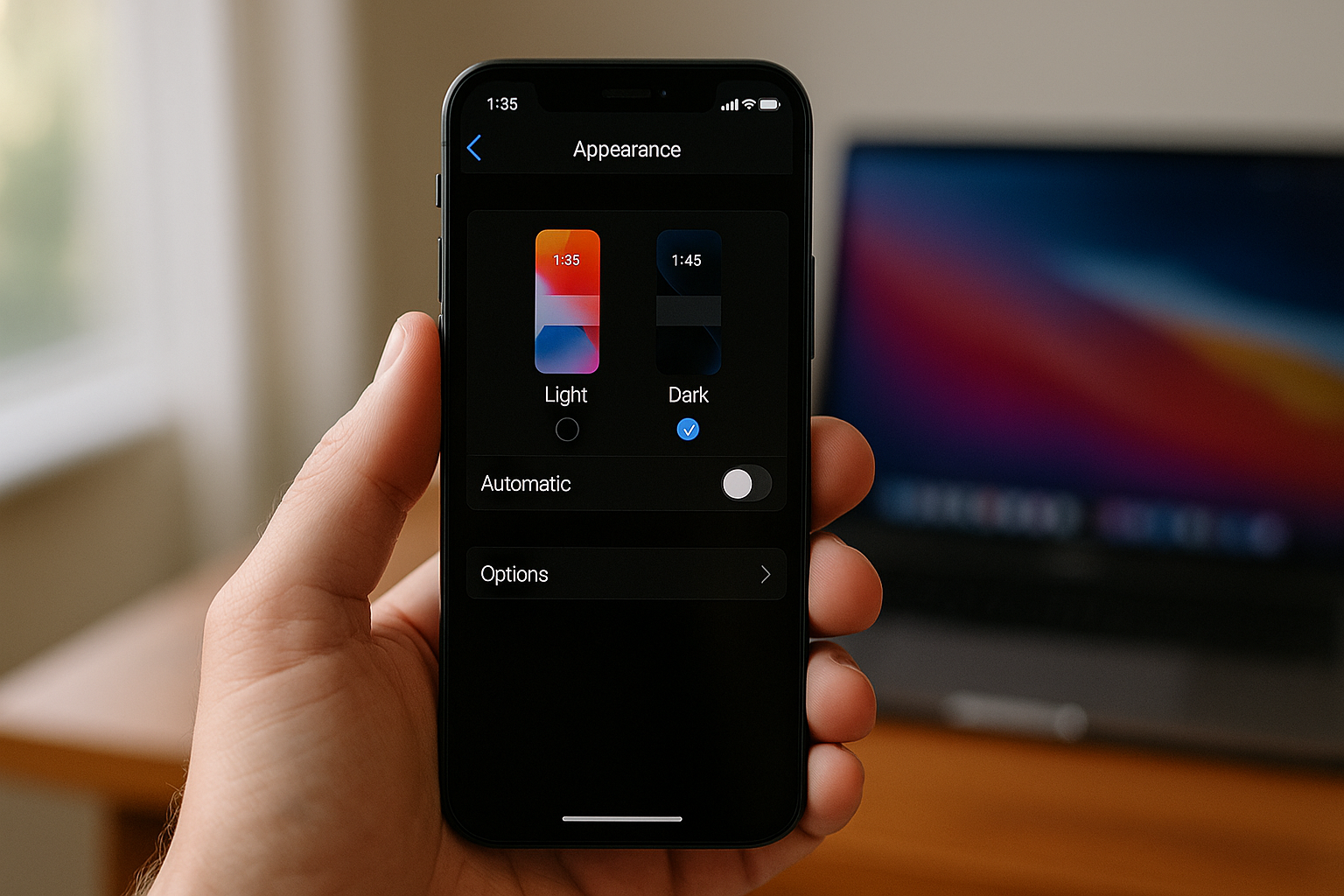
To enable dark mode on your iPhone, go to the settings of your phone. Then, tap on "Display & Brightness". There you will find the option "Appearance" where you can choose between "Light" and "Dark". Select "Dark" to enable dark mode. You can also enable automatic dark mode by tapping on "Brightness options" and turning on "Automatic". Explore our range of iPhone accessories to further enhance your experience.
Here’s an overview:
- Introduction to Dark Mode and Its Essential Benefits
- Understanding the Dark Mode Feature on iPhones
- Preparing Your iPhone for the Dark Mode Switch
- Step-by-Step Guide: Enabling Dark Mode from Settings
- Shortcut to Dark Mode: Using Control Centre
- Scheduling Dark Mode: Automation for Autonomous Comfort
- Dark Mode for Individual Apps: Customising Your Experience
- Troubleshooting Common Dark Mode Activation Issues
- Maximising Battery Life with Dark Mode
- Protecting Your Eyes: How Dark Mode Impacts Visual Health
- Exploring Aesthetic Customisations Alongside Dark Mode
- Dark Mode and System Mondern Updates: Keeping Your iPhone Current
- Conclusion: Embracing Dark Mode for Enhanced iPhone Use
Introduction to Dark Mode and Its Essential Benefits
In recent years, Dark Mode has become a widely appreciated feature across devices and applications. It provides an alternative to the traditional bright, white-based interfaces. By inverting colours, Dark Mode displays lighter text on darker backgrounds, which can be easier on the eyes, especially in low-light environments.
The benefits of Dark Mode extend beyond visual aesthetics, contributing positively to user experience and device performance:
Reduced Eye Strain: Dark Mode can decrease the glare from devices, thereby reducing eye strain, especially during nighttime use. The lower brightness levels help minimise the harsh blue light exposure, which can interfere with sleep patterns.
Improved Battery Life: On devices with OLED or AMOLED screens, Dark Mode can lead to significant battery savings. Since black and darker pixels require less power, using Dark Mode can extend your iPhone’s battery life.
Enhanced Concentration: A darker interface often allows users to focus better on the content by reducing distractions. The contrast between text and background helps to prioritise information on the screen.
Thermal Management: With reduced power usage comes less heat generation. This could potentially improve your iPhone’s thermal performance over prolonged use.
Accessibility: Dark Mode is an accessibility boon for users sensitive to bright light or those with certain visual impairments. It enhances readability and ensures a comfortable viewing experience for everyone.
Understanding the benefits of Dark Mode sets the stage for iPhone users to make an informed decision when customising their visual experience. For those looking to mitigate digital eye strain, extend battery life, or simply prefer a sleek interface, learning how to enable Dark Mode is a valuable skill.
Understanding the Dark Mode Feature on iPhones
The incorporation of Dark Mode on iPhones is one of the most user-acclaimed features in recent iOS updates. Designed with both aesthetics and practicality in mind, Dark Agency delineates a colour scheme that uses light-coloured text, icons, and graphical user interface elements on a dark background. This feature is not merely an inversion of colours but a considered design to enhance readability and visual ergonomics in low-light conditions.
Here are key points to understand about Dark Mode on iPhones:
- Eye Comfort: Dark Mode is intended to reduce eye strain, particularly in low-light or night-time settings. The reduced glare from dark backgrounds can make viewing more comfortable for some users.
- Battery Life: For iPhones with OLED screens, Dark Mode can contribute to extending battery life. OLED screens shut off pixels when displaying black, thus saving power.
- Aesthetics: Many users find Dark Mode aesthetically pleasing, opting for this theme to enjoy a different visual experience.
- Health Benefits: It is theorised that exposure to less blue light coming from the screen before bedtime can aid in better sleep quality.
While Dark Mode offers several benefits, its adoption depends on user preference. Some users may find Dark Mode less appealing or harder to read in brightly lit environments. Moreover, not all third-party apps might fully support this feature, which can lead to an inconsistent user interface experience.
For those keen on experiencing what Dark Mode has to offer, setting it up is straightforward. iPhone users can switch to Dark Mode either manually or by scheduling it to turn on automatically at specific times, forging a balance between personal preference and the functional aspects that Dark Mode delivers.
Preparing Your iPhone for the Dark Mode Switch
Before you can effortlessly activate Dark Mode on your iPhone, ensuring your device is ready for the change is crucial. Here’s how to prepare your iPhone for the switch:
Check Compatibility: Dark Mode is available on iPhones running iOS 13 or later. Verify that your device is compatible by going to
Settings>General>About, and check the iOS version.Update iOS if Required: If your iPhone is running an older version of iOS, you should update it to the latest version to enable Dark Mode. Go to
Settings>General>Software Updateand download any available update.Charge Your Device: Ensure your iPhone has sufficient battery life or is plugged in during the update process to prevent any interruptions.
Back up Your iPhone: It’s always wise to back up your iPhone before an iOS update. You can back up your data to iCloud by going to
Settings>[Your Name]>iCloud>iCloud Backupor to your computer using iTunes.Free Up Space if Necessary: An update may require ample storage space. If needed, delete unwanted apps or files by going to
Settings>General>iPhone Storage.Understand Dark Mode Settings: Familiarize yourself with the available settings for Dark Mode by reading the user guide or visiting the Apple Support website, ensuring you know how to toggle the settings to your preference after the update.
By following these preparatory steps, your iPhone will be ready for a smooth transition to Dark Mode, enhancing your visual experience and potentially improving battery life.
Step-by-Step Guide: Enabling Dark Mode from Settings
Enabling Dark Mode on an iPhone can be accomplished with ease by following these straightforward steps:
Open Settings: Tap on the ‘Settings’ icon on your iPhone’s home screen.
Display & Brightness: Scroll down the Settings menu until you locate ‘Display & Brightness’. Select it to access the display settings.
Dark Mode Selection: Upon opening ‘Display & Brightness’, you will find two options at the top: ‘Light’ and ‘Dark’. These represent the two theme modes you can choose for your device.
Activate Dark Mode: Tap on ‘Dark’ to enable Dark Mode. Immediately, the interface will switch from light to dark, reducing the strain on your eyes and potentially conserving battery life on OLED displays.
Automatic Settings: If you want to automate the activation of Dark Mode, there is an ‘Automatic’ toggle right below the ‘Light’ and ‘Dark’ options. By enabling this, you can set a schedule for Dark Mode to turn on and off at specific times or have it correspond with sunrise and sunset.
Custom Schedule: To create a custom schedule, ensure the ‘Automatic’ toggle is on. Then, tap on ‘Options’ which appears right below it. Here, you can select ‘Custom Schedule’ and set specific times for Dark Mode to activate and deactivate according to your preference.
Remember, once Dark Mode is activated, compatible apps and system interfaces will adhere to the darker color scheme. This can offer a comfortable viewing experience, particularly in low-light environments and can be a helpful tool for maintaining battery life in devices with OLED screens.
Shortcut to Dark Mode: Using Control Centre
Enabling Dark Mode on an iPhone is incredibly simple through the use of the Control Centre, a hub of quick settings that can be accessed with just a swipe. Here’s how users can switch to Dark Mode using Control Centre:
- On an iPhone with Face ID, swipe down from the top-right corner of the screen to reveal the Control Centre. For iPhones with a Home button, swipe up from the bottom edge of the screen.
- Look for the Brightness control, which resembles a sun icon. It’s usually situated in the Control Centre’s top right-hand section.
- Press and hold the Brightness control until it expands.
- In the bottom-right corner of the expanded Brightness control, you’ll see the Dark Mode icon, denoted by a half-moon shape.
- Tap the Dark Mode icon. This action will immediately switch the interface to Dark Mode.
It is important to note that by toggling Dark Mode on and off in the Control Centre, users can effortlessly shift between light and dark interfaces based on their current needs or preferences.
For individuals who wish to automate the process, there is an option within the Display & Brightness settings that allows the iPhone to automatically transition between Light Mode during the day and Dark Mode at night, aligning with the ambient light conditions.
Using the Control Centre shortcut provides a rapid and user-friendly experience for those needing to quickly adjust their display settings without having to delve into the settings menu. This can be especially convenient in low-light environments where a darker interface can reduce strain on the eyes.
Scheduling Dark Mode: Automation for Autonomous Comfort
In the dynamic world of smartphone usage, automating the functionalities on your iPhone can streamline your experiences, shaping them around your life and habits. Scheduling Dark Mode is a particularly nifty feature, offering not only comfort for the eyes but also the pleasure of having your device adapt to the day without manual intervention.
To schedule Dark Mode on your iPhone, follow these steps:
- Open the ‘Settings’ app from your home screen.
- Scroll down and tap on ‘Display & Brightness.’
- Under the ‘Appearance’ section, you will find options for ‘Light’ and ‘Dark’ themes. Right below them, locate the ‘Automatic’ switch and toggle it to the ON position.
- Once the ‘Automatic’ option is enabled, another option saying ‘Options’ will appear. Tap on it to customize your schedule.
- You will have two scheduling options:
- Sunset to Sunrise: Choosing this option means Dark Mode will automatically activate at sunset and deactivate at sunrise, in alignment with the natural light in your environment.
- Custom Schedule: Opt for this if you prefer to set specific times. You can then select your desired times for Dark Mode to enable and disable each day.
By scheduling Dark Mode, your iPhone’s display will seamlessly transition to a darker palette, reducing the strain on your eyes during the evening or your preferred times. This can be particularly beneficial if you have a consistent routine, allowing your phone’s display to mirror the lighting conditions of your surroundings or personal schedule.
Furthermore, aside from offering visual comfort, employing Dark Mode as part of your automated settings can also ostensibly contribute to battery conservation on OLED display devices. Thus, by scheduling Dark Mode, you ensure both personal convenience and potentially elongate your device’s battery life—a merger of functionality and foresight.
Dark Mode for Individual Apps: Customising Your Experience
While iOS offers a system-wide dark mode, some apps provide their own dark mode settings, allowing for an even more personalised interface. This is particularly handy if you prefer dark mode in certain apps while others are more visually comfortable in light mode. Here’s how to customise your experience:
- Open the individual app you want to modify.
- Navigate to the Settings or Preferences section within the app. This might usually be signified by a gear icon or found within the app’s menu (often represented by three dots or lines).
- Look for a Display, Theme, or Appearance option. Each app has its specific labelling, but they typically fall under these categories.
- Once located, select the Dark Mode setting. Some apps may offer additional themes, so you can opt for ‘Dark’ or toggle the dark mode on.
Remember that not all apps will follow the system-wide dark mode settings, and some may not have a dark mode feature at all. Here are a few example procedures for popular apps:
- WhatsApp: Go to ‘Settings’ > ‘Chats’ > ‘Theme’ and select ‘Dark’.
- Twitter: Head to ‘Settings and privacy’ > ‘Display and sound’ > ‘Dark mode’ and choose the setting you prefer.
- Slack: Access ‘You’ tab > ‘Preferences’ > ‘Theme’ and tap on ‘Dark’.
Implementing dark mode on an app-by-app basis can reduce strain on your eyes during nighttime use or merely satisfy your aesthetic preference. By customising each app individually, you maintain greater control over your device’s appearance, ensuring the visual comfort and consistency you desire.
Troubleshooting Common Dark Mode Activation Issues
When attempting to enable Dark Mode on an iPhone, users may occasionally encounter issues. Here’s a list of common problems and their respective solutions:
Dark Mode Option is Greyed Out
- Disabled Display & Text Size Settings: Navigate to Settings -> Accessibility -> Display & Text Size and ensure that settings like “Increase Contrast” or “Reduce White Point” are turned off.
- Scheduled Dark Mode: If Dark Mode is scheduled, it might not be possible to enable it manually. Go to Settings -> Display & Brightness -> Options to check the schedule and adjust it consequently.
Dark Mode Doesn’t Stay Enabled
- ‘Automatic’ Setting Interference: Make sure that Dark Mode isn’t set to change automatically with local sunrise and sunset times. Disable it in Settings -> Display & Brightness.
Dark Mode Not Working in Certain Apps
- App-Specific Settings: Some apps have their own theme settings. Check the app’s settings menu to ensure it’s not overriding the system-wide Dark Mode.
- Outdated Apps: Update the app to the latest version, which may include Dark Mode support.
Low Battery Mode Conflict
- When Low Power Mode is enabled, some visual effects, including Dark Mode, may be limited. Charge your phone or disable Low Power Mode in Settings -> Battery.
Restart Requirement
- Sometimes a simple restart can resolve any glitches preventing Dark Mode from activating correctly. Hold the side button and either volume button to slide to power off.
Software Update Needed
- Dark Mode might not work properly if the iPhone’s operating system is outdated. Install any available software update under Settings -> General -> Software Update.
By systematically working through these troubleshooting steps, most Dark Mode activation issues on an iPhone can typically be resolved. If problems persist, considering resetting all settings or contacting Apple support for further assistance may be necessary.
Maximising Battery Life with Dark Mode
One of the substantial benefits of enabling dark mode on your iPhone is the potential to maximise battery life, particularly for models with OLED displays. Such screens illuminate individually lit pixels rather than using a uniform backlight, meaning that black or dark pixels are not lit, thus saving power.
Here is how dark mode can lead to extended battery life:
OLED Screen Efficiency: With dark mode activated, the pixels displaying dark or black colours do not need to light up on OLED screens, thereby reducing the overall screen power consumption. This is especially effective in apps with predominantly dark interfaces.
Reduced Eye Strain: Dark mode may lessen screen glare in low-light conditions, leading to reduced eye strain for the user. While this does not directly save battery life, it indirectly contributes to longer usage periods without the need to adjust screen brightness, which can conserve battery.
Lower Brightness Settings: Users tend to lower their brightness settings while using dark mode as it is inherently more comfortable for the eyes; this decreased brightness level results in less battery drain.
Thermal Management: Dark mode can help manage your iPhone’s thermals. By using less power for screen operation, the device is likely to generate less heat, thus reducing the need for power-intensive cooling mechanisms.
To maximise the impact of dark mode on battery life, consider adopting the following practices:
- Enable dark mode within apps that offer this feature natively.
- Use dynamic wallpapers that can change with the theme.
- Adjust screen timeout settings to ensure your screen isn’t on unnecessarily.
- Turn off auto-brightness and manually manage brightness levels as needed.
By carefully managing these settings, you can milk every last minute out of your battery life, making dark mode not just an aesthetic choice but a practical one as well.
Protecting Your Eyes: How Dark Mode Impacts Visual Health
With the significant amount of time many people spend looking at screens, protecting one’s visual health is a concern that should not be overlooked. Dark mode, a display setting for user interfaces, has been suggested to offer benefits for eye health, particularly in low-light conditions. Here’s how enabling dark mode on your iPhone can impact your visual health:
Reduced Blue Light Exposure: Dark mode reduces the amount of blue light emitted by the screen. Blue light has been associated with digital eye strain and can disrupt sleep patterns by interfering with the circadian rhythm. Less blue light can mean greater comfort for your eyes during prolonged use.
Diminished Screen Glare: By swapping the traditional bright background for a darker one, dark mode can lessen the glare from your device. This reduction in glare can be essential to prevent eye strain, especially when using the phone for extended periods or in dark environments.
Enhanced Text Readability: For some users, dark mode can improve text readability, as the contrast between the lighter text and dark background reduces the effort required to read. Enhanced contrast can be particularly beneficial for those with certain visual impairments.
Potential Reduction in Dry Eye: Constant exposure to bright screens can lead to a decrease in blink rate, resulting in dry and tired eyes. A darker screen might lessen the strain and help maintain a healthier blink rate.
While the benefits of dark mode may vary from person to person, it is a feature worth trying for those concerned about visual comfort and eye health. Personal preference and the specific context of use play a vital role in determining whether dark mode provides a significant advantage. It is, however, a step forward in acknowledging the importance of customising the screen experience to safeguard our eyes in a technology-driven world.
Exploring Aesthetic Customisations Alongside Dark Mode
Once the dark mode is enabled on an iPhone, users may wish to delve further into aesthetic customisations to enhance their overall visual experience. Dark mode is just the beginning of personalising the interface. In the realm of aesthetic customisations, users can tweak various settings to complement the dark appearance or to suit their personal tastes.
- Wallpapers: Selecting a suitable wallpaper that blends well with dark mode can significantly improve the look of your device. iOS offers dynamic and still wallpapers specifically designed to match the dark aesthetic.
- App Icons: Some applications automatically adapt their icons to dark mode, offering a consistent and integrated appearance. Users can further streamline their screens by using app icon packs available for download.
- Delta text: Additionally, certain text colours and styles work better with dark mode, providing better readability and reduced eye strain.
- Widgets: Widgets, which provide quick access to app contents, can also adhere to dark mode, offering a seamless integration on the home screen or Today View.
- Accessibility Settings: Beyond mere appearance, users can explore the Accessibility settings to adjust text size and contrast, which can make the dark mode experience more comfortable for those with visual impairments.
- Control Centre & Notifications: The translucency in the Control Centre and notifications also adapts to dark mode, creating an overall cohesive user experience.
Exploring these customisation options can further extend the benefits of dark mode, aligning with the user’s style preferences and contributing to a visually appealing and user-friendly iPhone environment. Each adjustment leads to a more personalised device, reflecting the unique preferences of its owner.
Dark Mode and System Mondern Updates: Keeping Your iPhone Current
Staying up-to-date with the latest iOS versions is essential for ensuring that your iPhone supports the newest features, including Dark Mode enhancements. Apple frequently updates iOS to introduce new functionality, improve performance, and enhance security. Therefore, enabling Dark Mode is not just about aesthetic preference or eye comfort—it is also about maintaining your device’s compatibility with system improvements.
To check for system updates and keep your iPhone current:
- Open the Settings app on your iPhone.
- Scroll down to and select General.
- Tap on Software Update.
- If an update is available, you will see an option to download and install it. Ensure your iPhone is connected to Wi-Fi and has sufficient battery life or is connected to a charger before proceeding with the update.
- After the update, explore the settings to confirm any new options or configurations that might involve display settings and Dark Mode.
Staying updated is helpful not only for Dark Mode but for keeping the entire system optimised. When you update your iPhone, you might find additional Dark Mode options, such as scheduling or changes to how it works with specific apps. Moreover, app developers also regularly update their apps to be compatible with the latest iOS features, including Dark Mode functionality. Thus, it is wise to:
- Regularly update individual apps via the App Store.
- Pay attention to the update notes for any mention of Dark Mode improvements.
By ensuring your iPhone and the apps you use are up-to-date, you’ll make the most of Dark Mode and maintain the overall performance and security of your device.
Conclusion: Embracing Dark Mode for Enhanced iPhone Use
The modern digital environment on the iPhone has incrementally evolved, with Dark Mode representing a pivotal advancement in user interface design. By embracing this feature, users can significantly enhance their iPhone use both aesthetically and functionally. Dark Mode is not merely a visual preference; it’s a testament to the thoughtful consideration of user experience and device interaction.
In tapping into Dark Mode, users report reduced eye strain, particularly under low-light conditions, which facilitates longer and more comfortable usage periods. Moreover, the potential for improved battery life on OLED and AMOLED displays cannot be understated, as these technologies conserve power when displaying darker pixels.
Individuals with light sensitivity or those who desire a subtler visual footprint from their devices will find Dark Mode to be a meaningful change. Furthermore, the unified appearance across apps that support this feature contributes to a cohesive and uninterrupted user experience.
The integration of Dark Mode into the iOS architecture enables seamless transition from light to dark, aligning with natural day and night cycles, or personal preferences with scheduled or manual controls. This progressive interface option showcases Apple’s commitment to user-centric design and adaptability to diverse user needs.
Ultimately, the adoption of Dark Space is a step forward in the realm of digital ergonomics. It exemplifies the combination of aesthetic pleasure with practical functionality, fostering a more personalized and comfortable digital interaction for iPhone users. As technology progresses, such initiatives will undoubtedly continue to shape the future of user interfaces and experiences.