How to Install an SSD in Your Laptop: A Step-by-Step Guide
How to Install an SSD in Your Laptop
Adding an SSD to your laptop can significantly improve its performance and responsiveness. SSDs are faster and more reliable than traditional hard drives, resulting in faster boot times and an overall smoother computing experience. To learn how you can do this, follow these simple steps. One of the best options for purchasing an SSD compatible with your laptop is to visit our laptops page.Here’s an overview:
- Introduction to SSDs and Their Benefits for Laptop Performance
- Understanding the Types of SSDs: SATA and NVMe Explained
- Essential Tools and Precautions Before Starting the Installation
- Backing Up Your Data: Preparing for SSD Installation
- Laptop Disassembly: Accessing the Hard Drive Bay
- Removing the Old Hard Drive: Steps to Follow
- Physical Installation of the SSD: Mounting and Connecting
- Reassembling Your Laptop After SSD Installation
- Setting up the New SSD: Partitioning and Formatting Explained
- Installing an Operating System on Your New SSD
- Optimizing Performance: Tweaking Settings for Your SSD
- Troubleshooting Common SSD Installation Issues
- Maintaining Your SSD: Tips for Long-Term Performance
- [Conclusion: The Impact of SSD Upgrade on Your Laptop’s Capabilities](#conclusion:-the-impact-of-ssd-upgrade-on-your-laptop’s-capabilities)
Introduction to SSDs and Their Benefits for Laptop Performance
Solid State Drives (SSDs) have revolutionised storage technology by utilising flash memory, significantly enhancing the performance and reliability of laptops and other devices. Unlike their predecessor, the Hard Disk Drive (HDD), SSDs contain no moving parts, which reduces the risk of mechanical failure and offers a silent operation.
Here are some key benefits SSDs provide for laptop performance:
Speed: SSDs are vastly faster than HDDs, notably in tasks that involve accessing or writing large amounts of data. This speed translates into quicker boot times, faster file transfers, and better overall system responsiveness.
Durability: With no mechanical parts to wear out or fail, SSDs are more durable and can better withstand shock and vibrations, making them ideal for laptops that are on-the-move.
Energy Efficiency: SSDs are more energy-efficient than traditional HDDs, leading to longer battery life for your laptop.
Less Heat Production: Operating without friction, SSDs produce less heat, helping to maintain the laptop’s performance and extend its lifespan.
Lightweight: SSDs weigh less than HDDs, contributing to the portability of the laptop.
Silent Operation: The lack of moving parts means SSDs operate silently, adding to the comfort of using your device.
By upgrading to an SSD, users experience a significant improvement in their laptop’s performance, making the device more efficient for handling daily tasks or more demanding applications such as video editing or gaming. With these benefits, an SSD can breathe new life into an older laptop or enhance a new one, rendering it an essential component for any user looking to optimise their system’s potential.
Understanding the Types of SSDs: SATA and NVMe Explained
When upgrading a laptop with a Solid State Drive (SSD), it’s essential to understand the different types available – primarily SATA and NVMe – as they significantly impact performance and compatibility.
SATA SSDs:
- SATA (Serial ATA) SSDs are the successors to the HDD (Hard Disk Drive). They connect via the same SATA interface used by traditional hard drives, which makes them widely compatible with older laptops. SATA SSDs are excellent for general use, offering a substantial performance improvement over HDDs with read/write speeds up to 600MB/s. However, their speed is limited by the SATA III interface’s maximum bandwidth.
NVMe SSDs:
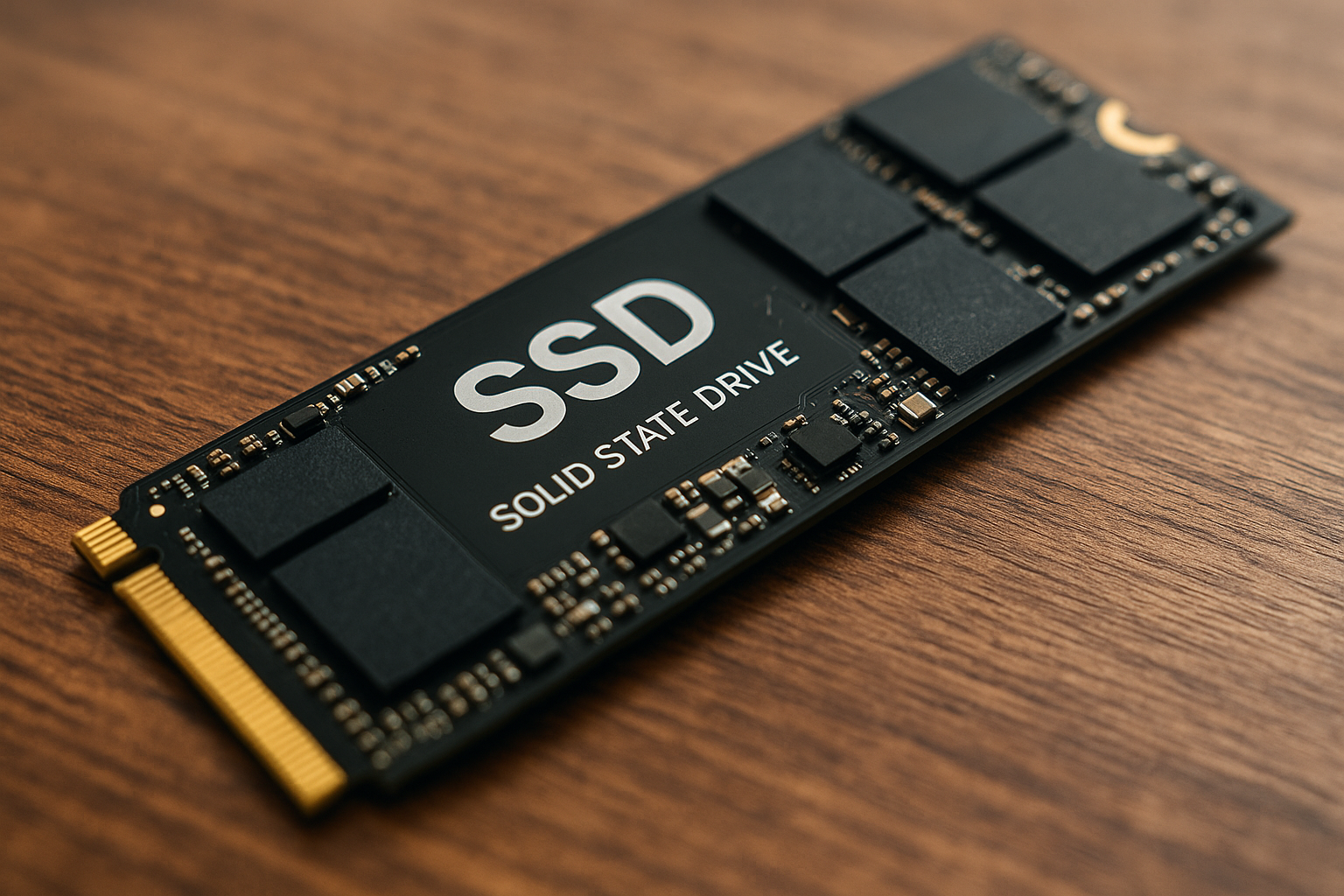
- NVMe (Non-Volatile Memory Express) SSDs represent a newer technology designed to exploit the high-speed PCIe (Peripheral Component Interconnect Express) bus rather than the SATA interface. They offer significantly higher performance with potential read/write speeds that are multiple times faster than SATA SSDs. NVMe drives are typically available in the M.2 form factor, which connects directly to the motherboard via a dedicated M.2 slot. They are best suited for tasks that require rapid data transfer, such as video editing or gaming.
For laptop users, the choice between SATA and NVMe comes down to the device’s compatibility and their specific needs for speed and performance. Upgrading to an NVMe SSD is ideal if the laptop has an M.2 slot and requires fast data processing. Conversely, for laptops without an M.2 slot or for users needing a straightforward performance boost without breaking the bank, a SATA SSD is a practical and cost-effective option.
Essential Tools and Precautions Before Starting the Installation
When preparing to install a Solid State Drive (SSD) into a laptop, having the right tools and taking appropriate precautions ensures a smooth and safe upgrade process. Here is a detailed list of the essentials:
Static Control:
- Anti-static wrist strap or an anti-static mat to prevent static electricity from damaging the laptop or the SSD.
Screwdrivers:
- A set of precision screwdrivers, typically a Phillips #0 or #00 screwdriver, depending on the laptop screws.
Backup:
- External storage or cloud service to back up important data from the current hard drive.
SSD Compatibility:
- Ensure the SSD is compatible with the laptop (2.5-inch SATA for most, though some require M.2 or PCIe SSDs).
Laptop Manual:
- Refer to the laptop’s service manual or user guide for specific instructions on accessing the hard drive bay.
Software for Data Migration (if required):
- Tools for cloning the existing drive to the new SSD for a seamless transition without OS reinstallation.
Secure Work Environment:
- A clean, static-free work surface away from any potential sources of liquid or dust.
Battery Precautions:
- The laptop should be powered off, all cables disconnected, and the battery removed if possible.
OS Installation Media (if doing a fresh install):
- A bootable USB drive with the laptop’s operating system’s installation files.
Before beginning the installation process, it’s advisable to spend time acquainting oneself with the laptop’s internal layout and the SSD’s specifications. One should be mindful to handle all components with care and precision, avoiding force that could damage delicate connectors and circuitry. Taking these precautions can lead to a successful upgrade, enhancing the laptop’s performance significantly.
Backing Up Your Data: Preparing for SSD Installation
Before attempting to install a Solid-State Drive (SSD) in your laptop, it’s crucial to back up all existing data to prevent any loss during the transition. Successful data backup involves several steps:
Identify Important Files: Start by determining which files are critical to save. These generally include documents, photos, music, videos, and application data. Do not overlook hidden folders or those within the system directories if they contain valuable information.
Choose Your Backup Method: You have a few options for backing up your data:
- External hard drive: An easy and reliable method where you can copy your files directly.
- Cloud storage service: Services like Google Drive or OneDrive offer a safe place to store data offsite.
- USB flash drive: Suitable for smaller amounts of data.
Execute the Backup:
- For Windows users, the built-in ‘Backup and Restore’ feature (or ‘File History’ in Windows 10 and 11) can be used.
- MacOS users can rely on the ‘Time Machine’ function to create a full backup.
- Alternatively, third-party software can provide additional features such as incremental backups or disk cloning.
Verify the Backup: After the backup process is complete, ensure that your data has been successfully copied and is accessible. Try opening a few files from the backup location to confirm they are intact.
Create a System Image: It’s wise to create an image of your current operating system, which includes all your installed programs and system settings. This image can be restored to the new SSD, allowing for a smooth transition.
Ensure Data Security: Secure your backup. If you’re using physical media like an external drive, store it in a safe place. For cloud storage, ensure your account has a strong password and two-factor authentication enabled.
By meticulously backing up your data, you’ll pave the way for a seamless SSD installation experience, safeguarding your valuable information throughout the process.
Laptop Disassembly: Accessing the Hard Drive Bay
Before attempting to install a new SSD in a laptop, gaining access to the hard drive bay is essential. The first step is to ensure that the laptop is turned off completely and disconnected from any power sources. Flip the laptop over onto a clean, flat surface, preferably on an anti-static mat or any non-conductive material to prevent static damage to the components.
Prepare Tools: You will need a suitable screwdriver, often a small Phillips head or a speciality screw depending on your laptop’s make and model. Keeping tweezers or plastic spudgers handy can also be beneficial for delicate connectors.
Remove the Battery: If the battery is externally attached, unclip or slide it out according to the mechanism provided. For internal batteries, remove the screws from the bottom case to access it.
Locate the Hard Drive Bay: Most laptops have a dedicated panel for the hard drive. Look for a rectangle panel secured with screws. If there’s no specific panel, you may need to remove the entire bottom shell of the laptop.
Remove the Panel Screws: Using the appropriate screwdriver, remove the screws holding the hard drive bay cover or bottom shell in place. Keep these screws in a safe location as they are vital for reassembly.
Access the Bay: Gently lift the cover or shell to reveal the internal components. The hard drive is usually in a metal frame or caddy. Identify the hard drive and note any additional screws or brackets.
Disconnect the Drive: Before pulling out the drive, carefully disconnect any cables or connectors that it might be attached to. Some may have a pull tab while others might require a gentle wiggle to come loose.
Remove the Drive: Unscrew any screws holding the drive within its caddy. If in a caddy or connected via a SATA connector, carefully slide it out, keeping in mind not to touch the connector pins on the drive or the motherboard.
Always consult the laptop’s manual for specific instructions as the disassembly process can vary widely between laptop models. If unsure at any stage, consider seeking professional help to prevent damage.
Removing the Old Hard Drive: Steps to Follow
Before installing a new SSD, you must remove the existing hard drive from your laptop. Thoroughly follow these essential steps to ensure a safe and effective removal process:
Turn off the Laptop
Ensure the laptop is completely powered down and disconnected from any power sources.Remove the Battery
If the battery is removable, take it out to prevent any potential electric shock or damage.Ground Yourself
To avoid electrostatic discharge, touch a metal part of the laptop’s exterior to ground yourself, or use an anti-static wrist strap if available.Access the Hard Drive Compartment
Usually located on the bottom of the laptop, the hard drive bay may be covered by a dedicated panel or may be accessed by removing the entire bottom cover. Remove necessary screws and gently pry open the panel or cover.Disconnect the Hard Drive
You may find the hard drive secured in a caddy or connected with a SATA connector. If it’s in a caddy, unscrew it (often four screws) and slide out the hard drive. If connected with a SATA connector, gently detach the connector.Remove the Hard Drive from the System
Once unscrewed or disconnected, carefully lift the old hard drive out, holding it from the sides to avoid touching any sensitive parts.Prepare for SSD Installation
If the hard drive was in a caddy, remove the caddy and brackets from the hard drive as you will likely need them for the new SSD.
By adhering to this meticulous removal process, you create a safe environment for both the laptop and the new SSD, paving the way for a smooth upgrade.
Physical Installation of the SSD: Mounting and Connecting
Once an appropriate Solid State Drive (SSD) for the laptop is obtained, the physical installation process can begin. It is imperative to ensure the laptop is powered down, unplugged, and the battery removed if possible before starting. Ground oneself to prevent static electricity damage to the laptop’s components.
Mounting the SSD
- Locate the laptop’s storage bay, which might vary depending on the laptop model.
- If required, attach the SSD to the mounting bracket or hard drive caddy. Some laptops may have a built-in slot that doesn’t require an additional caddy.
- Carefully insert the SSD into the bay. It should fit snugly without excessive force.
- Secure the SSD in place with the screws that were either retained from the old drive or provided with the mounting hardware. Do not overtighten; a firm fit is enough to prevent movement.
Connecting the SSD
Connecting the SSD should be straightforward:
- Align the SSD’s connectors with the corresponding interface in the storage bay.
- Gently slide the SSD into the connection port, making sure there is no misalignment that could bend the pins.
- Some laptops may have a locking mechanism that needs to be engaged once the SSD is connected.
After the SSD is mounted and connected, double-check for any loose connections or screws to ensure a secure installation. Once everything is confirmed to be in place, proceed to replace the bay cover and secure it with its screws. The laptop is now ready for the next phase, which involves configuring the BIOS or UEFI settings, and installing the operating system on the new drive.
Reassembling Your Laptop After SSD Installation
After successfully installing the new SSD, it’s time to put your laptop back together. The process should be carried out with care to ensure every component is returned to its rightful place and no damage occurs. Here’s a detailed guide on how to proceed:
Replace the back cover:
- Carefully align the laptop’s back cover with the chassis. Ensure any cables or components are not getting pinched.
- Gently press down around the edges and corners to secure the cover in place.
Secure with screws:
- Replace and tighten all screws you previously removed. Be cautious not to over-tighten as this may strip the screw threads or damage the laptop’s body.
Reinstall the battery (if it was removed):
- Slide the battery back into its compartment.
- Lock the battery, if your laptop model has locking mechanisms.
Reconnect peripheral devices:
- Attach any previously connected devices such as mouse, keyboard, or monitor.
Power up your laptop:
- Press the power button to turn on the laptop. This will verify that your laptop can recognize the new SSD.
- If the laptop does not power on, or the SSD is not recognized, power off and open the back cover to check all connections.
Configure BIOS/UEFI:
- Enter the system’s BIOS/UEFI settings during the boot process.
- Make sure that the SSD is detected and, if needed, select it as the primary boot device.
Install operating system:
- If you have not cloned your old drive, you will need to install an operating system on the new SSD.
- Insert your OS installation media (e.g., USB drive, DVD), and follow the on-screen instructions to initiate the installation process.
By closely following these steps and handling components with care, your laptop will be ready for use with improved performance, thanks to the newly installed SSD. Remember to responsibly dispose of or recycle your old drive if you no longer need it.
Setting up the New SSD: Partitioning and Formatting Explained
Once the new SSD is securely connected to your laptop, the next critical steps are partitioning and formatting the drive. These processes are essential for preparing the SSD to store data and host an operating system if desired.
Firstly, partitioning is the act of dividing the SSD into sections that the operating system can manage separately. These sections, or partitions, can be thought of as distinct ‘containers’ for data. Partitioning can be particularly useful if you plan to use multiple operating systems or need to organise your data in a specific way. Here’s how to partition your new SSD:
- Boot up your laptop and enter the Disk Management tool. This can be done by searching for “Disk Management” in the Start Menu on a Windows laptop.
- Locate the new SSD, which should appear as an unallocated space.
- Right-click on the unallocated space and select ‘New Simple Volume’.
- Follow the on-screen wizard to specify the volume size and assign a drive letter.
After partitioning, formatting comes into play. Formatting refers to setting up a file system on the SSD so that files can be stored and retrieved. The file system provides the structure necessary for the operating system to locate and manage files. Common file systems include NTFS for Windows and APFS for macOS. To format a partition:
- In Disk Management, right-click on the new partition and choose ‘Format’.
- Select the desired file system from the options provided.
- Choose a ‘Quick Format’ if available, which is faster. However, if the SSD is used or has had issues, consider a full format to check for and fix any bad sectors.
By correctly partitioning and formatting the SSD, you ensure that your laptop recognises the new drive and can use it efficiently for storage and operations.
Installing an Operating System on Your New SSD
After successfully mounting your new SSD in your laptop, the next pivotal step entails installing an operating system (OS). Here’s a concise guide to lead you through the installation process.
Create an Installation Media:
- Using another computer, download the installation software for the OS you wish to install.
- Follow the instructions provided by the software to create installation media on a USB drive or DVD.
Change the Boot Order:
- With the installation media inserted, restart your laptop and enter the BIOS/UEFI settings. This is usually done by pressing a specific function key (like F2, F12, Del) immediately after powering on.
- Navigate to the ‘Boot’ section and change the boot order so the computer starts from the USB or DVD.
Start the Installation:
- Save the changes to the BIOS/UEFI and restart your laptop.
- The computer should boot from the installation media. Follow the on-screen instructions to start the OS installation process.
Partition Your SSD (if needed):
- During the OS installation, you’ll be asked where you want to install the OS. Select your new SSD.
- You might need to format the SSD or create new partitions, depending on your needs and the existing format state of the drive.
Complete the Installation:
- The installer will guide you through the steps necessary to install the OS. This will include setting preferences, creating a user account, and configuring network settings.
- Once the installer has finished, the computer should restart, and you can remove the installation media.
Finalize OS Settings:
- Upon reboot, you may be prompted to perform additional setup, such as installing updates and drivers.
- Make sure all the laptop’s components are functioning correctly by checking the device manager and running updates.
Keep the laptop plugged in during the installation to avoid power interruptions, and ensure that you have a stable internet connection if the installation requires downloading updates. Once you’ve installed your operating system, your laptop is ready to be set up with your applications and personal settings.
Optimizing Performance: Tweaking Settings for Your SSD
Once an SSD is installed in a laptop, enhancing its performance involves adjusting several settings to ensure optimal operation of the new drive.
Update Firmware: Manufacturers often release firmware updates for their SSDs, which can improve performance, stability, and compatibility. Check the manufacturer’s website for updates.
Adjust Power Settings: To maximize SSD efficiency, especially in laptops where power management is crucial, adjust the power settings. In Windows, set the power plan to ‘High performance’ to prevent the SSD from going into a low-power state, which can increase its latency.
Enable TRIM: TRIM is a command that helps the operating system know which blocks of data are no longer considered in use and can be wiped internally. This keeps the SSD at peak performance. It should be enabled by default, but it’s worth checking.
Turn Off Disk Defragmentation: Unlike HDDs, SSDs don’t benefit from defragmentation and it can actually reduce their life expectancy. Ensure that disk defragmentation is disabled.
Disable Indexing Services: Indexing can cause unnecessary write operations on the SSD. Disabling it can enhance the drive’s durability and performance.
Configure Over-Provisioning: Over-provisioning is the practice of leaving part of the drive’s storage capacity unused to reduce wear and thereby extend its service life. Users can set aside around 10% of the SSD’s capacity for over-provisioning through the device’s management software.
Update Drivers and OS: Ensure that the latest drivers are installed for your SSD and that the laptop’s operating system is updated. This can eliminate potential performance bottlenecks due to outdated software.
By carefully managing these settings, users can help maintain the speed and longevity of their SSD, leading to a more responsive and efficient laptop experience.
Troubleshooting Common SSD Installation Issues
When encountering problems during or after an SSD installation in a laptop, there are a few common issues to consider:
1. SSD Not Recognised
a. Check Connections:
Ensure the SSD is properly seated in the connection port. If improperly connected, the laptop won’t detect it.
b. Compatibility Check:
Verify that the SSD is compatible with the laptop’s motherboard.
c. BIOS Update:
Sometimes, a BIOS update is necessary for the system to recognise a new SSD.
2. Slow Performance or Errors
a. Driver Update:
Make certain that the latest SSD drivers are installed for optimal performance.
b. Firmware Update:
Updating the SSD firmware can resolve various reliability and compatibility issues.
c. Correct Port:
For the best performance, connect the SSD to the primary SATA port which usually provides the fastest speeds.
3. Operating System Not Booting
a. Boot Order:
Ensure the boot order prioritises the new SSD in the BIOS settings.
b. Secure Boot:
If enabled, Secure Boot might need to be disabled temporarily to allow the system to boot from the new SSD.
c. OS Installation Media:
Verify the integrity of the operating system installation media, if applicable.
4. Data Migration Problems
a. Cloning Software:
When cloning the OS to the new SSD, reliable cloning software is essential.
b. Source Disk Health:
Check the health of the source disk. Bad sectors or corrupted data can lead to cloning errors.
c. Size Differences:
Ensure the new SSD has equal or larger capacity than the source drive if planning a direct clone.
5. BIOS Not Detecting SSD
a. SATA Mode:
Change the SATA mode to AHCI in the BIOS if the SSD is not being detected.
b. CSM or Legacy Mode:
Disable Compatibility Support Module (CSM) or Legacy mode in the BIOS.
6. Physical Installation Difficulties
a. Form Factor:
Ensure the SSD’s form factor matches the laptop’s mounting hardware.
b. Secure Mounting:
Verify that the SSD is firmly and securely screwed into place, if applicable.
Should these troubleshooting steps not resolve the issue, refer to the SSD’s manufacturer for further support or consider consulting a professional technician.
Maintaining Your SSD: Tips for Long-Term Performance
Proper maintenance of a Solid-State Drive (SSD) is crucial to ensure optimal performance over its lifespan. Users should consider the following tips:
Regular Firmware Updates: SSD manufacturers often release firmware updates to enhance the drive’s performance and compatibility. It’s essential to check for updates regularly and apply them when available.
Optimise Operating System Settings: Modern operating systems usually detect SSDs and optimise settings automatically; however, users should verify that features such as TRIM are enabled. TRIM helps the SSD handle garbage collection, which is vital for maintaining its speed.
Avoid Unnecessary Writes: An SSD’s lifespan is partly determined by the number of write cycles. Minimise disk write operations by disabling or limiting services like hibernation, indexing, and defragmentation, as these are not needed for SSDs and can contribute to unnecessary writes.
Monitor SSD Health: Use tools provided by the SSD’s manufacturer or third-party applications to monitor the SSD’s health and keep an eye on its remaining lifespan.
Maintain Adequate Free Space: To prevent performance degradation, it’s recommended to keep at least 10-15% of an SSD’s capacity free.
Control Ambient Temperature: Excessive heat can impair an SSD’s longevity. Ensure that your laptop offers good ventilation and is kept in a cool environment.
Be Cautious with Encryption: While encrypting an SSD is a security measure, it may also reduce performance and lifespan due to the increased number of write operations. Weigh the benefits of encryption against the potential impact on your SSD.
Back-Up Data Regularly: While SSDs are less prone to mechanical failure than HDDs, they are still vulnerable to corruption and other electronic failures. Regular backups help ensure data is not lost if the SSD fails.
Following these guidelines helps in preserving the SSD’s health and ensuring that it remains a reliable storage component in your laptop for years to come.
Conclusion: The Impact of SSD Upgrade on Your Laptop’s Capabilities
Upgrading to a Solid-State Drive (SSD) promises significant enhancements in the performance and efficiency of a laptop. Users will observe noticeable acceleration in boot times and data access speeds, which can lead to a more responsive and enjoyable computing experience. Specifically, the following improvements are commonplace with an SSD upgrade:
- Faster System Boot-Up: An SSD can reduce the time it takes for a laptop to start up from minutes to mere seconds.
- Quicker File Access: SSDs can access data at speeds several times faster than traditional hard drives, enabling faster opening and saving of files.
- Improved Application Performance: Applications and programs typically launch and run more quickly with an SSD because of the reduced data access time.
- Enhanced Durability: SSDs have no moving parts, making them more resistant to physical shock and damage, therefore potentially extending the laptop’s lifespan.
- Quieter Operation: The lack of mechanical parts in an SSD makes for silent operation, eliminating the noise associated with traditional hard drives.
- Lower Power Consumption: SSDs are more energy-efficient than mechanical hard drives, leading to battery life improvements.
An SSD upgrade may also influence the heat generation and cooling requirements of a laptop. With no moving parts and lower power consumption, SSDs typically produce less heat than their HDD counterparts, potentially improving thermal performance and the comfort of using the laptop.
Ultimately, the decision to upgrade to an SSD is likely to result in a more efficient and pleasurable user experience, effectively revitalising an older laptop or greatly enhancing the performance of a newer one. The impact of an SSD on a laptop’s capabilities is profound, often transforming the user’s interaction with their device.