
Help! My HP laptop won't start.
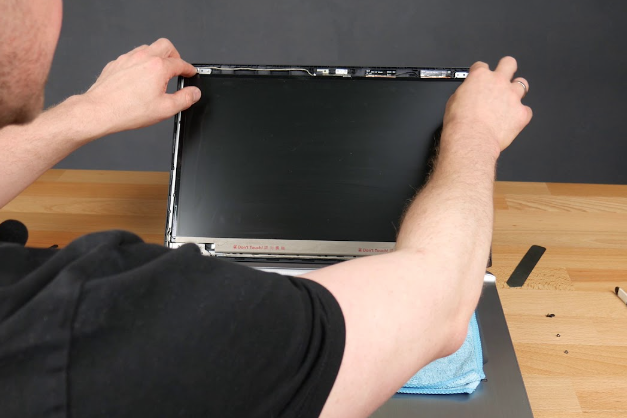
After updating, my HP laptop won't start
It often happens that an HP laptop no longer starts after a software update. This can be due to incompatible drivers, a failed update, or problems with the BIOS settings. It is important to know what steps you can take to diagnose and solve these problems.
HP laptops

Common problems with HP laptops
There are several common problems that can prevent your HP laptop from starting:
- Power problem: Check if the laptop is receiving sufficient power and if the charger is working correctly.
- Black screen: This may indicate a problem with the screen or graphics card.
- BIOS settings: Incorrect BIOS settings can disrupt the startup procedure.
- Hard drive: A faulty hard drive can prevent the laptop from starting.
- Virus or Malware: Malicious software can disrupt the startup process.
- Hardware problem: Defective hardware components may be the cause.
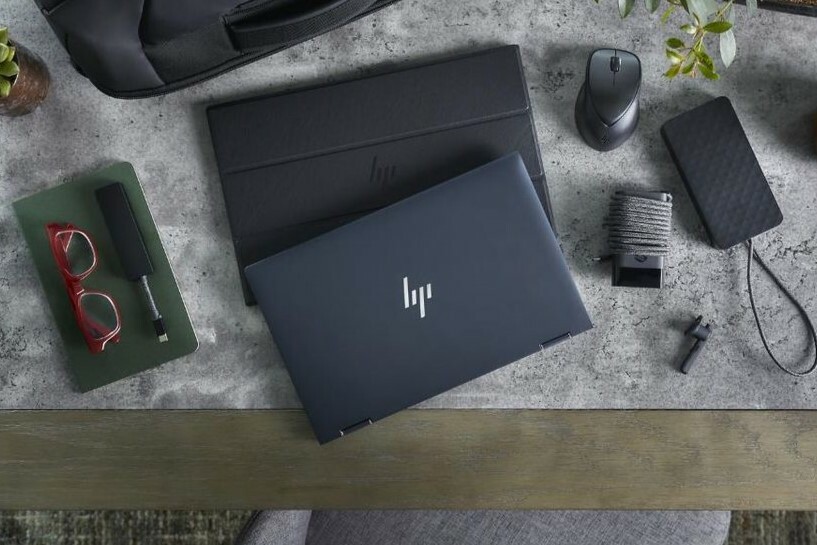
Possible solutions for HP laptops
Here are some steps you can take to get your HP laptop working again:
- Check the power supply: Make sure the charger is working correctly and the battery is sufficiently charged.
- Reset the BIOS settings: Try resetting the BIOS settings to factory settings.
- Safe mode: Start the laptop in safe mode to see if the problem is software-related.
- Check the screen: Connect the laptop to an external monitor to check if the screen is defective.
- Check for viruses: Run an antivirus scan to see if malware is causing the problem.
- Test the hard drive: Use diagnostic tools to check the hard drive for errors.
- Contact a specialist: If you cannot solve the problem yourself, contact a specialist or HP customer service.


Buy a refurbished HP laptop?
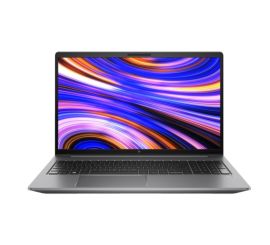
Condition: Click for more information.
HP Zbook Power G10
Intel Core i7-13th Generation - 15 inch - 16GB RAM - 512GB SSD - Win11
Old Price £1,505.75 £1,204.60 £995.54
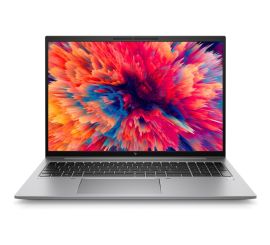
Condition: Click for more information.
HP Zbook Firefly 16 G9
Intel Core i7-12th Generation - 16 inch - 16GB RAM - 512GB SSD - Win11
Old Price £1,337.86 £1,070.29 £884.54
Condition: Click for more information.
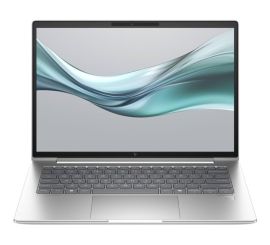
HP EliteBook 645 G11
AMD Ryzen 5-13th Generation - 14 inch - 16GB RAM - 512GB SSD - Win 11 Home
Old Price £1,237.13 £989.70 £817.93
Condition: Click for more information.
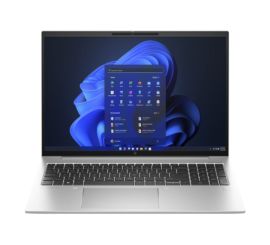
HP EliteBook 860 G10
Intel Core i5-13th Generation - 16 inch - 16GB RAM - 512GB SSD - Win 11 Home
Old Price £1,153.18 £922.55 £762.44
Condition: Click for more information.
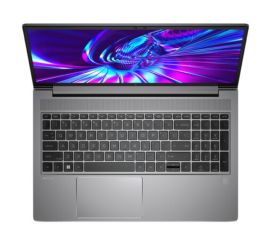
HP ZBook Power G9
Intel Core i7-12th Generation - 15 inch - 16GB RAM - 512GB SSD - Win 11 Home
Old Price £1,033.56 £826.85 £683.35
Condition: Click for more information.
HP EliteBook 645 G11
AMD Ryzen 5-13th Generation - 14 inch - 16GB RAM - 512GB SSD - Win 11 Home
Old Price £991.59 £793.27 £655.60