
How to take a screenshot on a Chromebook
How to take a screenshot on a Chromebook
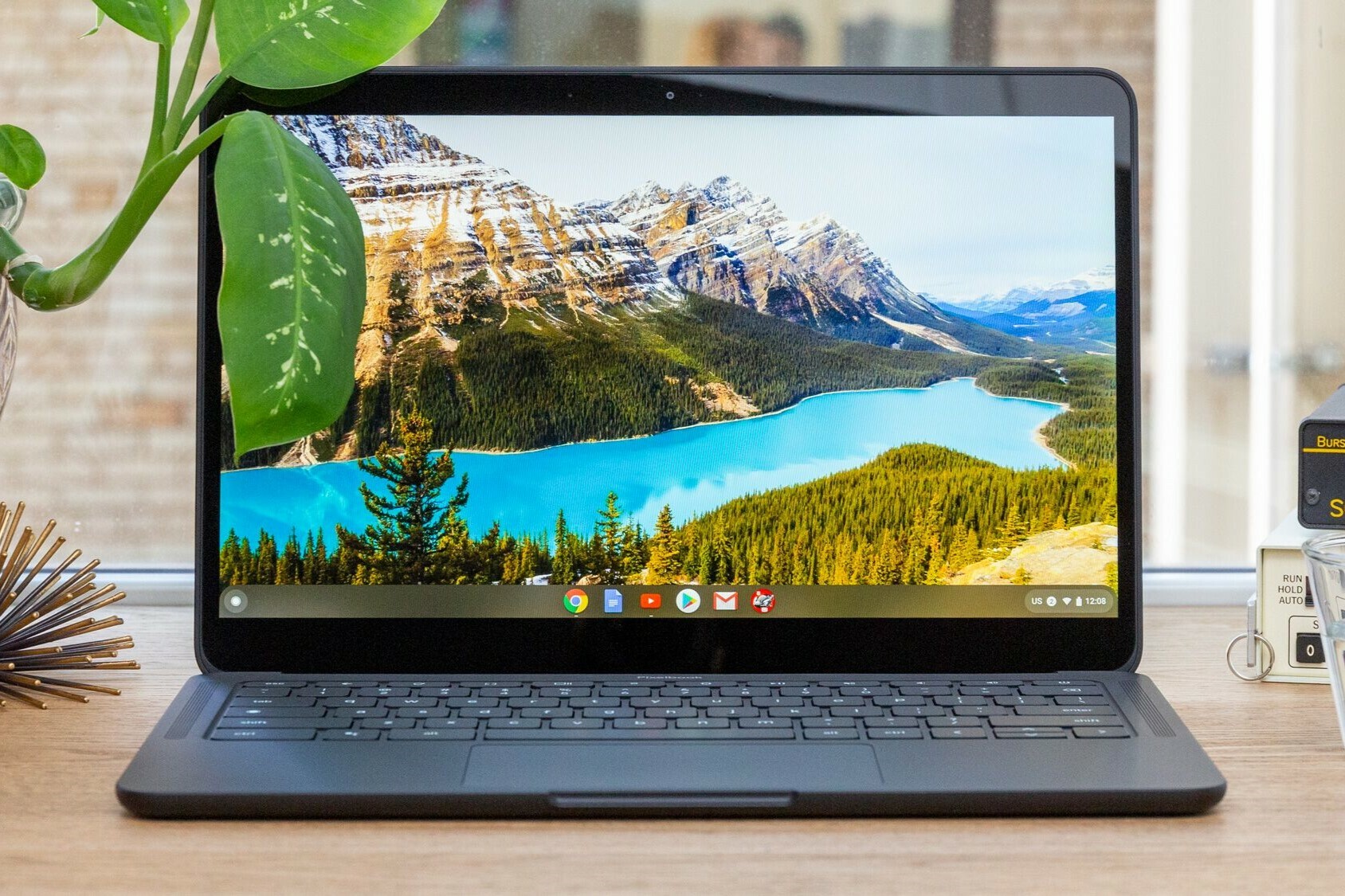
Taking a screenshot on a Chromebook is quick and easy. There are several methods, depending on what you want to capture. The simplest way is to use the keys Ctrl + Switch Window. The Switch Window key is the one with a rectangle and two lines to the right of the rectangle, usually found on the top row of the keyboard. This combination instantly takes a screenshot of your entire screen and saves it to your 'Downloads' folder.
Printscreen on Chromebook: What does it do?
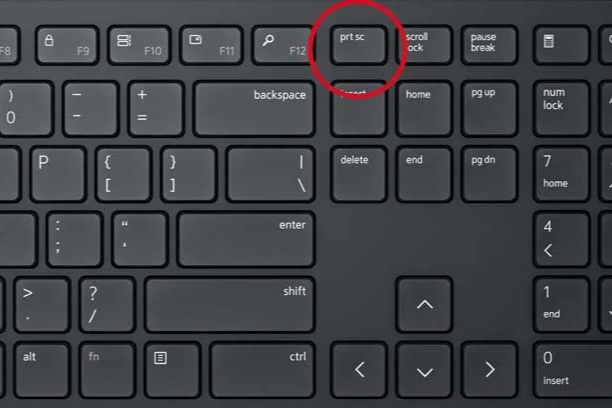
A printscreen on a Chromebook can be taken in several ways, depending on your needs. If you only want to capture a portion of the screen, use the keys Ctrl + Shift + Switch Window. This changes your cursor into a crosshair, allowing you to select an area of the screen. Once you've selected the desired area, the screenshot is automatically taken and saved. This functionality is useful for sharing specific information without having to capture the entire screen.
Buy a Chromebook?
More Chromebook tips
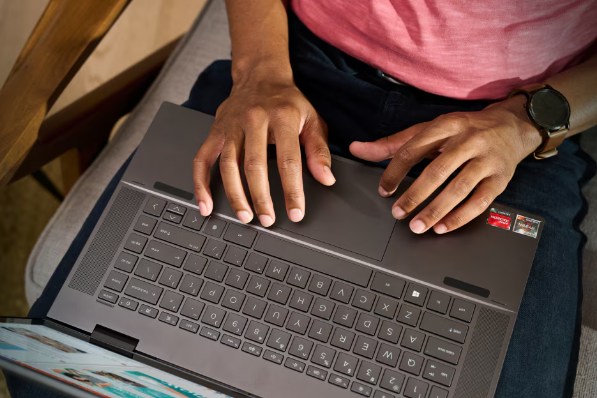
Besides taking screenshots, there are many other useful tips and tricks to get the most out of your Chromebook. For example, using keyboard shortcuts can significantly increase your productivity. Consider using Alt + [ and Alt + ] to quickly switch between windows, or Ctrl + Alt + / to see an overview of all keyboard shortcuts. You can also use the built-in Chrome OS tools to optimize and secure your device. At ReMarkt, we not only offer Chromebooks but also extensive support and tips to improve your Chromebook experience.

