PayPal is a globally operating payment service that allows you to make and receive online payments. It offers users a secure way to conduct transactions without directly sharing sensitive financial information, such as credit card numbers or bank account details, with sellers.
Security Features:
Advanced encryption
Fraud detection systems
Buyer protection
Ease of Use:
Simple registration
Fast payment processing
User-friendly interface
PayPal supports various currencies and is available in multiple countries, making it an international platform for merchants and consumers.
History and Development of PayPal
PayPal was founded in December 1998 by Max Levchin, Peter Thiel, and Luke Nosek as Confinity. The original goal was to develop software for secure devices. In 2000, Confinity merged with X.com, an online bank founded by Elon Musk. Eventually, the merged company officially changed its name to PayPal in 2001.
Some important milestones in the development of PayPal are:
In 2002, PayPal was acquired by eBay for $1.5 billion.
In 2015, PayPal became an independent publicly traded company.
PayPal developed various services, such as PayPal Credit and Venmo.
Through these developments, PayPal has grown into a globally recognized digital payment system.
How does PayPal work?
PayPal offers a simple way to make or receive online payments. Users can create an account by providing their email address and financial information, such as bank account or credit card details. The main steps in the process are:
Account Creation: Register with an email address and password.
Link Bank Account: Add a bank account or credit card.
Make Payments: Choose to pay via PayPal at online stores.
Receive: Others send payments to the PayPal account.
Transfers: Transfer to a linked bank account.
The security of transactions is ensured by advanced encryption.
Protection and Security
PayPal offers comprehensive protection and security for users. Some important aspects are:
Purchase Protection: Sellers may be eligible for protection on returns.
Secure Data: All sensitive information is encrypted and secured.
Seller Protection: Protects sellers against unauthorized payments and disputes.
Two-factor authentication: An extra layer of security for login attempts.
Thanks to these measures, both buyers and sellers can conduct transactions with peace of mind, knowing that their financial information is well protected.
User-friendliness and Accessibility
PayPal offers an exceptional degree of user-friendliness and accessibility. Users have the option to:
Quickly create accounts: Creating a PayPal account is easy and takes only a few minutes.
Easily make and receive payments: Users can perform transactions with just a few clicks.
Worldwide availability: PayPal is available in many countries, allowing international transactions to take place without problems.
Integration with other platforms: PayPal seamlessly integrates with various e-commerce and freelance platforms.
Accessible mobile app: The user-friendly mobile app makes it possible to manage finances on the go.
## Costs and Fees

When using PayPal, there are various costs and fees to consider:

1. **Account costs**:
    - There are no costs associated with opening a PayPal account.

2. **Sending costs**:
    - Domestic: Generally, it costs nothing to transfer money within the same currency.
    - International: Costs vary depending on the country and currency conversion.

3. **Receiving costs**:
    - Private: Receiving payments is free unless a currency conversion is necessary.
    - Business: Fixed fee plus a percentage of the amount received.

4. **Credit card costs**:
    - Fees for payments with a linked credit card may apply.
International Payments with PayPal
PayPal offers users a simple and secure way to make international payments. Some advantages are:
Worldwide Acceptance: PayPal is accepted by millions of sellers worldwide.
Multi-currency Support: Users can make and receive payments in various currencies.
Costs: Payments within the European Economic Area (EEA) are usually free; check PayPal's fees for specific costs for other regions.
Security: Advanced encryption and fraud detection technologies protect transactions.
Speed: Transfers are often instant, which is useful for urgent payments.
Integration into Webshops and Online Services
PayPal offers seamless integration options for online stores and online services. Thanks to the user-friendly APIs, companies can easily add PayPal as a payment method. Some advantages of this integration are:
Quick setup: PayPal's tools and manuals speed up the integration process.
Extensive customization options: Companies can customize the payment interface to their brand.
Compatibility: Works smoothly with popular e-commerce platforms such as Shopify, Magento, and WooCommerce.
Security: Uses advanced encryption to protect customer data.
Global reach: Customers can make payments worldwide.
Because of these advantages, PayPal makes it easier for businesses to offer customers a reliable and efficient payment solution.
Mobile App and Innovations
PayPal offers a user-friendly mobile app that makes managing transactions easy.
Features of the mobile app:
Real-time notifications: Immediately informs users about payment and receipt.
Fingerprint recognition: Provides an extra layer of security when accessing the app.
Fast payments: Makes it easy to transfer money to friends or family.
Send invoices: Easily create and send invoices for business purposes.
PayPal continues to invest in innovative technologies, such as artificial intelligence and blockchain, to improve services and optimize user experience.
PayPal Friends & Family versus Goods & Services
When using PayPal, there are two main options: Friends & Family and Goods & Services.
Friends & Family:
Used for personal payments to friends or family.
Favorable transaction costs, sometimes free.
No buyer protection.
Goods & Services:
For commercial transactions, such as online purchases.
Buyer protection applies.
Sellers pay a small fee.
“When in doubt about the right option, consider the purpose of the payment: personal or commercial.”
Customer Service and Support
PayPal offers extensive customer service and support, available seven days a week. Customers can easily contact them through various channels, including:
Phone: Direct and personal help.
Email: Replies within 24 hours.
Live chat: Real-time solutions to problems.
Community forums: Interaction with other users and experts.
In addition, PayPal offers an extensive FAQ section and self-help manuals. These resources ensure that users always have access to the necessary information and assistance, regardless of the problem or question.
Conclusion: Why Use PayPal?
PayPal offers various advantages for both consumers and businesses. Some key benefits are:
Security: User data is protected by advanced encryption.
Convenience: Once an account is created, payments can be made quickly without having to re-enter payment details each time.
Worldwide acceptance: PayPal is widely accepted by online retailers worldwide.
Buyer protection: PayPal offers protection in case of unequal deliveries or fraudulent transactions.
Fast transactions: Direct transfers between private and business accounts.
No annual fees: There are no annual or monthly fees for individual users.
Tikkie is a payment app developed by ABN AMRO that allows for quick and easy payments via a smartphone. Users can send payment requests via WhatsApp, SMS, or other messaging services.
Key Features of Tikkie
User-friendly: Simple interface and intuitive operation.
Fast: Creating and sending payment requests in a few steps.
Wide Usage: Suitable for both private and business transactions.
Free of Charge: No extra costs for consumers.
How Does It Work?
Create request
Share link
Recipient pays via iDEAL
Money is deposited into the account
Quotes from users emphasize the simplicity and speed of Tikkie.
How Tikkie Works: A Step-by-Step Guide
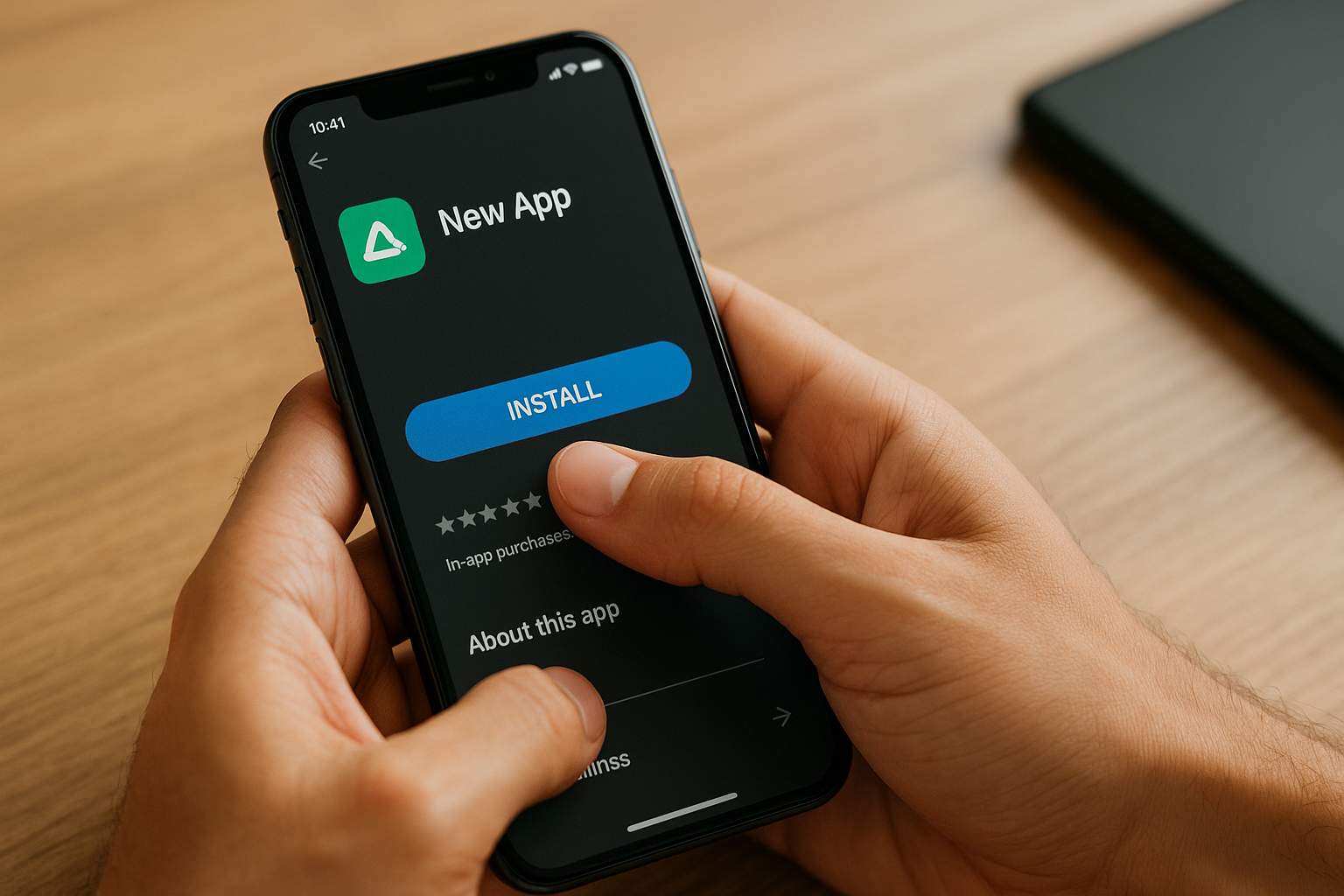
Download the App
Available in the App Store and Google Play Store.
Install the app on your smartphone.
Register an Account
Open the app and enter the required personal information.
Verify your phone number via a received code.
Link a Bank Account
Choose your bank and log in via the secure environment.
Give permission to link the account.
Request Payment
Open the app and select "New Request".
Enter the amount and description.
Share the payment link via WhatsApp, email, or other channels.
Receive Money
Once someone pays via the link, the user receives the amount directly into the linked bank account.
Benefits of Using Tikkie
Using Tikkie offers several advantages:
Simple and User-friendly
The app is easy to use and requires no extensive knowledge of technology.
Fast Payments
Payments can be made within seconds, saving time.
Free
For individuals, there are no costs associated with using the service.
Security
Tikkie uses bank security, ensuring secure transactions.
No Account Details Needed
Users do not need to exchange account numbers, which benefits privacy.
With these advantages in mind, Tikkie is an attractive alternative to traditional payment methods.
Tikkie for Individuals vs. Businesses
For individuals, Tikkie offers a simple way to collect small amounts after, for example, group outings or dinners. A payment request is sent via WhatsApp, SMS, or other chat apps. Recipients can pay via a link.
Businesses, on the other hand, often use Tikkie for larger transactions or recurring payments. They can also generate customized Tikkie links, which are included in their customer communication, for example in newsletters or invoices.
Differences:
Individuals:
No special registration required
User-friendly interface
Fast payments
Businesses:
Possibility for customized links
Suitable for invoicing and marketing
Requires business registration
Security and Privacy with Tikkie
With Tikkie, security and privacy are top priority. The application uses the latest security technologies to protect user data.
Data protection: Personal data is encrypted, stored, and processed in accordance with GDPR regulations.
Secure payments: Payment requests run through the secure environment of the user's own bank, so sensitive information is not stored by Tikkie itself.
Access protection: The app supports biometric verification and two-factor authentication to prevent unauthorized access.
“Reliability is crucial for Tikkie, which is why extensive security measures are taken to optimally protect users.”
Common Problems and Solutions
Failed Payment
Problem: Payment does not go through.
Solution: Check your bank account and internet connection.
Incorrect Amount
Problem: Incorrect amount sent to the wrong person.
Solution: Contact the recipient and request a refund.
Expired Payment Link
Problem: Payment link has expired.
Solution: Create a new Tikkie and send it again.
App Errors
Problem: App crashes or runs slowly.
Solution: Update the app to the latest version or restart your phone.
Security
Problem: Concerns about privacy and data protection.
Solution: Check the security settings and use strong passwords.
Tikkie Alternatives and Competitors
Several alternatives and competitors to Tikkie are available:
PayPal
Offers international payments
Known for ease of use and security
Bunq
Mobile banking service with extensive payment options
Supports instant payments to friends and family
Revolut
Offers various financial services
Accessible via a mobile app
Rabobank Payment Request
Similar to Tikkie
Specifically for Rabobank customers
ING Payment Request
Targeted at ING customers
Simple payment requests via the ING app
These alternatives vary in functionality and ease of use, depending on the user's needs.
Requesting Money Back with Tikkie: Tips and Tricks
Using Tikkie to request money back can make the process efficient and straightforward. Here are some tips and tricks:
Use Clear Descriptions: When creating a Tikkie, use clear and precise descriptions of the purpose. This helps the recipient quickly understand what the payment is for.
Setting Reminders: If someone forgets to pay, you can easily send a reminder via the app.
Share Directly via Messaging Apps: Spread the Tikkie link directly via WhatsApp or other messaging apps for a quick response.
Save and Manage Requests: Keep track of outstanding requests by checking the app regularly.
By following these tips, requesting money back via Tikkie becomes much easier and less stressful.
Integrations and Links with Other Apps
Tikkie offers various integrations and links with other apps to improve and simplify the user experience.
Banking apps: Tikkie works seamlessly with various banking apps, allowing payments to be made directly from the banking environment.
E-commerce platforms: Web shops can integrate Tikkie as a payment option at checkout.
Social media channels: Users can easily share payment requests via apps such as WhatsApp, Facebook, and Instagram.
Accounting software: For businesses, it is possible to link Tikkie to accounting programs for efficient administration of invoices and payments.
Future Developments and Innovations with Tikkie
Tikkie continues to innovate to improve the user experience. Some future developments include:
Integration of blockchain technology: This could further improve the security and transparency of payments.
Expansion to international markets: This will allow users to easily make cross-border payments.
Automation of recurring payments: This offers convenience for periodic costs, such as subscriptions.
Improved AI functions: Advanced algorithms can help predict and manage expenses.
Collaborations with fintech companies: This expands the range of services and functionalities for users.
Conclusion: Is Tikkie Worth It?
Tikkie offers a simple and fast way to make payments. It is designed to promote efficiency and ease of use. When assessing the value of Tikkie, several factors are important:
Ease of use: Simple to use, even for people without a technical background.
Speed: Payments are processed almost immediately.
No Costs: For consumers, the use of Tikkie is free of charge.
Security: Uses bank-based security protocols.
It is useful for both personal and business transactions. Users appreciate the direct nature of the service, which contributes to overall efficiency.
Installing a printer on a computer can sometimes seem complicated, especially if one is not technically proficient. This article provides a step-by-step guide that makes the process accessible and easy for everyone. By applying the right methods and tools, one can quickly and efficiently connect and use a printer. The manual is suitable for various operating systems such as Windows and MacOS.
Objectives of this article:
Explain how to physically connect a printer to the computer.
Describe how to download and install the correct drivers.
Provide instructions for configuring the printer on both Windows and MacOS.
Offer tips and advice for troubleshooting common installation errors.
What you need:
A working computer with Windows or MacOS.
A printer that is compatible with your operating system.
USB cables or a Wi-Fi connection for communication between the printer and the computer.
Internet access for downloading drivers and updates.
This article is not only intended for beginners but also helps advanced users to solve specific problems that may occur during the installation process. It is recommended to carefully follow the instructions below to ensure a seamless installation.
Important points to consider:
Ensure that the printer and computer are switched off during the initial physical connection.
Check that the printer and the necessary cables or networks are compatible with your device.
Read the printer manual, as this may contain specific instructions that differ from the general steps in this article.
Follow the steps below to install a printer on your computer with minimal effort and maximum efficiency.
Necessary Preparations
When setting up a printer on a computer, a number of preparatory steps are essential to ensure a smooth installation. These steps are relevant regardless of the type of printer being installed, whether it is a wired or wireless printer.
Required Equipment and Software
Printer: Check that the printer is compatible with the computer and operating system.
Cables: For a wired printer setup, USB or Ethernet cables may be required.
Drivers: Ensure that the latest drivers for the printer are downloaded from the manufacturer's official website.
Network: For wireless printers, a stable and secure Wi-Fi network is required.
Documentation: Manuals and installation guides from both the printer and the computer can be useful.
Before You Begin
Placement: Choose a suitable location for the printer. Ensure there is sufficient space and that the location is within reach of the computer and, if applicable, the Wi-Fi signal.
Power Supply: Connect the printer to a power source and switch it on. Check the indicator lights on the printer to verify that it has started correctly.
PC Preparation:
Remove any old printer drivers from similar devices to avoid conflicts.
Update the computer's operating system if necessary to prevent compatibility problems.
Network Settings (for wireless printers)
Wi-Fi Password: Make sure the Wi-Fi network password is available. This is required during the installation procedure.
Router Access: Access to the router may be required to configure the printer. Connect to the router configuration screen if necessary.
Firewall Settings: Check that the computer's firewall has not set any blocks for printer connections.
Printer Preparation
Cartridges: Install ink or toner cartridges according to the manufacturer's instructions.
Paper: Place paper in the input tray and check that the paper guides are correctly set. This reduces paper jams.
Test Page: If possible, print a test page to verify that the printer is functioning mechanically correctly.
By carefully performing these steps, the printer installation process can proceed efficiently and the risk of technical problems is minimized.
Different Types of Printers
When installing a printer on a computer, it is important to know which type of printer you are using, as the installation instructions may vary. Below are descriptions of different types of printers:
Inkjet Printers
Inkjet printers are popular because of their versatility and affordability. They use drops of ink to print images and text. Their characteristics are:
Advantages:
Suitable for high-quality color prints.
Ability to print on various media.
Low initial purchase cost.
Disadvantages:
Higher cost per page due to ink consumption.
Slower print speed compared to laser printers.
Laser Printers
Laser printers use a laser beam to apply toner powder to the paper and are known for their speed and efficiency. Their characteristics are:
Advantages:
Fast print speed, ideal for high volume.
Lower cost per page.
Suitable for sharp text prints.
Disadvantages:
Higher purchase cost.
Less suitable for photo-quality prints.
Multifunction Printers (MFP)
Multifunction printers combine multiple functions such as printing, scanning, copying, and faxing in one device. Their characteristics are:
Advantages:
All-in-one functionality saves space.
Cost-effective compared to separate devices.
Suitable for home use and small offices.
Disadvantages:
More complex maintenance.
Higher initial purchase cost than some single-function printers.
Wireless Printers
Wireless printers use Wi-Fi or Bluetooth to connect to computers and mobile devices. Their characteristics are:
Advantages:
Flexibility and convenience without cables.
Multiple devices can easily connect.
Suitable for home networks and offices.
Disadvantages:
Dependence on wireless network stability.
Security issues if not properly set up.
Photo Printers
Photo printers are designed for printing high-quality photos. Their characteristics are:
Advantages:
Excellent photo quality and precision.
Specifically designed for photo paper and ink.
Disadvantages:
Usually more expensive to purchase and use.
Less suitable for general printing.
By understanding the different types of printers, one can make an informed decision about which type best suits their specific printing needs.
Installing Printer Drivers
When installing a printer on a computer, it is essential to install the correct printer drivers. Printer drivers ensure communication between the printer and the computer. The following steps should be followed to install the drivers correctly:
Identify the printer model
The first step is to determine the exact model of the printer. This number or name is often found on the printer housing or in the documentation that came with the printer.
Visit the manufacturer's website
Go to the official website of the printer manufacturer. This could be HP, Canon, Epson, Brother or another brand. Look for a section such as 'Support' or 'Drivers and Downloads'.
Download the correct drivers
Use the printer model to search for the correct drivers on the website. Make sure the drivers match the computer's operating system (e.g., Windows 10, macOS Big Sur, Linux).
Install the downloaded drivers
Open the downloaded file and follow the installation instructions. This process may involve accepting the end-user license agreement, selecting an installation location, and configuring the printer.
Check the connection
Make sure the printer is correctly connected to the computer via USB or the same network as the computer. Test the connection by printing a document.
Alternative Methods for Driver Installation
Using the Installation CD
If a CD was included with the printer, it can be used to install the drivers. Place the CD in the computer's CD-ROM drive and follow the on-screen instructions.
Automatic Updates
Some operating systems, such as Windows 10, have the ability to automatically detect new devices and install the necessary drivers without manual intervention.
Note: Regularly updating the printer drivers can prevent malfunctions and ensure that the printer continues to perform optimally.
By carefully following these steps, one can ensure that the printer functions correctly with the computer and potential problems during printing are avoided.
Connecting the Printer via USB
To connect a printer via USB, follow the steps below:
Checking the Necessary Equipment:
Make sure both the printer and the computer are turned off. Check that the USB cable and the printer's power cable are available and in good condition.
Connecting the USB cable:
Connect the USB cable to the correct ports on both the printer and the computer. USB ports are usually clearly marked and standard on both modern computers and printers.
Switching on the Printer and the Computer:
After both devices are connected to each other, switch on both the printer and the computer. The computer should automatically detect the new hardware.
Automatic Installation:
Modern operating systems, such as Windows and macOS, will often automatically install the correct drivers for the printer. A pop-up message or a notification will indicate that the installation has started or is complete.
Manual Installation (if necessary):
Sometimes it may happen that the printer is not automatically recognized. In that case, you must go to the official website of the printer manufacturer to download and manually install the correct drivers. Follow the instructions provided by the manufacturer.
Configuring the Printer:
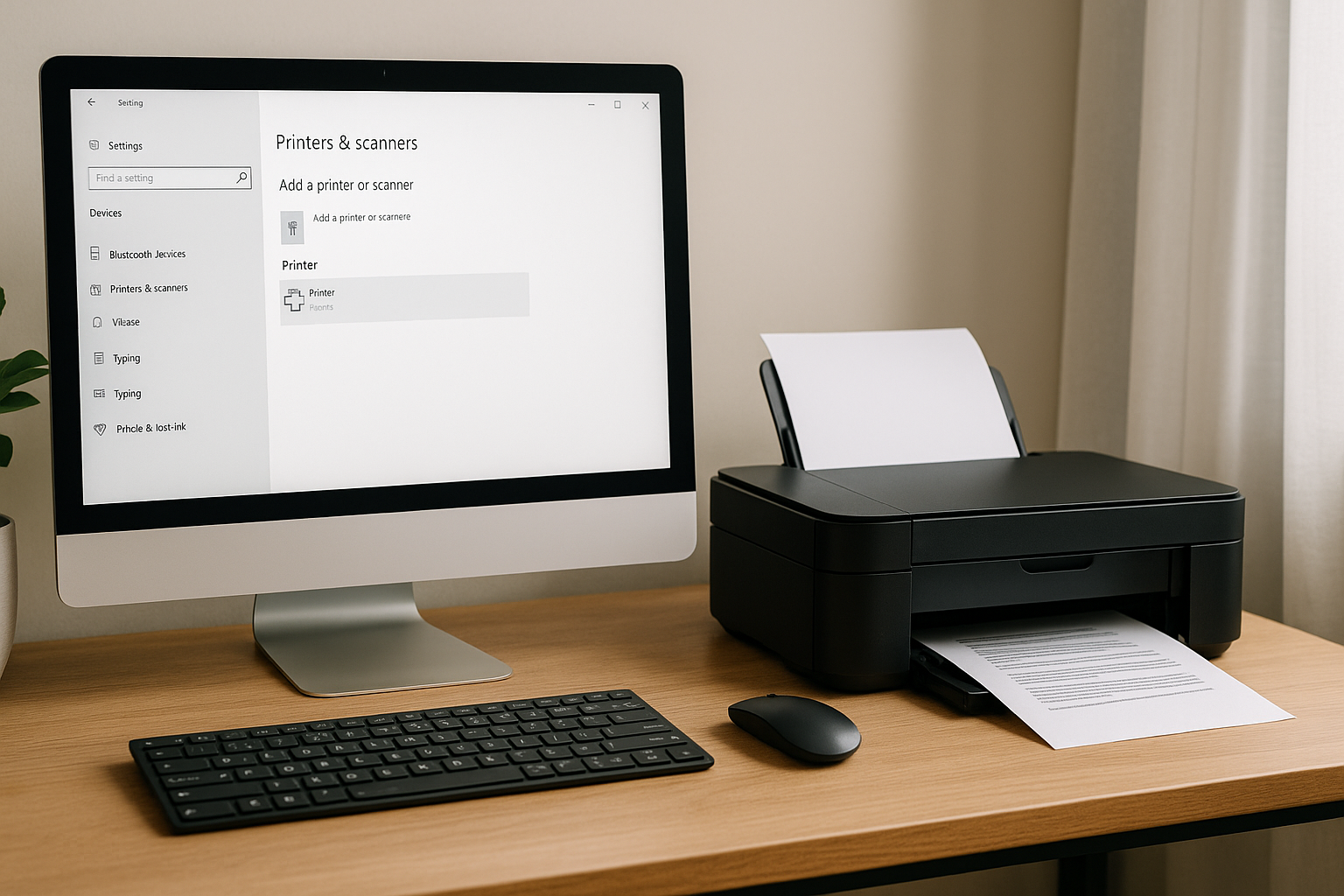
After installing the drivers, you may need to configure the printer via the computer's control panel. Go to “Settings” or “Devices” and select “Printers and scanners”. Add the new printer if it has not already been automatically added.
Print a Test Page:
After completing the installation, it is advisable to print a test page to check if the printer is working correctly. This can usually be done directly from the control panel.
Troubleshooting:
Should a problem occur, first check that all cables are correctly connected and that the printer driver is up-to-date. Sometimes it may be necessary to restart the printer or disconnect and reconnect the USB connection.
Using USB as a connection method often provides a stable and fast way to install a printer without too many technical complications.
Connecting the Printer via WiFi
Connecting a printer to WiFi is an essential step for ensuring a smooth and wireless printing process. The steps to set up a printer via WiFi are described below:
Preparation:
Check that the printer supports a WiFi connection.
Make sure the printer, computer, and router are turned on.
Keep the network settings of the WiFi network (such as SSID and password) at hand.
Setting up the printer for WiFi:
Go to the Settings or Configuration menu on the printer's control panel.
Select the option for wireless settings or network configuration.
Choose 'Wireless Setup Wizard' or a similar option to start the WiFi configuration process.
Selecting the network:
The printer will search for available WiFi networks.
Select the name of the WiFi network (SSID) from the list of available networks.
Enter the password for the WiFi network when prompted.
Checking the connection:
After entering the password, the printer will attempt to connect to the WiFi network.
If the connection is successful, the printer will display a message indicating that the connection has been established.
To verify the connection, you can print a network settings page from the printer.
Installation of printer drivers:
On the computer, go to the printer manufacturer's website to download the latest drivers and software.
Follow the instructions to install the software and add the printer to the WiFi network.
During installation, you may be asked to select the printer from a list of available network printers.
Performing a test print:
Open a document or image on the computer.
Select the WiFi printer as the default printer.
Perform a test print to check that the printer is working correctly via the WiFi network.
Following these steps ensures that the printer is correctly connected to the WiFi network and ready for use.
Setting Up a Printer on a Network
To set up a printer on a network, you must proceed carefully. The first step is to ensure that the printer and the computer are connected to the same network. Here are the steps:
Check network connection:
Make sure that both the printer and the computer are connected to the same Wi-Fi or wired network environment.
Install printer drivers:
Go to the printer manufacturer's website and download the latest drivers for the specific printer.
Open the Control Panel:
On a Windows computer, click the “Start” button, search for and open the “Control Panel”.
On a Mac, go to “System Preferences” and choose “Printers & Scanners”.
Add printer:
In the Control Panel on Windows, select “Devices and Printers” and click “Add printer”.
On a Mac, click the “+” sign to add a new printer.
Search for printer:
Let the computer search for available network printers.
Select the correct printer from the list of found devices.
Driver installation:
If the computer asks for the location of the drivers, navigate to the downloaded files and complete the installation by following the on-screen steps.
Test the connection:
Print a test page to check that the printer is correctly connected and functioning with the network.
If problems:
Check the network connections again.
Restart both the computer and the printer.
Visit the manufacturer's support page for help and common solutions.
Note: make sure that the firewall or antivirus settings on the computer do not block the connection to the network printer.
By carefully following these steps, one can successfully set up a printer on a network and ensure a seamless printing experience.
Configuring Printer Settings
After physically connecting the printer and installing the correct drivers, it is essential to correctly configure the printer settings. Carefully follow these steps to ensure that the printer functions optimally:
Open the Printer Settings
Go to the Control Panel on the computer.
Select the option “Devices and Printers”.
Find the recently installed printer in the list and right-click on it.
Choose “Properties” or “Printer Settings” from the context menu.
Configure General Settings
Check the “General” tab for basic information such as the printer name, location, and description.
Adjust the name and description if necessary to provide clarity when selecting the printer for different tasks.
Set Print Options
Go to the “Preferences” or “Print Options” tab.
Set the desired default print settings, such as paper size, orientation (portrait or landscape), and print quality.
Choose the paper source, such as the main tray or the manual feed tray.
Maintenance and Diagnostics
Check if there is a tab or section for maintenance or diagnostics.
Perform a test page print to check that the printer is functioning correctly.
Use tools such as nozzle check and alignment if the printer supports this.
Print Management and Priorities
Go to the “Advanced” tab.
Set advanced options such as print management settings, sorting print jobs, and printer priorities.
Determine the scheduling of print jobs and whether jobs should be sent directly to the printer or first saved in the queue.
Network and Sharing
If the printer is used via a network, go to the “Sharing” tab.
Enable the “Share this printer” option and give a shared name to make it easier for network users to access.
Configure the required permissions for users who may use the printer.
Security and Permissions
Check the “Security” tab to set user rights and permissions.
Specify which users or groups may perform print jobs, adjust configuration settings, or manage the printer.
Precisely configuring the printer settings ensures that the printer works more efficiently and meets the user's specific needs, contributing to a seamless and trouble-free printing experience.
Troubleshooting Installation Problems
Various problems can occur during printer installation. Here are some common problems and solutions to ensure the installation goes smoothly.
1. Operating System Compatibility Issue
Make sure the printer is compatible with the computer's operating system.
Check the Specifications: Read the printer documentation to check if the operating system is supported.
Download suitable drivers: Visit the manufacturer's website for drivers suitable for the operating system.
2. Problems with the Printer Driver
A missing or outdated printer driver can prevent the printer from functioning correctly.
Driver Installation: Use the included CD or download the latest version from the manufacturer's website.
Driver Update: Check if updates are available and install them.
3. Connection Problems
Connection problems can occur with wireless and wired connections.
Cable connections: Check that all cables are properly connected and show no damage.
Wireless Connection: Make sure the printer and computer are connected to the same network. Restart both devices if necessary.
4. Error Messages on the Printer
The printer may display various error messages during installation.
Read the Manual: Consult the user manual to look up the error message.
Printer Reset: Try resetting the printer by turning it off and on again.
5. Not Recognized by the Computer
Sometimes the computer does not recognize the printer.
Remove and Reinstall: Remove the printer from the list of devices and try connecting again.
USB Ports Check: Check if the USB port used is working by testing another device.
6. Print Quality Problems
If the printer installation is correct, but the print quality is poor, some steps must be taken.
Print a Test Page: Print a test page to check the print quality.
Printer Cleaning: Clean the print head and cartridges according to the manufacturer's instructions.
Tip: Always consult the support section on the manufacturer's website for specific solutions and utilities.
By following these steps, most installation problems should be able to be solved quickly and efficiently.
Testing and Printing
After successfully installing the printer on the computer, it is essential to test the installation. This section includes step-by-step instructions and tips to ensure that the printer is working correctly and performing optimally.
Printing a Test Page
a. Open the Settings on the computer.
b. Go to Devices and select Printers and scanners.
c. Click on the installed printer and choose Manage.
d. Select the option Print test page.
Printing a Document
a. Open a word processing program, such as Microsoft Word.
b. Create a new document or open an existing document.
c. Click on the Print option in the menu or use the shortcut Ctrl + P.
d. Select the installed printer from the list of available printers.
e. Click the Print button.
Check the Print Quality
a. Assess the test page and the document for readability and accuracy.
b. Check for smudges, lines, or blurring.
c. If necessary, perform a maintenance task via the printer software, such as cleaning the print heads.
Troubleshooting Printing Problems
a. Check that the printer is correctly connected to the computer and that there is enough paper and ink.
b. Restart both the printer and the computer.
c. Check for error messages on the printer screen and consult the user manual or the manufacturer's website for specific error codes.
d. If problems persist, consider removing and reinstalling the printer driver.
Adjusting Print Settings
a. Go to the Settings of the printer software.
b. Adjust settings such as paper size, print quality, and color settings.
c. Save the changed settings and perform another test print to check the results.
Regular Maintenance and Updates
For optimal operation of a printer and to prevent any problems, regular maintenance and updates are essential. This ensures that the printer works efficiently and extends its lifespan. There are several aspects to consider:
Regular Maintenance
Clean the Printer:
Keep the outside of the printer clean from dust and dirt.
Regularly clean the inside, especially the paper tray and print heads. Use suitable cleaning agents.
Checking Ink and Toner Levels:
Regularly check the ink and toner levels to prevent interruptions during printing.
Replace cartridges in time to prevent them from running completely empty and reducing print quality.
Paper Check:
Always use good quality paper to prevent jams and damage.
Store paper in a dry place to avoid moisture absorption, which can lead to poor print results or paper jams.
Print Head Alignment:
Perform a print head alignment if necessary. This improves print quality and prevents blurry prints.
Consulting the Up-to-Date Manual:
Always follow the manufacturer's manual for specific maintenance tips and procedures.
Software- and Firmware-Updates
Regularly Check for Updates:
Regularly check for new software and firmware updates available for the printer. This can often be done easily via the manufacturer's official website.
Automatic Update Functions:
Some printers offer automatic update functions. Make sure this function is enabled so you don't miss updates.
Compatibility with Operating System:
Keep an eye on whether the printer software remains compatible with the latest updates from the computer's operating system. Operating system updates can bring changes that affect the operation of the printer.
Driver updates:
Ensure that the latest printer drivers are installed to prevent compatibility and performance problems.
Security updates:
Also perform the security updates offered by the manufacturer to protect the printer from potential threats.
With these maintenance and update practices, one can ensure that the printer is always ready for use and remains free from common problems.
Useful Tips for Optimal Use
To get the most out of a printer, it is important to follow a few simple steps and techniques. Here are some helpful tips:
Regular Calibration
Printers should be calibrated regularly to maintain print quality. Ensure that the prints remain sharp and clear.
Keeping Printer Drivers Up-to-Date
Check that the latest printer drivers are installed. Visit the printer manufacturer's website for updates. Regular updates ensure compatibility and new features.
Use of High-Quality Paper
Always use good quality paper. Poor paper can lead to problems such as paper jams and faded prints.
Setting Energy Management
Make sure the printer goes into sleep mode when not in use. This saves energy and extends the life of the printer.
Monitor Ink/Toner Level
Keep an eye on the ink or toner level. Sufficient ink or toner prevents interrupted print jobs. Consider always having spare ink or toner on hand.
Regular Maintenance
Perform regular maintenance, such as cleaning print heads and removing dust. This ensures better performance and a longer lifespan for the printer.
Optimize Network Settings
For network printers, make sure the network settings are correct so that the
Introduction: Why Are Professional Email Signatures Important?
Professional email signatures give emails a professional look. They ensure:
Recognition and Branding: Help with brand consistency.
Professionalism: Strengthen the professional impression.
Contact Information: Make it easier to get in touch.
Credibility: Increase the recipient's trust.
Professional signatures provide clear information and ensure that emails are taken seriously. They offer a chance to share company details, social media links, and other important information.
Essential Elements of a Professional Email Signature
A professional email signature must strike the right balance between information density and simplicity. Essential elements are:
Name and function: Clearly indicate who the sender is.
Company name and logo: Reinforces brand recognition.
Contact information:
Phone number
Email address
Company address
Website URL: Provides easy access to further information.
Social media links: Contains relevant company social media channels.
Legal disclaimers: If applicable, for confidentiality and data protection.
Logos or awards: Optional; for an extra professional look.
Make sure the signature is consistent with the house style and maintains readability on different devices.
The Importance of Contact Information
Contact information in an email signature is crucial. It offers recipients easy access to essential data. A well-designed signature contains:
Phone number: For direct communication.
Email address: For efficient correspondence.
Website: For more information about the company.
An email signature without contact information can cause confusion. It also creates a barrier to further interaction. Clarity and accessibility promote professional relationships and strengthen trust. Make sure the information is up-to-date. This helps minimize miscommunications and demonstrates professionalism.
The Power of Visually Distinctive Elements
Visual elements in an email signature are crucial to attract the recipient's attention and distinguish the company. Here are some steps to maximize visual impact:
Use Logos: A clear and recognizable logo ensures brand recognition.
Color Palette: Choose colors that match the corporate identity.
Social Media Icons: Provide icons that link to company profile pictures.
Dividing lines: Use lines to keep different sections clear.
Typography: Choose legible and professional fonts.
“Visual consistency strengthens the professional appearance and recognizability of a brand.”
Effective Use of Social Media Links
Adding social media links to email signatures offers numerous advantages. To use them effectively, these guidelines should be followed:
Choose Relevant Platforms: Focus on platforms that are important to the target group, such as LinkedIn for business relationships and Twitter for quick updates.
Use Clear Icons: Use recognizable and uniform icons for each platform.
Positioning: Place the social media links below the contact details but above the disclaimer.
Teasers and Call-to-Actions: Add short teasers or invitations to encourage the recipient to follow your social media.
Good use of social media links strengthens online presence and engagement.
From Template to Personal Signature: Tips and Tricks
An effective transition from a standard template to a personal email signature requires attention to detail and personalization. Here are some tips:
Choose a Professional Design:
Ensure a clean and clear layout.
Use a legible font.
Add Personal Data:
State your full name and function.
Add your phone number and business email address.
Company logo and Social Media:
Add the company logo for branding.
Link to your LinkedIn profile and other relevant social media.
Legal Information:
Add a disclaimer or privacy statement if necessary.
Consistency in Email Signatures within Business Communication
Consistency in email signatures ensures a uniform company appearance. The use of a fixed template is essential. A consistent style contributes to the recognizability and professionalism of the company.
Template: Each signature must follow a standard format.
Colors and fonts: Use company colors and legible fonts.
Logo and contact details: Add the company logo and consistent contact information.
Legal disclaimers: Ensure identical legal disclaimers in all signatures.
Social media: Add uniform links to social media profiles.
A professional appearance requires adherence to these guidelines.
The Right Tools and Software for Creating Email Signatures
The right tools and software are essential for creating professional email signatures. Here are some recommended options:
Wisestamp - A popular choice for creating visually appealing signatures.
HubSpot - Offers free tools for creating and managing signatures.
Gimmio - Customizable templates to create unique signatures.
Exclaimer - Advanced features for businesses, including integration with Microsoft 365.
Rocketseed - Ideal for brand customization and marketing-oriented signatures.
These tools help with consistency, branding and making email correspondence more professional.
Follow the Rules: Legal Requirements and Best Practices
When drafting email signatures, one must comply with legal regulations and best practices:
Contact information: State clear contact information, such as company name, address, phone number.
Disclaimer: Add a legal disclaimer to avoid misunderstandings.
Privacy and GDPR: Ensure that the signature complies with the General Data Protection Regulation (GDPR).
Corporate culture: Keep the tone formal and in line with the corporate culture.
Uniformity: Use consistent signatures within the team.
Note: Non-compliance can lead to legal consequences and reputational damage.
Common Mistakes and How to Avoid Them
Many email signatures contain errors that reduce their effectiveness. Here are some common mistakes and tips to avoid them:
Incomplete Contact Information: Ensure complete, up-to-date company details.
Too Much Information: Limit the signature to essential details to avoid confusion.
Unprofessional Images: Use high-quality company logos and avoid selfies.
Lack of Consistency: Maintain a uniform signature within the company.
Excessive Formatting: Keep the design simple and clear for readability.
Extremely Long Signatures: Keep it short and concise to maintain professionalism.
Examples of Inspiring Email Signatures
A professional email signature can significantly improve the impression of a sender. Here are some examples that can serve as inspiration:
Directors and Managers:
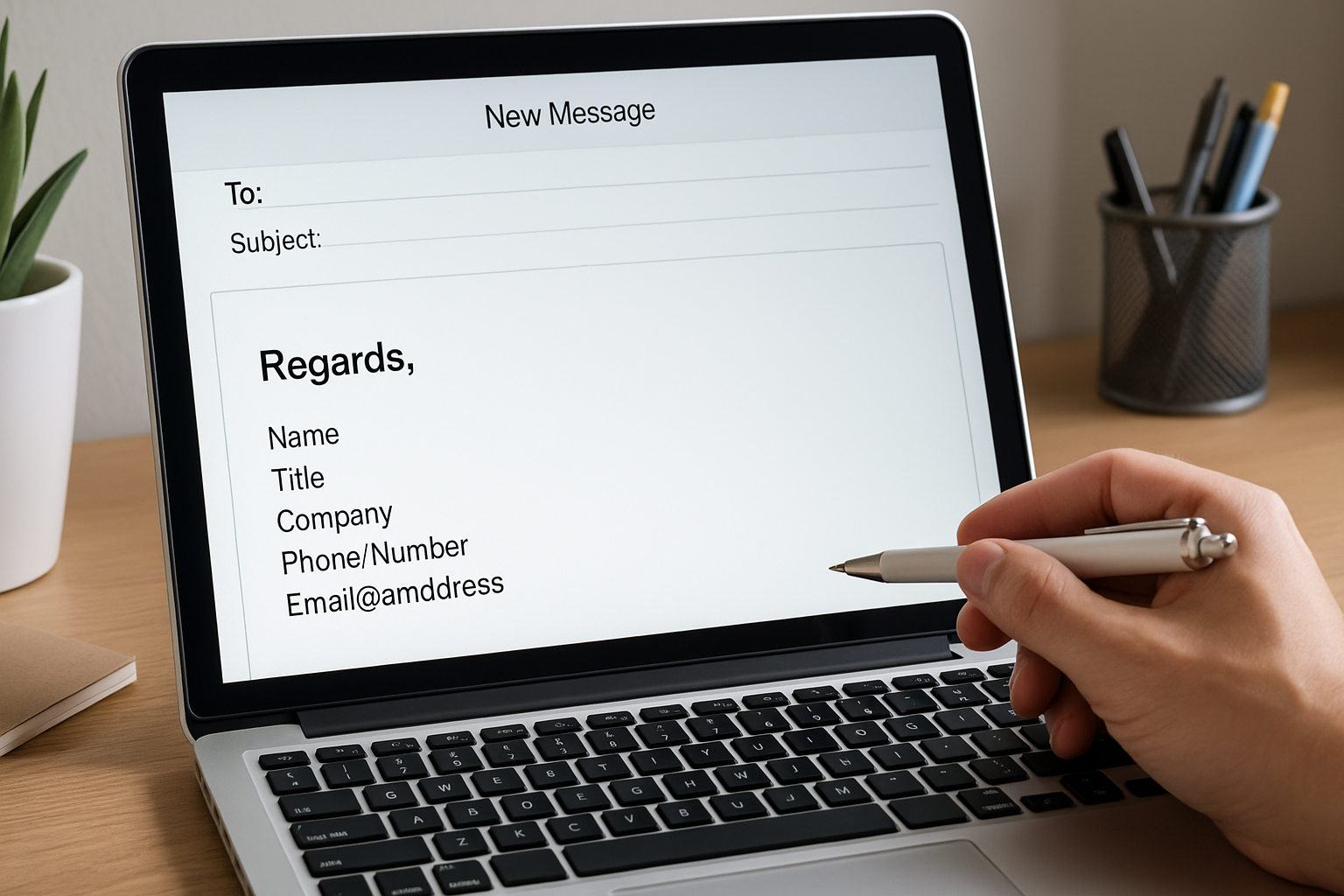
Kind regards,
John Smith
CEO | Company Name
Phone: +1 555 123 4567
Email: [email protected]
Website: www.company.com
Marketing professionals:
Kind regards,
Jane Doe
Marketing Manager | Company Name
Follow us on LinkedIn: [LinkedIn Profile]
Creative Specialists:
Regards,
Sarah Jones
Graphic Designer | Company Name
View my portfolio: www.portfolio.com
Customer service:
Dear customer,
Peter Miller
Customer Service Representative | Company Name
Phone: +1 555 987 6543
Technical Support:
Kind regards,
Lucas Brown
IT Support Specialist | Company Name
Use consistent and professional elements in each signature for optimal impact.
How Do You Measure the Success of Your Email Signature?
Measuring success starts with identifying relevant KPIs. Consider the following metrics:
Click-through Rate (CTR): The percentage of recipients who click on links in the signature.
Website Traffic: The number of website visitors originating from email signatures.
Conversions: Number of sales or lead registrations via links in signatures.
Response time: How quickly people respond to emails with versus without signatures.
Social Media Engagement: The number of new followers or likes via social media icons in the signature.
Use tools such as Google Analytics and UTM codes to track this data.
Conclusion: The Winning Formula for a Convincing Email Signature
A convincing email signature combines professionalism and effectiveness. In summary, a winning signature should contain the following elements:
Personal Information: First name, last name, and job title.
Company Information: Company name, logo, and address.
Contact Information: Phone number, email address, and possibly a website.
Social Proof: Links to LinkedIn and other relevant social networks.
Legal Notice: Any disclaimers or confidentiality statements.
A professional email signature strengthens the brand, increases credibility and promotes more effective communication.
Introduction: The Importance of the Search Function
The search function on a computer plays a crucial role in the daily use of technology. This functionality allows users to quickly and efficiently find information, files, and applications. In an era where time management is essential, the search function offers significant advantages over manual search methods.
Efficiency and Time Savings
Speed: The search function reduces the time it takes to find files manually. With a few keystrokes, you get direct access to the information you are looking for.
Automation: The search function automates the process of searching through folders and subfolders, eliminating the need for manual searches.
Increased Productivity
Accessibility: The ability to quickly access documents, applications, and settings increases the user's overall productivity.
Multitasking: Users can manage multiple tasks simultaneously because relevant information is readily available.
User-Friendliness
Intuitive Design: Modern search functions are designed to be user-friendly and require minimal technical knowledge.
Personalization: Many search functions offer personalized search results based on previous searches and usage.
Consistent Results
Accuracy: The search function uses advanced algorithms to provide accurate and relevant search results.
Filter Options: With advanced search options, users can refine their searches based on date, file type, and other criteria.
Areas of Application
File Management: From documents to media files, the search function simplifies the management of large amounts of data.
Applications and Settings: Users can quickly adjust specific settings or open programs without navigating through numerous menus.
Security Aspects
Security: Some search functions offer the ability to encrypt searches, which provides extra security when searching for sensitive information.
In general, the search function transforms the way users interact with their computers, making them more efficient, productive, and less frustrated by searching for information.
Basic Principles of the Search Function
The search function on a computer is an essential tool for users to quickly find information. To make optimal use of this function, it is important to understand the basic principles.
Algorithms and Indexing
The search function uses complex algorithms and indexing techniques:
Algorithms: These determine the relevance of search results based on the entered search terms.
Indexing: The computer creates an index of files and data so that they can be searched faster.
Keyword Specification
Specifying keywords can significantly improve the efficiency of the search. Some tips are:
Use of Keywords: Specific terms instead of general words.
Boolean Operators: Terms such as AND, OR and NOT to refine searches.
Quotation Marks: Use quotation marks to search for exact phrases.
Filters and Categories
The search function often provides filters and categories that allow users to narrow their search:
Date: Filter by date to find recent files.
File Type: Specific file types such as documents, images or videos.
Size: Search for files based on file size.
Advanced Search Options
For a more detailed search, advanced options can be used:
Metadata: Searches can be limited to certain metadata such as author, title or keywords.
Folder Base: Specific folders can be searched.
Regular Expressions (RegEx): For advanced users who want to define complex search patterns.
Relevance and Ranking
Search results are ranked based on relevance, determined by:
Frequency of terms: How often the search term appears in a document.
Position: Where the term appears in the document (heading, introduction, etc.).
Context: The semantic context in which the term is used.
Search History and Recommendations
The search history can be useful for future searches:
History: Automatic saving of previous searches for quick access.
Recommendations: Based on previous searches and user behavior.
By understanding these basic principles, you can use the search function on your computer more efficiently and effectively.
Starting a Search: A Step-by-Step Guide
Performing a search on a computer can be made significantly more efficient and effective by following a structured approach. This guide provides a step-by-step guide to get the most out of your computer's search function.
Step 1: Open the Search Function
Using the Start Menu:
Click on the 'Start' menu in the bottom left corner of the screen.
Select the search box or use the keyboard shortcut Windows + S.
MacOS Spotlight:
Press Command + Space to open Spotlight.
Type the search term in the Spotlight search box.
Step 2: Entering the Search Term
Using Specific Terms:
Type specific and targeted terms to refine the search results.
Boolean Operators:
Use operators such as AND, OR, and NOT to search for specific combinations of terms. For example, report AND sales to search for documents about sales reports.
Step 3: Filtering Search Results
Using Filters:
Use filters such as date, file type, and location to further refine the search results.
For example, choose 'Documents' as the file type for a targeted search for text files.
Sorting by Relevance or Date:
Sort the search results by relevance or recency to find the desired file faster.
Step 4: Using Advanced Search Options
File Properties:
Use file properties such as name, size, and author to refine the search. For example, type name:budget.xlsx to specifically search for a file with this name.
Searching Within Content:
Enable the option to search within the content of files for in-depth results. This is especially useful for documents and emails.
Step 5: Evaluating Results
Using the Preview Function:
Use the preview function to assess the content of the found files without opening them.
Multiple Files:
Hold down Ctrl or Shift to select multiple files for batch actions such as copying or moving.
Step 6: Investigating Actions
Result Management:
Manage the search results by deleting or moving irrelevant files to another folder.
Notes and Follow-up:
Make notes of important search results and plan follow-up steps if necessary.
By following these steps, you can manage searches efficiently and effectively, leading to time savings and higher productivity.
Advanced Searches: Using Operators
Operators are powerful tools that allow users to refine their computer searches and make them more accurate. By using these operators correctly, you can easily find specific files, folders, or information in a very short time.
Frequently Used Operators
AND Operator
Use: To get results that contain all the specified terms.
Example: report AND quarter searches for files or documents that contain both 'report' and 'quarter'.
OR Operator
Use: This returns results that contain one or more of the specified terms.
Example: annual report OR financial finds files containing either 'annual report' or 'financial'.
NOT Operator
Use: To exclude results that contain a certain term.
Example: budget NOT 2021 gives documents that contain 'budget' but exclude the term '2021'.
"" (quotation marks)
Use: For exactly matching search terms.
Example: "strategic plan" searches for files with exactly that phrase.
* (asterisk)
Use: To include all possible characters or variants of a word in the search.
Example: strateg* searches for 'strategy', 'strategic', etc.
() (parentheses)
Use: To structure more complex searches.
Example: (annual report OR financial) AND 2022 searches for files that contain 'annual report' or 'financial' and also '2022'.
Using Filters
File Type
Search specifically for a file type by typing it in the search bar: ext:pdf, ext:docx, etc.
Date
Search for files from a specific date by entering date:2023-01-01.
Grouping
Combine filters for a more precise search: ext:pdf AND date:2023-01-01.
Practical Examples
Specific results for a project: projectname ext:docx AND date:2022-08*
Exclusion within a search: presentation NOT "last year"
A good mastery of these operators significantly increases the efficiency and effectiveness of searches, saving time and providing faster access to the necessary information.
Searching Within Specific Files and Folders
Optimizing the search function within specific files and folders can significantly increase user efficiency. Windows offers several methods for more targeted searching for information within specific documents or directories.
Using File Explorer
File Explorer in Windows is a powerful tool for searching folders and files. To do this, the user follows these steps:
Open File Explorer by clicking on the folder icon in the taskbar.
Navigate to the folder you want to search in.
Use the search bar in the upper right corner of the window to enter your search terms.
Apply filters such as file type, size, and date modified to refine search results.
Advanced Search Options
Advanced search options can further enhance the search experience by adding specific parameters:
Use Wildcards: Special characters such as * and ? can help in searching for files with similar names.
Save Searches: Searches can be saved for future use, saving time on recurring searches.
Content Search: Activate content search options to search within the text of documents. This is useful for finding information within Word files, PDFs, and other text files.
Indexing Options
Adjusting the indexing options can improve the speed and accuracy of searches. Indexing makes it possible to provide fast search results by scanning files in advance:
Set indexing locations: Select specific folders and locations that should be indexed.
Access indexing options: Go to 'Indexing Options' in the Control Panel.
Manage inclusion and exclusion: Add or remove folders from the indexing list to achieve performance improvements.
Using File Properties
File properties play a crucial role in efficiently searching for files:
Tagging: Add tags to files to make keyword searching easier.
Custom Properties: Use custom fields and metadata to enable structured searches.
By using these methods, you can quickly and accurately find information in specific files and folders, leading to a productive computer experience.
Tips and Tricks for Faster Results
Using search functions on a computer can significantly increase efficiency. There are several ways to get faster and more accurate results. Here are some practical tips and tricks:
Use Specific Keywords
Using specific keywords can refine search results:
Avoid general terms; instead, use specific, descriptive words.
Try synonyms or related terms if the first search does not yield the desired results.
Use Boolean Operators
Boolean operators such as AND, OR and NOT help to refine searches:
AND: Both terms must be present in the result. For example, marketing AND strategy.
OR: At least one of the terms must be present. For example, content OR marketing.
NOT: Excludes specific terms. For example, marketing NOT social.
Filters and Advanced Search Options
Many operating systems and applications offer advanced search options:
Use date filters to limit results to a specific timeframe.
Filter by file format or location to find what you need faster.
Keyboard Shortcuts
Keyboard shortcuts can significantly increase the speed of searches:
Ctrl + F: To search within a document.
Windows + S: For quick access to the search bar in Windows.
Cmd + Space: For Spotlight search on a Mac.
Using Wildcards
Wildcards, such as the asterisk character (*), can help with searches where the exact term is unknown:
For example, searching for market* can yield results such as marketing, marketplace, etc.
Indexing Files
Ensure that files are properly indexed for faster search results:
Check if the indexing function is enabled in the operating system.
Add important folders to the indexing list for quick access.
Save Searches
In some applications it is possible to save searches:
Save frequently used searches to save time.
Use shortcuts to saved searches via the desktop or specific applications.
Implementing these strategies can significantly improve the efficiency of searches on a computer, leading to faster and better results.
Common Problems and Solutions
Certain problems can arise when using search functions on a computer. Below are some of the most common problems and their possible solutions.
Slow Search Results:
Cause: An outdated operating system or insufficient memory.
Solution: Update the operating system and possibly expand the RAM. Close unnecessary programs to free up more resources.
Search Results Not Found:
Cause: The file may have been moved, deleted, or renamed.
Solution: Check the recycle bin or recent folders. Use specific filenames or filters to perform more targeted searches.
Files Not Indexed:
Cause: Files are not included in the search index.
Solution: Manually add the relevant folders to the search index via the system settings. Rebuild the index if necessary.
Incorrect Keyword Entry:
Cause: Typos or incorrect search terms.
Solution: Double-check the entered search terms. Use the search history for correctly entered terms.
Permission Information:
Cause: Security settings prevent access to certain folders or files.
Solution: Check and change the security settings of the relevant folders or files to allow access.
Crashed Search Function:
Cause: Software bug or conflicting applications.
Solution: Restart the computer. Update the search application and perform a system file check to repair corrupted system files.
Outdated Software:
Cause: An outdated version of the search software.
Solution: Update the search software to the latest version to access improved features and bug fixes.
By taking these common problems and solutions into account, users can deal with any search problems more alertly and effectively.
Optimizing the Search Function: Useful Tools and Software
Improving the search function on a computer can significantly contribute to time savings and increased productivity. Using specialized tools and software can help optimize search functions by providing faster and more targeted search results.
Tools for Windows
Everything:
Everything indexing tool that provides fast search results.
User-friendly interface.
Updates search results in real time.
Listary:
Supports searches for files and folders.
Integration with Windows Explorer and other programs.
Uses shortcuts to speed up the search process.
Agent Ransack:
Advanced text search options within files.
Simple and fast file search function.
Support for regular expressions for complex searches.
Tools for MacOS
Spotlight:
Standard built-in search function in MacOS.
Contains integrations with various other Mac applications.
Support for natural language search.
HoudahSpot:
Powerful search tool for finding files deep in the system.
Uses easy filter options and search criteria.
Option to group and sort results.
Alfred:
Combines search function with workflow automation.
Support for custom searches and shortcuts.
Built-in integrations with numerous applications and services.
Other Useful Software
DocFetcher:
Platform-independent desktop search tool.
Open source and easy to use.
Supports text-based searches within documents.
Recoll:
Desktop full-text search tool.
Cross-platform compatibility.
Customizable indexing and search options.
Tips for Optimal Use
Regular Indexing:
Ensure regular updates of the search index to maintain accurate results.
Use Filters:
Use various search filters such as date, type and location to quickly find specific files.
Shortcuts and Macros:
Implement shortcuts and macros to automate repetitive searches and increase efficiency.
With the right tools and software, it is possible to significantly improve the search function, regardless of the operating system. These tools not only offer more functionality and customization, but also a user-friendly approach for complex searches.
Organizing and Managing Search Results
Effectively managing search results is crucial for maximum productivity. Here are some methods and techniques that can be used:
Using Folders and Categories
Creating specific folders and subfolders helps in categorizing found files based on their type or relevance.
Folder Structure: Create folders such as "Projects", "Personal", and "Work" to categorize files and search results.
Subfolders: Within each main folder, subfolders can exist for further refinement, for example "Projects > Clients > 2023 Q1".
Using Tags and Labels
Tags and labels provide flexible, non-hierarchical ways to organize files and search results.
Assigning Tags: Add tags to files such as "Important", "Review Necessary", or "Closed".
Filtering Search Results: Use tags in combination with search terms to quickly obtain targeted results.
Using Metadata
Utilizing metadata can significantly improve search results.
File Attributes: Add descriptive metadata such as author, date and category to files.
Advanced Search Options: Use advanced search options to search based on metadata, which yields faster and more accurate results.
Using Saved Searches
Save frequently used searches to save time and ensure consistency.
Quick Access: Save searches under "Favorites" or as "Saved Searches" for repeated use.
Automatic Updates: Setting automatic updates ensures that new relevant files automatically appear in saved searches.
Integration with Cloud Services
Integration with cloud services can centralize and make search results more accessible.
Cloud Storage: Use platforms such as Google Drive, Dropbox or OneDrive to organize and manage files.
Synchronization: Ensure synchronization between devices to have access to organized search results anytime, anywhere.
Applying these methods will improve efficiency and optimize the search experience for every user.
Practical Examples and Case Studies
Case Study 1: Document Management in an SME
A medium-sized company claimed that their productivity
Recovering deleted files is a process of retrieving lost data after accidental deletion, formatting, or other forms of data loss. This is often necessary due to human error, software crashes, or even virus attacks. This section discusses various aspects of data recovery, including common situations where it may be needed, and the technical principles underlying the recovery process.
Common Causes of Data Loss
There are several causes of data loss, including:
Accidental deletion: This is probably the most common cause of data loss. A file can be accidentally deleted by a wrong mouse click or a badly timed press of the Delete key.
Formatting: Sometimes a hard drive is reformatted, which can lead to the loss of all stored data.
System crashes: Software errors or hardware problems can lead to unexpected system crashes, where files can be lost.
Virus infections: Malicious software can delete, damage, or make files inaccessible.
Technical Background
Data recovery is possible because the data of a file is not immediately deleted from the disk when the file is deleted. Instead, the space occupied by the file is marked as available for new use. Until new data overwrites that space, the original data can usually be recovered using specialized software.
Fundamental Principles:
File system structures: Operating systems use file systems such as NTFS, FAT32 or HFS+ to organize data and keep track of where files are located. Understanding how these systems work is essential for effective data recovery.
Sectors and clusters: Hard drives are divided into sectors and clusters. In data recovery, these basic units are targeted to retrieve lost data.
Journals and logs: Some advanced file systems use journaling to keep track of changes. These logs can be very useful in determining which data has been changed and can aid in recovery attempts.
Preparations
For effective data recovery, the following preparations should be made:
Using reliable tools: Use trusted data recovery software from reputable vendors.
Prevent further data damage: Stop further use of the device to prevent overwriting of the deleted files.
Make a backup: Regularly making backups is essential to minimize data loss.
How Deleted Files Persist on Disk Space
When users delete files from their hard drives, they are not immediately completely deleted, even if they are no longer visible via the file explorer. This process can be explained by the way operating systems handle storage space and data deletion.
File Allocation and Deletion
When a file is deleted:
The operating system marks the space occupied by that file as "available" for new use.
In fact, the actual data of the file remains intact on the disk until it is overwritten by new data.
This means that the bits and bytes that make up the file remain, unless they are actively overwritten by new data or "erased" by a more specific security method.
Conventional Deletion Methods
Common methods of deleting files include:
Deletion to the recycle bin, which is only temporary storage. Files can easily be recovered as long as they are in it.
Permanent deletion via the file explorer, which removes the file references but leaves the data.
Distinction Between Logical and Physical Deletion
Logical deletion:
Refers to the deletion of access points (references) without overwriting the data itself.
Files can often be easily recovered with data recovery software.
Physical deletion:
Means overwriting the disk space with new data.
Aims to make recovery of deleted data impossible.
Data Recovery Possibilities
The existence of deleted files within the disk space offers possibilities for data recovery. Professional data recovery software can scan the available disk space for previously existing data patterns:
By combining non-fragmented parts of files.
Even damaged or partially overwritten files can sometimes be partially recovered.
Importance of Disk Cleanup and Security
For those who want to permanently lose deleted data:
Using disk cleanup programs or security software that overwrites space with random data can be effective.
This significantly reduces the chance of recovering deleted data.
Critical Applications
Such knowledge is not only useful for everyday users, but also for:
IT administrators who need to ensure the integrity of business data.
Legal and investigative departments dealing with data retention and destruction.
Summary
Thus, deleted files often remain on disk space because the actual data is not immediately deleted, but rather the references to that data. This offers opportunities for data recovery but also emphasizes the need for adequate security measures for sensitive data.
Importance of Regular Backups
Regular backups form the backbone of good data management. By routinely making backups, organizations and individuals can protect their data from loss, corruption, and unintended deletion. Below are some key reasons why regular backups are essential:
Protection against data loss: Regardless of how carefully one handles data, there are always risks such as hardware failures, ransomware attacks, or human error. Backups offer a safe recovery option.
Disaster recovery: In the event of a system crash or serious malfunction, backups can help with a quick recovery of critical data, minimizing downtime and ensuring business continuity.
Versioning: Regular backups enable users to revert to previously saved versions of files. This can be particularly useful when accidentally overwriting essential documents.
Compliance and regulation: Many business sectors are bound by legal obligations for data storage and retention. Regular backups ensure that organizations meet these requirements, preventing fines and legal complications.
Protection against malware: With the increasing threat of ransomware, having a backup plan is essential. This allows one to quickly regain control of their data without having to pay a ransom.
Implementation and Best Practices
To fully utilize the benefits of backups, it is important to observe some best practices:
Use automatic backup solutions: Automation reduces the chance of human error and ensures that backups are performed consistently and on time.
Store backups offsite: Local copies can be destroyed in disasters such as fire or flood. Offsite backups provide an extra layer of security.
Test backups regularly: It is not enough to just make backups; one should regularly check whether the recovery processes actually work.
Encrypt backup data: Protect the contents of backups with encryption to prevent third parties from accessing sensitive information.
By implementing these best practices, both businesses and individuals can ensure the security and integrity of their data.
Using the Recycle Bin or Recovery Tools
When files have been accidentally deleted, one should first check the recycle bin. Files that are deleted in the traditional way are usually first moved to the recycle bin before being permanently deleted.
Check the Recycle Bin
Open the Recycle Bin:
Double-click the recycle bin icon on the desktop.
Search for Deleted Files:
Use the search function to find specific files.
Sort files by deletion date or file type.
Restore File:
Right-click on the desired file and choose "Restore".
The file will be restored to its original location.
Using Recovery Software
If the file cannot be found in the recycle bin, recovery tools can be useful. There are several software programs available that help retrieve deleted files.
Some Popular Options
Recuva:
Uses a simple wizard to guide users through the recovery process.
Recovers files from both hard drives and external devices.
EaseUS Data Recovery Wizard:
Provides a user-friendly interface.
Supports various file types and storage devices.
Disk Drill:
Offers extensive recovery capabilities.
Includes extra features such as data protection and backup.
Steps for Software Usage
Download and Install Recovery Software:
Visit the official website of the chosen software.
Follow the installation instructions carefully.
Perform a Scan:
Start the software and choose the storage device to scan.
Let the software search the device for deleted files.
Review and Recover Files:
View the scan results.
Select the files you want to recover and choose the option to restore them.
Tips for Effective Recovery
Use reliable software:
Avoid unreliable sources to prevent further damage to files.
Act quickly:
The sooner one takes action, the greater the chance of successful recovery.
Backup Practices:
Regularly making backups minimizes the risk of data loss.
By following these steps, one can efficiently try to recover deleted files using the recycle bin or specialized recovery software.
Recovering with Free Data Recovery Software
Free data recovery software offers a cost-effective solution for recovering deleted files. Here is an overview of the steps and recommended programs that can be used.
Steps to Recover
Download and Install a Data Recovery Tool
Choose a reliable software.
Perform the installation according to the on-screen instructions.
Start the Software
Open the data recovery software.
Select the option to recover lost files.
Select the Drive or Partition
Choose the drive or partition where the files were deleted.
Click "Scan" to begin.
Scan for Deleted Files
Wait until the scan is complete.
This can range from a few minutes to hours, depending on the drive size.
Preview Files
Preview the found files to ensure they are the correct ones.
Recover and Save the Files
Select the files to recover.
Choose a save location, preferably a different drive or partition to prevent overwriting.
Recommended Free Data Recovery Software
Recuva
User-friendly interface.
Supports both hard drives and external storage media.
EaseUS Data Recovery Wizard Free
Provides advanced scan options.
Works with various file systems such as FAT and NTFS.
PhotoRec
Recovers a wide range of file types.
Platform-independent and open-source.
Disk Drill
Easy to use with a clear recovery process.
Recovers up to 500MB of data for free.
Tips for Using Free Software
Be quick: The faster the software is used after data loss, the greater the chance of successful recovery.
Avoid installation on target volume: Install the software on a different partition than the one from which data needs to be recovered.
Prevent overwriting: Use the computer minimally until the recovery action has been performed.
By carefully following the above steps and using reliable free data recovery software, the chance of successfully recovering deleted files can be significantly increased.
Professional Data Recovery Software Solutions
Professional data recovery software solutions offer robust and effective methods to recover deleted files, even in the most complex scenarios. This software is essential for both businesses and individuals who are faced with data loss. Below, some of the key features and advantages of professional data recovery software are discussed:
Key Features
Advanced Recovery Algorithms
Professional software uses advanced algorithms to track and recover files that are undetectable with standard recovery methods.
Support for Multiple File Formats
Supports a wide range of file formats, including documents, images, videos and audio, offering flexibility in the recovery process.
Compatibility with Various Storage Media
Works with various storage media, such as hard drives, SSDs, USB sticks, memory cards and even mobile devices.
Preview Feature
Provides a preview feature that allows users to view the contents of files before they are recovered, so they can accurately select what they want to retrieve.
User-friendly Interface
User-friendly interface ensures that even non-technical users can easily navigate the recovery process.
Advantages
Fast Recovery Processes
Through the use of advanced algorithms and efficient scan methods, files can be recovered quickly without compromising their integrity.
Deep Scan Options
In addition to the quick scan, the software offers deep scan options that are able to find files that are difficult to access or well hidden.
Optimal Risk Management
Minimizes the risk of data loss during the recovery process through a safe read and recovery mode.
Regular Updates
Is frequently updated to meet the latest technological requirements and to ensure maximum compatibility and effectiveness.
Recommended Software
There are several recommended software solutions available that are known for their reliability and performance:
EaseUS Data Recovery Wizard
Known for its user-friendly interface and powerful recovery capabilities.
Recuva
A budget-friendly option that still offers a high degree of effectiveness.
Stellar Data Recovery
Equipped with a wide range of tools for the specific recovery of various file formats.
Disk Drill
Offers a comprehensive set of features including protection against future data loss.
By investing in professional data recovery software, one can significantly benefit from the certainty of successful data recovery in various circumstances.
Advantages and Disadvantages of Cloud Backup and Recovery
Cloud backup and recovery offers numerous advantages and some disadvantages. It is essential to consider these aspects when choosing a backup and recovery method.
Advantages
Accessibility
Cloud backups are accessible anytime, anywhere, provided there is an internet connection. This offers flexibility for users to restore files without location-based restrictions.
Automation
Automatic and periodic backups minimize the risk of data loss. Users don't have to worry about manually performing backups.
Cost Savings
Compared to physical storage solutions, cloud storage can be more cost-effective. There are fewer hardware purchase costs and maintenance is often included in the subscription costs.
Scalability
Cloud solutions offer easy scalability. Users can increase or decrease their storage space based on their needs without major investments.
Security
Many cloud services offer advanced security measures such as encryption and two-factor authentication, which improves data security.
Disadvantages
Internet Dependency
A stable and fast internet connection is crucial for accessing and recovering data via the cloud. With a poor internet connection, the process can be slow or problematic.
Long-term Costs
While initial costs may be low, the cumulative costs of years of subscription services may be higher than one-time expenses for physical storage.
Security Risks
Despite built-in security, cloud solutions are not completely immune to cyberattacks and data breaches. Sensitive data in the cloud can be vulnerable.
Control and Data Sovereignty
Data stored in the cloud is managed by a third party, which creates dependency and may raise concerns about data sovereignty and compliance with regulations.
Recovery Time
Restoring large amounts of data can be time-consuming, depending on internet bandwidth and the size of the backup.
Using cloud backup and recovery requires a careful weighing of the aforementioned advantages and disadvantages to determine whether this solution is suitable for the user's specific needs and circumstances.
Recovering Files from a Memory Card
Memory cards are indispensable for storing data in cameras, smartphones and other portable devices. When files are accidentally deleted from a memory card, they can often be recovered with the right methods. Below, effective steps and tool usage are discussed for recovering files.
1. Using Recovery Software
Various software programs are specifically designed for data recovery on memory cards. Well-known tools include:
Recuva: A user-friendly tool that can easily recover lost photos, music and other files.
EaseUS Data Recovery Wizard: Provides step-by-step guidance for recovering lost data.
Disk Drill: Supports a wide range of file types and offers extensive recovery options.
2. Smart Actions Before Recovery
Immediately stop using the card: Prevent further data damage by not saving any new data to the card.
Keep a backup: Regularly copying files to another location prevents data loss in the future.
3. Manual Methods
Connect the memory card to a computer: Use a card reader to access the memory card.
Check the recycle bin: Sometimes deleted files are moved to a recycle bin before being completely deleted.
4. Commands via the Command Line Interface (CLI)
For advanced users, the CLI can also be useful:
chkdsk [drive-letter]: /f
chkdsk: This command can help repair the file table on a damaged memory card.
5. Professional Help
If the above methods fail, engaging a data recovery service may be the right course of action:
Data Recovery Labs: Professional services that use specialized equipment to perform complex recovery tasks.
Handing in at specialized stores: Many computer stores offer data recovery services.
6. Preventive Measures
Prevention is always better than cure. Here are a few steps one can take to minimize data loss on memory cards:
Regular backups: Make a habit of regularly copying important data to multiple storage locations.
Correct use of the 'Remove' option: Always safely remove the memory card using the software option on devices for safe removal.
These methods can help recover deleted files from a memory card, often saving important data.
Recovering Deleted Files on Mobile Devices
Recovering deleted files on mobile devices can be challenging, but various methods and tools can be used to facilitate this process:
Using Cloud Backup Services:
Google Drive: Android users can restore deleted files if they are synchronized with Google Drive.
iCloud Drive: iPhone owners can restore deleted files via iCloud if the backup function was enabled.
Data Recovery Systems:
Dr.Fone: This software supports both Android and iOS devices and offers extensive recovery features.
DiskDigger: Available for Android users, requires root access for complete recovery.
Using Device Backup:
Google Backup: Automatic backup options saved in a Google account can restore files.
iTunes Backup: For iPhone users, a full backup can be restored via iTunes.
SD Card Recovery:
Recuva: This program can help recover files from SD cards used in Android devices.
EaseUS Data Recovery Wizard: This software offers extensive recovery options for memory cards.
Alternative Apps:
Dumpster App: Works as a recycle bin for Android and provides temporary storage for deleted files.
Undeleter: Another option for Android that works via root access for in-depth recovery.
Manual Methods:
USB Flash Drives and Cables: Deleted files may be retrievable by directly connecting to a computer and scanning the file system.
Using Factory Settings:
Reset and Restore: Some manufacturers offer options to restore deleted data during factory reset processes.
"It is essential to take early steps when data is lost to prevent overwriting of this data."
Forensic Methods:
Professional Recovery Services: If standard software methods fail, professional recovery companies can be engaged for more complex situations.
Built-in Tools:
File Search: Some Android and iOS devices have built-in recovery options for images, videos and documents.
Regular Backups:
Proactive Measures: Regularly making backups reduces the risk of complete data loss and facilitates recovery in the event of unexpected data loss.
These methods and tools offer extensive options to recover deleted files on mobile devices and try to minimize data loss by timely implementing backup and recovery options.
Engaging Professional Services
Engaging professional services can be one of the most effective methods for recovering deleted files. These services have advanced tools and expertise to recover files that might otherwise be permanently lost. Here are some advantages and steps to engage professional services:
Advantages
Advanced Technologies: Professional data recovery companies use advanced technologies that go beyond what commercial software can offer.
Expertise and Experience: These services employ experts with years of experience in recovering data from various types of storage media.
High Success Rate: Due to their extensive knowledge and tools, they have a higher chance of success in recovering lost data.
Security: Professional services often offer a safe and confidential way to recover sensitive data without it falling into the wrong hands.
Time Efficiency: Their automated and optimized processes ensure faster results compared to self-recovery approaches.
Steps to Engage Professional Services
Research and Comparison: Thoroughly research different data recovery companies. Read reviews and compare prices and services.
Contact and Consultation: Contact the chosen service provider for a consultation. Many companies offer free initial consultations to assess the situation.
Evaluation of the Situation: The service provider will evaluate the nature of the data loss and the type of storage medium.
Cost Estimate: After the evaluation, one will receive a cost estimate for the recovery procedure. This can vary depending on the complexity and the tools required.
Approval and Procedure: After approval of the cost estimate, the service provider commences the recovery process. This may include opening hardware and using advanced recovery software.
Receipt of Recovered Data: Upon completion, one will receive the recovered data, usually on a new storage medium provided by the service provider.
Note: It is very important to immediately stop using the device on which data has been lost, to prevent further damage or data loss.
Precautionary Measures to Prevent Future Data Loss
It is crucial to take proactive measures to avoid future data loss. Below are some effective strategies:
Introduction: The Importance of Privacy on Facebook
Privacy plays a crucial role in protecting personal information on Facebook. The platform collects and processes various data, ranging from photos and messages to location information. Without the right settings, this data can easily be accessible to third parties, which can lead to misuse or unwanted situations. Therefore, it is necessary to clearly understand why privacy settings are important.
Threats to Personal Data:
Identity theft: Unsecured personal information can be stolen and used for fraudulent activities.
Phishing attacks: Public data can be used to carry out targeted attacks.
Unwanted friend requests: A lot of personal information can lead to unwanted contacts.
Benefits of Privacy Settings:
Management of Personal Information:
Users can determine who sees and shares their information.
Ability to limit the visibility of posts and photos to certain groups.
Protection against Unwanted Access:
Reduces the risk of unauthorized access to personal data.
Protects against potential cyberattacks.
Control over Online Reputation:
Users retain control over what information is publicly accessible.
Manages how personal and professional content is displayed.
Extensive knowledge of privacy settings not only provides users with peace of mind, but also contributes to a safer and more controlled online experience. When the importance of privacy is recognized, users can purposefully take steps to protect their data.
Step 1: Accessing Your Privacy Settings
To adjust privacy settings on Facebook, one must first access the correct section within the platform. This is how it should be done:
Log in to Facebook
Open the Facebook app on a mobile device or go to the Facebook website.
Enter your email address and password, then click on “Log in”.
Go to the main menu
For the mobile app: Tap the three horizontal lines in the bottom right corner of the screen.
For the website: Click on the inverted triangle in the top right corner of the screen.
Open Security and Privacy
Scroll down and select “Settings & Privacy”.
Click or tap on “Settings”.
Find the Privacy section
Under the “Privacy” tab, you will find various categories such as “Privacy Shortcuts”, “Privacy Settings”, and “Posts”.
Select the “Privacy Settings” section to start adjusting your settings.
Use Privacy Shortcuts
Facebook offers a tool called “Privacy Shortcuts” that allows users to view and adjust their current settings.
Click on “Start Privacy Checkup” and follow the step-by-step instructions.
Manage specific settings
In the privacy section, there are numerous settings that you can adjust:
Who can see my stuff?: Determine who can see your posts and profile information.
How can people find and contact me?: Manage who can find you via email or phone number.
Posts and tagging: Check who can tag you in posts and which posts you want to allow on your timeline.
Check and confirmation
Make sure you thoroughly go through each section and apply the correct settings.
When completing each section, confirm the changes by clicking on “Save” or “Done”.
Following these steps gives the user full control over their privacy settings on Facebook and contributes to a safer and more controlled online experience.
Step 2: Managing Who Can See Your Posts
Managing who can see your posts on Facebook is crucial for ensuring your privacy. Follow these instructions to determine who has access to your posts and updates.
Steps to Set Post Visibility:
Go to Settings:
Click on the arrow in the upper right corner of the Facebook interface.
Select “Settings & Privacy” and then “Settings”.
Privacy Settings and Tools:
Click on the “Privacy” menu on the left.
Under “Your Activity”, look for “Who can see your future posts?”.
Visibility of future posts:
Press “Edit” next to “Who can see your future posts?”.
Select a preferred option:
Public: Everyone can see your posts.
Friends: Only your Facebook friends can see your posts.
Only me: Only you can see your own posts.
Custom: Specify who can see your posts or specifically cannot see them.
Customization per post:
In the posting field at the bottom left, click on the audience icon (usually indicated by a globe, friend icon, etc.).
Select who can see the post before you post it.
Tip for Extra Control:
Check older posts:
In the same “Privacy Settings and Tools” section, select “Limit Past Posts”.
This makes older posts only visible to friends.
Important Notes:
Adjusting the privacy settings for specific posts does not automatically change the default setting. This must be set manually for each post if you deviate from the standard.
The custom settings apply to all types of posts, including photos, status updates and shared links.
By carefully managing the visibility of your posts, you can make your Facebook environment safer and more private to suit your personal preferences.
Step 3: Control over Friend Requests
By adjusting the control over friend requests, one can manage who has permission to send friend requests. Facebook offers various options to configure these settings and thus limit unwanted requests.
Steps to Manage Friend Requests:
Open the Facebook settings:
Go to the triangle symbol at the top right of the Facebook page.
Click on ‘Settings & Privacy’ and then on ‘Settings’.
Select ‘Privacy’:
In the left menu under ‘Settings’, choose ‘Privacy’.
Look for the section titled ‘How people find and contact you’.
Adjust who can send friend requests:
Click on the option ‘Who can send me friend requests?’.
Choose between the following options:
Everyone: This allows anyone on Facebook to send a friend request.
Friends of friends: Limits friend requests to people who share common friends.
Other Relevant Settings:
Reviewing already sent requests:
Go to the friend requests page to view all incoming and outgoing requests.
Here, unwanted requests can be accepted, declined or reported.
Protection against fake profiles:
Block suspicious accounts by going to their profile and clicking on the three dots button.
Select ‘Block’ and follow the steps to complete the process.
Important Notes:
Managing these settings is crucial for a safe and enjoyable Facebook experience. One should regularly check and adjust the privacy settings as needs change.
By carefully following the steps above, one can easily limit the number of unwanted friend requests and create a more controlled social networking experience.
Step 4: Managing Tagging Settings
Managing tagging settings on Facebook is crucial for protecting personal data and managing the visibility of content in which someone is tagged. Here are the steps to adjust these settings:
Access the privacy settings:
Go to the Facebook homepage and click on the three lines or the arrow at the top right to go to the menu. Choose “Settings & Privacy” and then “Settings”.
Select ‘Timeline and Tagging’:
In the left menu, choose the option ‘Timeline and Tagging’. This opens a series of specific settings regarding how tags on timeline posts are managed.
Adjust settings:
Under ‘Who can post on your timeline?’ you can adjust the following options:
Who can post on your timeline?: Choose between ‘Friends’ or ‘Only me’.
Who can see what others post on your timeline?: Determine the visibility for posts posted by others.
Configure tag review options:
Do you want to review tags from others added to your own posts before they appear on Facebook?: Set this to ‘On’ to gain more control over what is displayed on your timeline.
Do you want to review tags that your friends add to their own posts?: Activate this option to review tags before they become visible on the timeline.
Review the tag settings:
Who can see that you've been tagged?: Determine whether this can be ‘Friends’, ‘Friends of friends’ or ‘Only me’.
Immediately report tags: Set notifications for new tags to ‘On’ to be immediately informed of new tag activity.
Repeating control and approval processes:
Tag tolerance: Periodically continue to check the tag notifications and the access rights set. It is recommended to periodically review these settings to ensure that they still meet the desired privacy needs.
Adjusting and managing tagging settings provides users with an increased level of privacy control and management over how information is shared and distributed on social media platforms such as Facebook.
Step 5: Adjusting Advertising Preferences
An important part of privacy settings on Facebook is managing advertising preferences. This helps to control the amount and type of ads that appear. To adjust advertising preferences, follow these steps:
Open the Settings:
Click on the down arrow at the top right of the screen.
Select “Settings & Privacy” and then “Settings”.
Go to Advertising Preferences:
Navigate to “Ads” in the left menu.
Click on “Ad Preferences” under this menu.
View and Edit Your Preferences:
Here you will find various sections relating to ad settings:
Advertisers: See which advertisers have access to your data and provide ads. You can block specific advertisers here by clicking on the cross next to their name.
Your interests: Facebook shows customized ads based on your interests. You can remove interests by clicking on the cross next to each item.
Ad settings: This section offers the option to manage how data from partners is used. There are three options: data about activities from partners, ads based on data from partners, and ads based on activity within Facebook products. You can enable or disable these options individually.
Hidden topics: Manage topics for which you do not want to see ads by hiding specific topics for a certain period of time.
Ads you've seen:
In this section you can see which ads have recently been displayed on the platform and what interactions you have had with them. This provides transparency and control over previous ad experiences.
Data from Advertisers:
Manage what third-party advertisers can learn about your data. Click on “Ad settings” and change the options so that external advertisers cannot use your data for targeted ads.
Tip: For optimal privacy, it is advisable to regularly check and adjust your advertising preferences.
Step 6: Location Settings and Control
To check and adjust the privacy settings of the location functions on Facebook, users should focus on the specific sections within their account settings that relate to location. Here are the steps to effectively manage these settings:
Navigate to Location Settings:
Open the Facebook app or website and go to ‘Settings’.
Scroll down and select ‘Privacy Shortcuts’.
Enable/Disable Location Services:
Look for ‘Location Services’.
Users can fully enable or disable location services here.
When location services are disabled, Facebook will not collect location data.
Manage Location History:
Click on ‘Location History’.
Enable or disable location history.
Users can also delete existing location data by clicking on ‘See Location History’ and manually deleting the history.
Control over Location Access for Specific Applications:
Under ‘Device settings’, select whether Facebook has access to the device's location.
Limit or grant permission for location access only when the app is in use, or permanently.
Travel and Planning:
Manage preferences regarding checking in and sharing travel time.
Users can determine whether friends may receive updates about arrival or departure at certain locations.
Location Suggestions from Facebook:
Set whether Facebook may make suggestions based on user locations, such as tagging nearby friends or interests.
This can be adjusted per user preference.
See Where You Were:
Perform a periodic check of all locations where the app has recorded user location.
Users can do this under ‘See Location History’.
Note: Please note that for comprehensive security, localization settings should be reviewed and updated regularly to avoid unwanted access.
By carefully managing these settings, users can ensure that their location information remains secure and is not unintentionally shared with others on the platform.
Step 7: Managing App Permissions
Managing app permissions is crucial for maintaining privacy on Facebook. Users often unintentionally share a lot of personal information with third parties through apps. It is essential to regularly check which apps have access to data and to restrict these rights where necessary.
Access App Settings
Open Facebook on a desktop or via the mobile app.
Click on the down arrow in the upper right corner and select ‘Settings & Privacy’.
Go to ‘Settings’ and click on ‘Apps and Websites’ in the left menu.
Overview of Active Apps
In the ‘Active’ section, a list is displayed of all apps and websites that currently have access to the Facebook account.
Each item contains the date of the last access request and the data being shared.
Adjusting Permissions
Click on the name of an app to view the shared information.
Users can choose what information they want to share, such as public profile, friends list, email address and more.
Disable unwanted data exchange by turning the sliders off.
Remove Apps
If an app is no longer needed, it can be easily removed:
Check the box next to the app in question.
Click on the ‘Remove’ button.
Confirm the action by clicking ‘Remove’ again in the pop-up window.
Expired Permissions
There is also a section for ‘Expired’ apps, these are apps that have not recently accessed data.
These apps still have access to certain information until they are explicitly removed.
Requests from Developers
Users can see requests for additional data input from app developers.
These requests can be approved or rejected depending on personal preferences.
Note: Removing an app does not necessarily mean that all data that the app has collected will be deleted. Contact the app developer directly for further data removal.
Manage Activity
Through ‘Access and Activity Logs’, users can see what actions apps have taken with user access.
There is the option to review these activities and remove unwanted access logs.
Regulating app permissions helps users to maintain control over their personal data and prevent them from becoming victims of unintentional data leaks or privacy violations.
Step 8: Hide Your Own Activities
Hiding your own activities helps to protect personal information and actions on Facebook. Below are the steps described to adjust these settings:
Go to Your Profile:
Click on your account icon at the top right of Facebook and select ‘View Profile’.
Activity Log:
Click on the ‘Activity Log’ button. This is located below your cover photo.
Filtering and Managing:
In the activity log, you can see your recent activities. Select ‘Filter’ in the upper left corner to view specific categories such as posts, likes, comments, and more.
Adjust Privacy Settings:
For each activity, you can adjust individual settings. Click on the small icon next to each activity. Select matching options from the drop-down list, such as ‘Only me’, ‘Friends’, or ‘Public’.
Using the ‘Limit Past Posts’ Option:
Go to ‘Settings & Privacy’ > ‘Settings’ > ‘Privacy’. Scroll down to the heading ‘Your Activity’. Click on ‘Limit Past Posts’. This makes older public posts only visible to friends.
Using Friends Lists:
Create custom friends lists to manage who can see specific posts. Go to your profile, click on ‘Friends’ and ‘Manage Lists’. When posting a new message, you can select which list can see it.
Manage Actions on Timeline:
Go to your profile settings via ‘Settings & Privacy’ > ‘Settings’ > ‘Timeline and Tagging’. Here you can set who can post things on your timeline and who can see what others post on your timeline.
Log Out Regularly:
To prevent unwanted access to your account, log out of Facebook regularly, especially from devices used by others.
Check Time-Bound Content:
Check and delete scheduled posts or posts from providers that have expired and may no longer be relevant.
Use Activity Log Regularly:
Regularly visit your activity log to manage new activities and updates and to ensure that nothing unwanted is shared.
Consistently applying these steps helps to keep your Facebook activity private and organized.
Step 9: Managing Search Settings
Managing search settings is a crucial aspect of protecting privacy on Facebook. It allows users to determine who can find and approach them through various methods. Follow the steps below to configure these settings:
Go to Settings and Privacy:
Click on the downward arrow in the upper right corner of Facebook.
Select “Settings & Privacy” and then “Settings”.
Navigate to Privacy:
In the left menu, click on “Privacy”.
Look for the section “How people can find and contact you”.
Manage who can find you via email address or phone number:
Click on “Who can find you via the email address you've provided?”.
Choose from the options: Everyone, Friends of friends, Friends or Only me.
Repeat the same process for “Who can find you via the phone number you've provided?”.
Set search engines outside Facebook:
Look for the setting “Do you want search engines outside of Facebook to link to your profile?”.
Click on “Edit” and enable or disable the option, depending on preference.
Manage friend requests:
Click on “Who can send me friend requests?”.
Select whether only “Everyone” or “Friends of friends” can send you requests.
Determine who can see your friends list:
Go to your profile and click on the “Friends” tab.
Click on the pencil for editing and choose “Edit Privacy”.
Set who can see your friends list: Everyone, Friends, Only me or Custom.
Adjusting these search settings provides significant control over how and by whom the user can be found on Facebook, which contributes to a more personal and secure online experience. Carefully configuring these options helps to limit unwanted contacts and better protect personal data.
Step 10: Privacy Check and Awareness
Privacy checks and awareness are crucial for protecting personal data on Facebook. This step explains how users can periodically check and adjust their privacy settings.
Checking Private Content
Review your profile information:
Go to your profile.
Click on ‘Edit Information’.
Check which information is publicly visible and change the privacy settings of each part.
Review posts:
Navigate to the timeline.
View old posts and check visibility.
Adjust privacy settings if necessary by clicking on the three dots and selecting ‘Privacy settings of post’.
Posts and Post Locations
Future posts:
Go to ‘Settings’ > ‘Privacy’.
Under ‘Your activity’ > ‘Who can see your future posts?’ select ‘Friends’ or ‘Only me’ for more privacy.
Posts from friends:
In ‘Settings’ > ‘Timeline and Tagging’.
Set ‘Who can post on your timeline?’ to ‘Only me’ or ‘Friends’.
Data from Other Applications
Data exchanges:
Go to ‘Settings’ > ‘Apps and Websites’.
Check which apps have access to your data.
Remove unwanted applications by clicking on ‘Remove’.
Additional Measures
Logins and security:
Visit ‘Settings’ > ‘Security and login’.
Activate two-factor authentication for extra security.
Review where you are logged in and close sessions that are unknown.
Manage advertising preferences:
Go to ‘Settings’ > ‘Ads’ > ‘Ad settings’.
Limit the information that advertisers can use.
Awareness Tips
Educational materials:
Use Facebook’s help center for privacy guides.
Follow webinars or guides on digital awareness.
Regular evaluation:
Set a reminder to review your privacy settings at least every six months.
By following these measures, users can better manage their privacy and become more aware of the potential risks and defenses on Facebook.
Conclusion: Your Privacy, Your Choice
When adjusting privacy settings on Facebook, it is essential to understand that each user has control over their own data. Facebook offers various options to manage privacy and users can adjust these settings to their own liking. Here are some important points to consider:
Profile visibility:
Users can determine who can see their profile.
Options range from ‘Everyone’ to ‘Only myself’.
Posts and Timeline:
Settings for who can post and see posts.
Control over who can see and edit tagged posts.
Friends lists:
Ability to customize and manage friends lists.
Apply privacy settings to specific lists.
Location settings:
Determine when and with whom location information is shared.
Ability to view and delete location history.
Ads and Custom Audiences:
Make choices about what ad information is shared.
Manage settings for ad preferences.
App and Website Access:
Control over which external apps and websites have access to your Facebook data.
Ability to remove apps and websites.
Users should be aware of their options and check and update them
Photos play a crucial role in capturing valuable moments, important events, and daily memories. For many, these digital images represent an indispensable archive that must be cherished. Transferring photos from a phone to a computer offers several advantages that are essential for managing and protecting these valuable files.
Benefits of Transferring Photos
Data Security:
Backing up photos to a computer is an important way to prevent data loss. Phones can be lost, stolen, or damaged, which can result in the loss of precious images. By storing copies on a computer, the risk is minimized.
Storage Management:
Modern phones often have limited storage capacity. By transferring photos to a computer, space can be freed up for new recordings and other applications, contributing to the smooth operation of the device.
Easy Searching and Organizing:
On a computer, photos can be better organized and categorized. Software such as photo management applications makes it easier to tag, sort, and quickly find images.
Editing and Processing:
Computers offer more powerful tools for photo editing and processing. Professional software such as Adobe Photoshop and Lightroom offer extensive capabilities for retouching, enhancing, and managing photos.
Sharing and Publication:
It is often easier to share photos via email, social media, or other platforms from a computer. In addition, uploading photos to cloud storage services from a computer can be faster and more reliable.
Indispensability in Professional and Personal Contexts
For professional photographers and hobbyists, transferring photos to a computer is part of their daily workflow. It ensures an organized and efficient work environment. For private individuals, from parents to travelers, periodically securing and managing photo archives on a computer is a valuable habit to cherish.
Due to technological advancements and the ubiquity of digital photography, transferring photos from a phone to a computer is a necessary and wise step to ensure the integrity and accessibility of images.
Requirements For Transferring Photos
To successfully transfer photos from a phone to a computer, some essential tools and materials are required. This section will list and describe the necessities needed to make this process smooth and efficient.
Hardware
Phone:
A smartphone with the photos to be transferred.
Computer:
A desktop or laptop where the photos should be stored.
USB Cable:
A compatible cable to connect the phone to the computer. This may vary depending on the type of phone, for example a USB-C, Micro USB or Lightning cable.
Software
File Management Program:
Software such as Windows Explorer for Windows users or Finder for Mac users to manage and copy the files.
Operating System Support:
Ensure an updated operating system on both the phone and the computer. For Android users, this may be Android File Transfer for Mac, while iPhone users can rely on iTunes or Finder since macOS Catalina.
Extra Equipment (optional)
External Storage:
An external hard drive or USB stick to back up the photos if needed.
SD Card Reader:
For phones with an SD card, a card reader can be useful for transferring the files.
Internet Connection
A stable internet connection may be required for using cloud storage services or updating software.
Cloud Storage Services:
Services such as Google Drive, iCloud, or Dropbox can be used to first upload photos to the cloud and then download them via the computer.
Safety Measures
Backups:
Back up all important data before transferring the photos to prevent data loss.
Antivirus Software:
Use up-to-date antivirus software to protect the computer and phone from potential threats.
By having the above necessities on hand, one can ensure that transferring photos from a phone to a computer proceeds smoothly. The right preparations can significantly reduce the chance of technical problems.
Transferring Photos With A USB Cable
Transferring photos from a phone to a computer via a USB cable is a simple and efficient method. This procedure requires minimal technical knowledge and gives the user control over the files. Follow these steps to ensure a smooth transfer:
Requirements
A phone with USB support.
A computer (Windows or Mac).
A USB cable compatible with the phone.
Steps
Establish Connection
Connect the phone to the computer using the USB cable.
Make sure the cable is correctly connected to both the phone and the computer.
Recognize Device
Wait for the computer to recognize the phone.
Windows users: Look for the device icon in Windows Explorer.
Mac users: Open Finder and look for the device icon.
Choose File Transfer Mode
Unlock the phone and select the option “File Transfer” or “Media Transfer” on the phone.
If asked, allow the computer to access the phone.
Navigate to the Photos
Open folders in Windows Explorer or Finder until the folder containing photos is found. Usually this is in the “DCIM” folder.
Copy Files
Select the photos to be transferred to the computer. Use the Shift or Ctrl key to select multiple files.
Right-click on the selected files and choose “Copy”.
Paste to the Computer
Navigate to the folder on the computer where the photos should be stored.
Right-click in the folder and select “Paste”.
Tips
Make sure there is enough storage space available on the computer.
Check if the photos have been successfully transferred before disconnecting the phone.
For extra safety, back up important photos to an external hard drive or cloud storage service.
It is advisable to transfer photos from your phone to your computer from time to time to free up storage space and to keep important memories safe.
Using Cloud Services (Google Drive, iCloud, etc.)
Transferring photos from a phone to a computer can often be easier using cloud services. Below are detailed steps for the most popular cloud services such as Google Drive and iCloud:
Google Drive
Installation and Configuration
Download and install the Google Drive app on your phone.
Log in with a Google account.
Uploading Photos
Open the Google Drive app.
Tap the ‘+’ icon and select ‘Upload’.
Choose the photos you want to transfer.
Photos are now uploaded to Google Drive.
Downloading to the Computer
Open a web browser on your computer and go to Google Drive.
Log in with the same Google account.
Navigate to the uploaded photos, select them and press ‘Download’.
iCloud
Settings and Preparation
Open ‘Settings’ on the iPhone.
Navigate to ‘Photos’ and enable ‘iCloud Photos’.
Synchronization
Photos are automatically synchronized with iCloud.
Click on the ‘Photos’ icon, select the desired images and choose ‘Download’.
General Guidelines:
Storage Space
Ensure sufficient storage space in the cloud service to guarantee a smooth transfer.
Internet Connection
A stable internet connection is crucial for uploading and downloading large files, such as photos.
Using cloud services such as Google Drive and iCloud offers a simple and efficient way to transfer photos from a mobile phone to a computer. This process avoids the hassle of cables and offers additional benefits such as backup and access from multiple devices.
Sharing Photos Via Email
Sharing photos via email is one of the simplest and most direct methods to transfer photos from a phone to a computer. To use this method effectively, the following steps can be followed:
Select Photos on Your Phone:
Open the gallery or photo app on your phone.
Select the photos to be sent to the computer.
Open the Email Application:
Open the email application used on the phone, such as Gmail, Outlook, or another email client.
Compose a New Email:
Click on the icon to compose a new email.
Enter your own email address in the ‘To’ field.
Add Attachment:
Click on the attachment icon to add files.
Select the previously chosen photos from the gallery.
Send the Email:
Add a subject for the email, for example “Photos from Phone”.
Press ‘Send’ to send the email with the attached photos.
Open Email on the Computer:
Open the email account on the computer.
Find the sent email with the photos in the inbox.
Download Photos to the Computer:
Open the email and click on the attached files to download them.
Choose a storage location on the computer where the photos should be saved.
This process is simple and requires no extra software or cables. It is suitable for transferring a limited number of photos due to email attachment size limitations. This method is especially useful for quick and sporadic transfers.
Using Wireless Transfer: Bluetooth and Wi-Fi
Wireless technologies such as Bluetooth and Wi-Fi offer convenient methods to transfer photos from a phone to a computer without the need for physical cables. These technologies offer convenience and flexibility, allowing users to transfer files quickly and efficiently. However, there are specific steps and considerations to note when using both methods.
Bluetooth Transfer
Bluetooth is a commonly used short-range wireless technology for transferring files. Follow these steps to transfer photos via Bluetooth:
Enable Bluetooth:
Activate Bluetooth on both the phone and the computer.
Make sure the devices are within effective range of each other (usually within 10 meters).
Pair Devices:
Search for available Bluetooth devices on your phone.
Select the computer from the list of found devices and complete the pairing process by confirming the given PIN (usually standard or uniquely generated).
Send Files:
Open the gallery on your phone and select the photos to be transferred.
Choose the option ‘Share’ or ‘Send via Bluetooth’.
Select the paired computer as the target device for the transfer.
Confirmation on the computer:
Accept the incoming file transfer on the computer to complete the sending process.
Wi-Fi Transfer
Wi-Fi offers a faster and often more reliable method of transfer over longer distances than Bluetooth. Here are the steps for Wi-Fi transfer:
Connect to the same network:
Make sure both the phone and the computer are connected to the same Wi-Fi network.
Use of Apps and Software:
Install a file transfer app on the smartphone (e.g. AirDroid or Feem).
Download and install the corresponding software on the computer if necessary.
Select and send files:
Open the application on the phone and select the photos to be transferred.
Follow the app instructions to send the files via Wi-Fi.
Reception on the computer:
Follow any instructions on the computer to complete the transfer and save the photos to the desired folder.
Special Apps For Photo Transfer
Transferring photos from a phone to a computer can be easily done using special apps designed for this purpose. These apps can be both free and paid and offer various features to make the transfer process seamless.
Common Apps
Some of the most common apps used for photo transfer are:
Google Photos
Google Photos offers automatic backup and synchronization of photos between devices. Users can easily upload photos to their Google account and then access them from any computer by logging into their account.
Advantages: Free storage up to 15 GB, seamless synchronization, accessible from any device.
Disadvantages: Requires a Google account, limited storage without a subscription.
Dropbox
Dropbox is a cloud storage service that supports file synchronization and sharing. Users can upload photos to Dropbox from their phone and access them directly on their computer via the Dropbox client or the web interface.
Advantages: Simple interface, relatively large storage space, compatible with various operating systems.
Disadvantages: Free space limited to 2 GB, requires software installation for optimal performance.
Apple iCloud
For iOS users, iCloud offers a reliable way to synchronize photos between Apple devices and computers. With the iCloud photo library, photos are automatically uploaded and synchronized.
Advantages: Seamless integration with iOS and macOS, automatic backup, secure storage.
Disadvantages: Limited free storage space (5 GB), access to some features requires a paid subscription.
Microsoft OneDrive
OneDrive is a cloud storage service from Microsoft that allows users to synchronize photos and other files between different devices. It offers integration with Windows operating systems.
Advantages: Easy to use, integrated with Windows, generous free storage space (5 GB).
Disadvantages: Some features can be confusing for new users, limited free space.
Advantages of Apps
Using these special apps offers several advantages:
Automation: Most apps offer automatic backup options, so users don't have to worry about manually transferring files.
Accessibility: Users can access their photos from any device with an internet connection.
Security: Cloud storage provides extra security layers and prevents data loss due to hardware problems.
Disadvantages of Apps
Storage Limitations: Free versions of these apps often offer limited storage space, which can lead to the need for additional purchases.
Dependent on internet: A stable internet connection is necessary for synchronizing and uploading.
Choosing the right app depends on individual needs, device compatibility, and the level of security desired.
Transferring Photos With A Memory Card
Using a memory card to transfer photos from a phone to a computer is a reliable and simple method. Follow these steps to ensure a smooth transfer:
Check memory card:
Make sure the phone is equipped with an external memory card (e.g. microSD card).
Check if the memory card is functioning properly and has sufficient storage space.
Move photos to the memory card:
Open the photo or gallery app on your phone.
Select the photos to be moved to the memory card.
Use the ‘Move to’ or ‘Copy to’ option, depending on the device.
Choose the destination folder on the memory card.
Remove the memory card carefully:
Go to the phone's settings.
Look for the option ‘Storage’ or ‘Device maintenance’.
Select ‘Unmount memory card’ or ‘Eject’.
Remove the memory card from the device once it is safe.
Insert memory card into card reader:
Insert the memory card into a compatible card reader.
Connect the card reader to the computer via a USB port.
Copy photos to the computer:
Open ‘This PC’ or ‘Finder’ on the computer.
Look for the connected memory card under ‘Removable storage devices’.
Open the relevant folder and select the photos to be transferred.
Copy and paste the photos to the desired folder on the computer.
Note:
Always back up important data before the transfer takes place. This minimizes the risk of losing photos.
Advantages of this method:
No extra software needed: Direct transfer without requirements for specific programs.
Fast transfer: Especially useful when transferring large numbers of photos.
Easy to use: Familiar to most users, reducing the chance of errors.
With these steps, users can quickly and efficiently transfer photos from their phone to their computer, giving them easier manageability and access.
Organizing and Managing Photo Files on the Computer
Organizing and managing photo files on a computer may require a structured approach to remain efficient. Below are some steps to facilitate this process.
Create a folder structure:
Create a main folder structure focused on year, location, or event.
Consider subfolders for specific dates or activities within main folders.
File name conventions:
Use consistent and descriptive file names.
Add date and short description to the name, for example 20230909_Vacation_Paris.jpg.
Use of Metadata:
Metadata can be automatically added by the camera or manually adjusted.
ExifTool or other photo management programs are useful for editing metadata such as date, time, and location.
Photo management software:
Software such as Adobe Lightroom, Google Photos, or Apple Photos offers advanced organizing features.
These programs allow the use of albums, tags, and automated categorization.
Create backups:
Regular backups are essential to prevent data loss.
Consider both local and cloud solutions such as an external hard drive, Google Drive, or Dropbox.
Identify and delete duplicate photos:
Use tools such as Duplicate Cleaner to identify and delete duplicate photos.
Deleting duplicate files saves storage space and improves organization.
Tags and Labels:
Add tags based on location, people, and events.
Software such as Adobe Bridge can be helpful here.
Additional Considerations:
Take the time for periodic cleaning of unwanted or unimportant photos.
Keep the folder structure simple and intuitive for easy navigation.
Thoroughly organizing and managing photo files not only improves efficiency but also ease of use. By following a structured approach, users can easily find what they are looking for and keep their photo collections clear and up-to-date.
Common Problems and Solutions
When transferring photos from a phone to a computer, users may encounter various problems. Below are some common problems discussed, along with their solutions.
1. Connection Problems
No Device Detection: When the computer does not recognize the phone, it may be due to the USB cable. Use a different cable and check if the phone is correctly connected to the computer.
Incorrect USB Mode: Sometimes the phone is set to charging mode by default. Check the settings and select the option ‘File Transfer’ or ‘MTP’ on the phone.
2. Software Problems
Outdated Drivers: Installed drivers may be outdated. Update the drivers via Device Manager in Windows or System Preferences on a Mac.
Compatibility Issues: Check if the software used, such as iTunes, Android File Transfer, or another app, is compatible with both the phone and the computer.
3. Storage Problems
Insufficient Storage: Lack of space on the computer can be a hindrance. Remove unwanted files or use an external hard drive for extra storage.
Damaged Files: Damaged photo files can cause problems during transfer. Try transferring a different set of photos to diagnose if this is the problem.
4. Network Problems
Slow Transfer Speed: Wifi transfer can sometimes be slow. Ensure a strong wifi connection or consider using a cable for faster transfer.
Interrupted Connection: An interrupted connection can result in incomplete file transfer. Check the stability of the network connection and try again.
5. Security Problems
Locked Phone: When using security options such as screen lock, the phone may not be accessible to the computer. Unlock the phone and try again.
Antivirus Blockades: Antivirus programs can block transfer processes. Check the antivirus settings and make an exception for the photo file locations.
It is essential to be patient and systematically inspect each cause to ensure successful photo transfers.
Useful Tips and Tricks For Efficient Photo Management
Efficiently managing photos can be a challenge, but with the right tips and tricks, the process becomes much easier and more organized.
Give your files clear names:
Use consistent and understandable naming conventions for all your photo files.
Consider adding date and timestamps to filenames for easy retrieval.
Use folders and subfolders:
Create main and subfolders to store your photos based on categories such as events, locations, or people.
Reduce clutter by only keeping essential photos and deleting duplicate or blurry shots.
Use photo management software:
Consider software applications such as Adobe Lightroom or Google Photos, which offer powerful search and sort options.
Automatic synchronization and backup capabilities ensure your photos are always safely stored.
Add metadata:
Add keywords, descriptions, and other metadata to your photos to make them easier to find.
Software such as Adobe Bridge makes it easy to add and manage metadata.
Regular backups:
Create a backup schedule and stick to it to prevent your photos from being lost.
Use both cloud storage and external hard drives for extra security.
Automatic organization:
Use AI-powered services that can automatically sort your photos based on faces, locations, and even objects.
Services such as Apple Photos and Google Photos are particularly useful for this.
Use tags and labels:
Tag and label your photos to easily find them. This can greatly help in organizing large photo collections.
Use consistent tags such as "vacation", "family", "2023", and so on.
Optimize data storage:
Convert photos to file formats that take up less space without loss of quality, such as JPEG.
Keep large files such as RAW images separate for editing and convert them to more space-saving formats for storage.
Use face recognition:
Software such as Picasa or Apple Photos can use face recognition to identify and group people in your photos.
Refurbished iPhones have gained popularity in recent years as an attractive alternative to new devices. For many consumers, they offer a cost-effective way to own a high-quality product without paying the full price of a new iPhone. Essential here is that a refurbishment process undergoes strict quality controls to ensure that the device functions as if it were new. This offers several advantages and a sustainable option for gadget enthusiasts.
Refurbished iPhones often come from various sources:
Trade-in programs: Many people trade in their old iPhones when upgrading to a newer model.
Returns: Devices that have been returned to the seller within the return period.
Official repairs: Defective devices that have been repaired by Apple or by authorized service providers.
A thorough refurbishment process involves several steps such as inspection, repair, and testing:
Visual Inspection: The device is checked for physical damage.
Diagnostic Tests: Every hardware and software aspect is tested to ensure it functions correctly.
Repair: All defective parts, such as batteries or screens, are replaced.
Cleaning: The device is thoroughly cleaned to improve aesthetics.
Reconfiguration: The original factory settings are restored.
Furthermore, refurbished iPhones often come with a warranty period, giving the buyer more certainty about the quality and lifespan of the device. Comparing the specifications and prices of both new and refurbished iPhones can help consumers make an informed decision.
This combination of advantages makes refurbished iPhones an attractive choice. They offer the same functionality as new models, but usually at a significantly lower price. In addition, buying a refurbished device contributes to a more sustainable environment by extending the lifespan of electronics and reducing e-waste.
Refurbished iPhones represent a balance between quality, cost savings, and environmental friendliness, making them an increasingly popular choice among smart consumers.
What exactly does ‘Refurbished’ mean?
‘Refurbished’ refers to a product that has been used before but has been repaired and reconditioned to meet manufacturer specifications again. This process involves various steps to ensure that the device is in excellent condition and functions properly.
Steps in the refurbishment process
Intake
The device is first taken in and checked for condition and functionality.
Diagnosis
A thorough diagnosis is performed to identify technical problems or defects.
Repair
Any defective parts are replaced. This can range from the battery to the screen or internal components.
Cleaning
The device is cleaned both internally and externally.
Software update
The software is updated to the latest version, including resetting to factory settings.
Quality control
After the refurbishment process, the device undergoes extensive quality control to ensure it meets high standards. This may involve various tests, such as:
Performance tests
Battery life tests
Visual inspections
Advantages of a Refurbished iPhone
Cost savings: A refurbished iPhone can be significantly cheaper than a new iPhone.
Sustainability: The use of refurbished devices promotes sustainability by reducing electronic waste.
Warranty: Many reputable sellers offer a warranty on refurbished devices, providing extra peace of mind.
In essence, a refurbished iPhone offers an economical and environmentally friendly option without compromising on quality or functionality. Because of the extensive processes of inspection and repair, one can trust that a refurbished iPhone is reliable.
Comparison between new and refurbished iPhones
When choosing between new and refurbished iPhones, there are several factors to consider. Here is a comprehensive comparison of both options:
Cost
New iPhones:
More expensive, you often pay for the latest technology.
Available in various storage capacities.
Refurbished iPhones:
Cheaper, often offering significant savings.
Prices vary based on model and condition.
Warranty
New iPhones:
Always comes with a manufacturer's warranty.
Option to extend the warranty with e.g. AppleCare+.
Refurbished iPhones:
Warranty varies by provider, often between 6 and 24 months.
Possibility of additional insurance.
Performance
New iPhones:
Equipped with the latest hardware and software.
Optimal performance and energy efficiency.
Refurbished iPhones:
Performance depends on the model and specific features.
May not be as fast as the latest models, but still reliable.
Environmental impact
New iPhones:
Demand for new raw materials and production.
Larger ecological footprint.
Refurbished iPhones:
Sustainable choice, extends the life of devices.
Reduces electronic waste.
Software updates
New iPhones:
Long-term support for software updates.
Direct access to new iOS versions.
Refurbished iPhones:
Depending on model age, possibly shorter support.
May miss updates if the device is older.
Aesthetic condition
New iPhones:
Always in perfect condition.
No signs of wear or damage.
Refurbished iPhones:
May show slight signs of wear.
Condition varies from “like new” to “good”, depending on the refurbishment level.
Accessories
New iPhones:
Includes original accessories such as charger and earbuds.
Packaging in sealed box.
Refurbished iPhones:
Often with generic or used accessories.
Packaging may vary from original to simple.
When considering a new versus a refurbished iPhone, it is essential to evaluate personal priorities. Factors such as cost, warranty, performance, and environmental impact play a crucial role in the final decision.
Technical specifications and performance
When assessing the lifespan of a refurbished iPhone, technical specifications and performance play a crucial role. It is important to understand which factors can affect the lifespan of the device.
Hardware Specifications
A refurbished iPhone can vary in model and specifications, but the general hardware aspects are:
Chipset: Depending on the model, the chipset ranges from A9 to A13 Bionic.
RAM: Ranging from 2 GB in older models to 4 GB in newer models.
Storage capacity: Available in various capacities, from 32 GB to 512 GB.
Battery capacity: Battery capacity may vary, but is usually replaced or approved at a minimum of 80% of the original capacity.
Software Support
Apple offers software support for an extended period, which contributes to the lifespan of a refurbished iPhone. In general:
Operating system: The majority of models support the latest iOS versions.
Security updates: On average five to six years after the original release of the model.
Performance Indicators
The performance of a refurbished iPhone is measured using various factors:
Speed and Responsiveness: Primarily influenced by the chipset and RAM.
Battery life: Battery life can vary depending on use and charge cycles.
Storage limitations: Older models with less storage capacity may fill up faster.
Durability and Reliability
The overall user experience is also determined by durability and reliability:
Screen quality: OLED vs. LCD screens, both are durable after refurbishment.
Housing: Renewed or not, usually tested for functionality and aesthetics.
Water and dust resistance: ranging from IP67 to IP68 rating depending on the model.
Note: The performance and durability of a refurbished iPhone can also be influenced by the user's usage pattern and maintenance.
Quality controls and warranty conditions
When purchasing a refurbished iPhone, it is essential to know that quality controls are strictly and meticulously performed. These controls ensure that the devices meet high standards.
Quality control processes
Refurbished iPhones typically go through several quality control processes, including:
Visual Inspection:
Checking the casing for scratches and dents
Inspecting the screen for cracks and dead pixels
Functional Tests:
Testing all buttons and ports
Checking battery capacity and charge cycle
Testing the camera, sensors, and speakers
Software Diagnosis:
Installing the latest iOS version
Checking for malware
Testing network settings and connection capabilities, such as WiFi and Bluetooth
Warranty conditions
An important aspect of purchasing a refurbished iPhone concerns the warranty conditions. Manufacturers and reputable sellers often offer warranties comparable to new devices, which may include:
Warranty period: Ranging from 6 months to 2 years, depending on the seller.
Coverage: Includes defects in materials and workmanship, but usually not damage caused by the user.
Return policy: Possibility of returning the device within a certain period after purchase, usually 14 to 30 days.
Additional service and support
Many providers also offer additional services to improve the customer experience:
Customer service: Telephone and online customer support.
Repair services: Possibility of having defects repaired that are outside the warranty.
Extended warranties: Option to extend the warranty period for an additional fee.
It is advisable to check the specific conditions with the seller before making a purchase, so you know exactly what to expect in terms of quality and support.
Lifespan of refurbished iPhones
The lifespan of a refurbished iPhone depends on various factors, including the model, the conditions of use, and the quality of the refurbishment process. Refurbished iPhones are thoroughly checked and tested before being put back on sale. This process includes cleaning, replacing defective parts, and testing battery capacity.
Factors influencing lifespan:
Model:
Older models may have a shorter lifespan due to outdated hardware.
New models often have powerful specifications that improve future-proofing.
Battery:
The battery is usually tested and replaced if necessary.
A well-maintained battery can significantly extend the usable life of the device.
Maintenance:
Regular maintenance, such as updating the software and keeping the device clean, can extend the lifespan.
Using protective accessories such as cases and screen protectors can also help.
Use:
Intensive use can lead to faster wear and tear.
Responsible use can maximize lifespan.
Refurbishment quality:
Reputable providers use strict quality control.
Cheaper, less reliable providers may have less thorough refurbishment processes.
Advantages of a high-quality refurbished iPhone:
Cost savings: Often significantly cheaper than a new model.
Reliability: Most refurbished devices come with a warranty, which gives confidence in the quality.
Warranties and certificates:
Many providers of refurbished iPhones offer a warranty period, often ranging from 12 to 24 months. A warranty period provides extra certainty about the lifespan and quality of the device. There are also certifications and quality marks, such as the Refurbished Quality Mark, which indicates that the device meets certain quality standards.
It is crucial to buy refurbished iPhones from recognized suppliers to maximize the chances of a long-lasting and reliable device.
Refurbished iPhones are a sustainable and cost-saving choice, provided they are purchased and maintained properly.
Influence of usage patterns and maintenance on lifespan
Usage patterns and maintenance have a significant impact on the lifespan of a refurbished iPhone. Several factors play a role here, which is important for both current and future users of such devices.
Usage patterns
Intensity of use:
Daily use can vary from light basic functions to heavy application load.
Intensive use, such as gaming and video editing, can strain the hardware faster.
Charging and discharging:
Frequent cycles of charging and discharging reduce battery capacity.
Fully discharging the phone can have negative effects on battery life.
External conditions:
Exposure to extreme temperatures can damage internal components.
Moisture and dust can shorten the lifespan of both the internal components and the casing.
Maintenance practices
Regular updates:
Keeping the operating system up-to-date ensures improved performance and security.
Periodic software updates reduce the chance of malfunctions and vulnerabilities.
Physical care:
Protective cases and screen protectors help prevent damage from drops and bumps.
Cleaning ports and connections prevents the build-up of dust and dirt, which can cause malfunctions.
Battery maintenance:
Using original chargers extends the life of the battery.
Avoiding excessive charging can prevent overheating and battery degradation.
Specific points of attention
“Regular backups and storage management extend the lifespan by preventing data loss and optimizing device performance.”
Storage management:
Excessive storage can slow down the system and reduce efficiency.
Using cloud storage can reduce physical strain on the device.
Preventive maintenance:
Preventive measures such as replacing an aging battery improve functionality.
Periodic inspection by a professional can detect invisible problems early.
By consciously dealing with these usage patterns and maintenance practices, the lifespan of a refurbished iPhone can be significantly extended, resulting in a reliable and sustainable user experience.
User experiences with refurbished iPhones
User experiences with refurbished iPhones vary considerably. Despite initial skepticism, many report positive experiences. The average consumer finds refurbished iPhones a valuable investment, provided a reliable seller is chosen.
Advantages mentioned by users
Users report various advantages of refurbished iPhones. Some frequently mentioned points are:
Cost savings: A significantly lower price compared to new models.
Quality: Meets expectations, especially when purchased from reputable sellers.
Environmentally friendly: Users feel good about reducing their ecological footprint.
Warranty: Many refurbished iPhones come with a warranty period, which provides extra peace of mind.
Disadvantages mentioned by users
In addition to advantages, some disadvantages have also been reported:
Varying condition: Some users encounter cosmetic defects or battery problems.
Compatibility: Possible issues with certain accessories or updates.
Delivery delays: Occasional complaints about longer delivery times than expected.
Customer satisfaction
Overall customer satisfaction is, however, high. Most users appreciate the balance between cost savings and quality. User experiences show that, while not entirely without risk, the advantages often outweigh the disadvantages.
Some user reviews
“My refurbished iPhone has been working without problems for over a year. The battery capacity was good and the device looks almost new.” – Mark
“I had doubts initially, but the price-quality ratio is excellent. The only downside was a slight scratch on the back.” – Lisa
“The seller's customer service was top-notch. They helped me every step of the way, and I am very satisfied with my purchase.” – Jan
Recommendations for potential buyers
Potential buyers are advised to carefully check reviews and warranties from sellers. It is important to pay attention to the origin of the device and the associated services offered. This allows for a more informed and well-considered choice.
Environmentally friendly aspects of refurbished smartphones
Purchasing a refurbished smartphone contributes to the promotion of environmental and sustainability. Refurbished smartphones, such as the iPhone, reduce waste because they are reused instead of thrown away. Here are some environmentally friendly aspects of refurbished smartphones:
Reduction of electronic waste: By opting for a refurbished iPhone, the lifespan of the device is extended, resulting in less electronic waste. Electronic waste often contains harmful substances that can have a serious impact on the environment.
Saving raw materials: The production process of new smartphones requires significant amounts of raw materials such as rare metals. By buying a refurbished iPhone, the demand for new devices is reduced, which means a direct saving of raw materials.
Energy efficiency: The production of a new smartphone requires a lot of energy and resources. Refurbished smartphones, on the other hand, have already gone through all these energy-intensive steps. This means that a significantly lower amount of energy is needed to refurbish the device.
Reduction of CO2 emissions: Reducing the demand for new smartphones also helps reduce the CO2 footprint. The production and transport of new devices contribute to significant amounts of greenhouse gas emissions, which are reduced by buying refurbished devices.
Stimulates circular economy: Refurbished smartphones are an example of the circular economy, where products and materials are used, repaired, and recycled for as long as possible. This model reduces the pressure on the planet's resources and stimulates sustainable consumption.
By focusing on these environmentally friendly aspects, the use of refurbished smartphones such as the iPhone not only offers economic benefits for the consumer but also contributes to a more sustainable and greener environment. This underlines the importance of conscious consumption in the current global context of environmental challenges.
Tips for extending the lifespan of your refurbished iPhone
To maximize the lifespan of a refurbished iPhone, there are several steps owners can take. Applying good habits and taking care of the hardware and software can significantly extend the performance and lifespan of the device.
Use a protective case and screen protector: It is essential to use a protective case and screen protector to prevent physical damage. These accessories offer protection against scratches, bumps, and falls.
Charge the battery wisely: Avoid overcharging the battery by not leaving the iPhone on the charger all night. Try to keep the battery between 20% and 80% for optimal lifespan.
Perform regular software updates: Always stay up-to-date with the latest iOS software updates. These updates often contain important security patches and performance improvements that contribute to a longer lifespan of your device.
Avoid extreme temperatures: Do not expose the iPhone to extreme heat or cold. Temperatures outside the recommended range can damage the battery and other internal components.
Use original or certified chargers: Always use original Apple chargers or certified third-party chargers to prevent damage to the battery and other parts.
Regularly back up your data: By regularly backing up, you prevent data loss and can easily restore in case of a system error.
Manage storage space effectively: Make sure there is enough free space on your iPhone. Delete unused apps and files to optimize device performance.
Disable unnecessary features: Disabling features you don't use, such as Bluetooth or GPS, can extend battery life and improve hardware lifespan.
Follow Apple's maintenance guidelines: Read and follow Apple's official maintenance guidelines for cleaning and maintaining your iPhone. For example, regularly wipe the device with a soft, dry cloth to remove dust and dirt.
Owners who follow these steps can keep their refurbished iPhone in good condition and significantly extend the lifespan of the device. This results in a more reliable and longer-functioning device.
Conclusion: Is a refurbished iPhone a good investment?
A refurbished iPhone can be an excellent investment, depending on several factors. These factors include the quality of the refurbishment, the warranties offered, and the price-performance ratio compared to a new or used iPhone.
Quality of the Refurbishing
Refurbished iPhones are typically professionally repaired and tested to ensure they meet the manufacturer's technical specifications. Important quality indicators are:
Diagnosis and repair: Each device undergoes extensive diagnostic tests to detect and correct defects and malfunctions.
Replacement of parts: Defective or worn parts, such as the battery and screen, are replaced with new or refurbished parts of high quality.
Software updates: Refurbished devices are provided with the latest software updates to ensure compatibility and performance.
Warranties and Customer Service
Another crucial element is the warranty offered on refurbished iPhones. This usually ranges from 6 months to 2 years, depending on the provider. A good warranty provides peace of mind and assures customers of the reliability of the device. Customer service and support are also important factors; reputable suppliers often offer extensive customer service options for their refurbished products.
Price-Quality Ratio
The price of a refurbished iPhone is often significantly lower than that of a new model, while the performance levels are comparable. Important considerations are:
Cost savings: Refurbished iPhones are usually 20% to 50% cheaper than new models.
Environmental impact: Buying a refurbished iPhone reduces the environmental impact by reducing electronic waste and extending the lifespan of existing devices.
Considerations for Purchase
Potential buyers should consider several things before purchasing a refurbished iPhone:
Reliable seller: Buy from recognized and reliable sellers who offer quality guarantees and a return policy.
Specifications and models: Check whether the chosen model meets personal usage requirements and specifications.
Reviews and ratings: Read customer reviews and user experiences to get a good picture of the performance and reliability of the device.
In summary, the combination of significant cost savings, environmentally friendly aspects, and the availability of warranties and reliable service makes a refurbished iPhone a sensible choice for many consumers.
When considering buying an iPad, several factors need to be considered, including the possibility of buying a refurbished model. Refurbished iPads offer a cost-effective alternative to new devices and are often in excellent condition. These iPads have been thoroughly checked, repaired and cleaned by a certified supplier before being put back on the market.
What are refurbished iPads?
Refurbished iPads are devices that have been previously used and then returned to the manufacturer or a certified refurbisher for inspection and repair. These devices may have been returned for various reasons, such as a defect or because the buyer changed their mind. Before being offered for sale again, these iPads undergo a thorough process of testing and revision.
Advantages of Refurbished iPads
Choosing a refurbished iPad has several advantages:
Cost savings: Refurbished iPads are usually cheaper than their brand-new counterparts.
Environmentally friendly: Choosing a refurbished device reduces electronic waste and saves raw materials.
Quality control: These iPads are thoroughly tested and refurbished, ensuring reliable performance.
Warranty: Many refurbished iPads come with a warranty, providing an extra layer of security.
What to look for when buying
When buying a refurbished iPad, there are some essential aspects to keep in mind:
Certification: Make sure the iPad comes from a reliable and certified seller.
Warranty: Check if the refurbished iPad comes with a warranty period.
Specifications: Check the device's specifications to ensure it meets your needs.
Return policy: Inquire about the return policy in case the device does not meet expectations.
Conclusion
A refurbished iPad can be a smart choice for anyone who wants to buy a high-quality tablet without paying the full price. By paying attention to certification, warranty and specifications, you can acquire a reliable and cost-effective iPad.
What is a refurbished iPad?
A refurbished iPad is a used iPad that has been refurbished and tested by a professional seller to ensure it functions like a new iPad. These devices often come from previous owners who have returned or sold their iPads. The refurbishment processes involve multiple steps to ensure the iPad is in excellent condition again. The main features of a refurbished iPad are:
Thorough inspection: Each iPad is carefully inspected for physical damage and defects. This includes checking the screen, the casing, and the internal components.
Repair and replacement: Damaged or defective parts, such as the screen, battery, or internal components, are repaired or replaced with original parts.
Thorough cleaning: The iPad is thoroughly cleaned to ensure it is clean both inside and out.
Software updates: The latest software updates are installed, and the factory settings are restored to remove previous data from the previous owner.
Testing: The iPad is extensively tested to ensure that all functions, such as the camera, speakers, touchscreen, and buttons, work correctly.
Refurbished iPads are often classified based on their condition:
A-Grade (Like new): These iPads show minimal to no signs of use and look like new.
B-Grade (Good): These iPads may have slight signs of use such as small scratches or dents, but still function perfectly.
C-Grade (Acceptable): These iPads show more obvious signs of use, such as visible scratches or dents, but remain fully operational.
Buying a refurbished iPad offers several advantages. Firstly, it is a cost-effective option, usually cheaper than buying a new iPad. In addition, it contributes to sustainability by reducing electronic waste and giving electronics a second life. Many sellers of refurbished iPads also offer warranties, giving buyers extra peace of mind. It is important that buyers purchase refurbished iPads from reputable sellers to ensure they receive a high-quality device.
The advantages of a refurbished iPad
A refurbished iPad offers numerous advantages that can help users make a wise purchasing decision. Here are some key points to consider:
Cost savings
One of the most important advantages is cost savings. Refurbished iPads are considerably cheaper than new models, often with discounts ranging from 20% to 50%.
Cheaper than new: A refurbished device usually costs less than a new model.
Budget-friendly: Perfect for people on a budget.
Environmentally friendly
Refurbished iPads help to reduce your carbon footprint.
Waste reduction: Buying a refurbished device reduces electronic waste.
Recycling and reuse: It supports the circular economy by reusing existing products.
Quality and reliability
Refurbished iPads are often thoroughly tested and renovated.
Thorough inspection: Each device undergoes extensive testing and any defective parts are replaced.
Warranty: Many providers offer warranties, indicating confidence in their product.
Software updates
Refurbished iPads receive the same software updates as new devices.
Up-to-date: Users enjoy the latest iOS features and security updates.
Long-term support: Remain compatible with new apps and updates.
Extra benefits
In addition, there are extra benefits that make buying a refurbished iPad attractive:
Access to accessories: Many refurbished models come with original accessories such as chargers and cables.
Return Policy: Customers can benefit from return policies and customer service similar to the purchase of new products.
Various models: Access to a wide range of models, including older versions that may no longer be available new.
Refurbished iPads therefore not only offer a cost-effective way to enjoy Apple's technology, but also contribute to sustainability and reliable performance.
Potential drawbacks of a refurbished iPad
Although a refurbished iPad can offer several advantages, there are also some potential drawbacks that should be considered before making a purchase.
Quality differences
Refurbished iPads can vary in quality, depending on the supplier and the condition of the device before the refurbishment processes.
Casing and Screen: There may be visible signs of use such as scratches or dents.
Battery performance: The battery capacity may be reduced compared to a new iPad, which can shorten the usage time between charges.
Warranties and Return Policy
The warranty period and return policy can vary and are often shorter compared to new iPads.
Limited Warranty: Some sellers only offer a 90-day warranty, which is short compared to the standard 1-year warranty for new devices.
Return policy: Return policies can be strict, with possible extra costs for the customer.
Software and Hardware Problems
Refurbished iPads may have unexpected technical problems that were not identified or solved during the refurbishment process.
Compatibility: Possible problems updating to the latest iOS versions.
Internal Components: Chance of defective parts, such as a less responsive touchscreen or malfunctioning buttons.
Limited Choice
The availability of models and configurations can be limited when purchasing refurbished iPads.
Older Models: Often only older generations are available.
Limited Storage Options: Sometimes only certain storage capacities are available.
Potential Origin Problems
There is a risk that some refurbished iPads were originally stolen or improperly obtained.
Origin: Transparency about the origin may be lacking, making it unclear what the exact history of the device is.
These disadvantages make it important to do thorough research and choose reliable sellers when buying a refurbished iPad.
What to look for when buying a refurbished iPad?
When buying a refurbished iPad, a number of aspects are crucial to consider. By taking these factors into account, you can be assured of a product that is both reliable and of good quality.
Check the seller
It is essential to choose a reputable seller. Note the following points:
Certifications: Does the seller have certifications that guarantee quality?
Warranty: Does the seller offer a warranty period and how long is it?
Reviews: What do other customers say about their experiences with the seller?
Condition of the iPad
Refurbished iPads are usually classified into different conditions. Here are some conditions to look out for:
As good as new: Excellent condition, virtually no signs of use.
Lightly used: Minor scratches or dents that are barely visible.
Clearly used: Clear signs of use, but functionally in good condition.
Technical specifications
It is important to check the technical specifications of the iPad. Note:
Model and generation: Which model and generation of the iPad is offered?
Memory: How much internal memory and RAM does the iPad have?
Operating system: Is the operating system up-to-date and does it still receive updates from Apple?
Battery condition
The battery is a crucial part of any mobile device. Consider the following:
Cycle count: How many charge cycles has the battery gone through?
Replacement: Has the battery been recently replaced and by whom?
Price comparison
Before making a purchase, it is wise to compare the prices of different providers. This can help to get the best deal:
New versus refurbished: How does the price compare to a new iPad?
Sellers among themselves: Compare prices from different sellers to get a better understanding of the market value.
Accessories and packaging
Check which accessories are included with the purchase. Many refurbished iPads come with the following accessories:
Chargers: Do you get an original charger or a replacement?
Packaging material: Is the iPad well packaged to survive transport?
By paying attention to these aspects, you can make an informed choice when buying a refurbished iPad.
Reliable stores and sellers
When purchasing a refurbished iPad, it is crucial to choose a reliable seller. This not only ensures a guaranteed product quality, but also customer satisfaction and good after-sales service. Some characteristics of reliable stores and sellers are:
Certifications and quality marks:
Look for stores that are certified by reputable organizations as sellers of refurbished products. Many stores have quality marks indicating that their products meet certain quality standards.
Look for quality marks such as the "Refurbished Quality Mark", which guarantees that the store follows strict control and quality processes.
Warranty and customer support:
A reliable seller usually offers a warranty period of at least one year. This provides certainty and protection against possible defects.
The quality of customer service is also a good indication. See if the seller has an easily accessible and expert support team.
Customer reviews and experiences:
Read reviews and experiences from other customers to get a good picture of the seller's reliability. Websites such as Trustpilot and Google Reviews can help with this.
Positive customer experiences regarding products, service, and after-sales are indicators of a reliable store.
Clear and transparent information:
Reliable stores provide clear and detailed product information. This includes the condition of the refurbished product, any visible damage, and included accessories.
Transparency about the refurbishment process, such as tests used and any part replacements, is also crucial.
Return policy:
A solid return policy demonstrates confidence in their products. Check if the seller offers a flexible return period, usually ranging from 14 to 30 days.
Check whether there are any conditions or costs associated with returns, and whether these are reasonable and customer-friendly.
Choosing a recognized and reliable seller is essential for a positive buying experience of a refurbished iPad. By taking the above factors into account when selecting a seller, you reduce the chance of problems and increase the chance of finding a high-quality and reliable refurbished iPad.
Differences between refurbished, second-hand and new
When buying an iPad, consumers can choose between refurbished, second-hand and new models. Each type offers unique promises and disadvantages.
Refurbished iPad
A refurbished iPad is a used iPad that has been thoroughly checked, repaired and cleaned by a professional seller to bring it back to almost new condition. The main feature of refurbished iPads is the quality assurance through inspections and testing.
Advantages:
Comes with a warranty.
Technical inspections and repairs ensure more reliable operation.
More environmentally friendly due to reuse of materials.
Lower price compared to a new iPad.
Disadvantages:
Possible visible signs of use.
Availability varies depending on stock and specific models.
Second-hand iPad
A second-hand iPad is a device purchased directly from the previous user, often without the intervention of a professional refurbisher. The condition of these iPads can vary greatly.
Advantages:
Lower cost than both new and refurbished iPads.
Direct transaction between buyer and seller can be more personal.
Disadvantages:
No warranty or return policy in most cases.
Risk of hidden defects or problems.
No quality assurance through technical inspection.
New iPad
A new iPad is purchased directly from the manufacturer or an authorized reseller and has never been used before.
Advantages:
Full manufacturer's warranty.
Highest reliable quality and latest technology.
No signs of use or hidden defects.
Disadvantages:
Higher price compared to refurbished or second-hand models.
Possibly less environmentally friendly choice due to production of new materials.
Consumers should consider these differences when making their choice to ensure that their purchase meets both their budget and quality expectations.
The warranty on a refurbished iPad
When purchasing a refurbished iPad, it is important to pay attention to the warranty offered. The warranty conditions may vary depending on the seller, but there are some general points that should be considered:
Warranty duration:
Most reliable providers offer a warranty period ranging from 12 months to 24 months.
A longer warranty period can be an indication of the quality and reliability of the product.
What the warranty covers:
The warranty generally covers defects that arise from normal use of the refurbished iPad.
This may include hardware problems such as battery defects, screen problems and problems with buttons.
Damage due to misuse, such as dropping or water damage, is usually not covered.
Exchange or repair:
Depending on the provider's guidelines, the buyer may have the option to have the iPad repaired or to exchange it for another.
Sometimes the seller offers a temporary replacement during the repair period, which increases ease of use.
Procedure for warranty claims:
Buyers should be aware of the process for submitting a warranty claim. This usually involves providing proof of purchase and detailed descriptions of the problem.
Some sellers offer a streamlined online system to easily submit and track claims.
Additional warranties and insurance:
Some providers offer extended warranty options or insurance for an additional fee. These can provide protection against accidents and theft.
It is important to carefully read the terms and conditions of these additional warranties to understand what is and is not covered.
Reputation of the seller:
Buy a refurbished iPad from a reputable seller. Read reviews and look at other customers' experiences with warranty handling.
Choosing a reliable seller can prevent many problems and ensure smooth warranty handling if necessary.
When choosing a refurbished iPad, it is crucial to not only look at the price, but also at the warranty conditions. This provides peace of mind and ensures that you are not faced with unexpected costs in case of problems.
Frequently asked questions about refurbished iPads
What is a refurbished iPad?
A refurbished iPad is a previously used iPad that has been returned to the manufacturer or a specialized refurbisher for inspection, repair and restoration to near-new condition. The device undergoes a thorough quality check and is reassembled with original components where necessary.
How does a refurbished iPad differ from a second-hand iPad?
Technical condition: Refurbished iPads are checked and restored to a working condition. Second-hand iPads, on the other hand, are sold as is, without any guarantee of performance.
Warranty: Refurbished iPads are often supplied with a warranty, while second-hand iPads are usually sold without a warranty.
Aesthetics: Refurbished iPads are cleaned and often have fewer visible signs of use.
Do refurbished iPads have a warranty?
Yes, most refurbished iPads come with a warranty. The length of the warranty can vary depending on the seller, but is usually between 6 and 24 months.
Are refurbished iPads reliable?
Refurbished iPads are subjected to extensive testing and quality checks to ensure that they function properly. However, reliability can vary depending on where the device has been refurbished and purchased. It is advisable to buy from reputable sellers.
Can all iPad models be purchased refurbished?
Yes, almost all models of iPads can be purchased refurbished, although availability may vary depending on the model and the seller's stock.
Are all accessories included with a refurbished iPad?
This depends on the seller. Some sellers supply all original accessories such as chargers and cables, while others may only offer the iPad itself. It is important to read the product description carefully.
How much can you save with a refurbished iPad?
The savings can be significant. On average, buyers can save 20-40% compared to the new price of a comparable model. The exact saving depends on the model and the condition of the refurbished iPad.
Where can you buy a reliable refurbished iPad?
Reliable sellers include:
Apple Refurbished Store
Amazon Renewed
Local repair shops
Specialized online stores such as Leapp and Swappie
Is the software on a refurbished iPad up-to-date?
Refurbished iPads usually come with the latest version of iOS that is compatible with the device. It may be necessary to perform software updates when the device is first turned on.
Are refurbished iPads environmentally friendly?
Yes, by buying a refurbished iPad, you contribute to reducing electronic waste and promoting sustainability by reusing technology.
Conclusion: Is a refurbished iPad worth it?
Buying a refurbished iPad can be a wise investment, depending on various factors. Below is a comprehensive analysis of the key considerations and benefits:
Cost savings
One of the biggest advantages of a refurbished iPad is the significant cost savings. These iPads are usually cheaper than new models, making them attractive to consumers looking for a high-quality device at a reduced price.
The price of a refurbished iPad can vary, but in many cases you can pay up to 30% less compared to a new iPad.
Quality assurance
Refurbished iPads are often thoroughly tested, cleaned and, if necessary, repaired by certified technicians. This ensures that the device is in good condition. Many providers of refurbished devices also offer warranties, providing extra peace of mind.
Testing procedures: A reputable seller goes through an extensive testing procedure to ensure that every aspect of the iPad functions as it should.
Warranty: A warranty of 12 months or longer is often offered, which is comparable to the warranty on a new iPad.
Environmental friendliness
Buying a refurbished iPad contributes to sustainability. The reuse of electronics reduces the demand for new production, which in turn reduces the environmental impact.
Waste reduction: Refurbished products help reduce e-waste.
Fewer raw materials: Reducing the demand for new equipment saves valuable raw materials and energy.
Technical Specifications
However, it is important to pay attention to the technical specifications of the refurbished iPad. Older models may be less powerful and may not be compatible with the latest software updates or apps.
Processor and Memory: Newer models are often better equipped for intensive applications, so the choice of model may depend on the use.
Software support: Check if the model being considered is compatible with the desired iOS version and apps.
For consumers who want to optimize their budget without compromising on performance and reliability, a refurbished iPad offers a balance between price and quality. This makes it a smart choice for many users.