Simple Steps To Transfer Photos From Your Phone To Your Computer
How Can You Transfer Photos From Your Phone To Your Computer?Here is an overview:
- [Introduction: Why Transfer Photos?](#introduction:-why-transfer-photos?)
- [Benefits of Transferring Photos](#benefits-of-transferring-photos)
- Indispensability in Professional and Personal Contexts
- [Requirements For Transferring Photos](#requirements-for-transferring-photos)
- [Transferring Photos With A USB Cable](#transferring-photos-with-a-usb-cable)
- Using Cloud Services (Google Drive, iCloud, etc.)
- Google Drive
- iCloud
- General Guidelines:
- [Sharing Photos Via Email](#sharing-photos-via-email)
- Using Wireless Transfer: Bluetooth and Wi-Fi
- Special Apps For Photo Transfer
- [Transferring Photos With A Memory Card](#transferring-photos-with-a-memory-card)
- Advantages of this method:
- Organizing and Managing Photo Files on the Computer
- Common Problems and Solutions
- Useful Tips and Tricks For Efficient Photo Management
- Conclusion: The Best Way For Your Situation
Introduction: Why Transfer Photos?
Photos play a crucial role in capturing valuable moments, important events, and daily memories. For many, these digital images represent an indispensable archive that must be cherished. Transferring photos from a phone to a computer offers several advantages that are essential for managing and protecting these valuable files.
Benefits of Transferring Photos
Data Security: Backing up photos to a computer is an important way to prevent data loss. Phones can be lost, stolen, or damaged, which can result in the loss of precious images. By storing copies on a computer, the risk is minimized.
Storage Management: Modern phones often have limited storage capacity. By transferring photos to a computer, space can be freed up for new recordings and other applications, contributing to the smooth operation of the device.
Easy Searching and Organizing: On a computer, photos can be better organized and categorized. Software such as photo management applications makes it easier to tag, sort, and quickly find images.
Editing and Processing: Computers offer more powerful tools for photo editing and processing. Professional software such as Adobe Photoshop and Lightroom offer extensive capabilities for retouching, enhancing, and managing photos.
Sharing and Publication: It is often easier to share photos via email, social media, or other platforms from a computer. In addition, uploading photos to cloud storage services from a computer can be faster and more reliable.
Indispensability in Professional and Personal Contexts
For professional photographers and hobbyists, transferring photos to a computer is part of their daily workflow. It ensures an organized and efficient work environment. For private individuals, from parents to travelers, periodically securing and managing photo archives on a computer is a valuable habit to cherish.
Due to technological advancements and the ubiquity of digital photography, transferring photos from a phone to a computer is a necessary and wise step to ensure the integrity and accessibility of images.
Requirements For Transferring Photos
To successfully transfer photos from a phone to a computer, some essential tools and materials are required. This section will list and describe the necessities needed to make this process smooth and efficient.
Hardware
- Phone:
- A smartphone with the photos to be transferred.
- Computer:
- A desktop or laptop where the photos should be stored.
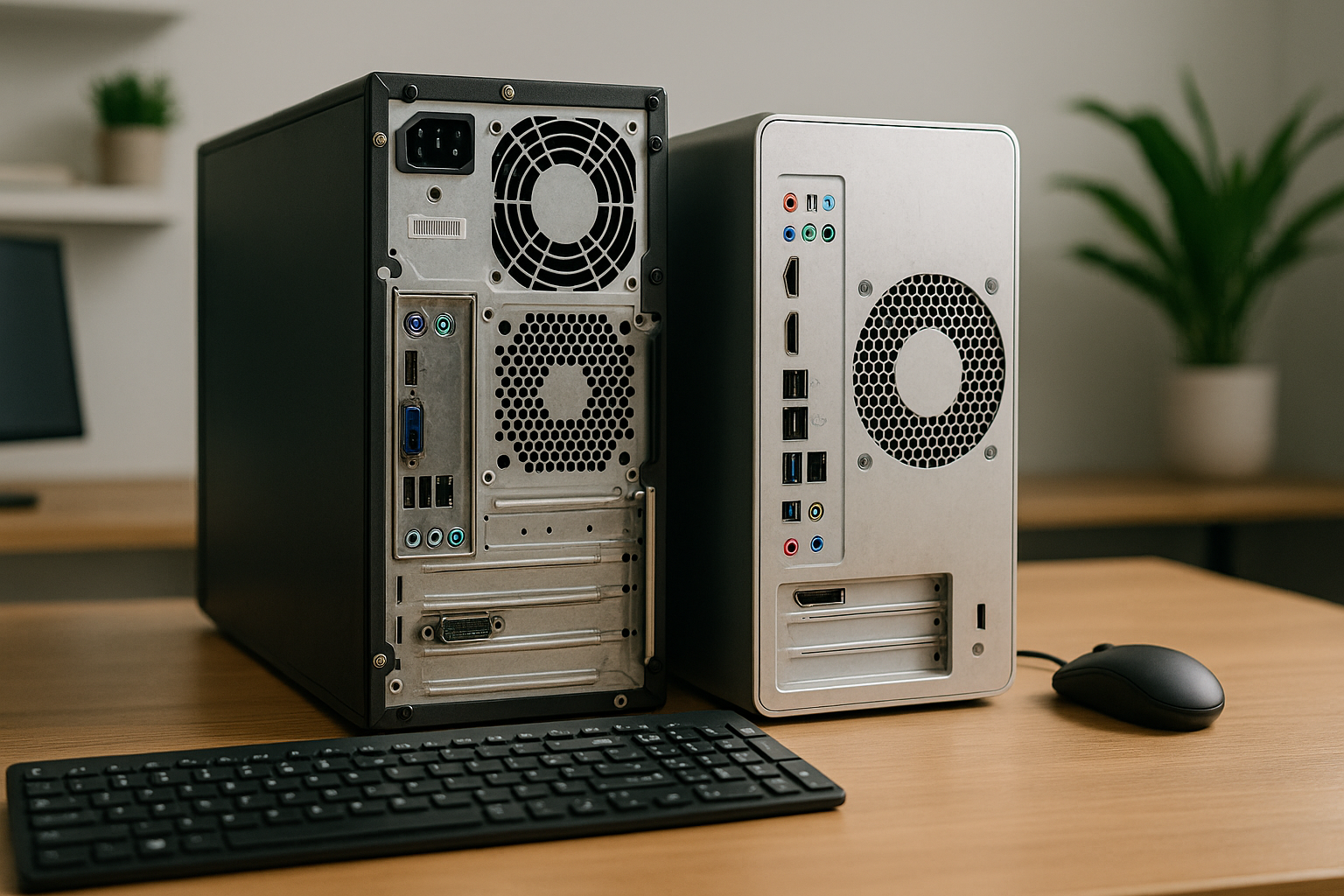
- USB Cable:
- A compatible cable to connect the phone to the computer. This may vary depending on the type of phone, for example a USB-C, Micro USB or Lightning cable.
Software
File Management Program:
- Software such as Windows Explorer for Windows users or Finder for Mac users to manage and copy the files.
Operating System Support:
- Ensure an updated operating system on both the phone and the computer. For Android users, this may be Android File Transfer for Mac, while iPhone users can rely on iTunes or Finder since macOS Catalina.
Extra Equipment (optional)
- External Storage:
- An external hard drive or USB stick to back up the photos if needed.
- SD Card Reader:
- For phones with an SD card, a card reader can be useful for transferring the files.
Internet Connection
A stable internet connection may be required for using cloud storage services or updating software.
- Cloud Storage Services:
- Services such as Google Drive, iCloud, or Dropbox can be used to first upload photos to the cloud and then download them via the computer.
Safety Measures
- Backups:
- Back up all important data before transferring the photos to prevent data loss.
- Antivirus Software:
- Use up-to-date antivirus software to protect the computer and phone from potential threats.
By having the above necessities on hand, one can ensure that transferring photos from a phone to a computer proceeds smoothly. The right preparations can significantly reduce the chance of technical problems.
Transferring Photos With A USB Cable
Transferring photos from a phone to a computer via a USB cable is a simple and efficient method. This procedure requires minimal technical knowledge and gives the user control over the files. Follow these steps to ensure a smooth transfer:
Requirements
- A phone with USB support.
- A computer (Windows or Mac).
- A USB cable compatible with the phone.
Steps
Establish Connection
- Connect the phone to the computer using the USB cable.
- Make sure the cable is correctly connected to both the phone and the computer.
Recognize Device
- Wait for the computer to recognize the phone.
- Windows users: Look for the device icon in Windows Explorer.
- Mac users: Open Finder and look for the device icon.
Choose File Transfer Mode
- Unlock the phone and select the option “File Transfer” or “Media Transfer” on the phone.
- If asked, allow the computer to access the phone.
Navigate to the Photos
- Open folders in Windows Explorer or Finder until the folder containing photos is found. Usually this is in the “DCIM” folder.
Copy Files
- Select the photos to be transferred to the computer. Use the Shift or Ctrl key to select multiple files.
- Right-click on the selected files and choose “Copy”.
Paste to the Computer
- Navigate to the folder on the computer where the photos should be stored.
- Right-click in the folder and select “Paste”.
Tips
- Make sure there is enough storage space available on the computer.
- Check if the photos have been successfully transferred before disconnecting the phone.
- For extra safety, back up important photos to an external hard drive or cloud storage service.
It is advisable to transfer photos from your phone to your computer from time to time to free up storage space and to keep important memories safe.
Using Cloud Services (Google Drive, iCloud, etc.)
Transferring photos from a phone to a computer can often be easier using cloud services. Below are detailed steps for the most popular cloud services such as Google Drive and iCloud:
Google Drive
Installation and Configuration
- Download and install the Google Drive app on your phone.
- Log in with a Google account.
Uploading Photos
- Open the Google Drive app.
- Tap the ‘+’ icon and select ‘Upload’.
- Choose the photos you want to transfer.
- Photos are now uploaded to Google Drive.
Downloading to the Computer
- Open a web browser on your computer and go to Google Drive.
- Log in with the same Google account.
- Navigate to the uploaded photos, select them and press ‘Download’.
iCloud
Settings and Preparation
- Open ‘Settings’ on the iPhone.
- Navigate to ‘Photos’ and enable ‘iCloud Photos’.
Synchronization
- Photos are automatically synchronized with iCloud.
Access Photos on the Computer
- Open a web browser and go to iCloud.
- Log in with your Apple ID.
- Click on the ‘Photos’ icon, select the desired images and choose ‘Download’.
General Guidelines:
Storage Space
- Ensure sufficient storage space in the cloud service to guarantee a smooth transfer.
Internet Connection
- A stable internet connection is crucial for uploading and downloading large files, such as photos.
Using cloud services such as Google Drive and iCloud offers a simple and efficient way to transfer photos from a mobile phone to a computer. This process avoids the hassle of cables and offers additional benefits such as backup and access from multiple devices.
Sharing Photos Via Email
Sharing photos via email is one of the simplest and most direct methods to transfer photos from a phone to a computer. To use this method effectively, the following steps can be followed:
Select Photos on Your Phone:
- Open the gallery or photo app on your phone.
- Select the photos to be sent to the computer.
Open the Email Application:
- Open the email application used on the phone, such as Gmail, Outlook, or another email client.
Compose a New Email:
- Click on the icon to compose a new email.
- Enter your own email address in the ‘To’ field.
Add Attachment:
- Click on the attachment icon to add files.
- Select the previously chosen photos from the gallery.
Send the Email:
- Add a subject for the email, for example “Photos from Phone”.
- Press ‘Send’ to send the email with the attached photos.
Open Email on the Computer:
- Open the email account on the computer.
- Find the sent email with the photos in the inbox.
Download Photos to the Computer:
- Open the email and click on the attached files to download them.
- Choose a storage location on the computer where the photos should be saved.
This process is simple and requires no extra software or cables. It is suitable for transferring a limited number of photos due to email attachment size limitations. This method is especially useful for quick and sporadic transfers.
Using Wireless Transfer: Bluetooth and Wi-Fi
Wireless technologies such as Bluetooth and Wi-Fi offer convenient methods to transfer photos from a phone to a computer without the need for physical cables. These technologies offer convenience and flexibility, allowing users to transfer files quickly and efficiently. However, there are specific steps and considerations to note when using both methods.
Bluetooth Transfer
Bluetooth is a commonly used short-range wireless technology for transferring files. Follow these steps to transfer photos via Bluetooth:
Enable Bluetooth:
- Activate Bluetooth on both the phone and the computer.
- Make sure the devices are within effective range of each other (usually within 10 meters).
Pair Devices:
- Search for available Bluetooth devices on your phone.
- Select the computer from the list of found devices and complete the pairing process by confirming the given PIN (usually standard or uniquely generated).
Send Files:
- Open the gallery on your phone and select the photos to be transferred.
- Choose the option ‘Share’ or ‘Send via Bluetooth’.
- Select the paired computer as the target device for the transfer.
Confirmation on the computer:
- Accept the incoming file transfer on the computer to complete the sending process.
Wi-Fi Transfer
Wi-Fi offers a faster and often more reliable method of transfer over longer distances than Bluetooth. Here are the steps for Wi-Fi transfer:
Connect to the same network:
- Make sure both the phone and the computer are connected to the same Wi-Fi network.
Use of Apps and Software:
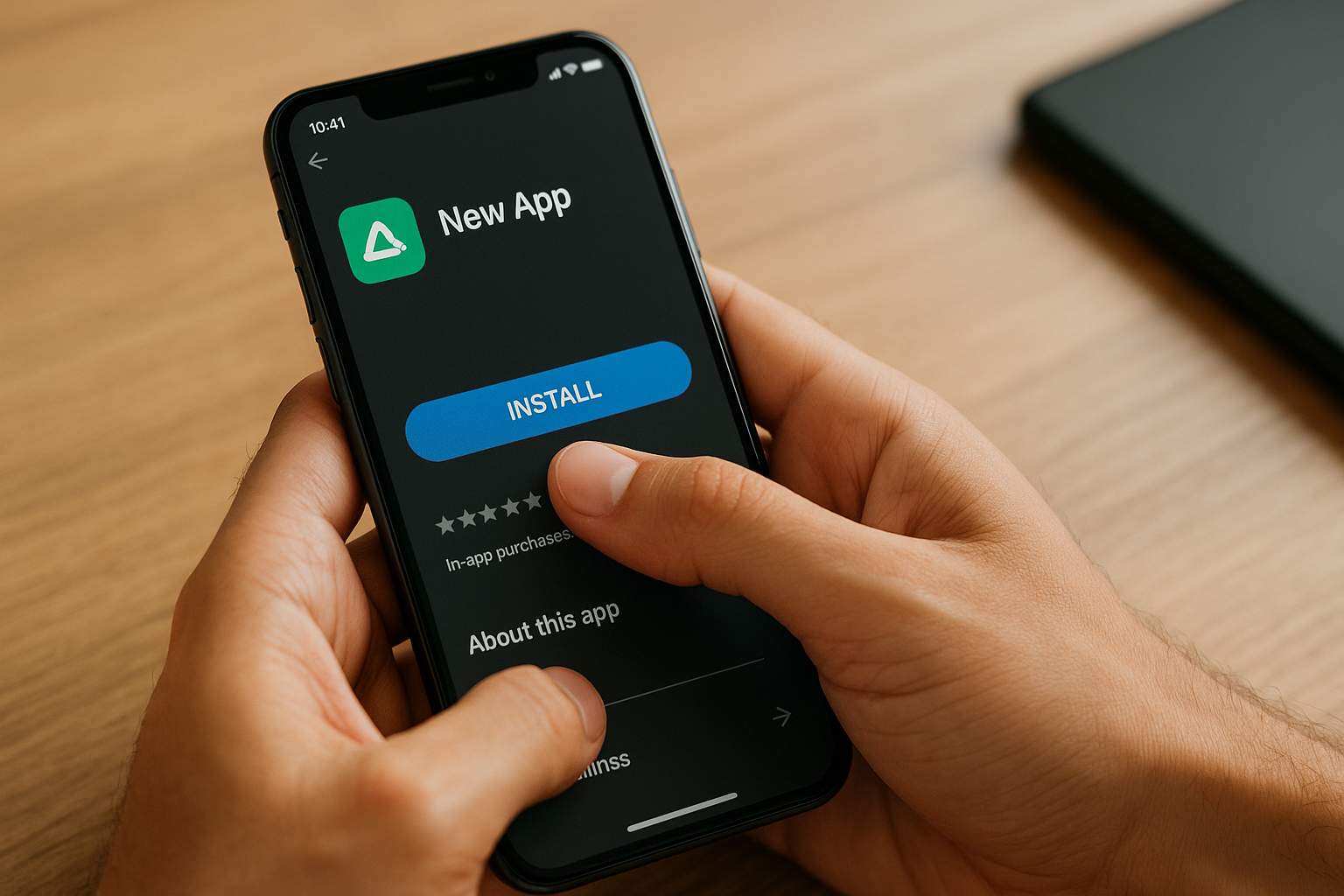
- Install a file transfer app on the smartphone (e.g. AirDroid or Feem).
- Download and install the corresponding software on the computer if necessary.
Select and send files:
- Open the application on the phone and select the photos to be transferred.
- Follow the app instructions to send the files via Wi-Fi.
Reception on the computer:
Follow any instructions on the computer to complete the transfer and save the photos to the desired folder.
Special Apps For Photo Transfer
Transferring photos from a phone to a computer can be easily done using special apps designed for this purpose. These apps can be both free and paid and offer various features to make the transfer process seamless.
Common Apps
Some of the most common apps used for photo transfer are:
Google Photos
- Google Photos offers automatic backup and synchronization of photos between devices. Users can easily upload photos to their Google account and then access them from any computer by logging into their account.
- Advantages: Free storage up to 15 GB, seamless synchronization, accessible from any device.
- Disadvantages: Requires a Google account, limited storage without a subscription.
Dropbox
- Dropbox is a cloud storage service that supports file synchronization and sharing. Users can upload photos to Dropbox from their phone and access them directly on their computer via the Dropbox client or the web interface.
- Advantages: Simple interface, relatively large storage space, compatible with various operating systems.
- Disadvantages: Free space limited to 2 GB, requires software installation for optimal performance.
Apple iCloud
- For iOS users, iCloud offers a reliable way to synchronize photos between Apple devices and computers. With the iCloud photo library, photos are automatically uploaded and synchronized.
- Advantages: Seamless integration with iOS and macOS, automatic backup, secure storage.
- Disadvantages: Limited free storage space (5 GB), access to some features requires a paid subscription.
Microsoft OneDrive
- OneDrive is a cloud storage service from Microsoft that allows users to synchronize photos and other files between different devices. It offers integration with Windows operating systems.
- Advantages: Easy to use, integrated with Windows, generous free storage space (5 GB).
- Disadvantages: Some features can be confusing for new users, limited free space.
Advantages of Apps
Using these special apps offers several advantages:
- Automation: Most apps offer automatic backup options, so users don't have to worry about manually transferring files.
- Accessibility: Users can access their photos from any device with an internet connection.
- Security: Cloud storage provides extra security layers and prevents data loss due to hardware problems.
Disadvantages of Apps
- Storage Limitations: Free versions of these apps often offer limited storage space, which can lead to the need for additional purchases.
- Dependent on internet: A stable internet connection is necessary for synchronizing and uploading.
Choosing the right app depends on individual needs, device compatibility, and the level of security desired.
Transferring Photos With A Memory Card
Using a memory card to transfer photos from a phone to a computer is a reliable and simple method. Follow these steps to ensure a smooth transfer:
Check memory card:
- Make sure the phone is equipped with an external memory card (e.g. microSD card).
- Check if the memory card is functioning properly and has sufficient storage space.
Move photos to the memory card:
- Open the photo or gallery app on your phone.
- Select the photos to be moved to the memory card.
- Use the ‘Move to’ or ‘Copy to’ option, depending on the device.
- Choose the destination folder on the memory card.
Remove the memory card carefully:
- Go to the phone's settings.
- Look for the option ‘Storage’ or ‘Device maintenance’.
- Select ‘Unmount memory card’ or ‘Eject’.
- Remove the memory card from the device once it is safe.
Insert memory card into card reader:
- Insert the memory card into a compatible card reader.
- Connect the card reader to the computer via a USB port.
Copy photos to the computer:
- Open ‘This PC’ or ‘Finder’ on the computer.
- Look for the connected memory card under ‘Removable storage devices’.
- Open the relevant folder and select the photos to be transferred.
- Copy and paste the photos to the desired folder on the computer.
Note:
Always back up important data before the transfer takes place. This minimizes the risk of losing photos.
Advantages of this method:
- No extra software needed: Direct transfer without requirements for specific programs.
- Fast transfer: Especially useful when transferring large numbers of photos.
- Easy to use: Familiar to most users, reducing the chance of errors.
With these steps, users can quickly and efficiently transfer photos from their phone to their computer, giving them easier manageability and access.
Organizing and Managing Photo Files on the Computer
Organizing and managing photo files on a computer may require a structured approach to remain efficient. Below are some steps to facilitate this process.
Create a folder structure:
- Create a main folder structure focused on year, location, or event.
- Consider subfolders for specific dates or activities within main folders.
File name conventions:
- Use consistent and descriptive file names.
- Add date and short description to the name, for example
20230909_Vacation_Paris.jpg.
Use of Metadata:
- Metadata can be automatically added by the camera or manually adjusted.
- ExifTool or other photo management programs are useful for editing metadata such as date, time, and location.
Photo management software:
- Software such as Adobe Lightroom, Google Photos, or Apple Photos offers advanced organizing features.
- These programs allow the use of albums, tags, and automated categorization.
Create backups:
- Regular backups are essential to prevent data loss.
- Consider both local and cloud solutions such as an external hard drive, Google Drive, or Dropbox.
Identify and delete duplicate photos:
- Use tools such as Duplicate Cleaner to identify and delete duplicate photos.
- Deleting duplicate files saves storage space and improves organization.
Tags and Labels:
- Add tags based on location, people, and events.
- Software such as Adobe Bridge can be helpful here.
Additional Considerations:
- Take the time for periodic cleaning of unwanted or unimportant photos.
- Keep the folder structure simple and intuitive for easy navigation.
Thoroughly organizing and managing photo files not only improves efficiency but also ease of use. By following a structured approach, users can easily find what they are looking for and keep their photo collections clear and up-to-date.
Common Problems and Solutions
When transferring photos from a phone to a computer, users may encounter various problems. Below are some common problems discussed, along with their solutions.
1. Connection Problems
- No Device Detection: When the computer does not recognize the phone, it may be due to the USB cable. Use a different cable and check if the phone is correctly connected to the computer.
- Incorrect USB Mode: Sometimes the phone is set to charging mode by default. Check the settings and select the option ‘File Transfer’ or ‘MTP’ on the phone.
2. Software Problems
- Outdated Drivers: Installed drivers may be outdated. Update the drivers via Device Manager in Windows or System Preferences on a Mac.
- Compatibility Issues: Check if the software used, such as iTunes, Android File Transfer, or another app, is compatible with both the phone and the computer.
3. Storage Problems
- Insufficient Storage: Lack of space on the computer can be a hindrance. Remove unwanted files or use an external hard drive for extra storage.
- Damaged Files: Damaged photo files can cause problems during transfer. Try transferring a different set of photos to diagnose if this is the problem.
4. Network Problems
- Slow Transfer Speed: Wifi transfer can sometimes be slow. Ensure a strong wifi connection or consider using a cable for faster transfer.
- Interrupted Connection: An interrupted connection can result in incomplete file transfer. Check the stability of the network connection and try again.
5. Security Problems
- Locked Phone: When using security options such as screen lock, the phone may not be accessible to the computer. Unlock the phone and try again.
- Antivirus Blockades: Antivirus programs can block transfer processes. Check the antivirus settings and make an exception for the photo file locations.
It is essential to be patient and systematically inspect each cause to ensure successful photo transfers.
Useful Tips and Tricks For Efficient Photo Management
Efficiently managing photos can be a challenge, but with the right tips and tricks, the process becomes much easier and more organized.
Give your files clear names:
- Use consistent and understandable naming conventions for all your photo files.
- Consider adding date and timestamps to filenames for easy retrieval.
Use folders and subfolders:
- Create main and subfolders to store your photos based on categories such as events, locations, or people.
- Reduce clutter by only keeping essential photos and deleting duplicate or blurry shots.
Use photo management software:
- Consider software applications such as Adobe Lightroom or Google Photos, which offer powerful search and sort options.
- Automatic synchronization and backup capabilities ensure your photos are always safely stored.
Add metadata:
- Add keywords, descriptions, and other metadata to your photos to make them easier to find.
- Software such as Adobe Bridge makes it easy to add and manage metadata.
Regular backups:
- Create a backup schedule and stick to it to prevent your photos from being lost.
- Use both cloud storage and external hard drives for extra security.
Automatic organization:
- Use AI-powered services that can automatically sort your photos based on faces, locations, and even objects.
- Services such as Apple Photos and Google Photos are particularly useful for this.
Use tags and labels:
- Tag and label your photos to easily find them. This can greatly help in organizing large photo collections.
- Use consistent tags such as "vacation", "family", "2023", and so on.
Optimize data storage:
- Convert photos to file formats that take up less space without loss of quality, such as JPEG.
- Keep large files such as RAW images separate for editing and convert them to more space-saving formats for storage.
Use face recognition:
- Software such as Picasa or Apple Photos can use face recognition to identify and group people in your photos.