Simple Steps To Install A Printer On Your Computer
How Do You Install A Printer On Your Computer?Here is an overview:
- Introduction
- Necessary Preparations
- Different Types of Printers
- Installing Printer Drivers
- Connecting the Printer via USB
- Connecting the Printer via WiFi
- Setting Up a Printer on a Network
- Configuring Printer Settings
- Troubleshooting Installation Problems
- Testing and Printing
- Regular Maintenance and Updates
- Useful Tips for Optimal Use
Introduction
Installing a printer on a computer can sometimes seem complicated, especially if one is not technically proficient. This article provides a step-by-step guide that makes the process accessible and easy for everyone. By applying the right methods and tools, one can quickly and efficiently connect and use a printer. The manual is suitable for various operating systems such as Windows and MacOS.
Objectives of this article:
- Explain how to physically connect a printer to the computer.
- Describe how to download and install the correct drivers.
- Provide instructions for configuring the printer on both Windows and MacOS.
- Offer tips and advice for troubleshooting common installation errors.
What you need:
- A working computer with Windows or MacOS.
- A printer that is compatible with your operating system.
- USB cables or a Wi-Fi connection for communication between the printer and the computer.
- Internet access for downloading drivers and updates.
This article is not only intended for beginners but also helps advanced users to solve specific problems that may occur during the installation process. It is recommended to carefully follow the instructions below to ensure a seamless installation.
Important points to consider:
- Ensure that the printer and computer are switched off during the initial physical connection.
- Check that the printer and the necessary cables or networks are compatible with your device.
- Read the printer manual, as this may contain specific instructions that differ from the general steps in this article.
Follow the steps below to install a printer on your computer with minimal effort and maximum efficiency.
Necessary Preparations
When setting up a printer on a computer, a number of preparatory steps are essential to ensure a smooth installation. These steps are relevant regardless of the type of printer being installed, whether it is a wired or wireless printer.
Required Equipment and Software
- Printer: Check that the printer is compatible with the computer and operating system.
- Cables: For a wired printer setup, USB or Ethernet cables may be required.
- Drivers: Ensure that the latest drivers for the printer are downloaded from the manufacturer's official website.
- Network: For wireless printers, a stable and secure Wi-Fi network is required.
- Documentation: Manuals and installation guides from both the printer and the computer can be useful.
Before You Begin
- Placement: Choose a suitable location for the printer. Ensure there is sufficient space and that the location is within reach of the computer and, if applicable, the Wi-Fi signal.
- Power Supply: Connect the printer to a power source and switch it on. Check the indicator lights on the printer to verify that it has started correctly.
- PC Preparation:
- Remove any old printer drivers from similar devices to avoid conflicts.
- Update the computer's operating system if necessary to prevent compatibility problems.
Network Settings (for wireless printers)
- Wi-Fi Password: Make sure the Wi-Fi network password is available. This is required during the installation procedure.
- Router Access: Access to the router may be required to configure the printer. Connect to the router configuration screen if necessary.
- Firewall Settings: Check that the computer's firewall has not set any blocks for printer connections.
Printer Preparation
- Cartridges: Install ink or toner cartridges according to the manufacturer's instructions.
- Paper: Place paper in the input tray and check that the paper guides are correctly set. This reduces paper jams.
- Test Page: If possible, print a test page to verify that the printer is functioning mechanically correctly.
By carefully performing these steps, the printer installation process can proceed efficiently and the risk of technical problems is minimized.
Different Types of Printers
When installing a printer on a computer, it is important to know which type of printer you are using, as the installation instructions may vary. Below are descriptions of different types of printers:
Inkjet Printers
Inkjet printers are popular because of their versatility and affordability. They use drops of ink to print images and text. Their characteristics are:
- Advantages:
- Suitable for high-quality color prints.
- Ability to print on various media.
- Low initial purchase cost.
- Disadvantages:
- Higher cost per page due to ink consumption.
- Slower print speed compared to laser printers.
Laser Printers
Laser printers use a laser beam to apply toner powder to the paper and are known for their speed and efficiency. Their characteristics are:
- Advantages:
- Fast print speed, ideal for high volume.
- Lower cost per page.
- Suitable for sharp text prints.
- Disadvantages:
- Higher purchase cost.
- Less suitable for photo-quality prints.
Multifunction Printers (MFP)
Multifunction printers combine multiple functions such as printing, scanning, copying, and faxing in one device. Their characteristics are:
- Advantages:
- All-in-one functionality saves space.
- Cost-effective compared to separate devices.
- Suitable for home use and small offices.
- Disadvantages:
- More complex maintenance.
- Higher initial purchase cost than some single-function printers.
Wireless Printers
Wireless printers use Wi-Fi or Bluetooth to connect to computers and mobile devices. Their characteristics are:
- Advantages:
- Flexibility and convenience without cables.
- Multiple devices can easily connect.
- Suitable for home networks and offices.
- Disadvantages:
- Dependence on wireless network stability.
- Security issues if not properly set up.
Photo Printers
Photo printers are designed for printing high-quality photos. Their characteristics are:
- Advantages:
- Excellent photo quality and precision.
- Specifically designed for photo paper and ink.
- Disadvantages:
- Usually more expensive to purchase and use.
- Less suitable for general printing.
By understanding the different types of printers, one can make an informed decision about which type best suits their specific printing needs.
Installing Printer Drivers
When installing a printer on a computer, it is essential to install the correct printer drivers. Printer drivers ensure communication between the printer and the computer. The following steps should be followed to install the drivers correctly:
Identify the printer model
- The first step is to determine the exact model of the printer. This number or name is often found on the printer housing or in the documentation that came with the printer.
Visit the manufacturer's website
- Go to the official website of the printer manufacturer. This could be HP, Canon, Epson, Brother or another brand. Look for a section such as 'Support' or 'Drivers and Downloads'.
Download the correct drivers
- Use the printer model to search for the correct drivers on the website. Make sure the drivers match the computer's operating system (e.g., Windows 10, macOS Big Sur, Linux).
Install the downloaded drivers
- Open the downloaded file and follow the installation instructions. This process may involve accepting the end-user license agreement, selecting an installation location, and configuring the printer.
Check the connection
- Make sure the printer is correctly connected to the computer via USB or the same network as the computer. Test the connection by printing a document.
Alternative Methods for Driver Installation
Using the Installation CD
- If a CD was included with the printer, it can be used to install the drivers. Place the CD in the computer's CD-ROM drive and follow the on-screen instructions.
Automatic Updates
- Some operating systems, such as Windows 10, have the ability to automatically detect new devices and install the necessary drivers without manual intervention.
Note: Regularly updating the printer drivers can prevent malfunctions and ensure that the printer continues to perform optimally.
By carefully following these steps, one can ensure that the printer functions correctly with the computer and potential problems during printing are avoided.
Connecting the Printer via USB
To connect a printer via USB, follow the steps below:
Checking the Necessary Equipment: Make sure both the printer and the computer are turned off. Check that the USB cable and the printer's power cable are available and in good condition.
Connecting the USB cable: Connect the USB cable to the correct ports on both the printer and the computer. USB ports are usually clearly marked and standard on both modern computers and printers.
Switching on the Printer and the Computer: After both devices are connected to each other, switch on both the printer and the computer. The computer should automatically detect the new hardware.
Automatic Installation: Modern operating systems, such as Windows and macOS, will often automatically install the correct drivers for the printer. A pop-up message or a notification will indicate that the installation has started or is complete.
Manual Installation (if necessary): Sometimes it may happen that the printer is not automatically recognized. In that case, you must go to the official website of the printer manufacturer to download and manually install the correct drivers. Follow the instructions provided by the manufacturer.
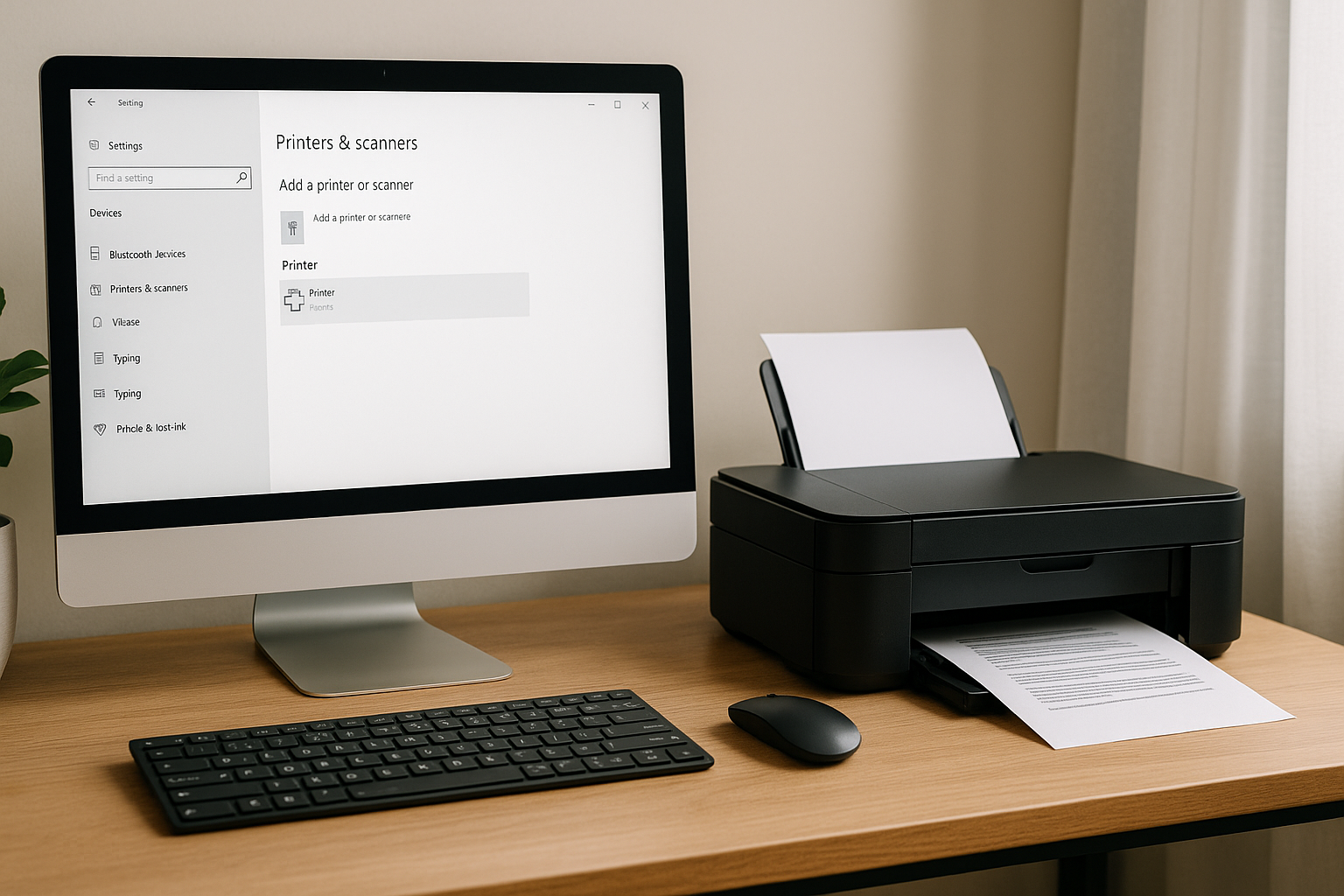
Configuring the Printer: After installing the drivers, you may need to configure the printer via the computer's control panel. Go to “Settings” or “Devices” and select “Printers and scanners”. Add the new printer if it has not already been automatically added.
Print a Test Page: After completing the installation, it is advisable to print a test page to check if the printer is working correctly. This can usually be done directly from the control panel.
Troubleshooting: Should a problem occur, first check that all cables are correctly connected and that the printer driver is up-to-date. Sometimes it may be necessary to restart the printer or disconnect and reconnect the USB connection.
Using USB as a connection method often provides a stable and fast way to install a printer without too many technical complications.
Connecting the Printer via WiFi
Connecting a printer to WiFi is an essential step for ensuring a smooth and wireless printing process. The steps to set up a printer via WiFi are described below:
Preparation:
- Check that the printer supports a WiFi connection.
- Make sure the printer, computer, and router are turned on.
- Keep the network settings of the WiFi network (such as SSID and password) at hand.
Setting up the printer for WiFi:
- Go to the Settings or Configuration menu on the printer's control panel.
- Select the option for wireless settings or network configuration.
- Choose 'Wireless Setup Wizard' or a similar option to start the WiFi configuration process.
Selecting the network:
- The printer will search for available WiFi networks.
- Select the name of the WiFi network (SSID) from the list of available networks.
- Enter the password for the WiFi network when prompted.
Checking the connection:
- After entering the password, the printer will attempt to connect to the WiFi network.
- If the connection is successful, the printer will display a message indicating that the connection has been established.
- To verify the connection, you can print a network settings page from the printer.
Installation of printer drivers:
- On the computer, go to the printer manufacturer's website to download the latest drivers and software.
- Follow the instructions to install the software and add the printer to the WiFi network.
- During installation, you may be asked to select the printer from a list of available network printers.
Performing a test print:
- Open a document or image on the computer.
- Select the WiFi printer as the default printer.
- Perform a test print to check that the printer is working correctly via the WiFi network.
Following these steps ensures that the printer is correctly connected to the WiFi network and ready for use.
Setting Up a Printer on a Network
To set up a printer on a network, you must proceed carefully. The first step is to ensure that the printer and the computer are connected to the same network. Here are the steps:
Check network connection:
- Make sure that both the printer and the computer are connected to the same Wi-Fi or wired network environment.
Install printer drivers:
- Go to the printer manufacturer's website and download the latest drivers for the specific printer.
Open the Control Panel:
- On a Windows computer, click the “Start” button, search for and open the “Control Panel”.
- On a Mac, go to “System Preferences” and choose “Printers & Scanners”.
Add printer:
- In the Control Panel on Windows, select “Devices and Printers” and click “Add printer”.
- On a Mac, click the “+” sign to add a new printer.
Search for printer:
- Let the computer search for available network printers.
- Select the correct printer from the list of found devices.
Driver installation:
- If the computer asks for the location of the drivers, navigate to the downloaded files and complete the installation by following the on-screen steps.
Test the connection:
- Print a test page to check that the printer is correctly connected and functioning with the network.
If problems:
- Check the network connections again.
- Restart both the computer and the printer.
- Visit the manufacturer's support page for help and common solutions.
Note: make sure that the firewall or antivirus settings on the computer do not block the connection to the network printer.
By carefully following these steps, one can successfully set up a printer on a network and ensure a seamless printing experience.
Configuring Printer Settings
After physically connecting the printer and installing the correct drivers, it is essential to correctly configure the printer settings. Carefully follow these steps to ensure that the printer functions optimally:
Open the Printer Settings
- Go to the Control Panel on the computer.
- Select the option “Devices and Printers”.
- Find the recently installed printer in the list and right-click on it.
- Choose “Properties” or “Printer Settings” from the context menu.
Configure General Settings
- Check the “General” tab for basic information such as the printer name, location, and description.
- Adjust the name and description if necessary to provide clarity when selecting the printer for different tasks.
Set Print Options
- Go to the “Preferences” or “Print Options” tab.
- Set the desired default print settings, such as paper size, orientation (portrait or landscape), and print quality.
- Choose the paper source, such as the main tray or the manual feed tray.
Maintenance and Diagnostics
- Check if there is a tab or section for maintenance or diagnostics.
- Perform a test page print to check that the printer is functioning correctly.
- Use tools such as nozzle check and alignment if the printer supports this.
Print Management and Priorities
- Go to the “Advanced” tab.
- Set advanced options such as print management settings, sorting print jobs, and printer priorities.
- Determine the scheduling of print jobs and whether jobs should be sent directly to the printer or first saved in the queue.
Network and Sharing
- If the printer is used via a network, go to the “Sharing” tab.
- Enable the “Share this printer” option and give a shared name to make it easier for network users to access.
- Configure the required permissions for users who may use the printer.
Security and Permissions
- Check the “Security” tab to set user rights and permissions.
- Specify which users or groups may perform print jobs, adjust configuration settings, or manage the printer.
Precisely configuring the printer settings ensures that the printer works more efficiently and meets the user's specific needs, contributing to a seamless and trouble-free printing experience.
Troubleshooting Installation Problems
Various problems can occur during printer installation. Here are some common problems and solutions to ensure the installation goes smoothly.
1. Operating System Compatibility Issue
Make sure the printer is compatible with the computer's operating system.
- Check the Specifications: Read the printer documentation to check if the operating system is supported.
- Download suitable drivers: Visit the manufacturer's website for drivers suitable for the operating system.
2. Problems with the Printer Driver
A missing or outdated printer driver can prevent the printer from functioning correctly.
- Driver Installation: Use the included CD or download the latest version from the manufacturer's website.
- Driver Update: Check if updates are available and install them.
3. Connection Problems
Connection problems can occur with wireless and wired connections.
- Cable connections: Check that all cables are properly connected and show no damage.
- Wireless Connection: Make sure the printer and computer are connected to the same network. Restart both devices if necessary.
4. Error Messages on the Printer
The printer may display various error messages during installation.
- Read the Manual: Consult the user manual to look up the error message.
- Printer Reset: Try resetting the printer by turning it off and on again.
5. Not Recognized by the Computer
Sometimes the computer does not recognize the printer.
- Remove and Reinstall: Remove the printer from the list of devices and try connecting again.
- USB Ports Check: Check if the USB port used is working by testing another device.
6. Print Quality Problems
If the printer installation is correct, but the print quality is poor, some steps must be taken.
- Print a Test Page: Print a test page to check the print quality.
- Printer Cleaning: Clean the print head and cartridges according to the manufacturer's instructions.
Tip: Always consult the support section on the manufacturer's website for specific solutions and utilities.
By following these steps, most installation problems should be able to be solved quickly and efficiently.
Testing and Printing
After successfully installing the printer on the computer, it is essential to test the installation. This section includes step-by-step instructions and tips to ensure that the printer is working correctly and performing optimally.
Printing a Test Page
a. Open the Settings on the computer.
b. Go to Devices and select Printers and scanners.
c. Click on the installed printer and choose Manage.
d. Select the option Print test page.Printing a Document
a. Open a word processing program, such as Microsoft Word.
b. Create a new document or open an existing document.
c. Click on the Print option in the menu or use the shortcut Ctrl + P.
d. Select the installed printer from the list of available printers.
e. Click the Print button.Check the Print Quality
a. Assess the test page and the document for readability and accuracy.
b. Check for smudges, lines, or blurring.
c. If necessary, perform a maintenance task via the printer software, such as cleaning the print heads.Troubleshooting Printing Problems
a. Check that the printer is correctly connected to the computer and that there is enough paper and ink.
b. Restart both the printer and the computer.
c. Check for error messages on the printer screen and consult the user manual or the manufacturer's website for specific error codes.
d. If problems persist, consider removing and reinstalling the printer driver.Adjusting Print Settings
a. Go to the Settings of the printer software.
b. Adjust settings such as paper size, print quality, and color settings.
c. Save the changed settings and perform another test print to check the results.Regular Maintenance and Updates
For optimal operation of a printer and to prevent any problems, regular maintenance and updates are essential. This ensures that the printer works efficiently and extends its lifespan. There are several aspects to consider:
Regular Maintenance
Clean the Printer:
- Keep the outside of the printer clean from dust and dirt.
- Regularly clean the inside, especially the paper tray and print heads. Use suitable cleaning agents.
Checking Ink and Toner Levels:
- Regularly check the ink and toner levels to prevent interruptions during printing.
- Replace cartridges in time to prevent them from running completely empty and reducing print quality.
Paper Check:
- Always use good quality paper to prevent jams and damage.
- Store paper in a dry place to avoid moisture absorption, which can lead to poor print results or paper jams.
Print Head Alignment:
- Perform a print head alignment if necessary. This improves print quality and prevents blurry prints.
Consulting the Up-to-Date Manual:
- Always follow the manufacturer's manual for specific maintenance tips and procedures.
Software- and Firmware-Updates
Regularly Check for Updates:
- Regularly check for new software and firmware updates available for the printer. This can often be done easily via the manufacturer's official website.
Automatic Update Functions:
- Some printers offer automatic update functions. Make sure this function is enabled so you don't miss updates.
Compatibility with Operating System:
- Keep an eye on whether the printer software remains compatible with the latest updates from the computer's operating system. Operating system updates can bring changes that affect the operation of the printer.
Driver updates:
- Ensure that the latest printer drivers are installed to prevent compatibility and performance problems.
Security updates:
- Also perform the security updates offered by the manufacturer to protect the printer from potential threats.
With these maintenance and update practices, one can ensure that the printer is always ready for use and remains free from common problems.
Useful Tips for Optimal Use
To get the most out of a printer, it is important to follow a few simple steps and techniques. Here are some helpful tips:
Regular Calibration
- Printers should be calibrated regularly to maintain print quality. Ensure that the prints remain sharp and clear.
Keeping Printer Drivers Up-to-Date
- Check that the latest printer drivers are installed. Visit the printer manufacturer's website for updates. Regular updates ensure compatibility and new features.
Use of High-Quality Paper
- Always use good quality paper. Poor paper can lead to problems such as paper jams and faded prints.
Setting Energy Management
- Make sure the printer goes into sleep mode when not in use. This saves energy and extends the life of the printer.
Monitor Ink/Toner Level
- Keep an eye on the ink or toner level. Sufficient ink or toner prevents interrupted print jobs. Consider always having spare ink or toner on hand.
Regular Maintenance
- Perform regular maintenance, such as cleaning print heads and removing dust. This ensures better performance and a longer lifespan for the printer.
Optimize Network Settings
- For network printers, make sure the network settings are correct so that the