
How to set up Apple Pay.
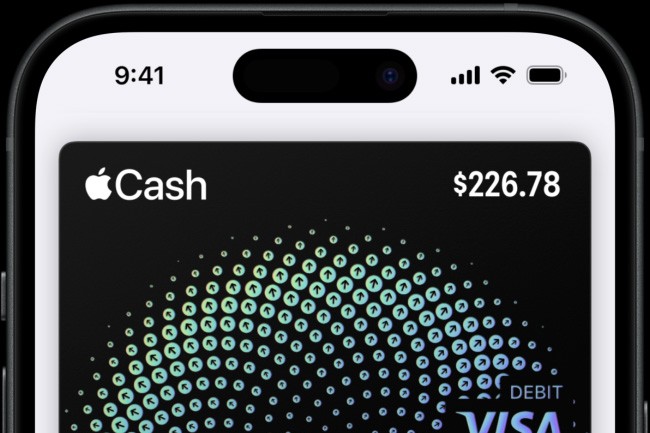
How do you activate Apple Pay on your iPhone?
To set up Apple Pay on your iPhone, follow these steps:
- Open the Wallet app on your iPhone.
- Tap the plus sign (+) to add a new card.
- Select your bank from the list and follow the instructions to enter your card details.
- Verify your card via a verification code from your bank (via SMS or app).
- After verification, Apple Pay is activated and ready to use.
You can now make payments by holding your iPhone against a payment terminal and using Face ID, Touch ID, or your passcode to confirm the payment.
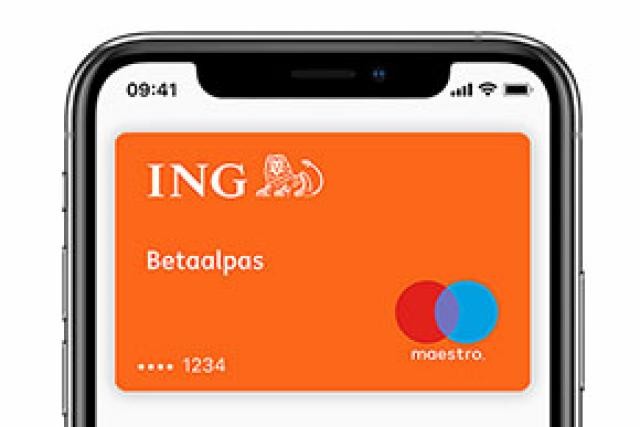
Which banks support Apple Pay?
Most major Dutch banks support Apple Pay, including:
- ING
- Rabobank
- ABN AMRO
- Bunq
- Revolut
- Knab
Check with your bank whether your specific account is compatible with Apple Pay.
Apple Advice
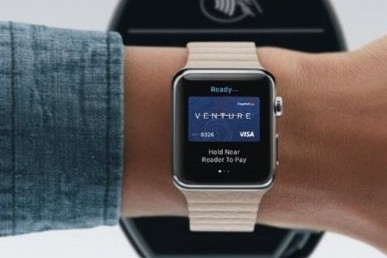
What should you do if Apple Pay doesn't work?
If Apple Pay is not working properly, try the following steps:
- Make sure your iPhone is updated to the latest iOS version.
- Check if your card is correctly added to the Wallet app.
- Make sure you are connected to a stable internet connection.
- Check if your bank supports Apple Pay.
- Restart your iPhone and try again.
If the problem persists, contact your bank or Apple Support for further assistance.
With Apple Pay you can pay quickly and securely, both in stores and online. When setting up Apple Pay it is important to carefully follow the steps and ensure that your bank supports the service.


Buy a Refurbished iPhone?
Condition: Visibly used

Condition: Good Condition
Apple iPhone 16 Pro Max - 256GB - 2 Year Warranty
16_desert_titanium
Old Price £1,068.76 £855.01 £855.01
ReMarkt's Choice
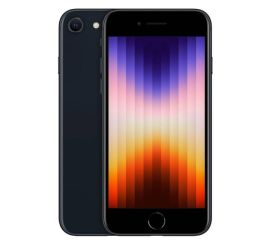
Condition: Visibly used

Condition: Good Condition
Apple iPhone 16 Pro Max - 256GB - 2 Year Warranty
16_naturel_titanium
Old Price £1,068.76 £855.01 £855.01

Condition: Good Condition
Apple iPhone 15 Pro Max - 256GB - 2 Year Warranty
6.7 inch - Natural Titanium
Old Price £851.85 £681.48 No VAT
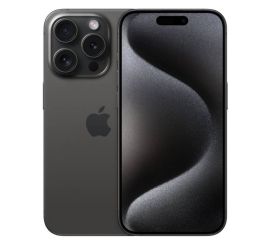
Condition: Good Condition
Apple iPhone 15 Pro - 256GB - 2 Year Warranty
6.1 inch - Black Titanium
Old Price £784.46 £627.57 No VAT