5 Essential Tips for Optimal Use of Your MacBook
5 Essential Tips for Optimal Use of your MacBook
To get the most out of your MacBook, it's important to follow some essential tips for optimal performance and longevity. From regular software updates to managing storage effectively, these practices can make a significant difference. For more top-notch devices, take a look at our range of Apple products.
Here's an overview:
- Introduction: Getting the Most Out of Your MacBook
- Essential Shortcuts That Increase Your Productivity
- Optimizing Battery Life for Longer Runtimes
- The Importance of Data Backups and How to Achieve It
- Using Spaces to Multitask Efficiently
- Personalization: Customizing Dock Preferences and System Settings
- Security First: Protect Your Privacy and Secure Your MacBook
- The Usefulness of Automation with Automator and Siri Commands
- Tips for Cleaning and Maintaining Your MacBook
- Applying Cloud Services for Seamless Sync Across Devices
- Expansion and Storage: External Drives and Cloud Storage Options
- Wrap-up: Implement These Tips to Transform Your MacBook Experience
Introduction: Getting the Most Out of Your MacBook
Your MacBook is a powerful piece of technology designed to increase your productivity and enrich your digital experience. Whether you're a graphic designer, a student, an entrepreneur, or just an enthusiast of Apple products, you want to get the most out of your device. Getting the most out of your MacBook isn't just about what you do with it, but also about how you do it. Adjusting settings, using keyboard shortcuts and knowing the right tips and tricks can significantly improve your daily use.
From organizing your workflow to protecting your data, there are countless ways to improve your experience and extend the life of your MacBook. In this section of the article, we reveal five essential tips to help you fully utilize the power of your MacBook.
- Discover the Trackpad Gestures: With simple finger movements you navigate faster and more efficiently.
- Organize your Workspace: Learn how to use Spaces and Mission Control to organize windows and applications.
- Optimize your Battery Life: Adjust your power settings and learn how to maximize your battery life.
- Secure your Data: Take advantage of FileVault, Firewall and other built-in security features.
- Use Keyboard Shortcuts: Learn the commands that double your work efficiency.
By understanding your MacBook and using the right settings and features, you will not only work more efficiently, but also create a more enjoyable user experience. Let's look at these tips in more detail and discover how you can maximize the potential of your MacBook.
Essential Shortcuts That Increase Your Productivity
Learning keyboard shortcuts is one of the most effective ways to quickly navigate and perform tasks on your MacBook. Here are a few essential key combinations you can use right away:
- Command + Space: Opens Spotlight Search, which lets you quickly find files, emails, and apps.
- Command + Q: Immediately close the application you are currently using.
- Command + W (or Command + M): Closes the current window, or minimizes it to the dock.
- Command + Tab: Quickly switches between open apps.
- Command + Shift + 4: Takes a screenshot of a selected area on your screen.
- Command + Option + Esc: Force close an unresponsive app.
- Command + N: Opens a new document or window in most apps.
- Command + C/V/X/A: The classic copy, paste, cut and select all combinations.
- Control + Command + Q: Quickly locks your screen.
- Command + F: Search within a document or web page.
These keyboard shortcuts can dramatically reduce the time you spend clicking and navigating with the mouse. Keeping your hands on the keyboard and using these combinations can make using your MacBook much more efficient. Give them a try and see how much faster you can work. When these combinations become second nature, you will find that you get through your work much faster.
Optimize Battery Life for Longer Runtimes
To use your MacBook as efficiently as possible and maximize battery life, there are a number of steps you can take. A longer operating time is not only convenient; it can also improve your battery life.
- Check your Energy Settings: Go to ‘System Preferences’ > ‘Energy saving’ and set preferences that save energy. Consider dimming your screen or letting your Mac fall asleep faster when you're not using it.
- Monitor your Applications: Some apps consume more battery than others. Keep the ‘Activity Monitor’ Monitor to see which apps are consuming a lot of power and close them when not in use.
- Update Your Software: Make sure your Mac is up to date with the latest software versions. Updates may include power management improvements.
- Avoid Extremes: Try not to use your MacBook in extremely hot or cold environments as this can affect battery capacity and life.
- Calibrate the Battery: If you have an older MacBook, calibrating the battery - a process that fully charges and then fully discharges the battery - can help accurately display battery life. /li>
By paying attention to your usage and settings on your MacBook, you can not only enjoy longer usage times today, but also help maintain the health of your battery in the long term.
The Importance of Data Backups and How to Achieve It
Securing data is crucial. Imagine that all documents, photos and project files suddenly disappear due to a defect or theft. A good backup is like a life jacket for your data.
To get started, use Time Machine, your MacBook's built-in backup software. Connect an external hard drive and Time Machine will automatically make a copy of your entire system. It is recommended that you set up regular backups so that you always have the latest version of your data.
In addition, it is smart to use cloud storage services such as iCloud, Dropbox or Google Drive. With this:
- You can access your files from any device
- They often offer a certain amount of storage for free
- Do they keep a version history, if you want to fix something
In the case of a MacBook, it is also a good idea to make a 'bootable' backup. This involves making a copy of your entire system on an external drive that you can use to boot your MacBook in an emergency. You can do this with tools such as SuperDuper or Carbon Copy Cloner.
Finally, remember that two backups are better than one. Therefore, keep a local backup (on an external drive) and an external backup (in the cloud). This way you are protected against both technical problems and physical damage or theft.
By following these steps, you can use your MacBook with confidence, knowing your data is safe.
Using Spaces to Multitask Efficiently
MacBooks are ideal for users who enjoy multitasking thanks to a feature called ‘Spaces’. This allows one to easily switch between different virtual desktops for orderly workspaces.
Setting Up Spaces: Start by going to ‘System Preferences’ and select ‘Mission Control’. There you can find ‘Spaces’ add by pressing the plus button in the top right corner. Here you organize projects or activities per space, so that everything is neatly organised.
Quick Switch: To quickly switch between Spaces, use four fingers and swipe sideways on the trackpad. For an overview of all Spaces, swipe up with four fingers.
Keyboard Shortcuts: Knowing what shortcuts are available can make a world of difference. Try ‘Ctrl’ followed by the arrow keys to switch, or use ‘Ctrl’ with a number to jump directly to the relevant Space.
Pin applications: If certain apps are used in multiple Spaces, you can pin them. To do this, right-click on the app icon in the dock, go to ‘Options’ and choose ‘In all desktops’. This way the app remains accessible from any Space.
Manage WindowManager: For ultimate control, consider installing WindowManager apps. These take Space management to the next level with even more refined settings.
By using Spaces efficiently, you create a tidy and productive workspace that makes multitasking easier. It eliminates the need to continuously navigate a cluttered desktop and promotes focus and productivity. With a little practice switching between Spaces, your workday will become a lot more streamlined.
Personalization: Customizing Dock Preferences and System Settings
Every MacBook user has different needs and preferences when it comes to the organization and functionality of their device. That's why it's important to adjust Dock preferences and system settings for optimal productivity.
Starting at the Dock:
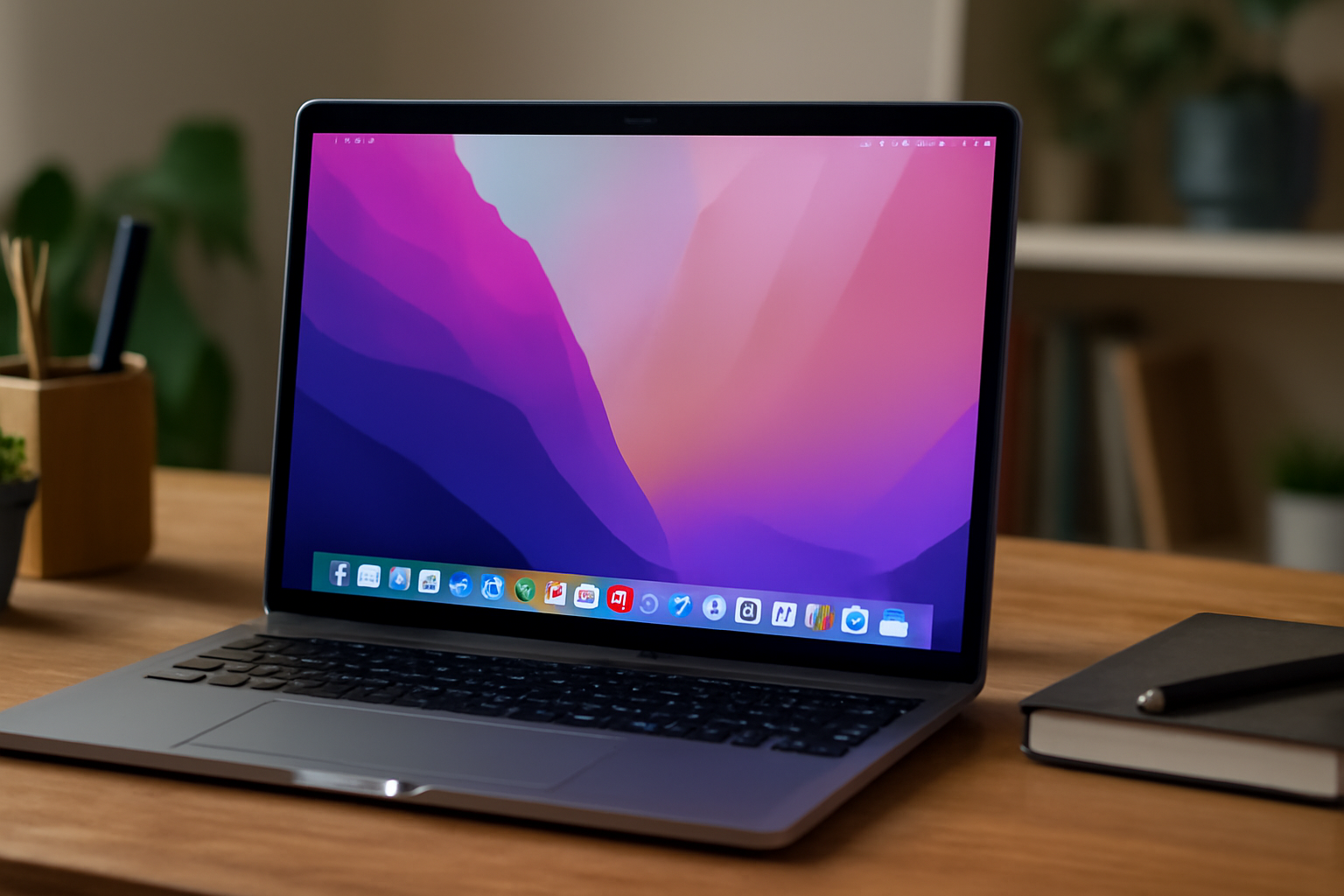
- Go to System Preferences and select Dock & Menu bar.
- Adjust the size of the Dock and decide if you want it to automatically hide when you're not using it.
- You can choose the effect of minimizing windows, such as ‘Genie’ or ‘Scale’.
For a clear desktop:
- Activate ‘Stacks’ by right-clicking on the desk and choosing ‘Use stacks’. This automatically cleans up files into neat groups.
In System Preferences you can also improve your work experience:
- Set ‘Hot Corners’ in Mission Control to enable certain actions with mouse movements.
- Tweak your trackpad or mouse settings for a gesture that suits you best.
- Personalize your Measurements and Notifications to ensure you only get important notifications.
Ultimately, adjusting preferences will help you be less distracted and speed up your workflow. Experiment with these settings to find what works for you. With personal adjustments, your MacBook truly becomes yours, optimized for your use.
Security First: Protect Your Privacy and Secure Your MacBook
When it comes to your MacBook, you probably use numerous online services and applications that contain sensitive information. It is therefore crucial to take your privacy and security seriously. Here are some tips to use your MacBook as safely as possible.
Enable FileVault: FileVault is macOS' built-in disk encryption that protects your data. With FileVault, the contents of your system drive are fully encrypted, preventing unauthorized access.
Use Strong Passwords: Provide unique, complex passwords for all your accounts, especially your MacBook login. Consider using a password manager to manage these.
Enable Two-Factor Authentication: This adds an extra layer of security to your Apple ID and other important accounts by requiring you to use a second form of identification.
p>
Update Regularly: Make sure your MacBook is always updated with the latest software updates from Apple. These updates often include important security patches that help protect you against new threats.
Be Wiser Online: Don't just click on links in emails or messages and don't download software from unknown or unreliable sources. Also be careful about sharing personal information online.
By following these steps, you will make it more difficult for malicious parties to gain access to your personal and sensitive data. Protect your privacy and your MacBook with these simple, yet effective methods.
The Usefulness of Automation with Automator and Siri Commands
Automation on your MacBook can help you perform common tasks faster and more efficiently. By using Automator and Siri Shortcuts you can reduce complex procedures to one simple click or voice command. Here are some benefits and tips for using these powerful tools:
Increase Your Productivity: With Automator you can create workflows that combine multiple steps into a task. For example, consider reducing images, merging PDFs, or automatically organizing your downloads folder.
Integrate with Siri: Siri Commands make it possible to perform certain actions with voice commands. This way you can use a simple “Hey Siri, start my workday” open multiple apps at the same time and prepare your work environment.
Save Time: By automating repetitive tasks, you save time that you can spend on more important things.
Fewer Errors: Automatic processes reduce the chance of human errors. This improves the consistency and reliability of your work.
Custom Automation: Both Automator and Siri Commands can be customized to your specific needs and routines.
Start experimenting by automating simple tasks and gradually expand your knowledge to unleash the full potential of your MacBook. Automator has an easy-to-use interface that helps you visually organize steps, while Siri Shortcuts are great for quickly performing actions with your voice. By using these tools intelligently, you can transform the way you work on a MacBook and significantly increase efficiency.
Tips for Cleaning and Maintaining Your MacBook
To keep your MacBook in top condition, regular cleaning and maintenance is essential. Here are some helpful tips:
Keep the screen clean: Use a microfiber cloth to remove fingerprints and dust from the screen. If necessary, lightly moisten with water or a special screen cleaner for electronics.
Keyboard and Touchpad: Crumbs and dust can get between the keys. Choose a can of compressed air to remove dirt. Proceed with care to avoid damage.
Exterior: Wipe the exterior of your MacBook with a soft, slightly damp cloth. Do not use abrasive substances, as they may damage the housing.
Stay up to date: Make sure the operating system and all software are up to date. This not only improves security, but also keeps your MacBook fast and efficient.
Battery maintenance: Avoid complete discharge of the battery. It is better to charge the battery before it is completely discharged. Also calibrate the battery by fully charging it once a month and then allowing it to fully discharge.
Avoid overheating: Make sure ventilation openings are clear and do not block them. Use on your lap with care and avoid soft surfaces that may restrict airflow.
Organize your files: Make sure there is enough free space on your hard drive. Delete unnecessary files and apps and consider using cloud storage for extra space.
By following these maintenance tips, you will extend the life of your MacBook and ensure an optimal user experience.
Apply Cloud Services for Seamless Sync Across Devices
In today's digital world, we expect our data to be accessible anywhere and anytime. Cloud services like iCloud, Dropbox, Google Drive, and Microsoft OneDrive provide a seamless syncing experience between all your devices, including your MacBook. Here's how you can apply these services for optimal synchronization:
Use iCloud for Apple integration: iCloud is deeply integrated into macOS and iOS. Turn on “iCloud Drive” in “System Preferences” on your MacBook, and you can save documents and photos that automatically sync with your iPhone, iPad and even Apple TV.
Organize your files: Ensure a clear folder structure within your chosen cloud service. This makes it easier to find and edit files across devices.
Use Automatic Uploads: Photos and documents can be set to automatically upload to your cloud service. This ensures that you always have the most recent version of a file at hand, regardless of the device you use.
Secure your data: Most cloud services offer strong security features, such as two-step verification. Make sure you use these to protect your personal and sensitive information.
Check the available space: Regularly monitor the amount of available storage space. Avoid unpleasant surprises by not suddenly running out of space; upgrade your storage plan if necessary.
By following these tips, you can make the most of cloud services for a seamless digital environment. Your files are always up-to-date, secure and accessible, which significantly improves the productivity and ease of use of your MacBook.
Expansion and Storage: External Drives and Cloud Storage Options
When your MacBook fills up, it's time to think about expansion and storage. Fortunately, there are both physical and virtual options available to boost your storage capacity.
External hard drives: These are perfect for storing large files such as videos and images. Choose an SSD (solid-state drive) for faster transfer speeds and better durability. Connect the drive to your MacBook via USB or Thunderbolt and you can get started right away.
Network Storage (NAS): A NAS system is ideal for those who want to access files from different devices within the same network. It enables you to centrally store and manage large amounts of data.
USB sticks: Suitable for easy file exchange or temporary storage. Their portability makes them convenient for work or school.
Cloud storage services: Cloud storage offers flexibility and accessibility. Services like iCloud, Dropbox, and Google Drive sync your files across multiple devices and provide online backup. This makes sharing with others easy and ensures that your data is safe if your MacBook is lost or stolen.
SD cards: If your MacBook has an SD card slot, you can use it for extra storage. This is a quick and easy way to expand storage capacity, especially useful for photographers and videographers.
Make an informed choice about which type of storage best suits your needs. Whether you choose the portability of external hard drives, the continuity of network storage, the simplicity of USB drives, the versatility of cloud storage, or the convenience of SD cards, there are plenty of options to keep your MacBook running at its best. use.
Wrap-up: Implement These Tips to Transform Your MacBook Experience
You have now learned five essential tips for optimal use of your MacBook. But you make the real difference by actually applying it. Don't be afraid to experiment with settings and customize your MacBook to your own needs. Here are some closing suggestions you won't want to miss:
- Put the tips into action: Reading the tips is one thing, but implementing them is where the transformation really begins.
- Create a routine: Schedule a moment once a month to review and optimize your settings.
- Be patient: Not every tip will have an immediate impact or feel comfortable. Give it some time.
- Memorize keyboard shortcuts: Shortcuts are meant to make your life easier, but they can only do their job if you remember and use them.
- Ask for help: Are you running into something? There is a good chance that others have found a solution for the same issue. Use Apple's support forums or ask your network.
- Keep updating: Make sure your software is always up to date. Apple continues to improve MacOS, often resulting in better performance and new useful features.
By embracing these tips and applying them regularly, your MacBook experience will significantly improve. Have fun exploring the possibilities and enjoy the streamlined, more effective way of working with your MacBook!