5 Essential Steps to Safely Clean Your Laptop Inside and Out
How to Clean Your Laptop
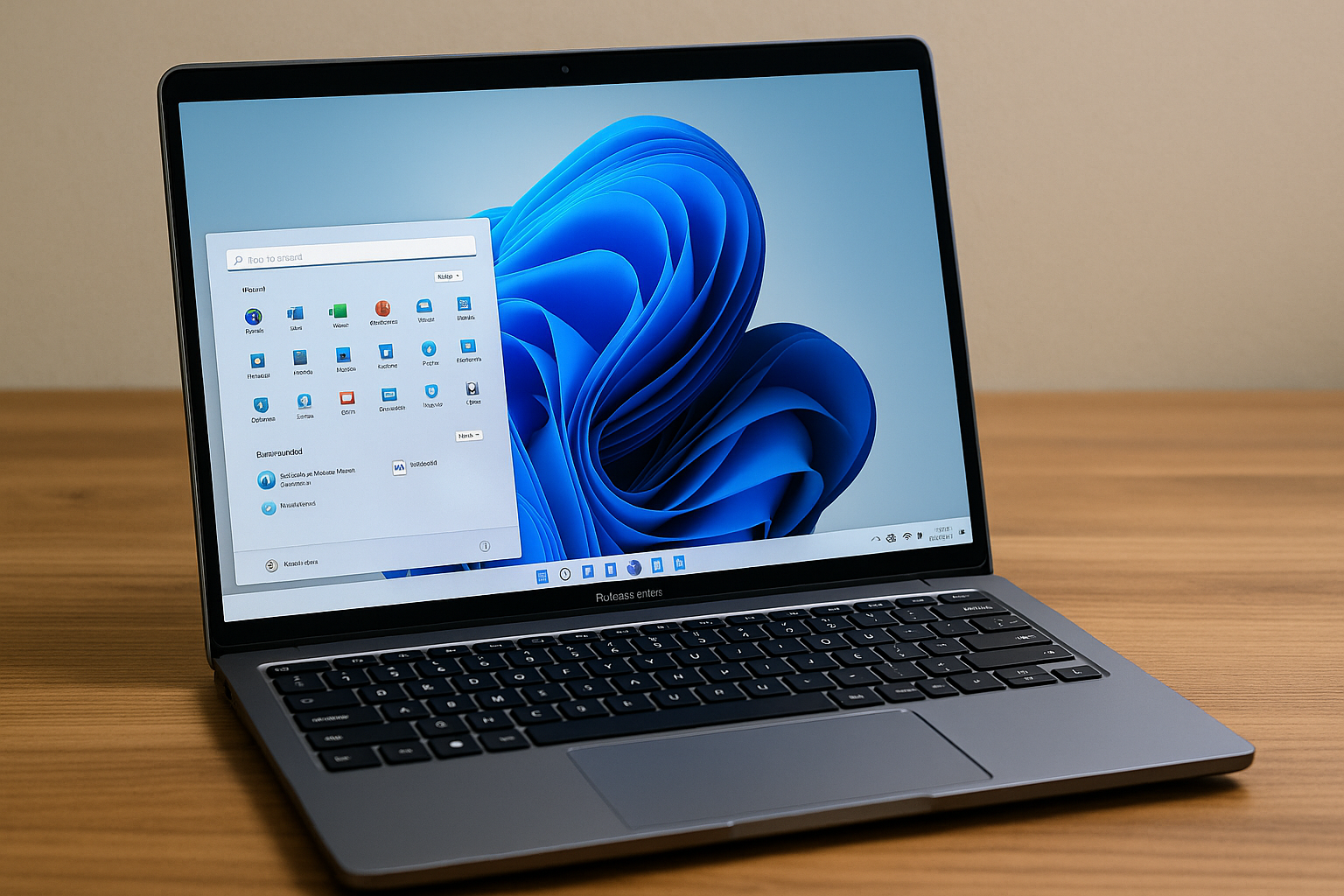
To clean your laptop, start by turning it off and unplugging it from any power source. Then, use a soft brush or compressed air to remove dust and debris from the keys and ventilation slots. Next, use a soft, lint-free cloth lightly dampened with a mild cleaning solution and water to wipe down the exterior surface of the laptop. Be sure not to spray liquids directly onto the laptop and avoid applying too much pressure. Additionally, remember to clean the keyboard and screen regularly to remove fingerprints and grime. For more tips on caring for your laptop, visit our page for laptops.Here’s an overview:
- Introduction to Laptop Hygiene: Importance of Regular Cleaning
- Gathering the Right Cleaning Materials: What You Need
- Preparing Your Workspace: Safety First
- Powering Down and Disconnecting: Starting with a Safe Slate
- External Cleaning: Wiping Down the Case and Screen
- Keyboard Deep Clean: Keys to Keeping it Criss
- Touchpad Tidiness: Maintaining Smooth Operation
- Ports and Peripherals: Clearing the Pathways
- Internal Cleaning Considerations: When to Seek Professional Help
- Reassembling and Reconnecting: The Final Steps
- Maintaining Your Laptop: Routine Cleaning Tips
- Conclusion: The Benefits of a Clean Laptop
Introduction to Laptop Hygiene: Importance of Regular Cleaning
In a digital age where laptops have become an extension of our personal and professional lives, maintaining cleanliness is no longer a matter of mere aesthetics; it’s a necessity for ensuring longevity and performance. Regular cleaning extends beyond the surface; it is a critical part of laptop hygiene that prevents the build-up of dust, debris, and microorganisms, which can compromise both the functionality and health implications for the user.
Laptops, often transported from one environment to another, are subjected to a gamut of contaminants. Neglecting cleaning can lead to the following issues:
- Health Rispects: Keyboards, in particular, can harbour more bacteria than a toilet seat, posing risks of illness and infections.
- Overheating: Dust accumulation clogs the cooling vents, leading to overheating and potential hardware failure.
- Reduced Efficiency: Dirty screens and components can impede clarity and responsiveness, affecting overall user experience.
- Shortened Lifespan: Excessive dirt can corroret components over time, reducing the life expectancy of the device.
Therefore, incorporating laptop hygiene as part of a routine is pivotal. Aside from hygienic benefits, regular cleaning ensures optimal performance, keeping the laptop running smoothly and maintaining its resale value. It is crucial for individuals to remain cognizant of the gentle nature of laptop components and adopt methods that will not compromise the laptop’s integrity while cleaning. A combination of the right tools and techniques can make laptop cleaning both safe and effective.
Gathering the Right Cleaning Materials: What You Need
When embarking on the task of cleaning a laptop, selecting the appropriate materials is critical to ensure the safety of the device and effectiveness of the clean. Here are the essential materials needed for a comprehensive clean:
- Microfibre Cloths: These cloths are gentle on screens and surfaces, effectively removing dust without scratching or leaving residues.
- Isopropyl Alcohol: Look for a solution that contains at least 70% alcohol for sanitising surfaces. It evaporates quickly, minimising the risk of moisture damage.
- Distilled Water: It’s free from minerals that are often found in tap water and will prevent leaving streaks on screens.
- Cotton Swabs and Toothpicks: Cotton swabs are perfect for reaching tight spaces around keys and ports, while toothpicks can dislodge any stubborn debris.
- Canned Air or Compressed Gas Duster: Essential for blowing dust out of keyboards, ports, and fans without physical contact that could cause damage.
- Small Soft-bristled Brush: This can gently sweep dust from cooling vents and between keys.
- Disposable Wipes: Preferably electronic wipes that contain isopropyl alcohol for quick cleanups or for use on the go.
- Mild Dish Soap: A small amount diluted with water can be used for cleaning cases and non-screen surfaces.
- Plastic Pry Tools: If you need to open the laptop for internal cleaning, plastic tools will prevent the scratching and damage metal tools can cause.
Remember to power off and unplug your laptop before cleaning. Additionally, never apply liquid directly to your laptop. Instead, slightly dampen a microfiber cloth with your cleaning solution before wiping down the device. With the right materials assembled, you can proceed to clean your laptop safely and thoroughly, maintaining its condition and functionality.
Preparing Your Workspace: Safety First
When undertaking the task of cleaning your laptop, ensuring a safe workspace is paramount. This requires a few vital steps to protect both yourself and your equipment during the cleaning process:
Create a Clean, Uncluttered Area: Choose a flat, stable surface in a well-lit area to work on. Remove any unnecessary items from the workspace to avoid accidental spills or damage and to provide ample room for all your cleaning supplies.
Static Electricity Precautions: Static electricity can severely damage the internal components of your laptop. Before starting, ground yourself to dissipate any static charge. This can be achieved by touching a grounded metal object or using an anti-static wrist strap.
Power Off and Disconnect: Always make sure that your laptop is switched off, unplanned hibernation or standby modes can lead to accidents. Disconnect the power adapter and all other connected devices. If possible, remove the laptop battery to prevent any chance of electrical shorts or shocks.
Organize Tools and Materials: Prepare all the cleaning tools and materials you will need, such as screwdrivers, isopropyl alcohol, microfiber cloths, and compressed air. Having everything organized in advance minimizes the need to stand up repeatedly, thereby mitigating potential accidents that may occur by hastily leaving the workspace.
Avoid Food and Beverages: To safeguard against liquid spills which can cause irreparable damage to electronic devices, refrain from having food or drinks in the cleaning zone.
Wear Appropriate Clothing: Loose clothing and dangling jewelry can get caught in your laptop or cleaning materials, creating a hazard. Wear snug-fit clothing and keep jewellery to a minimum.
Following these safety preparations lays a strong foundation for a safe and effective laptop cleaning experience, protecting both the user and the device from potential harm.
Powering Down and Disconnecting: Starting with a Safe Slate
Before embarking on any cleaning endeavour involving electronic devices like laptops, it is critical that they are switched off and disconnected from any power sources. This initial step is non-negotiable in the pursuit of safety for both the user and the machine.
Firstly, shut down your laptop completely. Do not opt for a restart or put it to sleep; a complete shutdown ensures that no electrical current is flowing through which might react unfavorably with any cleaning activities.
Once shut down, unplug the device from the mains. If you’re using a wired internet connection, also disconnect the Ethernet cable. Other peripherals, such as mice, keyboards, external drives, and USB-connected devices, should be removed as well.
Turn your attention to the laptop’s battery. If the design allows, remove the battery. This further minimises any electrical risks and gives you the freedom to clean the battery compartment.
Ensure that the laptop is cool to the stroke of your fingers, indicating that there are no concealed operations or lingering heat sources that could cause harm or adversely react with cleaning solutions.
Adhering to these steps prior to cleaning is akin to setting a blank slate; it provides a security assurance that removes the dangers of electrical mishaps. Moreover, it offers a clear work canvas, free from the potential constraints and complications brought by power being inadvertently supplied to the system.
By implementing these measures, you’re not only protecting your hardware but also safeguarding the intricate electronic nuances that keep your laptop functioning optimally in the long term. Now, with a safely powered down and disconnected machine, you’re ready to proceed to the next steps of the cleaning process.
External Cleaning: Wiping Down the Case and Screen
Maintaining the cleanliness of your laptop’s exterior is just as important as caring for its internal components. Dust, dirt, and fingerprints can not only spoil the appearance but also potentially interfere with the device’s functionality. The following process can be employed for effective external cleaning:
Case Cleaning:
- Power Down and Disconnect: Begin by shutting down the laptop and unplugging all connected devices.
- Use Appropriate Cloth: Obtain a soft, lint-free cloth—a microfibre cloth is ideal for this purpose.
- Apply Suitable Cleaner: If necessary, lightly dampen the cloth with water or a mixture of water and mild soap. Avoid spraying liquid directly onto the laptop.
- Gentle Wiping: Wipe the surface gently, paying special attention to areas where dirt accumulates. Always move the cloth in a consistent direction to avoid streaks.
- Dry Thoroughly: Follow up with a dry cloth to remove any moisture, ensuring you leave no wet patches to prevent damage.
Screen Cleaning:
- Select a Proper Cloth and Cleaner: It’s essential to use a soft cloth specifically designed for screens, paired with a suitable screen cleaner.
- Light Application: Lightly spray the cleaner onto the cloth, not directly onto the screen, to avoid liquid seeping into the bezel.
- Delicate Wiping: With the damp cloth, gently clean the screen in a circular motion to avoid streaking.
- Dry Off: Finish with a pass of a dry cloth to remove any streaks and ensure a clear, clean display.
Note: Under no circumstances should abrasive materials, alcohol, or bleach-based cleaners be used on the exterior of the laptop; these can cause irreparable damage to the screen and case materials. Always consult your manufacturer’s guidelines if in doubt about suitable cleaning products.
Keyboard Deep Clean: Keys to Keeping it Criss
The keyboard is one of the most touched and bacteria-prone components of a laptop. To maintain a clean and functional keyboard, certain steps must be diligently followed.
Turn off the laptop and disconnect all power sources: This is crucial to avoid electrical damage or short-circuits.
Remove debris: Turn the laptop upside down and gently shake it to dislodge any crumbs or dirt stuck between the keys.
Use compressed air: Spray between the keys with a can of compressed air to remove dust and particles that shaking couldn’t. Angle the can slightly, but avoid turning it upside down to prevent moisture spillage.
Apply cleaning solution to a microfiber cloth: A mixture of water and isopropyl alcohol (at least 70%) is effective. Never pour the solution directly onto the keyboard.
- Lightly dampen the microfiber cloth with the mixture and gently wipe the keys and keyboard surface.
- Avoid excess moisture, which could seep beneath the keys and cause damage.
Consider key removal for deeper clean: For laptops that allow, carefully remove the keys to clean the area underneath.
- Use a keycap puller or a flat tool to gently lever the keys off, starting from one corner.
- Once removed, clean the keys individually with the previously mentioned cleaning solution.
- Clean the underlying surface with the same solution but ensure minimal dampness.
Allow to dry completely: Before reassembling or using the keyboard, ensure it’s thoroughly dry to avoid damaging the electronic components.
Reattach any removed keys: Carefully snap them back into place, being sure they are properly seated and functional.
Regularly following these steps will prolong the life of the laptop keyboard and provide a more hygienic, crisp user experience.
Touchpad Tidiness: Maintaining Smooth Operation
A laptop’s touchpad is a vital component for navigation; hence, ensuring its cleanliness enhances its functionality and responsiveness. Here are some steps to keep the touchpad in prime condition:
Turn Off the Laptop: Begin by shutting down the laptop to prevent any unwanted clicks or system navigation while cleaning.
Use a Soft Cloth: Preferably, use a microfibre cloth to gently wipe the surface of the touchpad. If necessary, slightly dampen the cloth with water or an alcohol-based cleaning solution. Avoid using paper towels as they can be abrasive.
Apply Minimal Pressure: Apply gentle pressure to remove any oils or residue without damaging the touchpad’s sensitive surface. Do not use excessive force.
Target the Edges: Accumulated debris often collects at the edges of the touchpad. Carefully clean these areas with a soft-bristled brush or a toothpick, exercising caution not to scratch the surface.
Dry the Area: After cleaning, ensure that the touchpad is dry. Pass a dry section of the cloth over the touchpad to absorb any lingering moisture.
Regular Maintenance: Incorporate touchpad cleaning into regular laptop maintenance, doing so every few weeks or when needed to keep the touchpad responsive.
Remember, the touchpad’s sensitivity can be affected by both grime and liquid. Hence, one should always avoid spilling any substances on it and should be vigilant about cleaning their hands before use, which can reduce the frequency of deep cleans required. By maintaining a clean touchpad, users can enjoy uninterrupted cursor movements and touch gestures, leading to a more pleasant and efficient computing experience.
Ports and Peripherals: Clearing the Pathways
A pivotal part of laptop upkeep involves maintaining clean and functioning ports and peripheral connections. Dirt, dust, and debris can accumulate in these areas, leading to poor connectivity and potential hardware issues.
- Begin by powering off your laptop and disconnecting any plugged-in peripherals, such as a mouse, keyboard, or external hard drive.
- Use a can of compressed air to gently blow away dust from USB ports, HDMI ports, audio jacks, and any other openings. Short, controlled bursts will dislodge debris without pushing it further into the laptop.
- For tougher grime that might be stuck around the ports, a cotton swab lightly dampened with isopropyl alcohol can be carefully used to clean around the edges. Make sure the swab isn’t dripping wet to avoid liquid getting inside the ports.
- Cleaning card slots may require special attention. Gently insert a lint-free cloth slightly dampened with alcohol into the slot, being careful not to fray the cloth. Pull it out slowly to drag out any dust particles or buildup.
- Inspect the peripheral devices and cables as well. Wipe them down with a soft, dry microfiber cloth. If necessary, gently clean the connectors with a cloth moistened with alcohol.
- If your laptop has a removable battery, take it out and dust off any debris from the battery itself and the compartment using a soft brush or cloth.
- Once you’ve cleaned the ports and peripherals, give them time to air dry completely before reconnecting any devices or powering on the laptop.
Making sure that these often overlooked pathways are clear not only improves the functionality of your laptop but also extends its lifespan by reducing wear on the connections.
Internal Cleaning Considerations: When to Seek Professional Help
While certain aspects of laptop cleaning can be handled personally with care and precision, there are situations where seeking professional assistance is not only beneficial but necessary. Users should consider the following scenarios in which a professional service is advisable:
Lack of Experience: If users are unsure about their ability to disassemble and reassemble their device without causing damage, professionals can ensure the safe handling of sensitive components.
Warranty Concerns: Tampering with a laptop’s internal components may void the warranty. Professionals are familiar with the policies of different manufacturers and can perform the necessary tasks without risking the warranty status.
High-Value Devices: High-end laptops with complex architectures or delicate parts might require specialised tools and expertise. In these cases, it’s wise to trust the task to those who are trained to handle such devices.
Persistent Issues: If a laptop continues to overheat, make strange noises, or exhibits other signs of internal issues after a basic cleaning, a deeper problem may exist. Technicians can diagnose and address these issues more thoroughly.
Liquid Damage: In the event of liquid spills, merely drying out the device is not enough. Corrosion can set in quickly, so professional cleaning is necessary to prevent long-term damage.
In these cases, users are encouraged to seek the assistance of certified technicians who offer professional cleaning services. These experts have the proper tools, knowledge, and experience to perform a detailed cleaning of the laptop’s internal components, improving its performance and longevity while also preserving the user’s safety and the device’s functionality.
Reassembling and Reconnecting: The Final Steps
After meticulously cleaning the laptop, both inside and out, it’s now time to carefully reassemble the components to restore the laptop to its operational state.
Begin with Internal Components: If any parts were removed, such as the battery or RAM, carefully replace them. Ensure they snap securely into place. For parts like the battery, align it with its connector, and gently press down until it clicks. With RAM, align the notches and apply even pressure on both ends until the clips hold the module in place.
Reattach Cables and Hardware: For dislodged cables, connect them firmly back into their respective ports. Reinstall the keyboard by reversing the disassembly process, ensuring that the ribbon cable is correctly seated and secure.
Screw in the Chassis: Replace the screws that were removed from the laptop’s bottom panel or chassis. Do this in a cross-star pattern to ensure even pressure distribution, which is particularly important for larger laptops.
External Devices: Reconnect any external devices such as mouse, keyboard, or external drives. This is also an optimal time to manage cables and ensure the workspace is organised.
Power Test: Before replacing any covers, turn on the laptop to check that all components are working correctly. If the laptop powers on and boots normally, then proceed to replace the covers.
Final Touches: With the assurance that the internal components are functioning, replace any external covers. Snap them back into place with gentle, but firm pressure. Make sure all clips and screws are accounted for to prevent rattles or loose fittings.
Upon completion of these steps, the laptop should be in top operational condition. The careful reassembly ensures that users can transition back to their work or personal activities with a clean and optimally functioning device. Remember to dispose of any used cleaning materials appropriately and recycle them if possible.
Maintaining Your Laptop: Routine Cleaning Tips
Maintaining the cleanliness of a laptop ensures both its aesthetic appeal and functional longevity. Laptop owners are urged to incorporate the following cleaning habits into their routine:
Exterior Cleaning: Begin with the laptop turned off and unplugged. Use a soft, lint-free cloth, lightly dampened with water or an appropriate electronic cleaner, to wipe down the exterior. Avoid abrasive cloths, towels, paper towels, or similar items that might cause damage.
Keyboard Care: Turn the laptop upside down and gently shake it to dislodge any debris. Compressed air can be used to blow out particles from between the keys. For a deeper clean, lightly dampen a microfiber cloth with isopropyl alcohol and wipe the keys; do not allow liquid to seep beneath them.
Screen Polishing: The display is delicate and should be treated carefully. Use a soft, dry cloth to remove dust. Stubborn smudges can be tackled with a microfiber cloth and a small amount of specialised screen cleaning solution. Never use window cleaners, household cleaners, or alcohol.
Ventilation Optimization: Keeping vents clear from dust maximizes cooling efficiency and improves performance. Use a can of compressed air to blow dust away from the fan and exhaust vents, being careful to hold the can upright to prevent moisture from entering the system.
Peripheral Attention: When cleaning, remember peripheral devices. Wipe down your mouse and any external keyboards or monitors connected to your laptop, following the same general principles for the laptop itself.
Regular maintenance should also include digital hygiene, such as organizing files, updating software, and running antivirus checks. This comprehensive approach to cleanliness protects both the outside and the digital inside of the laptop.
Conclusion: The Benefits of a Clean Laptop
Maintaining a clean laptop extends far beyond mere aesthetics. Engaging in this practice yields a multitude of benefits that enhance both the machine’s performance and the user’s experience. Firstly, removing dust and debris can significantly improve thermal performance. Cooling systems within laptops are finely tuned to dissipate heat effectively; when obstructed, the risk of overheating rises, potentially causing hardware failures. A clean laptop maintains optimal operating temperatures, ensuring longevity of the internal components.
Secondly, a clean keyboard and screen directly enhance the user’s interaction with the device. Clear displays and responsive keys facilitate more efficient work and a more pleasant entertainment experience. Furthermore, regular cleaning reduces the buildup of germs and bacteria, a crucial factor for maintaining good hygiene, particularly for devices that are frequently touched.
Another benefit lies in maintaining the laptop’s value. Should the time come to sell or trade in the device, a well-maintained appearance can significantly increase its market value. Buyers are far more inclined to pay a premium for electronics that have been cared for properly.
Lastly, engaging in the practice of regular cleaning can also reduce the likelihood of costly repairs. Dirt and debris can cause short-circuiting and other electrical issues that may not only require professional attention but could also lead to the loss of important data.
In essence, taking the time to clean a laptop is an investment in its performance, lifespan, and value. It is a simple yet effective way to ensure the machine continues to serve its purpose efficiently and safely.